How to Create and Invite Manager Accounts on VIGI Cloud VMS
Contents
Accept an invitation via email
Accept an invitation via the VIGI App
Accept an invitation via VIGI Cloud VMS
Introduction
VIGI Cloud VMS supports multi-user and multi-site management for surveillance deployments of different sizes. Administrators can invite other TP-Link ID accounts and assign different management permissions based on operational requirements.
This article explains how to invite manager accounts and assign user roles in VIGI Cloud VMS.
Requirements
- VIGI Cloud VMS
- VIGI App
- A registered TP-Link ID
Configuration
Follow the steps below to invite a manager account and assign the required permissions.
Invite a manager account
Step 1. Open the User management page
Log in to the VIGI Cloud VMS web portal (https://vms.tplinkcloud.com/) and navigate to Admin > Users.
Note: Make sure you are the Organization Owner, Super Admin, or Admin. Otherwise, you may not have permission to add users.
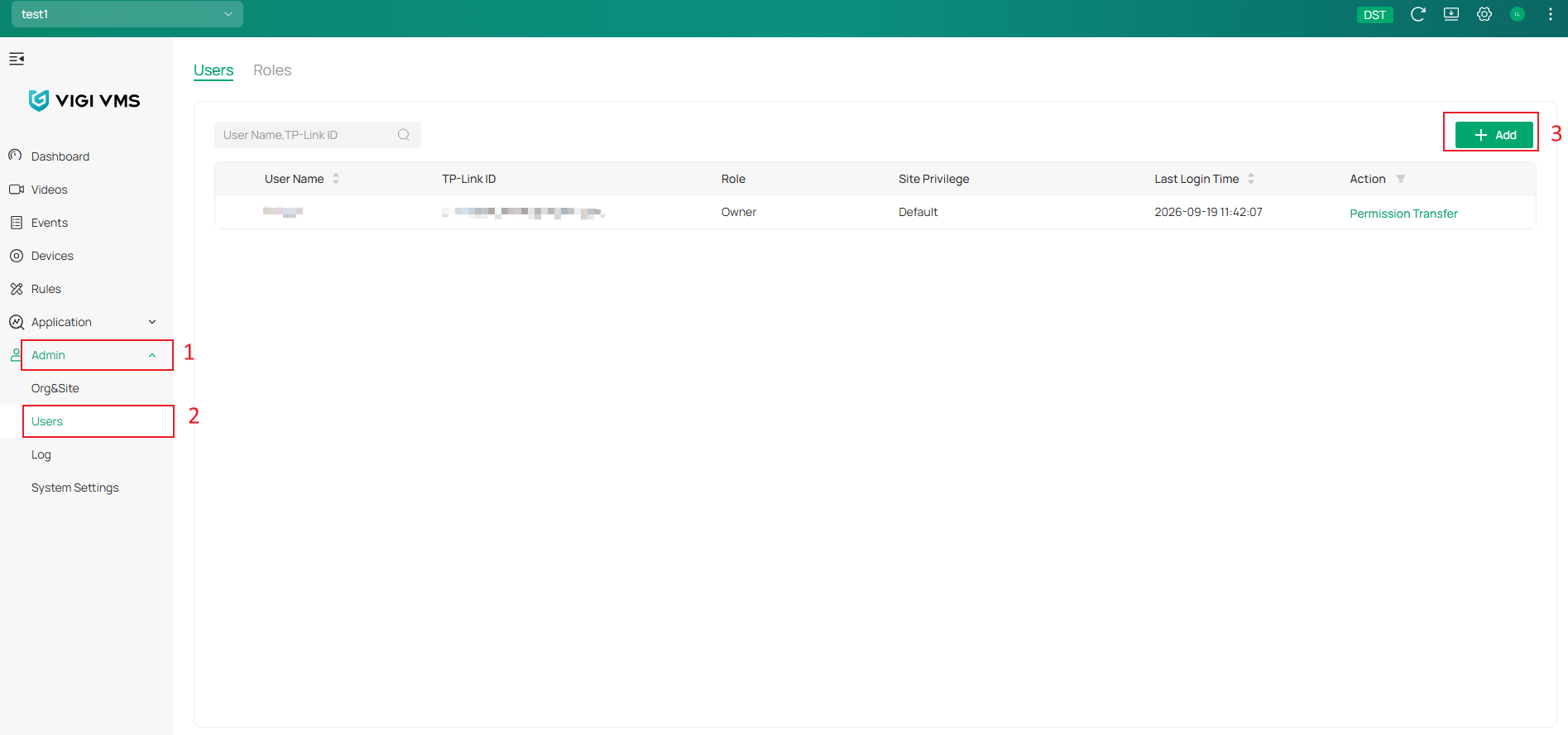
Step 2. Add a user
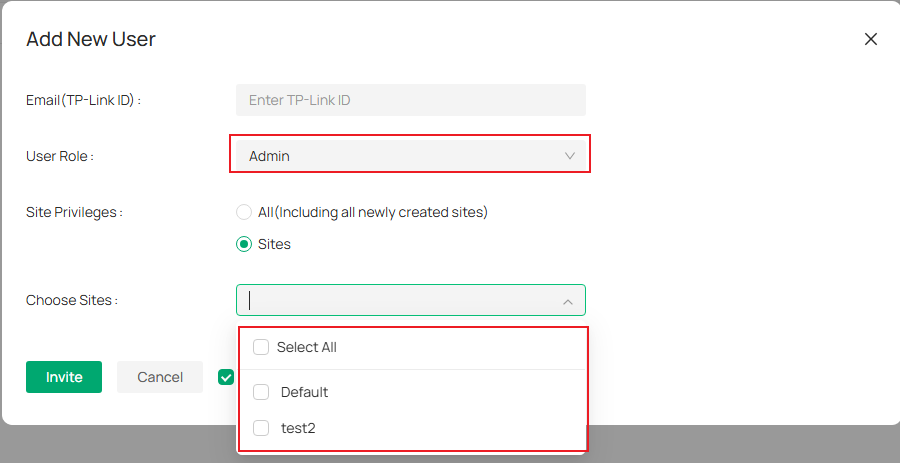
Click Add, enter the invitee's TP-Link ID, and select a user role.
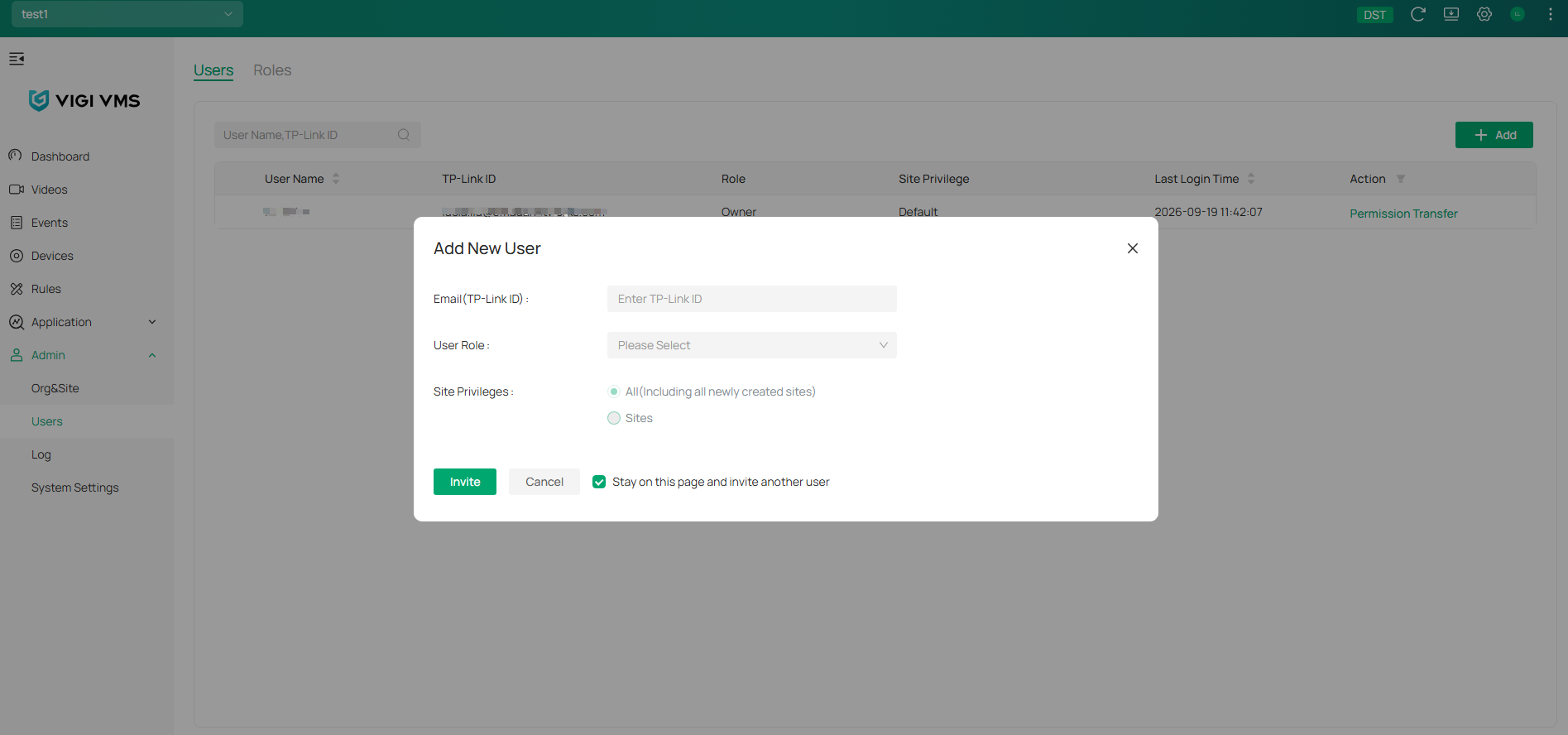
Step 3. Configure permissions
VIGI Cloud VMS currently supports the following user roles: Super Admin, Admin, Operator, Viewer, Live Only User.
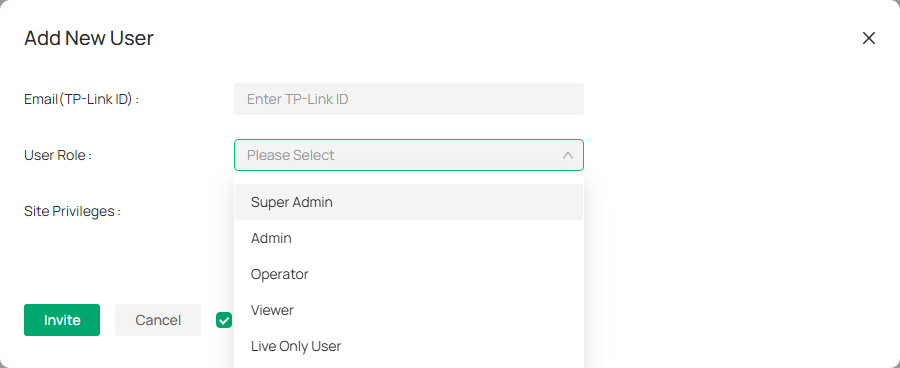
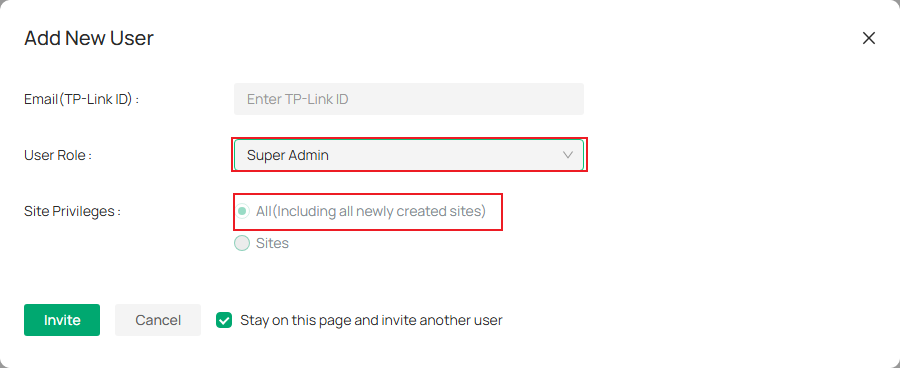
Note: There are currently five user roles available when inviting a manager account. The Super Admin role is equivalent to Owner permissions, and its Site access cannot be restricted through Site Privileges; by default, it has administrative access to all Sites. The other four roles can be assigned Site Privileges, allowing the invitee to grant access either to all Sites or to specific Sites only.
Step 4. Send the invitation
Click Invite. After the invitation is sent successfully, a confirmation message is displayed.
Note: Invitations remain valid for 7 days.
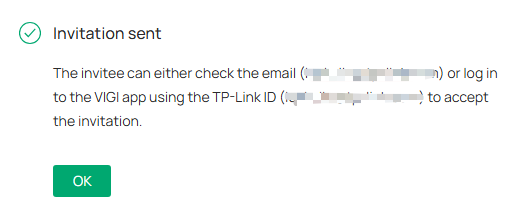
There are three ways to accept the invitation: email, the VIGI App, and the VIGI Cloud VMS web portal.
Accept an invitation via email
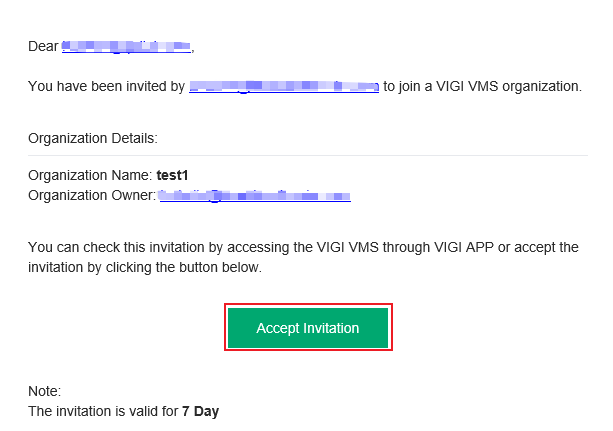
Step 1. The invitee should go to the email inbox to check the email and click Accept Invitation.
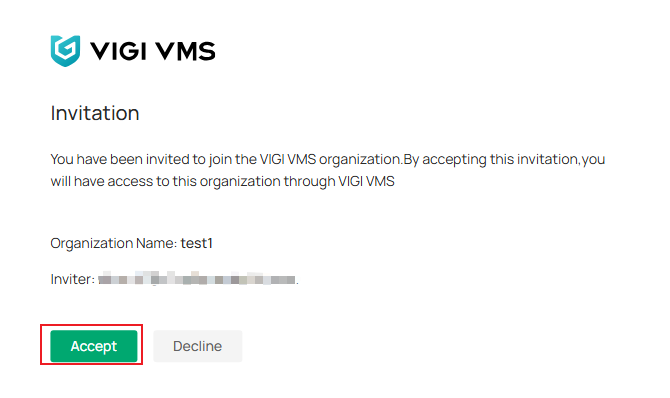
Step 2. You will be redirected to the browser page; click Accept.
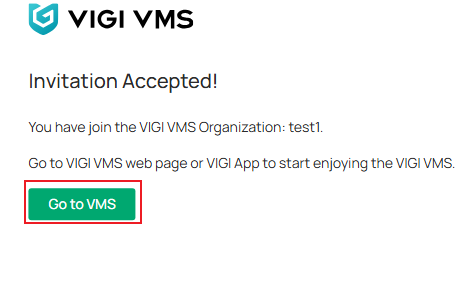
Step 3. The page indicates that the invitation has been accepted. Click Go to VMS.
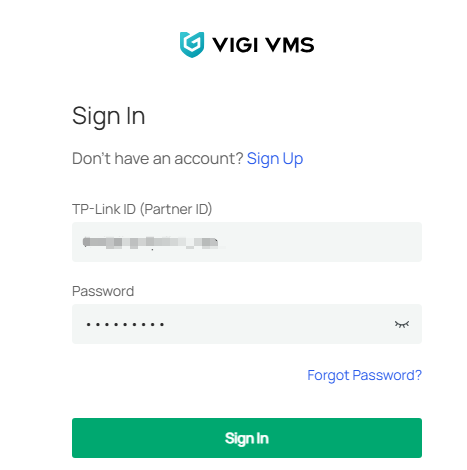
Step 4. The page will be redirected to the VIGI Cloud VMS login page.
Accept an invitation via the VIGI App
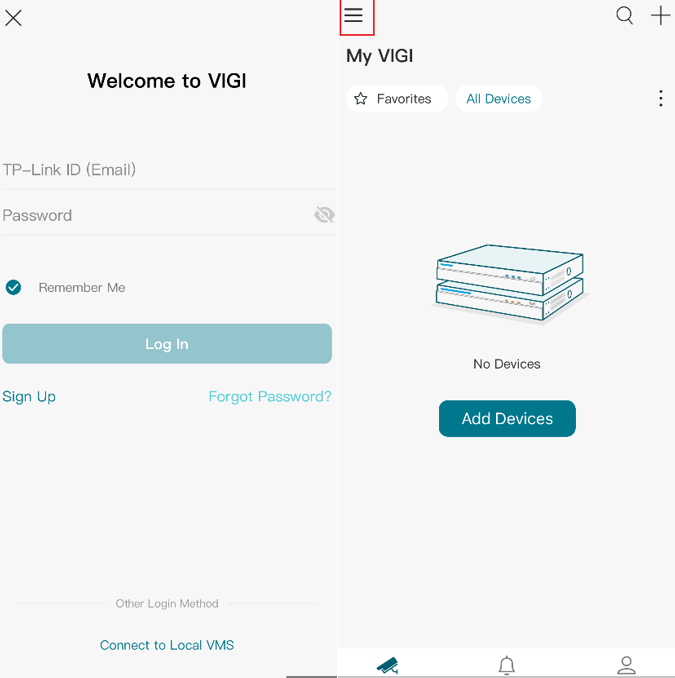
Step 1. Open the VIGI App, then the invitee needs to log in using the invited account. When selecting an organization, any organization can be chosen. Click the three horizontal lines icon at the top left, then click the Organization to join.
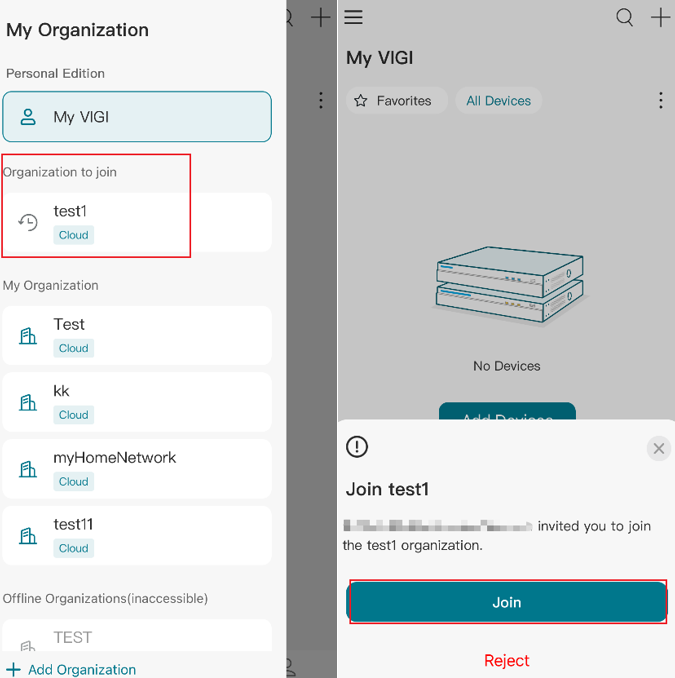
Step 2. Click Join in the pop-up window.
Accept an invitation via VIGI Cloud VMS
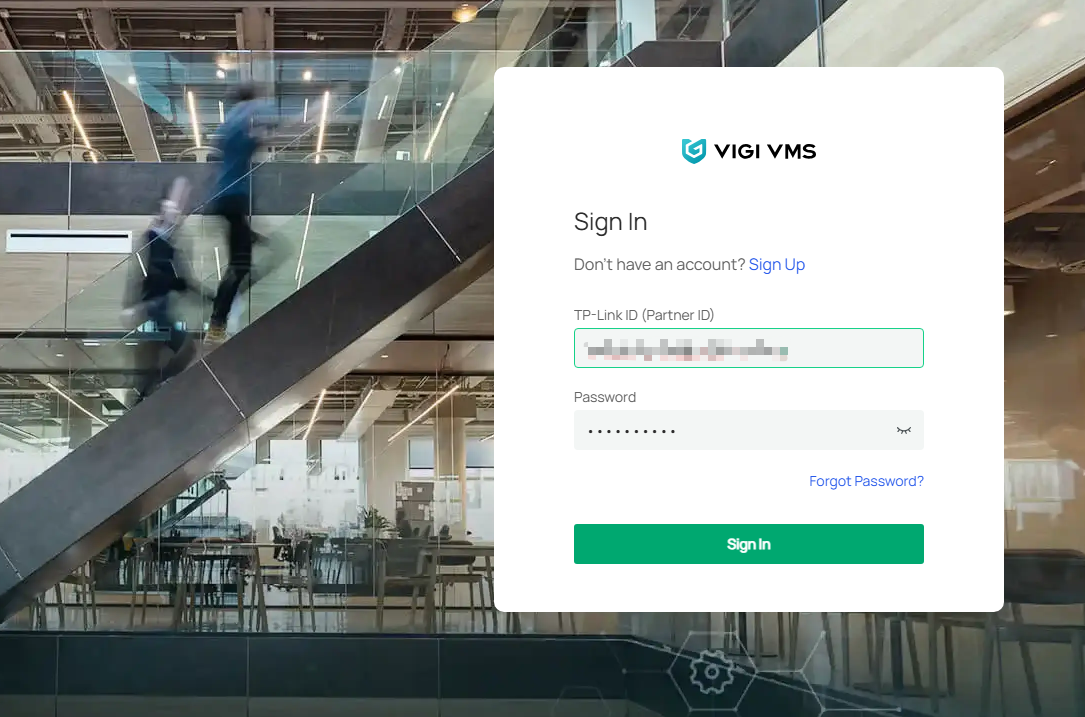
Step 1. On the VIGI Cloud VMS login page, enter the invited account and password, and click Log in.
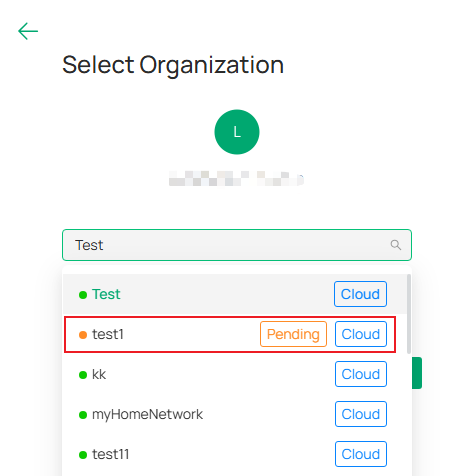
Step 2. Click the invited organization showing Pending.
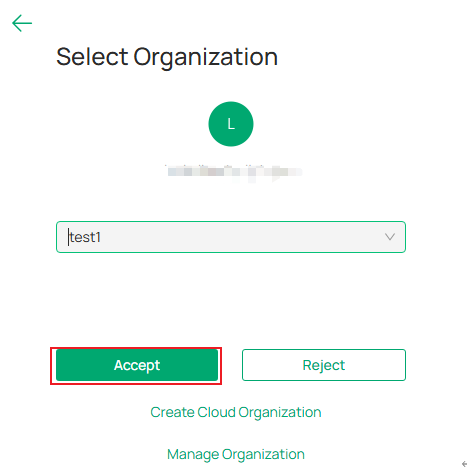
Step 3. Click Accept.
Verification
- Email verification
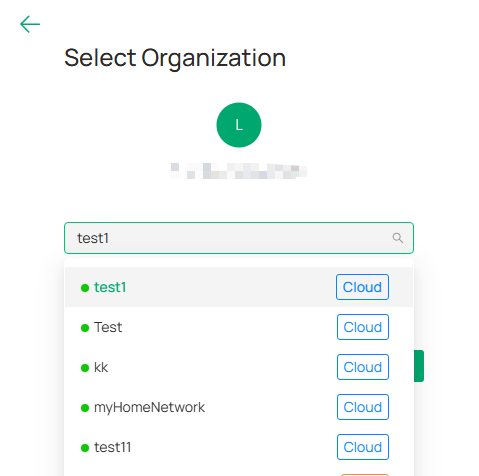
Log in to the VIGI Cloud VMS web portal (https://vms.tplinkcloud.com/) with the invited account. When selecting an organization, verify whether the recently invited organization is available.
- VIGI App verification
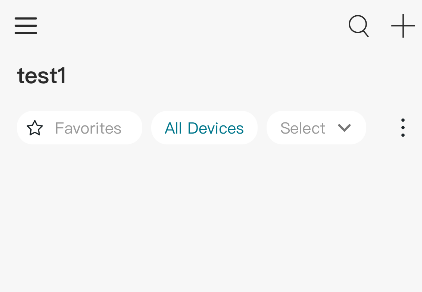
When you click Join in the VIGI App, it will automatically switch to the invited organization.
- VIGI Cloud VMS web portal verification
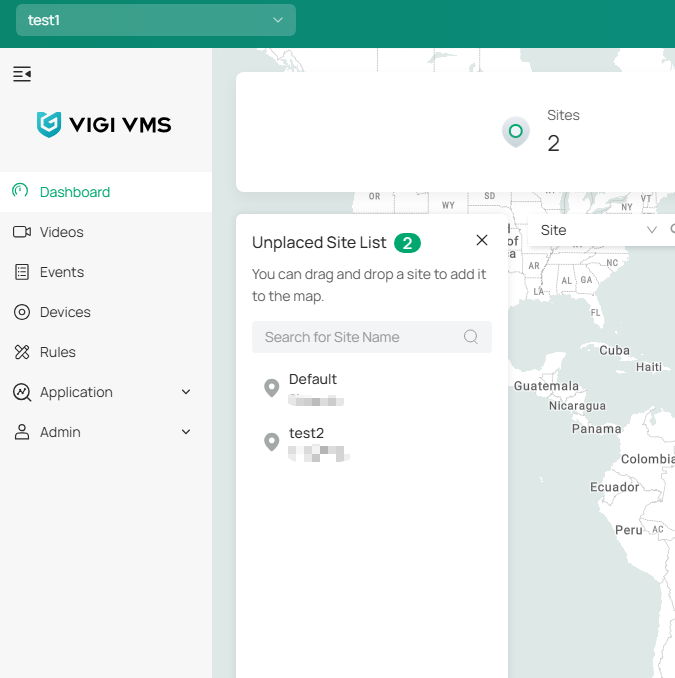
When you click Accept in the VIGI Cloud VMS web portal, you will be automatically logged into the invited organization on the VIGI Cloud VMS web portal.
Conclusion
You have now successfully invited and configured a manager account in VIGI Cloud VMS. By assigning appropriate user roles and site permissions, administrators can manage user access more efficiently while maintaining operational flexibility across multiple sites.
To learn more about each function and configuration, please visit Support Home to download or check the manual for your product.
QA
Q1: Does the invited user need a TP-Link ID?
A1: Yes. The invited account must already be registered as a TP-Link ID before the invitation can be accepted.
Q2: Can an Admin user invite another user?
A2: Yes. Owner, Super Admin, and Admin accounts can add a new user. For detailed role permissions, refer to: What Are the Differences Among Super Admin, Admin, Operator, Viewer, and Live Only Accounts in VIGI Cloud VMS?
Q3: Can site permissions be customized for all roles?
A3: No. Super Admin permissions automatically apply to all sites and cannot be customized. Other roles can be assigned access to all sites or selected sites only.
Q4: What happens if the invitation expires?
A4: Invitations are valid for 7 days. If the invitation expires, the administrator must send a new invitation.
Looking For More
Is this faq useful?
Your feedback helps improve this site.

TP-Link Community
Still need help? Search for answers, ask questions, and get help from TP-Link experts and other users around the world.