How to Identify Fake or Incompatible microSD Cards for VIGI Cameras
Contents
Introduction
Some VIGI cameras support local recording through a microSD card. If the camera cannot format the card, fails to overwrite recordings, stops recording unexpectedly, or reports storage-related errors, an incompatible or counterfeit microSD card may cause the issue.
This article explains how to identify potential fake microSD cards and verify whether a card is suitable for use with a VIGI camera.
Requirements
- VIGI Camera with microSD card support
- microSD card
Note:
- Only certain VIGI camera models support microSD card storage.
- Standard SD cards are not supported.
- The microSD card is not included with the camera and must be purchased separately.
- TP-Link recommends testing the microSD card immediately after purchase.
- For local recording, format the microSD card through the VIGI App before using it.
Troubleshooting
Follow the steps below if the microSD card cannot be formatted, stops recording, or behaves abnormally.
Step 1. Verify the microSD card specifications
VIGI cameras support microSD cards with capacities up to 512 GB.
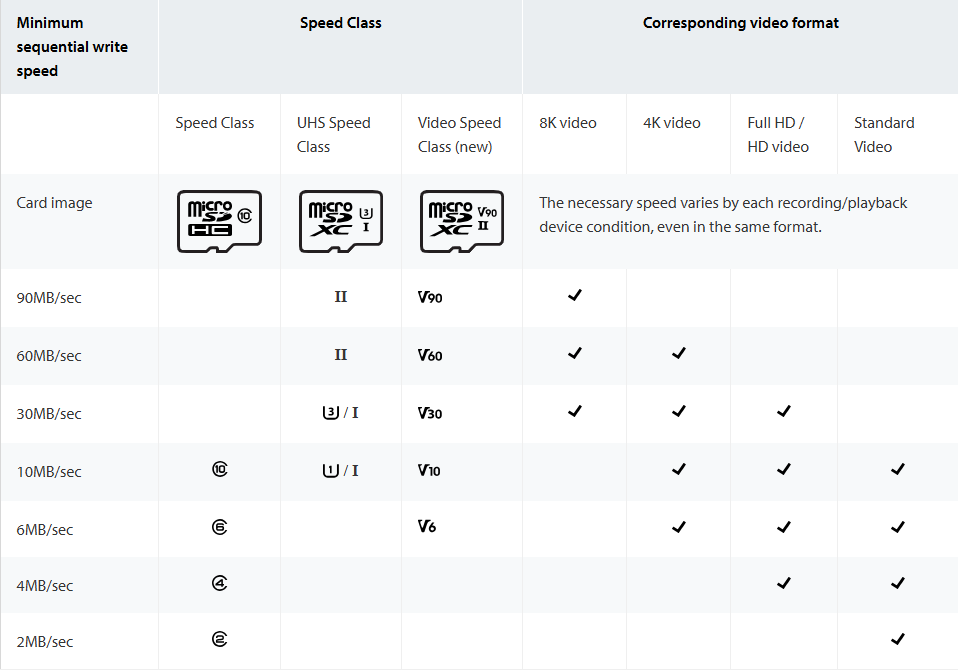
TP-Link recommends using microSD cards that meet the following requirements:
-
- Class 10 or higher
- UHS-I (U1) or higher
- Reliable brand products
Cards with insufficient write performance may cause recording interruptions, storage errors, or failed formatting.
Step 2. Understand common types of fake microSD cards
Counterfeit microSD cards may appear to work normally but can cause data loss and recording issues over time.
Common types include:
Fake capacity cards
A fake capacity card reports a larger capacity than is physically available.
For example:
-
- Actual capacity: 32 GB
- Reported capacity: 128 GB
When recording exceeds the actual storage capacity, video files may become corrupted or inaccessible.
Reduced-speed cards
Some cards advertise high-speed ratings but cannot sustain the write performance required for continuous video recording.
Counterfeit brand cards
Some products imitate well-known brands while using lower-quality memory components.
Unrealistic capacity cards
Be cautious of cards advertising capacities that are not yet commonly available in the market.
Step 3. Use recommended microSD cards
When purchasing a microSD card for a VIGI camera, consider the following recommendations:
- Always make sure to buy from an authorized seller.
- Be careful about cheap SD cards.
- Always inspect and test each card to make sure that it is genuine.
- Do not buy used or refurbished SD cards.
- Replace SD cards once every few years to reduce potential failure.
A list of microSD cards we have tested:
|
Sandisk |
4GB |
C4 (Black) |
|
64GB |
HIGH ENDURANCE U3 V30 (White) |
|
|
64GB |
MAX ENDURANCE U3 V30 (White) |
|
|
64GB |
Extreme PRO U3 V30 (Black and red) |
|
|
128GB |
Extreme U3 V30 A2 (Red and yellow) |
|
|
256GB |
Ultra U1 (Red and grey) |
|
|
256GB |
Extreme PRO U3 V30 A2 (Black and red) |
|
|
256GB |
Extreme U3 V30 (Red and yellow) |
|
|
512GB |
Extreme U3 V30 A2 (Red and yellow) |
|
|
Kingston |
8GB |
C4 (Black) |
|
64GB |
ENDURANCE U1 (Black and white) |
|
|
64GB |
(Black) |
|
|
64GB |
CANVAS Go! Plus U3 V30 A2 (Blue) |
|
|
128GB |
CANVAS Select Plus (Black) |
|
|
128GB |
CANVAS Select Plus (Black) |
|
|
256GB |
CANVAS Go! Plus U3 V30 A2 (Black and blue) |
|
|
Samsung |
64GB |
PRO Endurance U1 (Black and white) |
|
64GB |
PRO Endurance U1 V10 (White) |
|
|
128GB |
EVO Plus U3 V30 A2 (White) |
|
|
256GB |
PRO Plus U3 V30 A2 (Blue) |
|
|
DM |
4GB |
U1 (Black and yellow) |
|
KIOXIA |
32GB |
EXCERIA PLUS U3 V30 (Purple) |
|
Lexar |
32GB |
HIGH-ENDURANCE U1 V10 (Black and white) |
|
ADATA |
32GB |
U1 V10 (Black and blue) |
|
Netac |
64GB |
PRO U3 V30 (Black and red) |
|
Gigastone |
64GB |
Professional 633x U3 (Red and orange) |
Step 4. Insert the microSD card properly
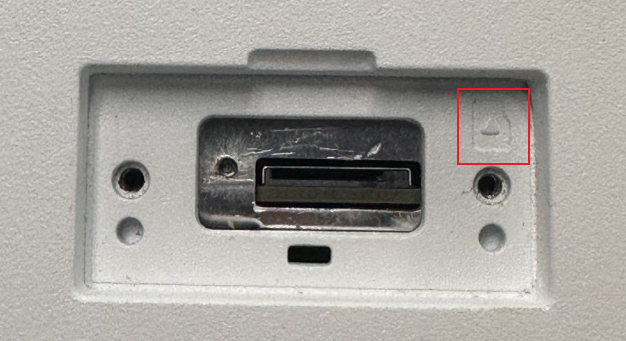
Please insert the SD card in the correct orientation according to the pattern on the SD card slot.
Step 5. Format the card through the VIGI App
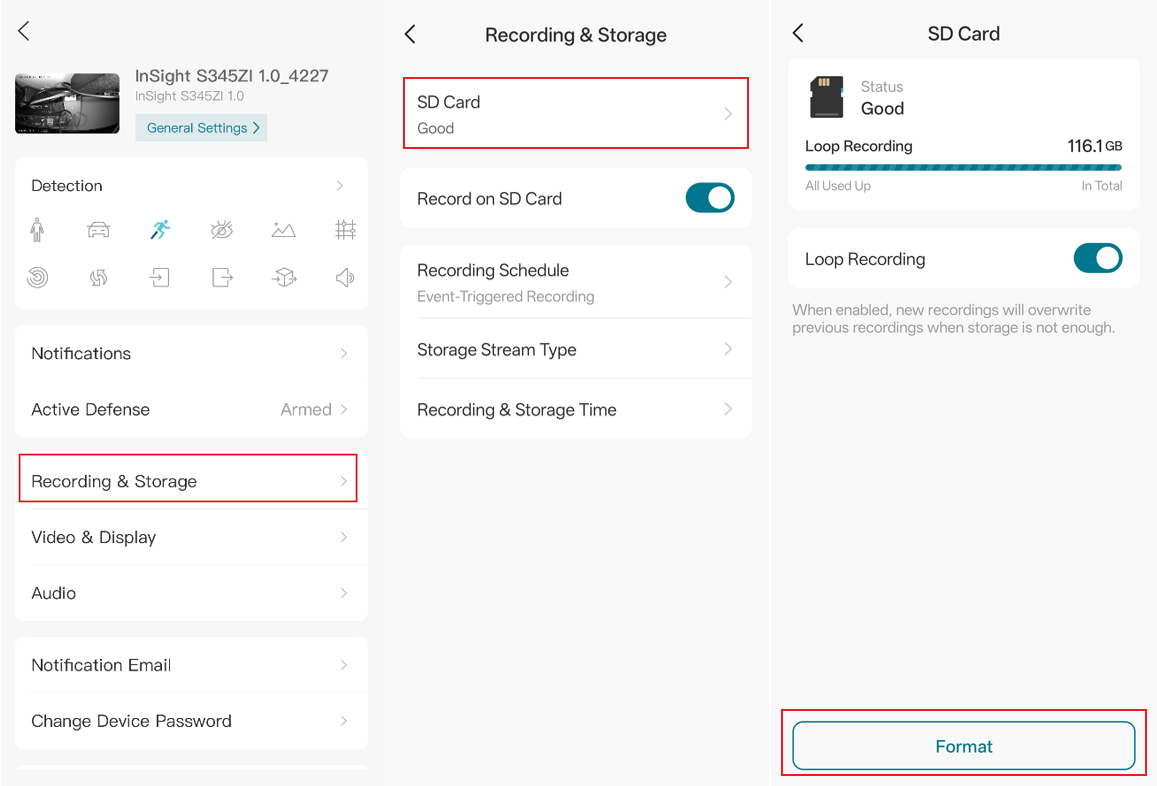
For VIGI cameras, the microSD card should be formatted through the VIGI App before local recording is enabled.
Navigate to VIGI App > Device > Device Settings > Recording & Storage > SD Card, then tap Format
Step 6. Test the microSD card
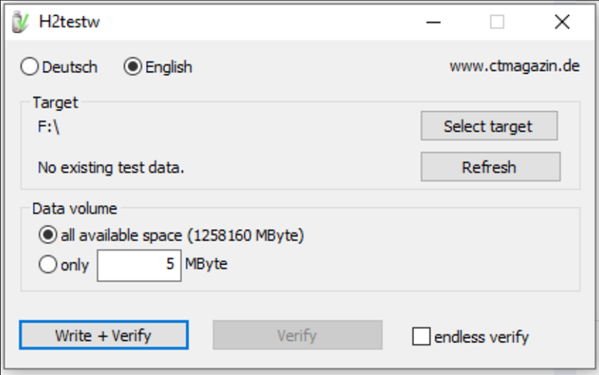
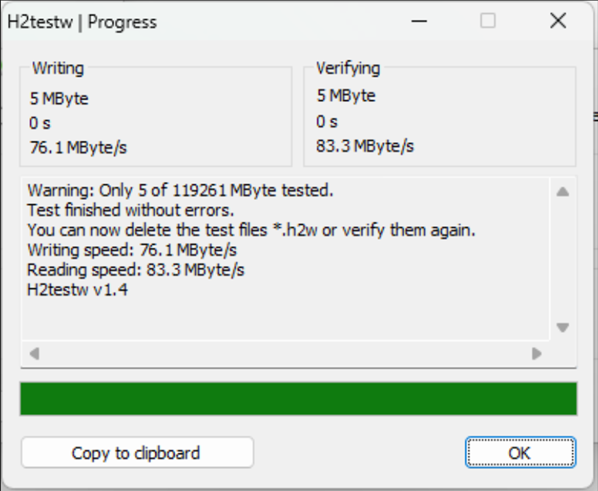
If you suspect the microSD card may be counterfeit, verify its actual capacity and performance using third-party tools. Examples include:
Windows: H2testw
macOS: F3
Android: SD Insight
These tools can help verify:
-
- Actual storage capacity
- Read speed
- Write speed
- Data integrity
Here we take H2testw as an example:
Conclusion
You have now completed the recommended troubleshooting procedures for identifying counterfeit or incompatible microSD cards used with VIGI cameras. By verifying card specifications, testing actual capacity, formatting through the VIGI App, and purchasing storage from trusted sources, most microSD card issues can be identified and avoided.
To learn more about each function and configuration, please visit Support Home to download or check the manual for your product.
QA
Q1: Why does the camera fail to format my microSD card?
A1: The microSD card may be incompatible, damaged, counterfeit, or unable to meet the performance requirements for continuous video recording.
Q2: What happens if I use a fake capacity microSD card?
A2: The card may report a larger capacity than is physically available. Once recording exceeds the actual capacity, video files may become corrupted or inaccessible.
Q3: Why does the camera stop recording even when storage appears available?
A3: This may indicate a counterfeit microSD card reporting incorrect capacity information or a storage media failure.
Q4: What type of microSD card is recommended for VIGI cameras?
A4: TP-Link recommends using Class 10 or higher microSD cards from reputable manufacturers and formatting the card through the VIGI App before using it.
Looking For More
Is this faq useful?
Your feedback helps improve this site.



TP-Link Community
Still need help? Search for answers, ask questions, and get help from TP-Link experts and other users around the world.