How to add third-party cameras to VIGI NVR via ONVIF
 99
99Contents
Introduction
ONVIF (Open Network Video Interface Forum) is an industry-standard protocol that enables interoperability between IP-based security devices such as cameras, recorders, and video management systems. By adhering to ONVIF specifications, devices from different manufacturers can communicate, stream video, and share control functions without requiring proprietary integration.
This compatibility makes it possible to use cameras and network video recorders (NVRs) from different brands within the same system, provided they support the same ONVIF profiles.
The following FAQ outlines the steps required to add a third-party ONVIF-compatible camera to a TP-Link VIGI NVR, along with key considerations to ensure proper configuration and reliable operation.
Requirements
- A VIGI NVR. (Supported devices for your region can be found here: https://www.vigi.com/business-networking/vigi-network-video-recorder/)
- An ONVIF compatible Camera
Before you begin
Before a camera can be added via ONVIF, some models require initial setup. This typically includes completing the camera’s first-time configuration process and enabling ONVIF within its settings. Only after these steps are completed can the camera be successfully added to a VIGI NVR using ONVIF.
Make sure the 3rd party camera is connected to the same network as the VIGI NVR. Log into the NVR Web Interface by entering its IP Address in a web browser.
Configuration
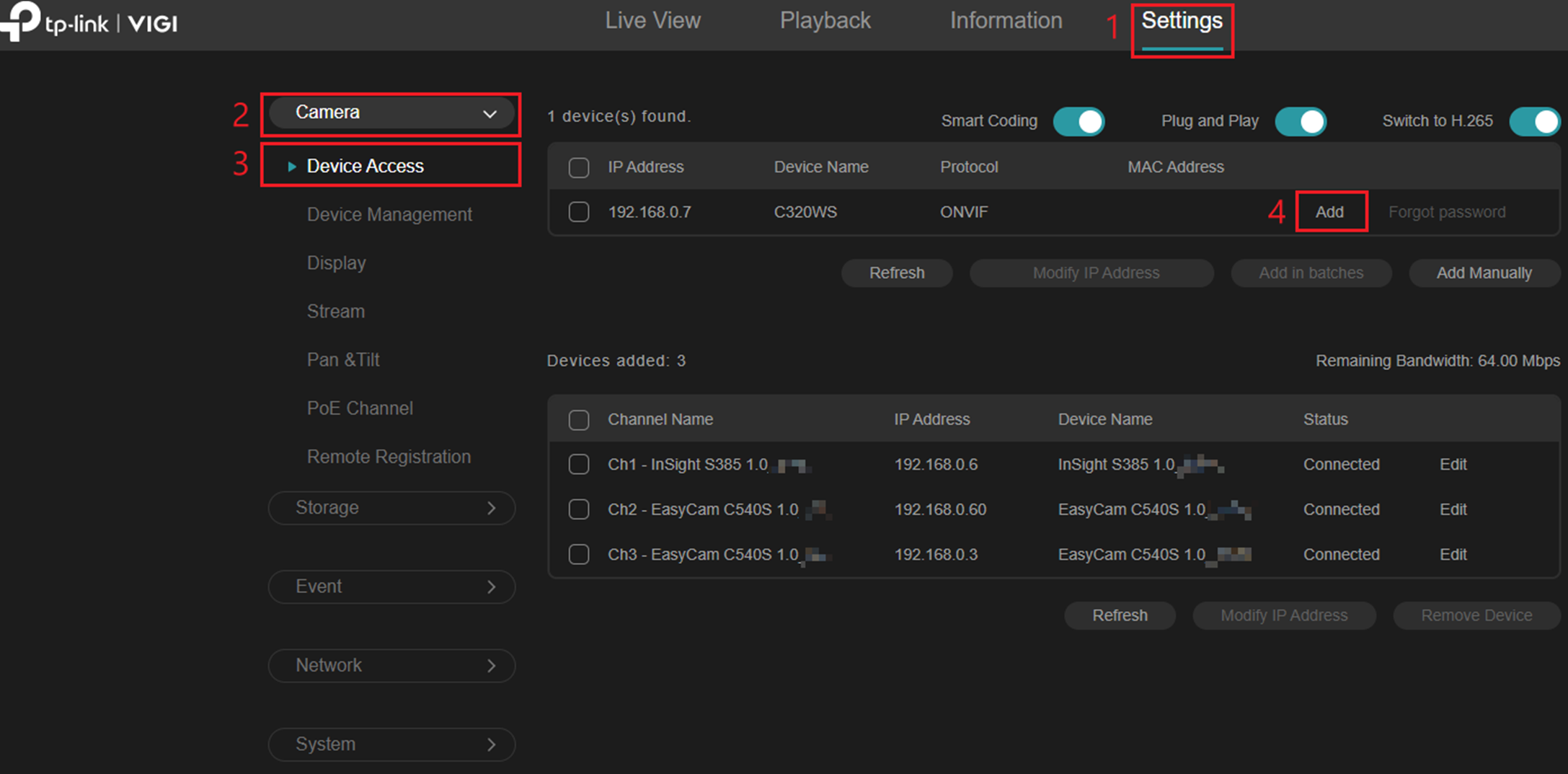
Step 1. Go to Settings > Camera > Device Access > Add. This will add the Camera to the VIGI NVR.
Note: Multiple cameras can be added at once, by using the tick box on the left and selecting Add in batches.
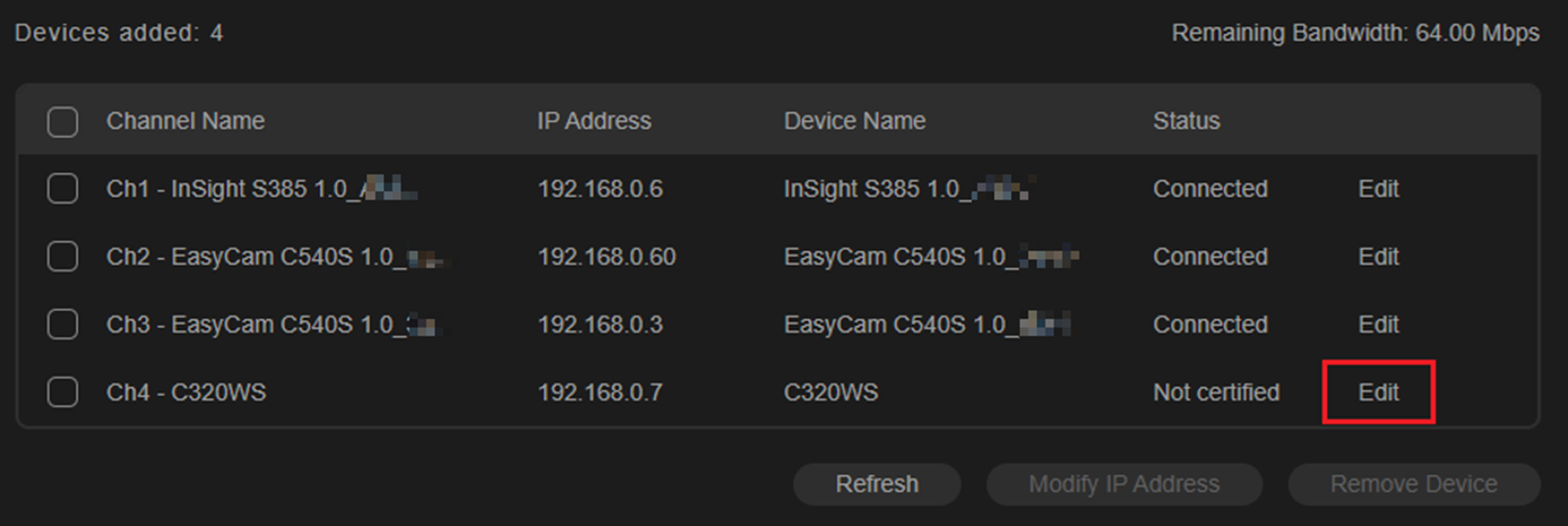
Step 2. If the camera status is Not Certified, select Edit.
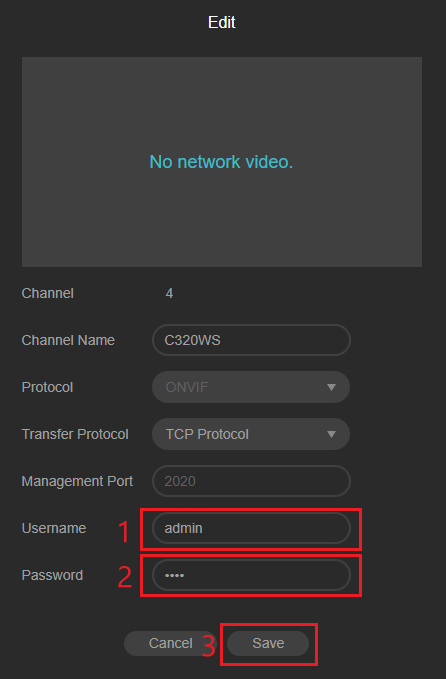
Step 3. Fill out Username and Password. Click Save.
Note: This Username and Password will match those setup within the initial device configuration of the 3rd party camera.
Verification
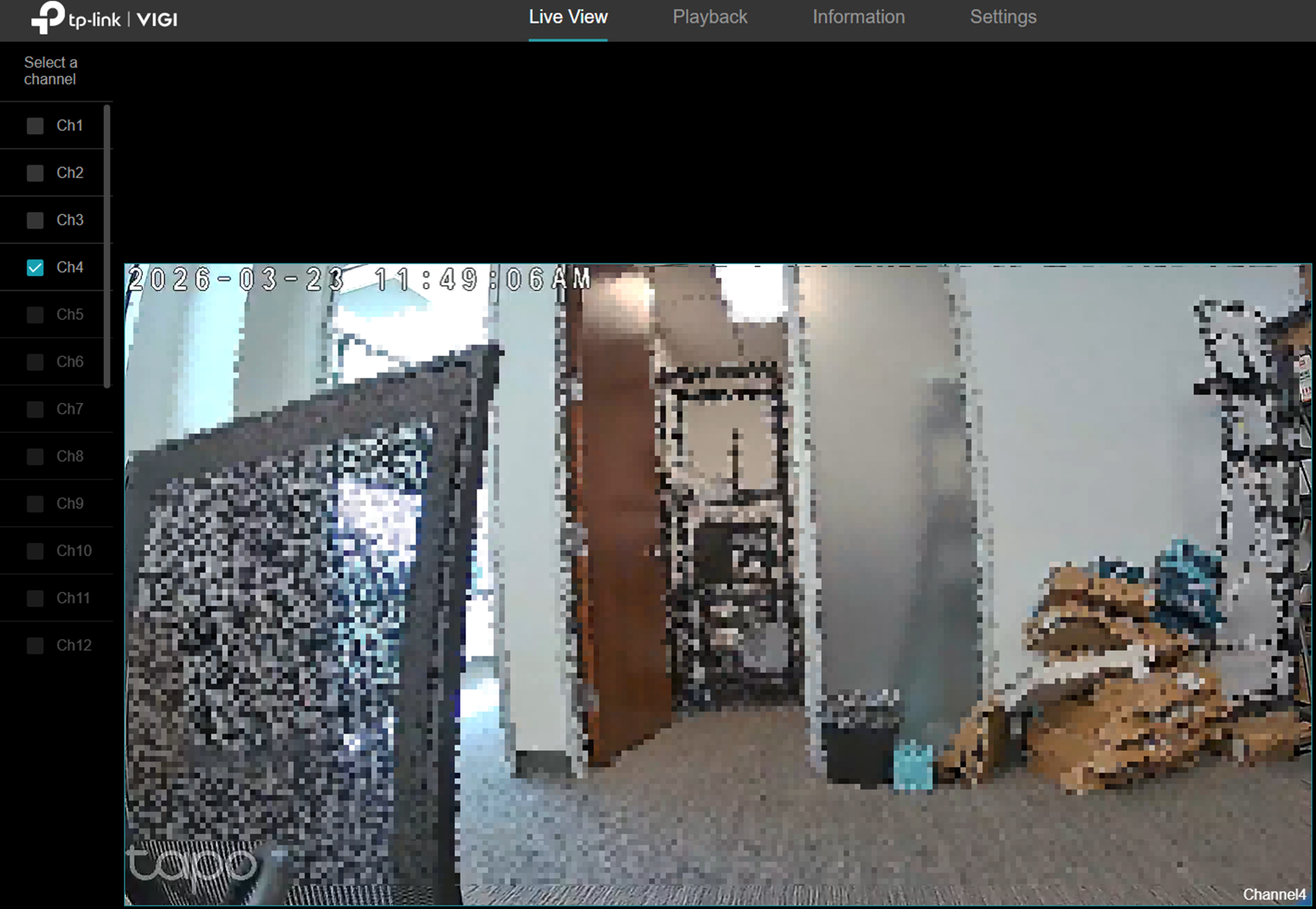
The camera will now show as Connected with an assigned channel. Go to Live View > Select the channel to view footage of the camera.
Conclusion
Adding a third-party ONVIF camera to a VIGI NVR is simple when ONVIF is enabled, credentials are correct, and both devices share the same network. This allows flexible integration of different brands into one system.
For more details on each function and configuration, please visit the Download Center to download the manual.
QA
Q1: Which ONVIF Profiles do VIGI NVR’s support?
A: VIGI NVR’s support ONVIF Profiles G, S and T.
Q2: Why does my 3rd party camera not show on the NVR device list?
A: Ensure the camera is powered on, connected to the same network as the NVR, and that ONVIF is enabled in the camera settings.
Q3: Why do I need to configure the camera before adding it to the NVR?
A: Many cameras require initial setup (activation, password creation, ONVIF enablement) before they can communicate with other devices.
Q4: Why is my camera showing “Not Certified”?
A: Please follow the configuration steps 2 and 3. After submitting the correct Username and Password the camera status will change to certified.
Q5: Why can’t I connect even after entering credentials?
A: Double-check the username/password, ONVIF port, and ensure no firewall or network restrictions are blocking communication.
Q6: Why is there no video in Live View after adding the camera?
A: Verify the channel assignment, stream settings, and ensure the camera supports compatible ONVIF profiles.
Q7: Can I add multiple ONVIF cameras at once?
A: Yes, you can use batch add by selecting multiple devices in the Device Access menu.
Q8: Why do some features (like motion detection) not work?
A: ONVIF compatibility varies by model and profile; some advanced features may not be supported across brands.
Q9: Does the camera need a static IP address?
A: Not required but recommended for stability and easier management.
Q10: What ONVIF profile is recommended?
A: Profile S is commonly used for video streaming; check camera specifications for compatibility.
Q11: Can I use cameras from any brand with VIGI NVR?
A: Yes, as long as they support ONVIF, though functionality may vary depending on implementation.
Is this faq useful?
Your feedback helps improve this site.


-1.0_normal_1614068215524j.png)

TP-Link Community
Still need help? Search for answers, ask questions, and get help from TP-Link experts and other users around the world.