
How to use USB port on TP-Link ISP-customized devices
 4626
4626Introduction
For a TP-Link router with a USB port, you can connect a USB drive to share storage, or use a 3G/4G dongle to turn the TP-Link modem router into a 3G/4G router.
Configuration
Scenario 1: Plug a USB storage device to share resources
Step 1. Plug a USB device into the router's USB port.
Step 2. Log in to the router’s Web UI.
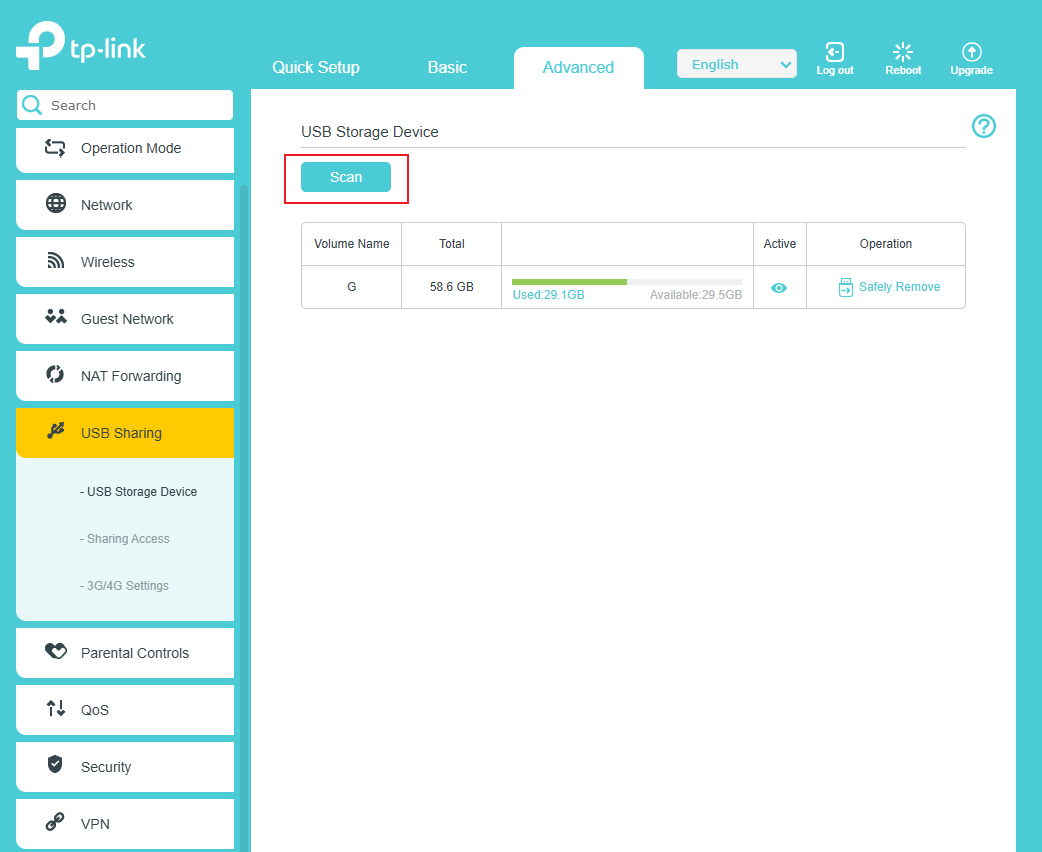
Step 3. Go to the following page and click Scan to detect a USB device.
Step 4. Go to the following page, select the Access Method you need, and Save.
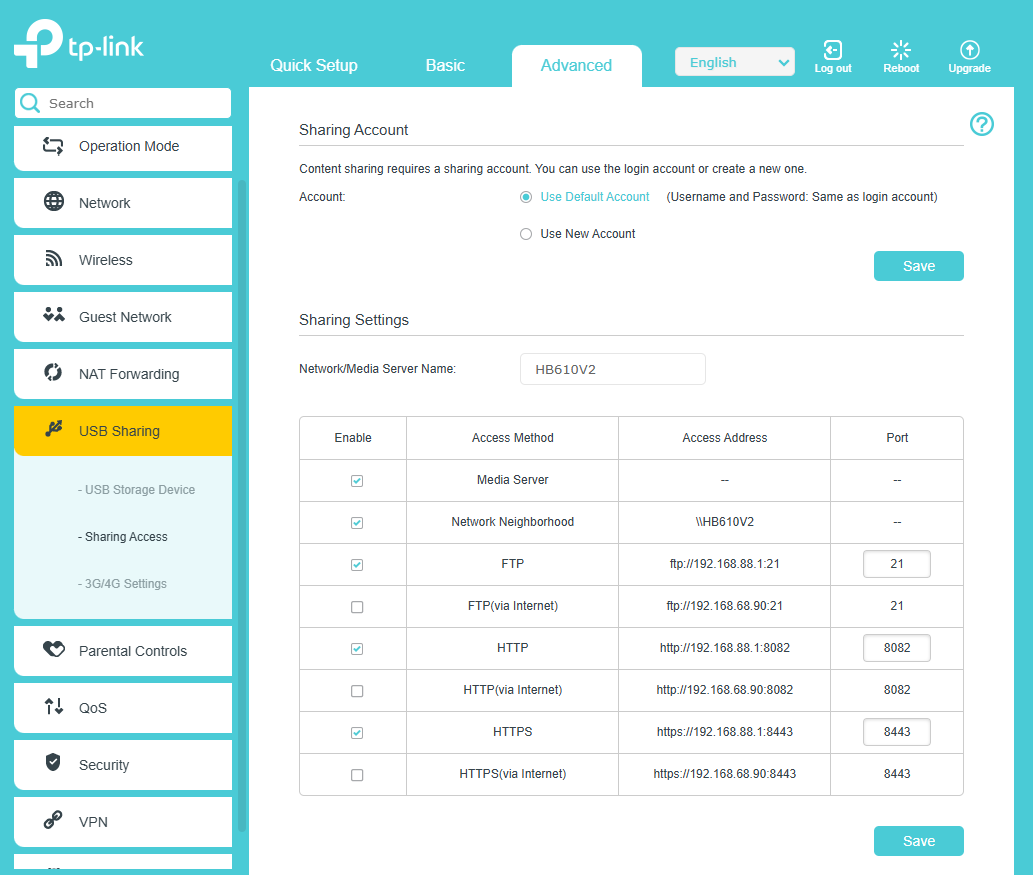
Step 5. Use the appropriate method to share the USB storage.
Scenario 2: Plug a USB storage device to store Voice Mail
Note: Only routers that support VoIP support this feature.
Step 1. Plug a USB device into the router's USB port.
Step 2. Go to the following page, enable the Voice Mail function
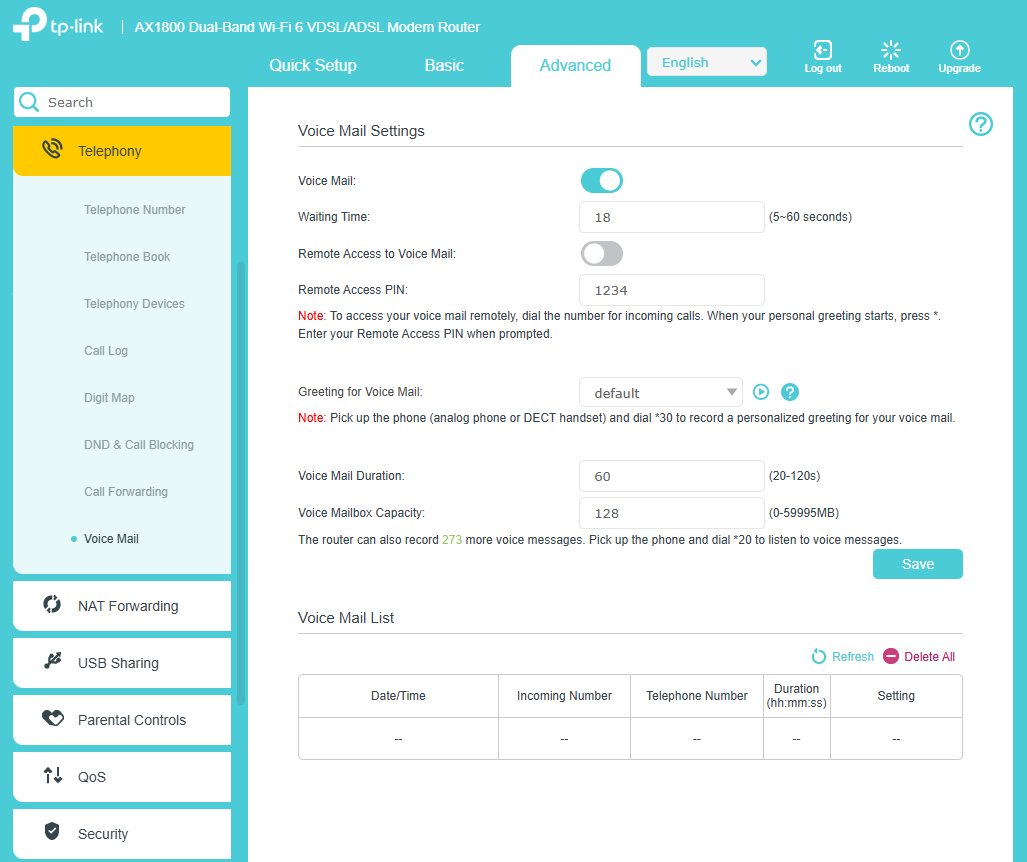
Step 3. The router will automatically create a voicemail folder on the USB device.
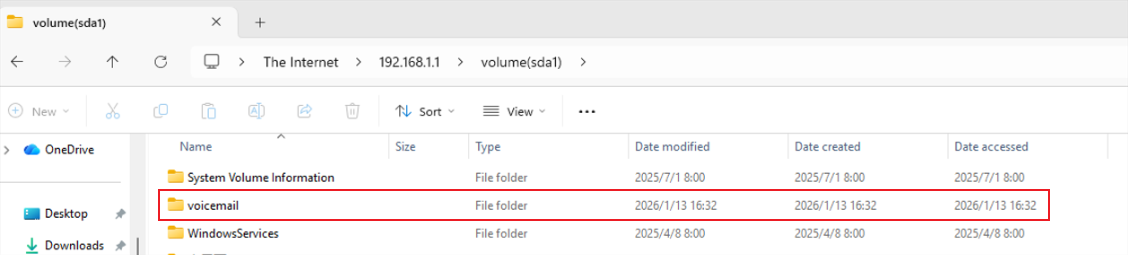
Step 4. The generated voice messages will be stored in the voicemail folder.
Scenario 3: Use a DSL modem router as 3G/4G router
Step 1. Insert the SIM card into the USB dongle, then plug the USB dongle into the router's USB port.
Step 2. Go to the following page, Enable 3G/4G as a backup solution for Internet access.
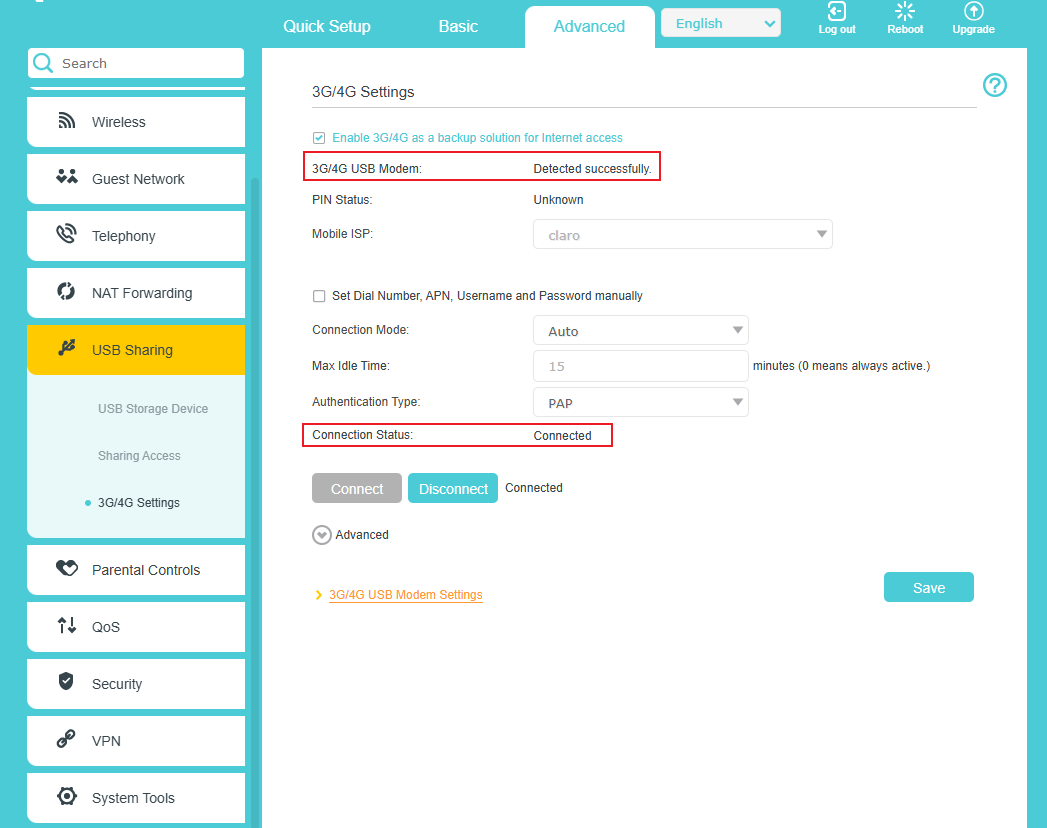
Step 3. The router will use the USB dongle's network connection only when all other access methods are unavailable.
QA
Q1: What types of USB devices does TP-Link ISP-customized Devices support?
A1: The TP-Link ISP-customized devices support USB devices of the following device classes:
- USB Storage device
- USB 3G/4G dongle
- USB Hub
Q2: How many USB devices can TP-Link ISP-customized Devices support connecting simultaneously?
A2: When using a USB hub, you can connect up to four USB storage devices (excluding USB hubs) to the TP-Link ISP-customized devices.
Get to know more details of each function and configuration please go to Download Center to download the manual of your product.
Is this faq useful?
Your feedback helps improve this site.


TP-Link Community
Still need help? Search for answers, ask questions, and get help from TP-Link experts and other users around the world.