
How to Remove an Offline Tapo or Kasa Smart Device
If your Tapo or Kasa device remains offline or is no longer in use, you can remove it from the Tapo or Kasa app and unlink it from your TP-Link account. This guide explains two simple methods for removing an offline device through the app.
Key Takeaways
- Offline devices can be removed from the Tapo or Kasa app without reconnecting them to the network.
- You can remove a device directly from the Home page by pressing and holding its device card.
- You can also remove a device from the Device Settings page using the Remove option.
- Removing a device will also remove it from your TP-Link account.
- Both methods achieve the same result and require confirmation before the device is removed.
Remove an Offline Device
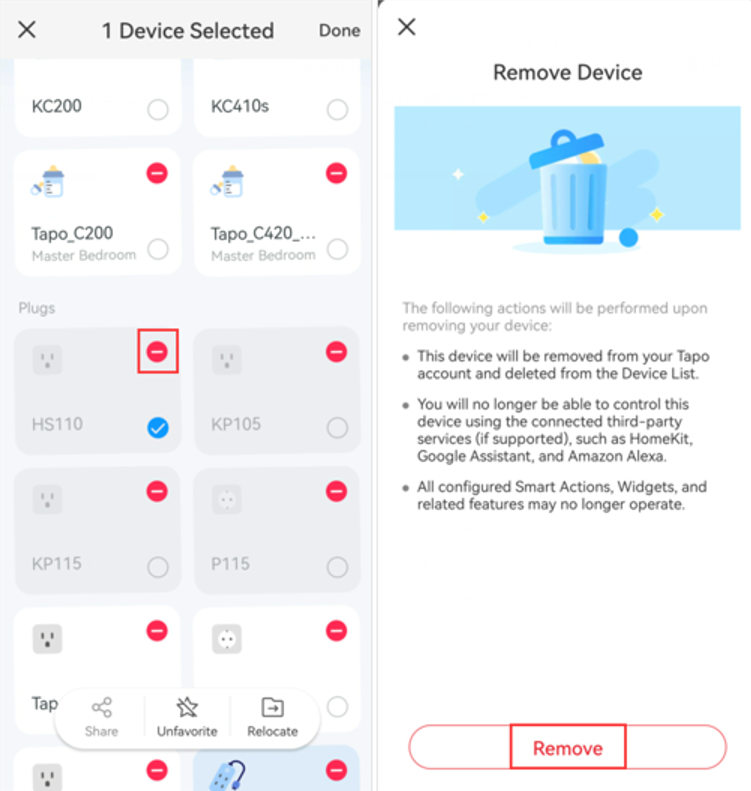
Method 1: From the Home Page
Open the Tapo or Kasa app Home page, press and hold the offline device card. Tap the Remove icon, then confirm the removal. The device will be removed from your TP-Link account.
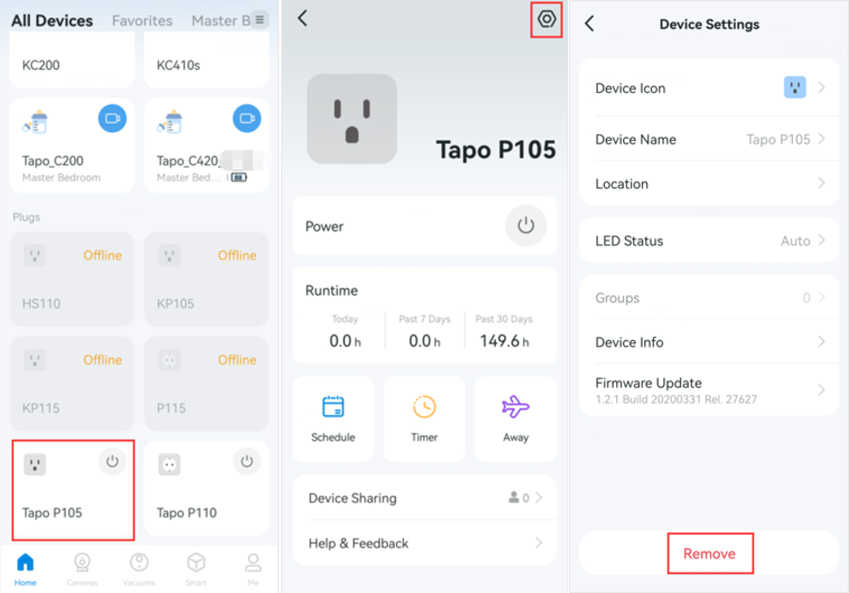
Method 2: From the Device Settings Page
Open the Tapo or Kasa app and tap the device card. Tap the settings icon in the top-right corner to enter Device Settings. Scroll to the bottom of the Device Settings page and tap Remove, then confirm the removal.
Looking For More
Is this faq useful?
Your feedback helps improve this site.



TP-Link Community
Still need help? Search for answers, ask questions, and get help from TP-Link experts and other users around the world.