How to Fix a Flickering Issue on Live View of the VIGI Camera
Contents
Introduction
If the live view or recorded video of your VIGI camera displays flickering, rolling black bands, water ripples, or moiré patterns, the issue is often related to lighting frequency, shutter speed, or exposure settings. This article explains common causes and recommended solutions.
Requirements
- VIGI Camera
- VIGI Camera Web Interface, VIGI PC Client, or VIGI VMS
Troubleshooting
The flicker effect, sometimes called water ripples or moiré, usually occurs when the refresh frequency of a light source does not match the camera's shutter or exposure settings.
As shown below, flickering may occur when the camera is pointed toward artificial light sources such as LED lights, fluorescent lamps, or illuminated signs.
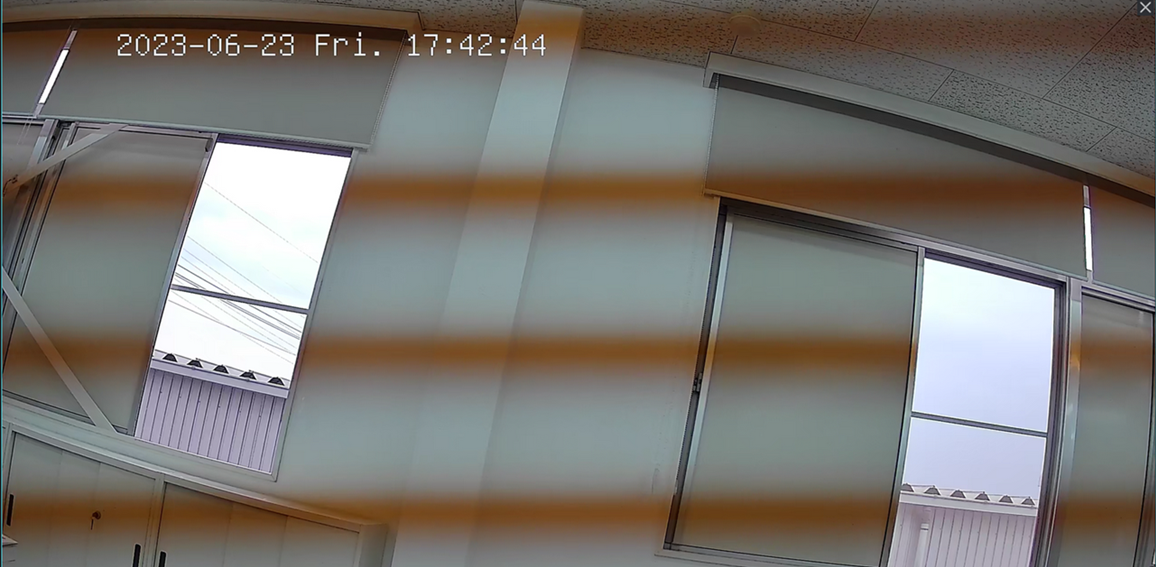
Follow the steps below if the live view of your VIGI camera appears to flicker or display black bands. Here we take the VIGI Camera Web Interface as an example:
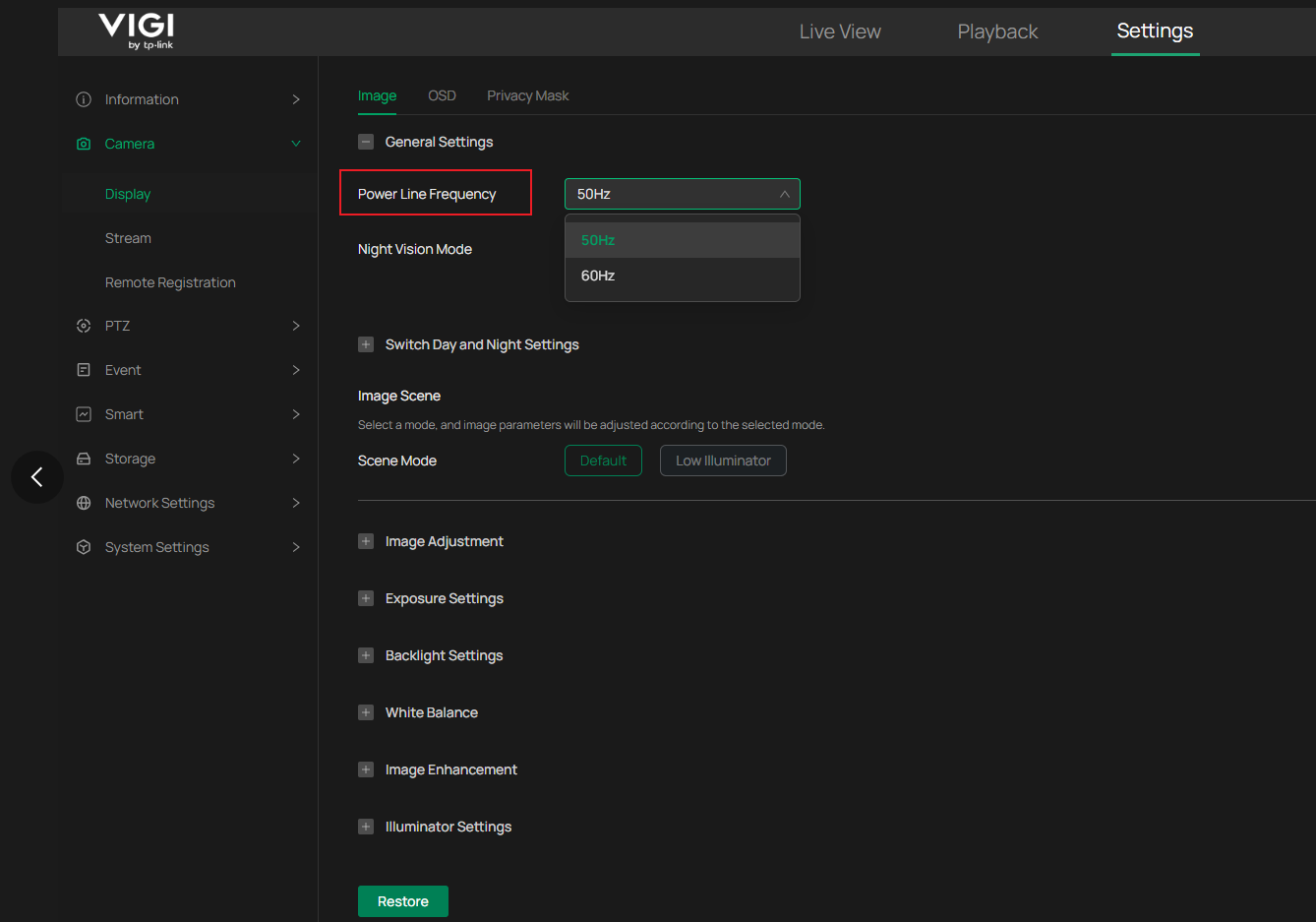
Step 1. Adjust the Power Line Frequency
Navigate to Camera Settings > Display > Image > General Settings to adjust Power Line Frequency, which can help you tailor the light refresh time to different environments.
- Select 50 Hz in regions using a 50 Hz power supply.
- Select 60 Hz in regions using a 60 Hz power supply.
Selecting the correct Power Line Frequency helps synchronize the camera with the local electrical frequency and reduce flickering caused by artificial lighting.
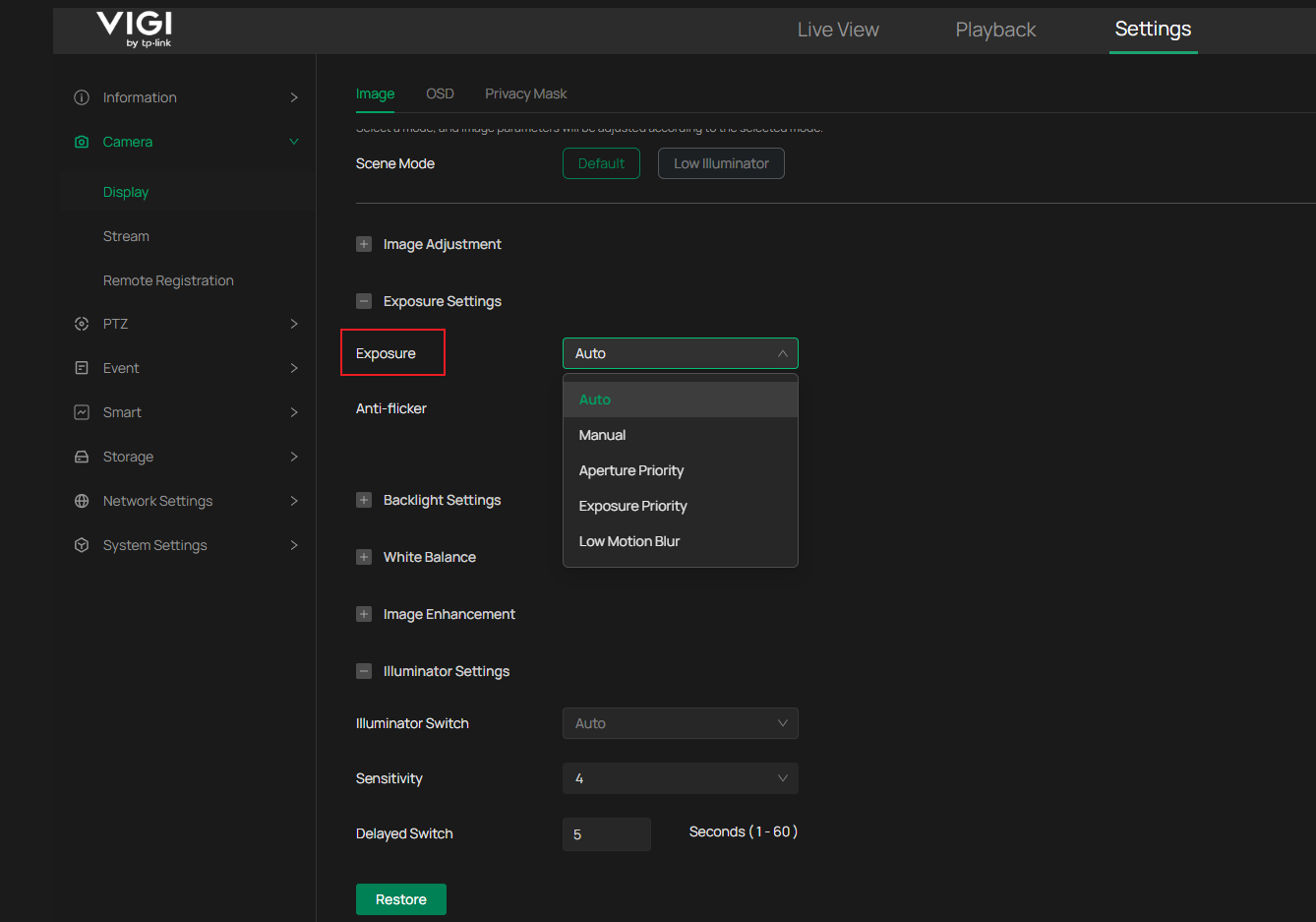
Step 2. Modify Exposure Settings
Navigate to Camera Settings > Display > Image > Exposure Settings to adjust Exposure.
The Exposure setting is usually set to "Auto" by default. However, for special environments, you can set it manually for better performance. Change it to "Manual", and you can adjust the Gain and Shutter as required. When the gain increases or the shutter speed becomes slower, the image becomes brighter.
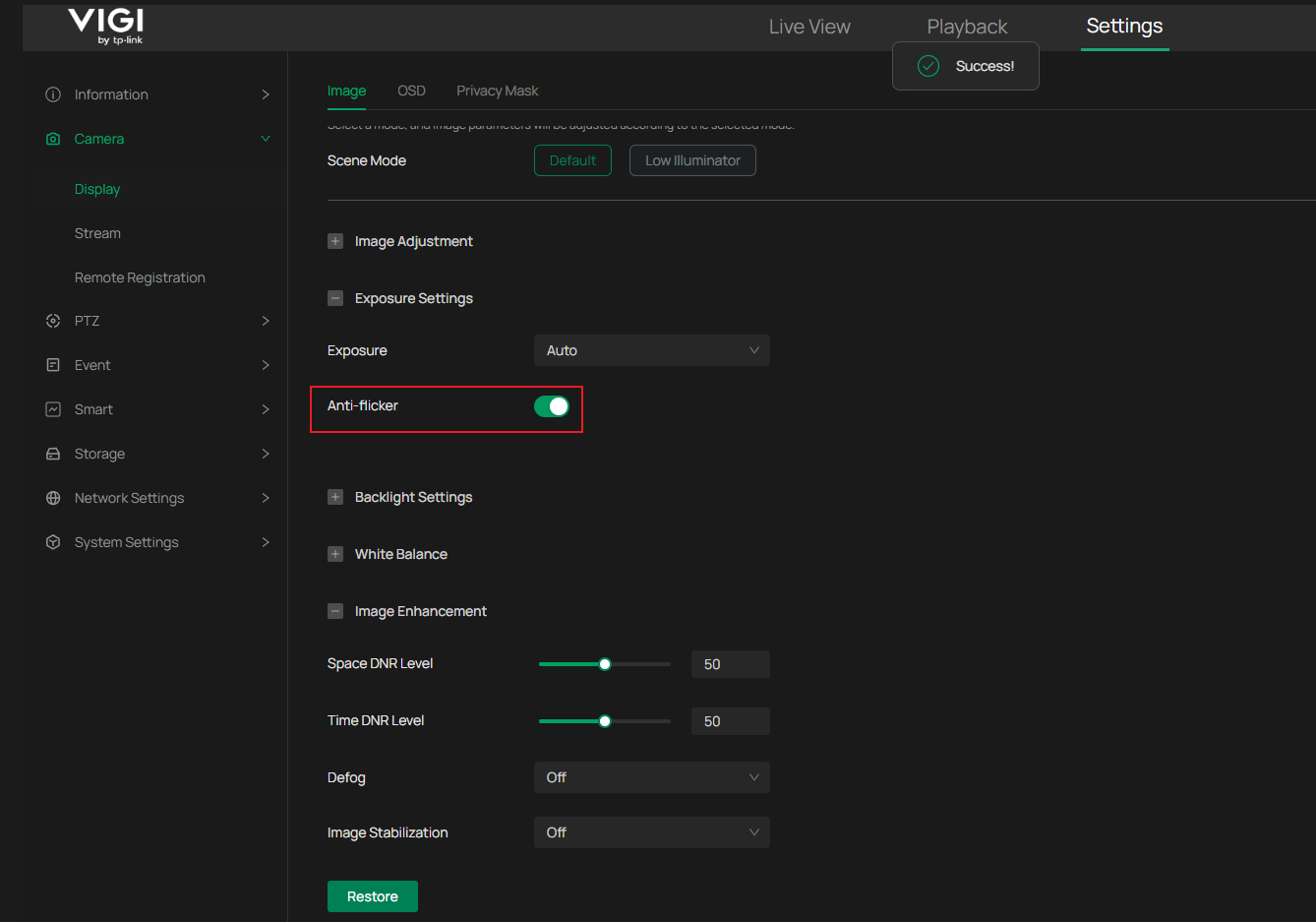
Enable Anti-flicker if the issue still occurs.
Note: Features available in VIGI devices may vary by model and firmware version.
Verification
After applying the settings:
1. Refresh the Live View page.
2. Observe the image for several minutes.
3. Verify that flickering, rolling bands, or water ripple effects no longer appear.
4. Check recorded video to confirm that the issue is resolved.
Conclusion
You have now completed the recommended troubleshooting procedures for live view flickering on a VIGI camera. By adjusting the Power Line Frequency and Exposure settings, most flickering and rolling band issues caused by artificial lighting can be resolved.
To learn more about each function and configuration, please visit Support Home to download or check the manual for your product.
Looking For More
Is this faq useful?
Your feedback helps improve this site.



TP-Link Community
Still need help? Search for answers, ask questions, and get help from TP-Link experts and other users around the world.