
Découvrez comment configurer la fonction de secours par hotspot sur Deco, connecter un hotspot mobile, tester le réseau de secours et maintenir vos appareils connectés en cas de panne de la connexion filaire.
La fonction de secours par point d'accès mobile vous permet de configurer un point d'accès mobile ou un réseau Wi-Fi à proximité comme source Internet de secours. En cas de défaillance de votre connexion filaire principale, le système Deco détecte et se connecte automatiquement à votre source de secours préconfigurée afin de maintenir votre accès Internet. Une fois la connexion principale rétablie, le système bascule automatiquement vers la source principale.
Points clés à retenir
- La fonction Hotspot Backup utilise un point d'accès mobile ou un autre réseau Wi-Fi lorsque la connexion Internet filaire principale est indisponible.
- Le point d'accès doit être allumé, à portée et capable d'accéder à Internet avant que Deco puisse l'utiliser.
- Vous pouvez enregistrer plusieurs points d'accès Wi-Fi, et Deco sélectionne automatiquement le meilleur point d'accès configuré disponible.
- Il est recommandé de configurer un port WAN fixe lorsque des clients câblés ont besoin d'un accès Internet pendant une opération de sauvegarde.
- La limitation de vitesse et l'autorisation d'accès permettent de contrôler la bande passante, l'utilisation des données mobiles et les appareils pouvant se connecter à Internet via le point d'accès.
Exigences
- Mettez à jour l'application Deco et vos appareils Deco avec la dernière version du micrologiciel disponible.
- Préparez un point d'accès mobile ou un réseau Wi-Fi avec accès à Internet.
- Placez le point d'accès Wi-Fi à portée stable du Deco principal.
Configurer la sauvegarde du point d'accès
Étape 1 : Localiser et activer la fonction de sauvegarde du point d’accès
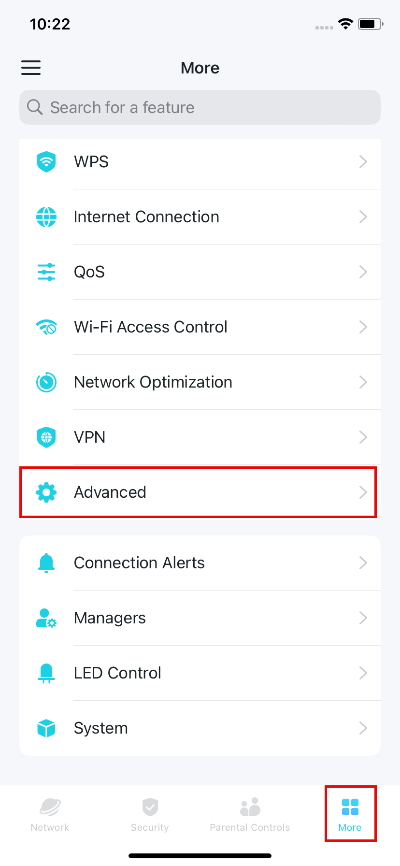
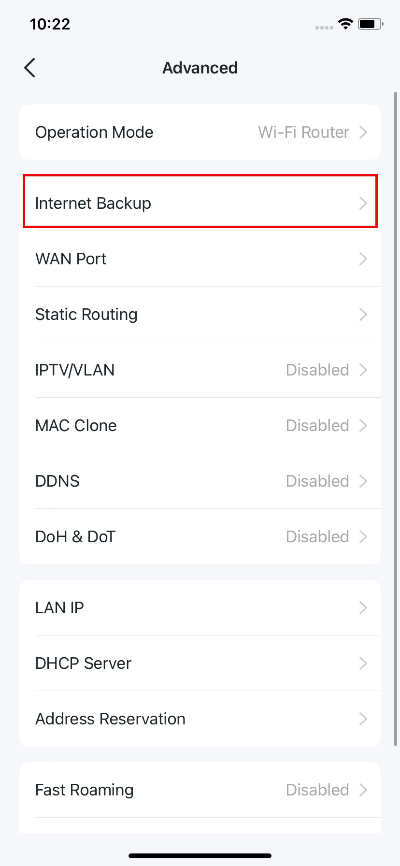
Ouvrez l' application Deco , puis allez dans Plus > Avancé > Sauvegarde Internet .
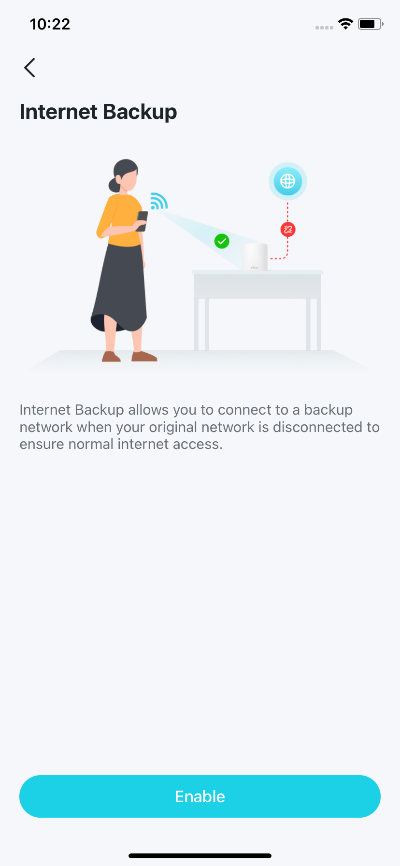
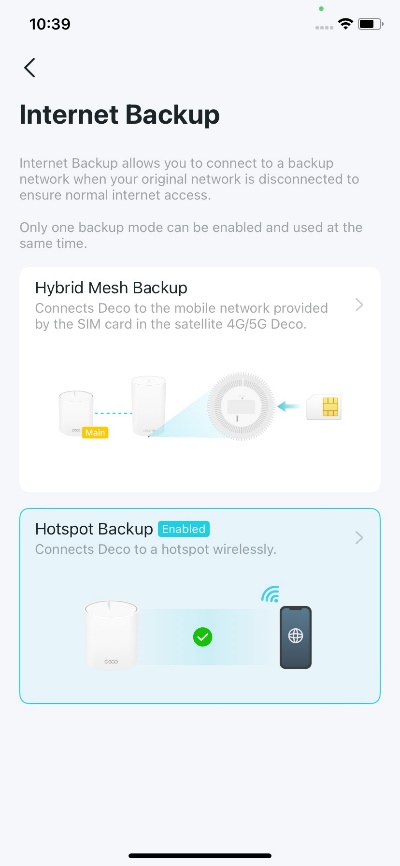
Activez la sauvegarde par Internet. Si plusieurs modes de sauvegarde sont disponibles, sélectionnez Sauvegarde par point d'accès .
Étape 2 : Connectez-vous à votre point d’accès Wi-Fi
L'application recherchera automatiquement les points d'accès Wi-Fi à proximité. Si le réseau Wi-Fi de votre point d'accès est masqué, cliquez simplement sur « Ajouter un point d'accès » et saisissez manuellement son nom et son mot de passe.
Sinon, attendez la fin de la recherche, puis sélectionnez un point d'accès à proximité dans la liste et saisissez son mot de passe Wi-Fi.
Remarque : Lorsqu'il y a plusieurs points d'accès ajoutés, Deco se connectera automatiquement au meilleur.
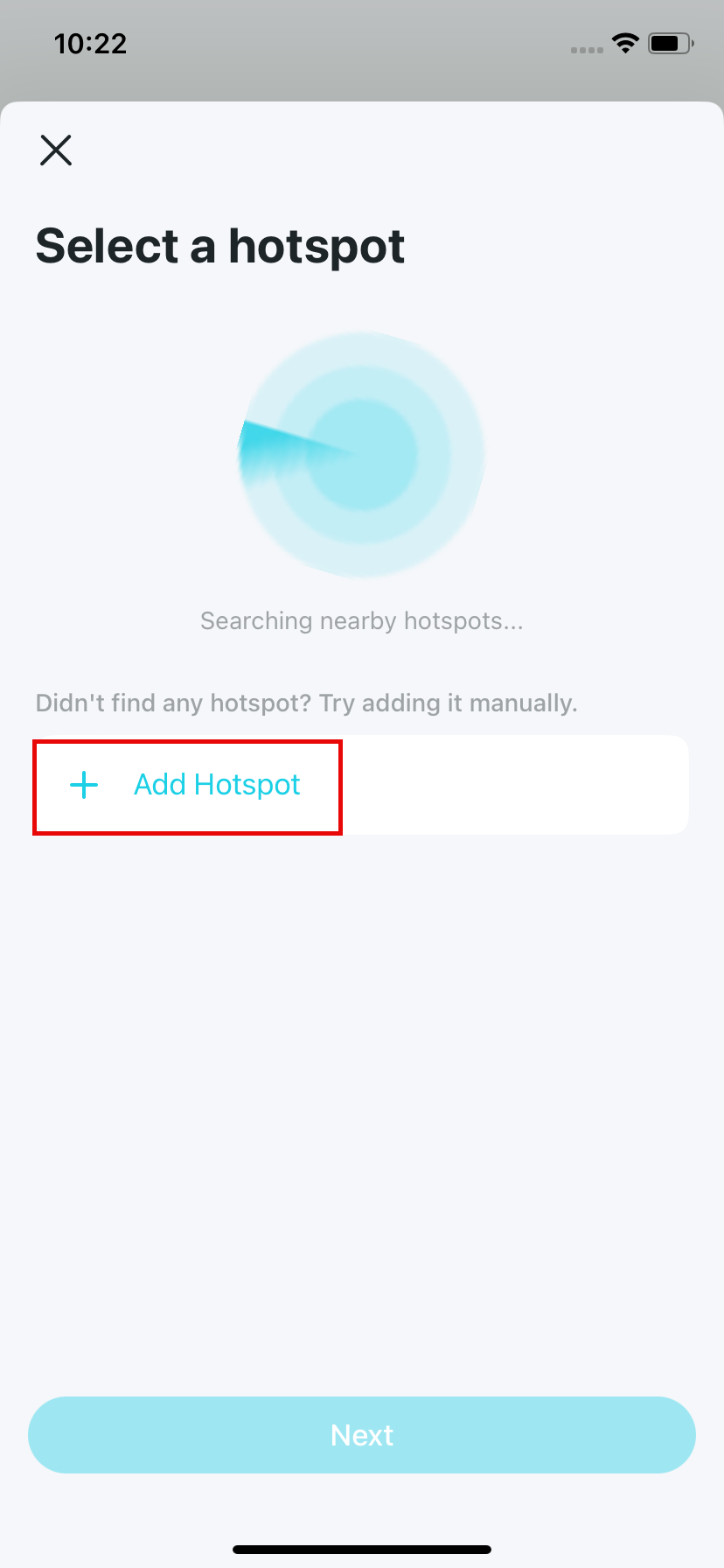
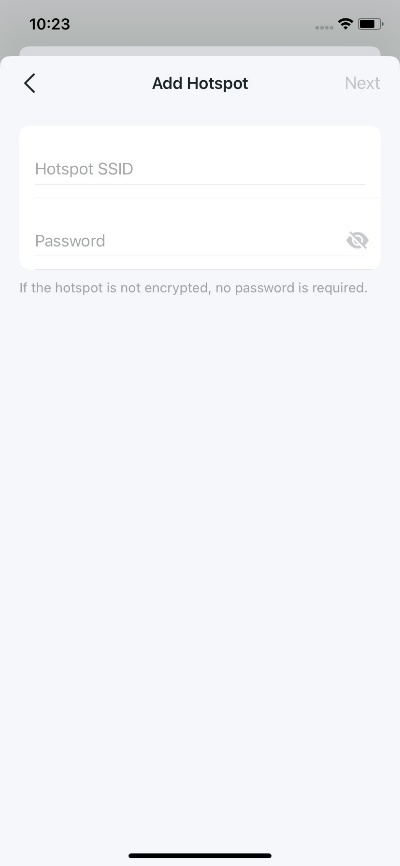
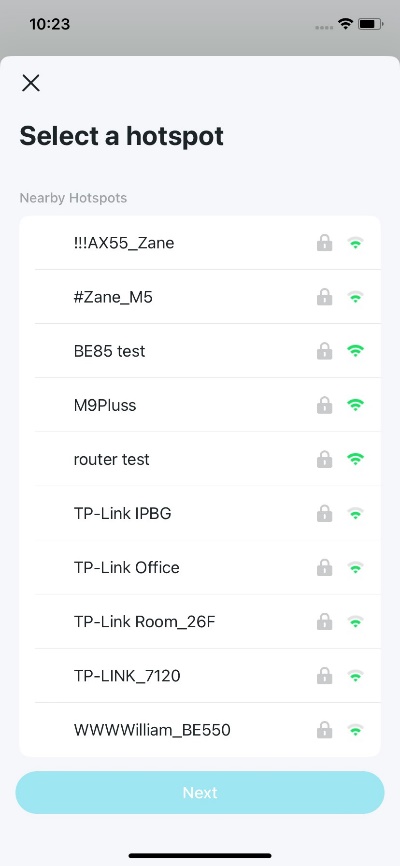
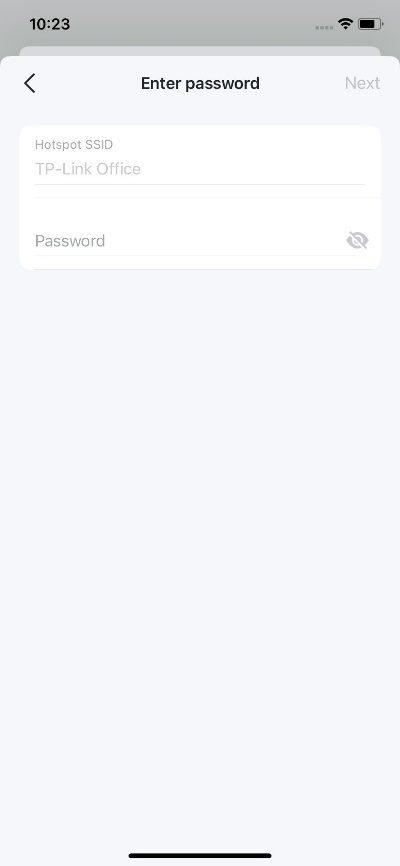
Après avoir ajouté un point d'accès, vous pouvez tester sa connexion réseau.
Remarque : Le test peut prendre un certain temps. Assurez-vous que le point d’accès Wi-Fi est activé et connecté à Internet. Le réseau Deco peut être temporairement instable pendant le test.
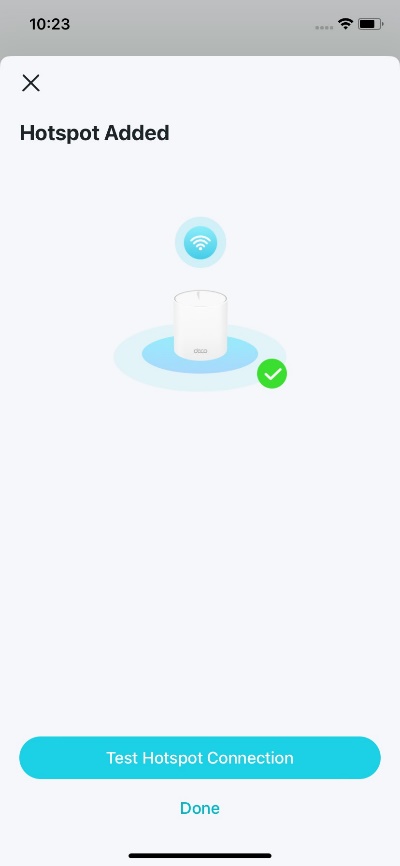
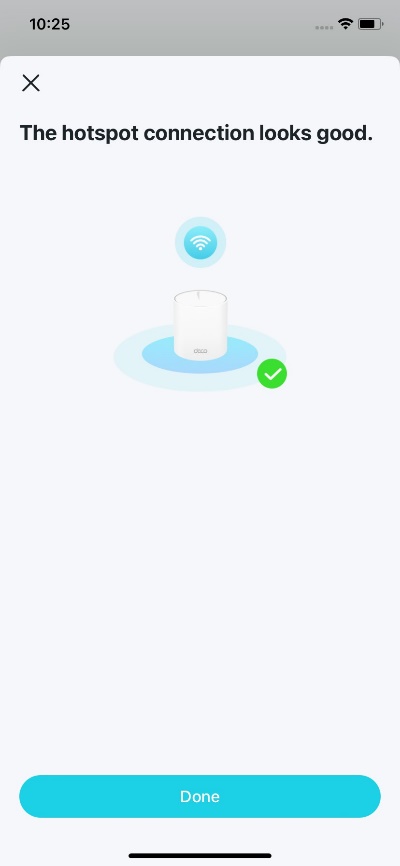
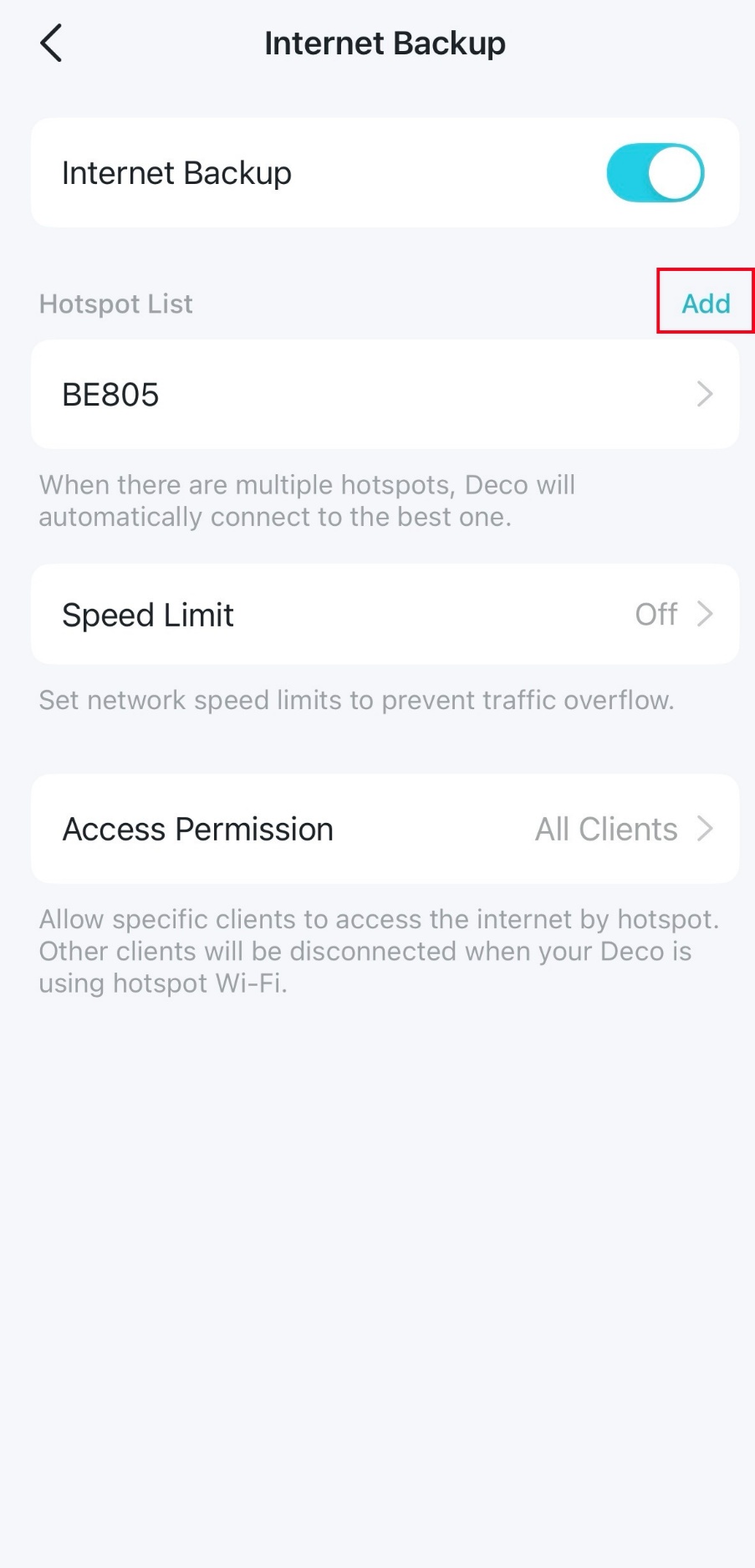
Pour ajouter plusieurs points d'accès, accédez à Plus > Avancé > Sauvegarde Internet et cliquez sur le bouton Ajouter à côté de Liste des points d'accès.
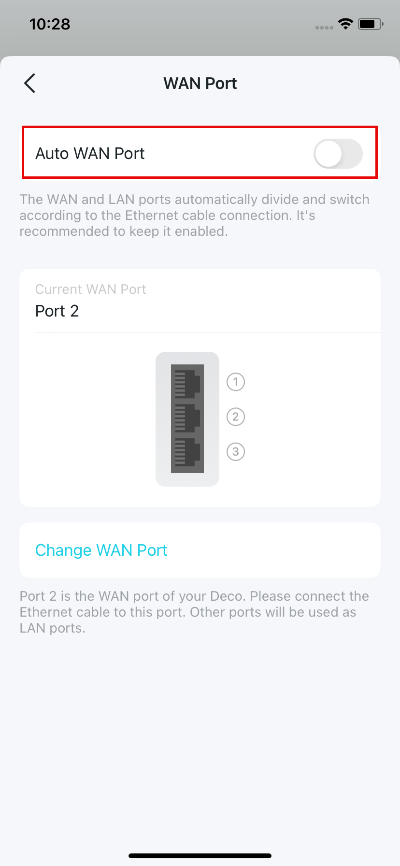
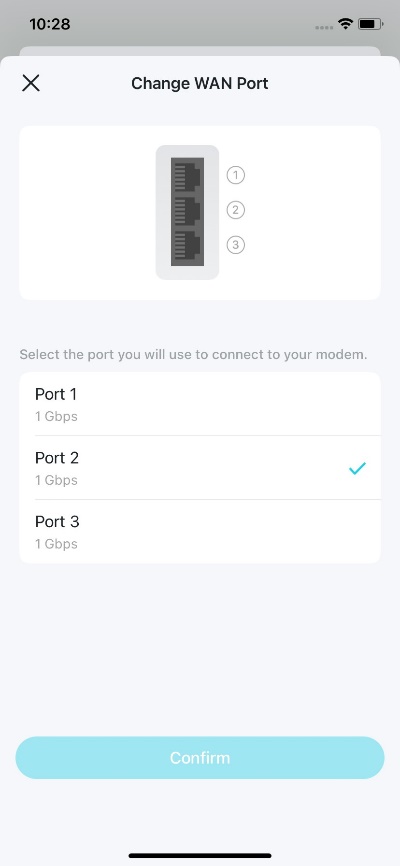
Étape 3 : Configurer un port WAN fixe (facultatif)
Configurez un port WAN fixe pour garantir que les clients câblés puissent se connecter à Internet lorsqu'ils utilisent le réseau de secours.
Remarque : Appuyez sur « Définir un port WAN fixe » ou accédez à Plus > Avancé > Port WAN. Désactivez ensuite le port WAN automatique et définissez un port WAN fixe pour votre Deco.
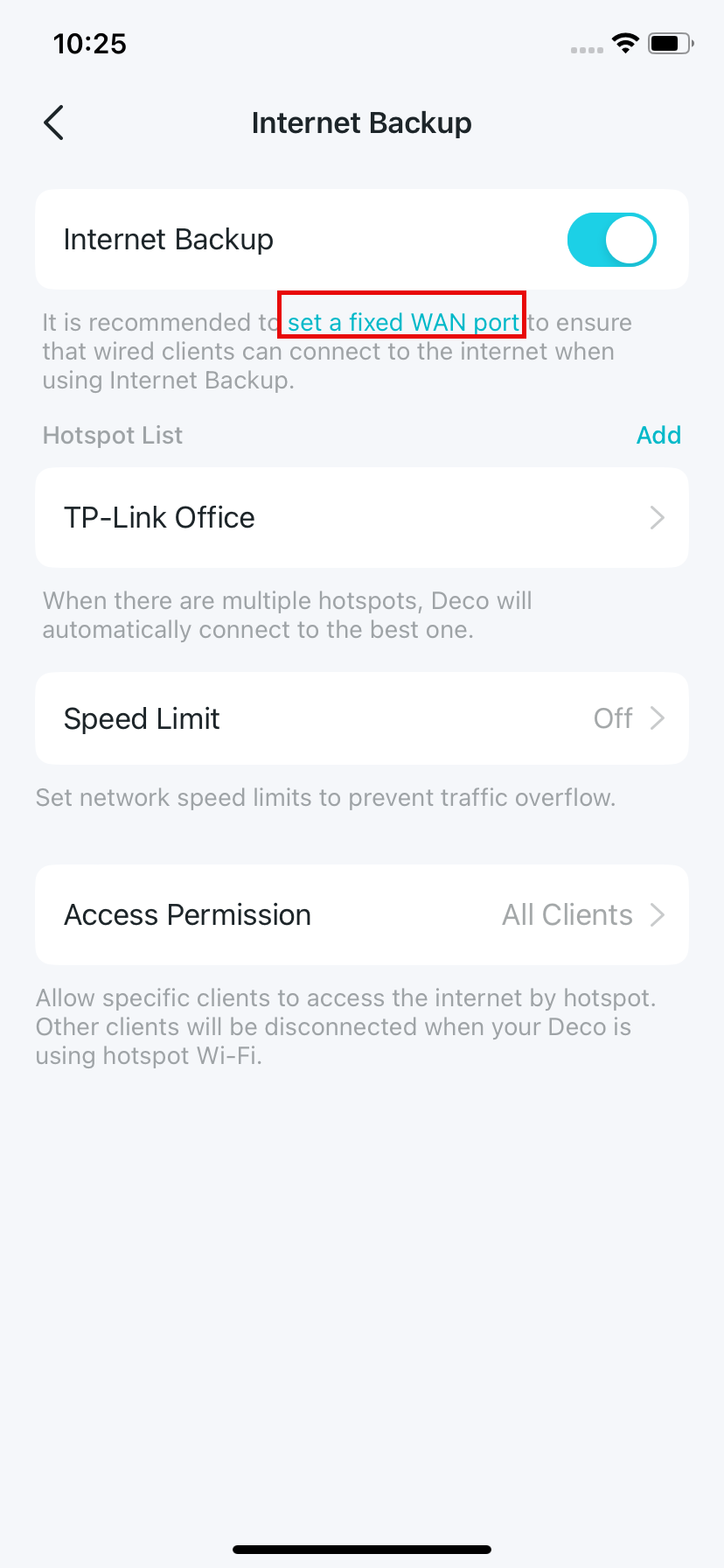
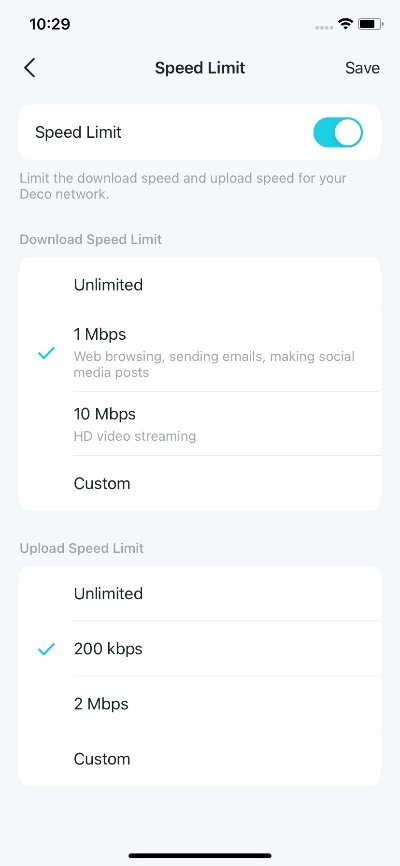
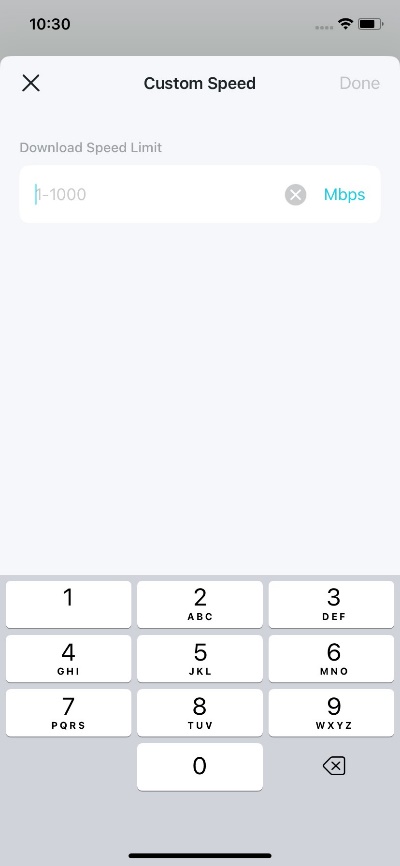
Étape 4 : Définir la limite de vitesse et l’autorisation d’accès (facultatif)
Vous pouvez configurer les paramètres suivants selon vos besoins.
- Limitation de vitesse : Limitez la vitesse de téléchargement et la vitesse de chargement de votre réseau Deco afin d’éviter la saturation du réseau.
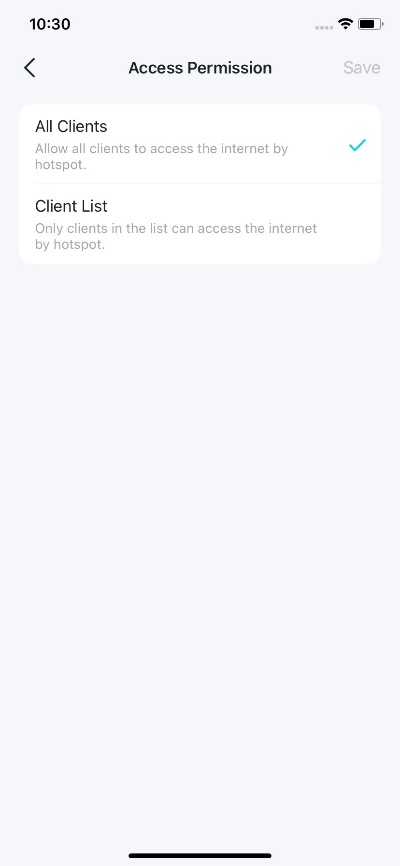
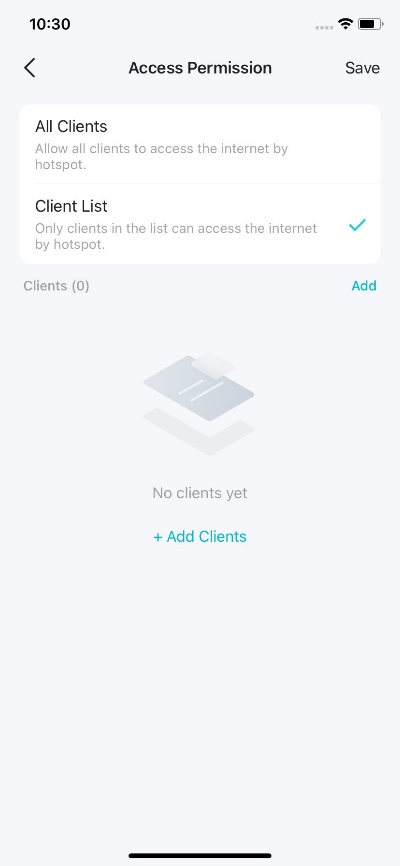
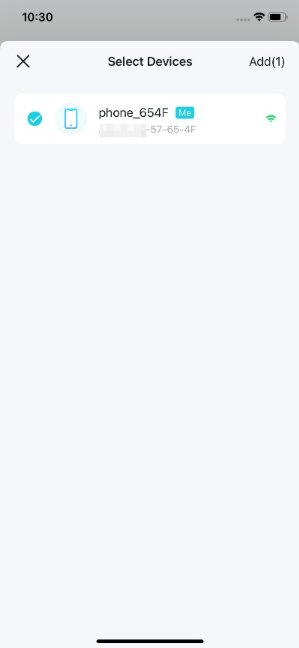
- Autorisation d'accès : autoriser certains appareils à accéder à Internet via le partage de connexion. Les autres appareils seront déconnectés lorsque votre Deco utilise le Wi-Fi en mode point d'accès.
Remarque : Vous pouvez ajouter à la liste des clients les clients actuellement connectés au réseau Deco ou supprimer des clients de cette liste.
Installation terminée !
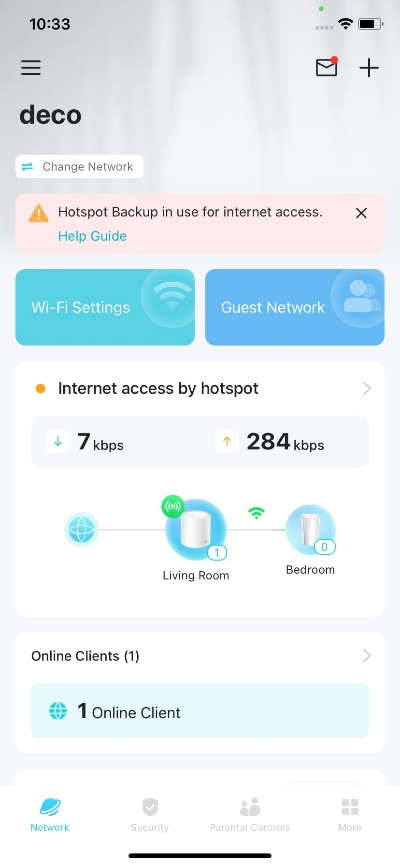
En cas de défaillance de la connexion Internet principale, activez le point d'accès configuré. Deco basculera automatiquement sur ce point d'accès pour maintenir la connexion réseau.
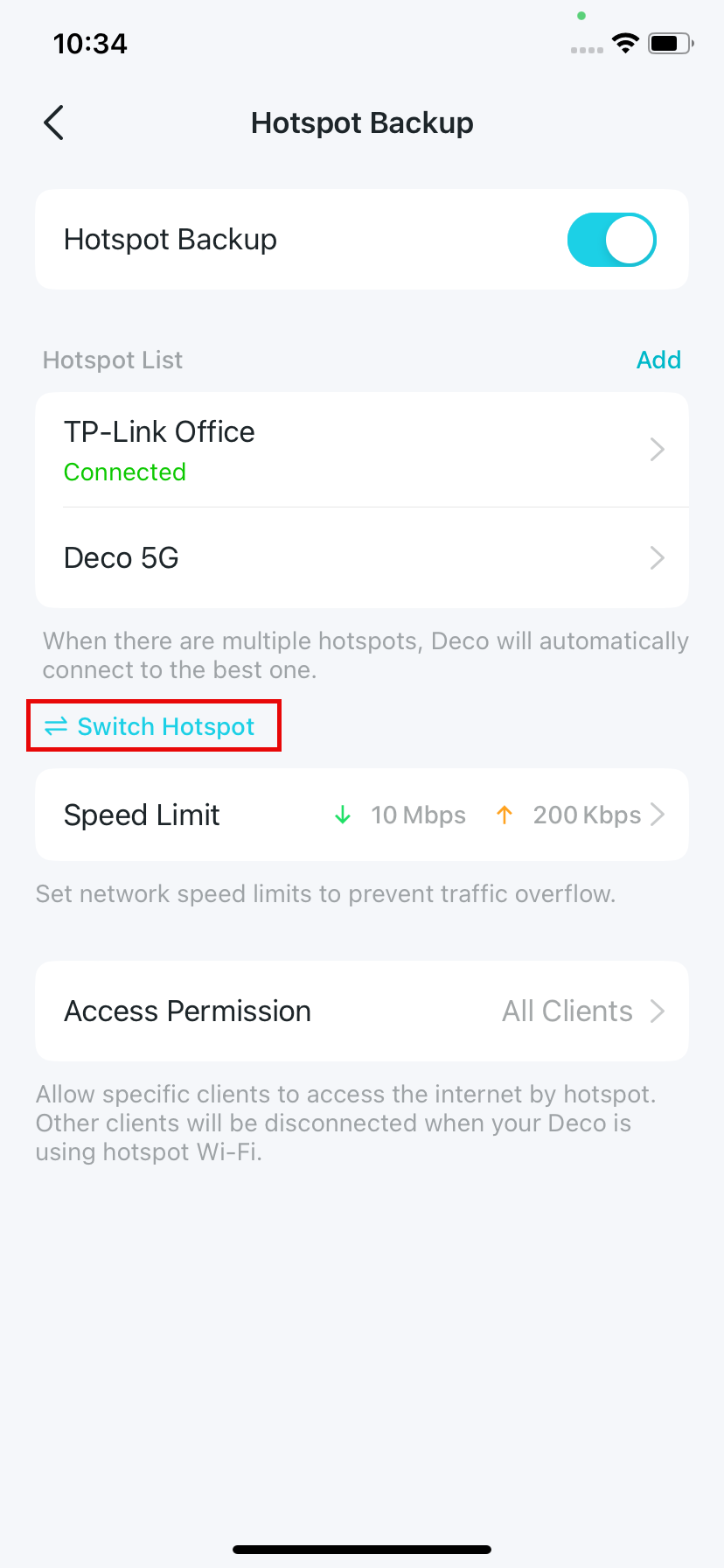
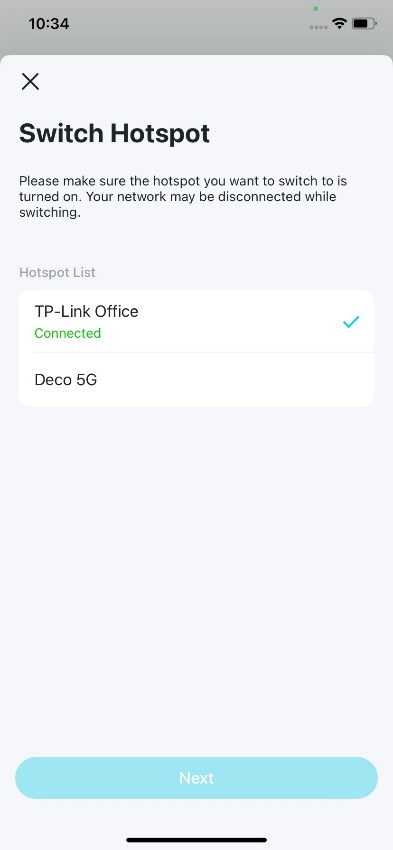
Remarque : lorsque la sauvegarde du point d’accès est active, appuyez sur Changer de point d’accès pour sélectionner un autre point d’accès configuré.
Pour en savoir plus sur chaque fonction et configuration, veuillez consulter le Centre de téléchargement pour télécharger le manuel de votre produit.
Looking For More
Est-ce que ce FAQ a été utile ?
Vos commentaires nous aideront à améliorer ce site.
_Overview_normal_20211130005706l.png)

_Overview_normal_20211225093343a.png)

TP-Link Community
Still need help? Search for answers, ask questions, and get help from TP-Link experts and other users around the world.