
How to use PPTP/OpenVPN to access home network through TP-Link ISP-customized Wi-Fi Router
 18712
18712Introduction
A VPN Server is used to create a VPN connection for remote devices. To use the VPN feature, you should enable L2TP/PPTP/OpenVPN Server on your router, and configure the VPN connection on the remote device. This article tells the steps to set up a PPTP/OpenVPN VPN connection.
Requirements
- VPN client: a Laptop/Windows PC/MacBook
- Download the OpenVPN software, and install it on your device where you want to run the OpenVPN client utility

Configuration
Scenario 1: PPTP VPN
Step 1. Set up PPTP VPN Server on Router
a. Log in to the web-based interface of the router. Go to Advanced > VPN Server > PPTP VPN, and select Enable VPN Server.
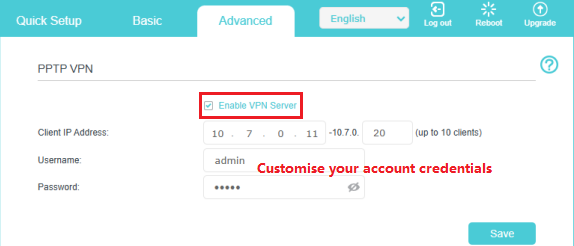
Note: Before you enable the VPN Server, it’s suggested to configure the Dynamic DNS Service (recommended) or assign a static IP address to the router’s WAN port and synchronize your System Time with the internet.
b. In the Client IP Address field, enter the range of IP addresses (up to 10) that can be leased to the devices by the PPTP VPN server.
c. Enter the Username and Password to authenticate devices to the PPTP VPN Server.
d. Click OK.
Step 2. Configure PPTP VPN connection on remote device
The remote device can use the Windows built-in PPTP software or a third-party PPTP software to connect to PPTP Server. Here, we use the Windows built-in PPTP software as an example.
a. Go to Start > Control Panel > Network and Internet > Network and Sharing Center.
b. Select Set up a new connection or network.
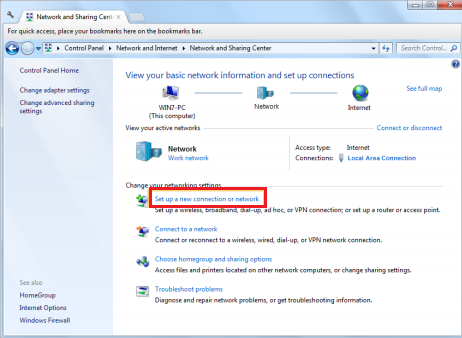
c. Select Connect to a workplace and click Next.
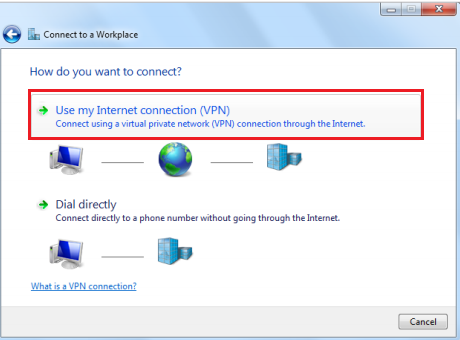
d. Select Use my Internet connection (VPN).
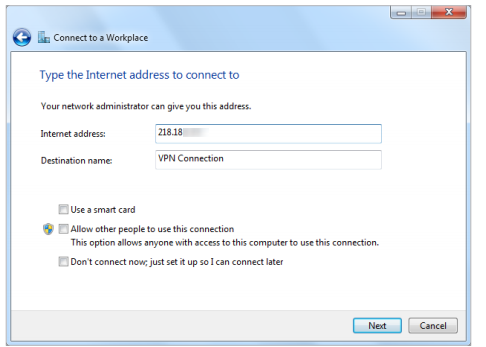
e. Enter the Internet IP address of the router (for example: 218.18.xx.xx) in the Internet address field. Click Next.
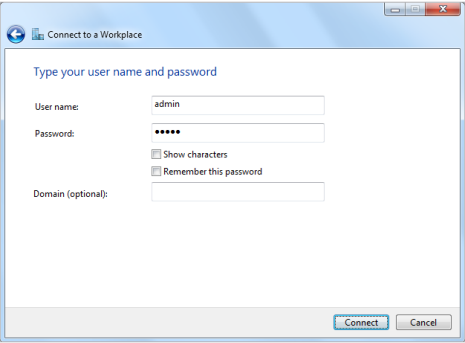
f. Enter the username and Password you have set for the PPTP VPN server on your router, and click Connect.
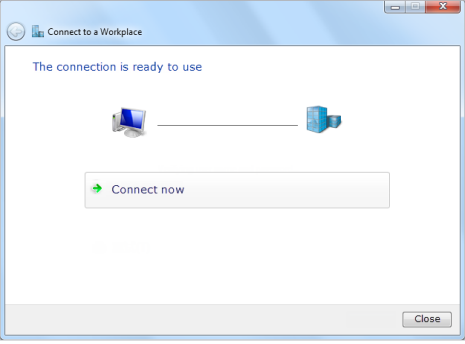
g. The PPTP VPN connection is created and ready to use.
Scenario 2: OpenVPN
Step 1. Set up OpenVPN Server on Your Router
a. Log in to the web-based interface of the router.
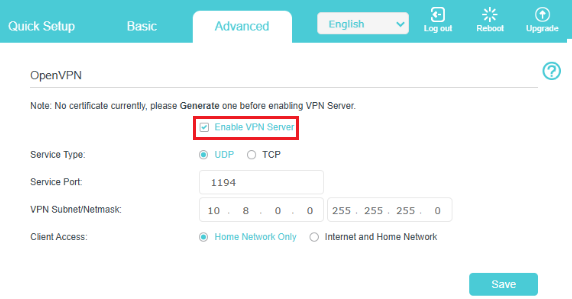
b. Go to Advanced > VPN Server > OpenVPN, and select Enable VPN Server.
Note:
- Before you enable VPN Server, it’s suggested to configure Dynamic DNS Service (recommended) or assign a static IP address for the router’s WAN port and synchronize your System Time with the internet.
- For the CG-NAT ISP: Comporium and Direct link - radio service, provide the customer a private IP, which will prevent you from using OpenVPN and affect the NAT Type. You can contact the ISP and ask them to offer a static IP address.
- The first time you configure the OpenVPN Server, you may need to generate a certificate before you enable the VPN Server.
c. Select the Service Type (communication protocol) for OpenVPN Server: UDP, TCP.
d. Enter a VPN Service Port to which a VPN device connects, and the port number should be between 1024 and 65535.
e. In the VPN Subnet/Netmask fields, enter the range of IP addresses that can be leased to the device by the OpenVPN server.
f. Select your Client Access type. Select Home Network Only if you only want the remote device to access your home network; select Internet and Home Network if you also want the remote device to access internet through the VPN Server.
g. Click Save.
h. Click Generate to get a new certificate.

Note: If you have already generated one, please skip this step, or click Generate to update the certificate.
i. Click Export to save the OpenVPN configuration file, which will be used by the remote device to access your router.

Step 2. Configure OpenVPN connection on remote device
a. Download the OpenVPN software, and install it on your device where you want to run the OpenVPN client utility.
Note: You need to install the OpenVPN client utility on each device you plan to use with the VPN to access your router. Mobile devices should download a third-party app from Google Play or Apple App Store.
b. After the installation, copy the file exported from your router to the OpenVPN client utility’s “config” folder (for example, C:\Program Files\OpenVPN\config on Windows). The path depends on where the OpenVPN client utility is installed.
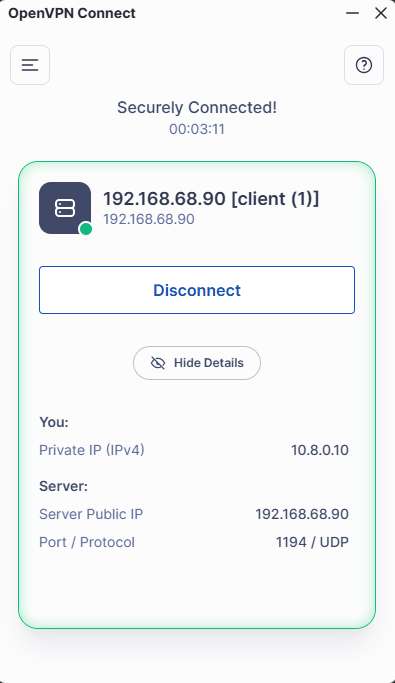
c. Run the OpenVPN client utility and connect it to OpenVPN Server.
Get to know more details of each function and configuration please go to Download Center to download the manual of your product.
Is this faq useful?
Your feedback helps improve this site.


-3.0_1527668493681s_1560828991177z_1571635682913w.jpg)

TP-Link Community
Still need help? Search for answers, ask questions, and get help from TP-Link experts and other users around the world.