
Set Up TP-Link Aginet DSL Modem Router Using the Web-Based Interface
 20061
20061DSL modem routers can connect to a phone/DSL cable or an Ethernet cable for Internet access. Before we begin, identify the cable type from the Internet source to determine the operation mode:
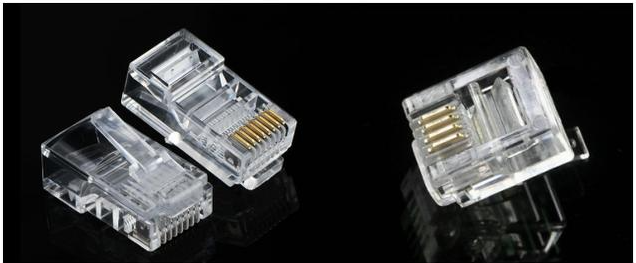
- For DSL cable (shown on the right, smaller in size, with 4 or 2 pins), use DSL Modem Router Mode
- For Ethernet cable (shown on the left, larger in size, with 8 pins), switch to Wireless Router mode
Besides, some DSL modem routers support 3G/4G connectivity via a compatible USB modem, functioning either as a primary internet source (via a SIM card) or as an automatic failover backup when the main WAN connection is unavailable.
Guide for Setting up DSL Modem Router Mode
Here, VX220-G2v(FTTB)2.0 is used as a demonstration.
1. Connect your DSL line to TP-Link modem router’s DSL port.
2. Wait about 5 min till the DSL light solid on the modem router. Please try to reset the modem or contact your ISP to check the line issue if the DSL light  is not solid on.
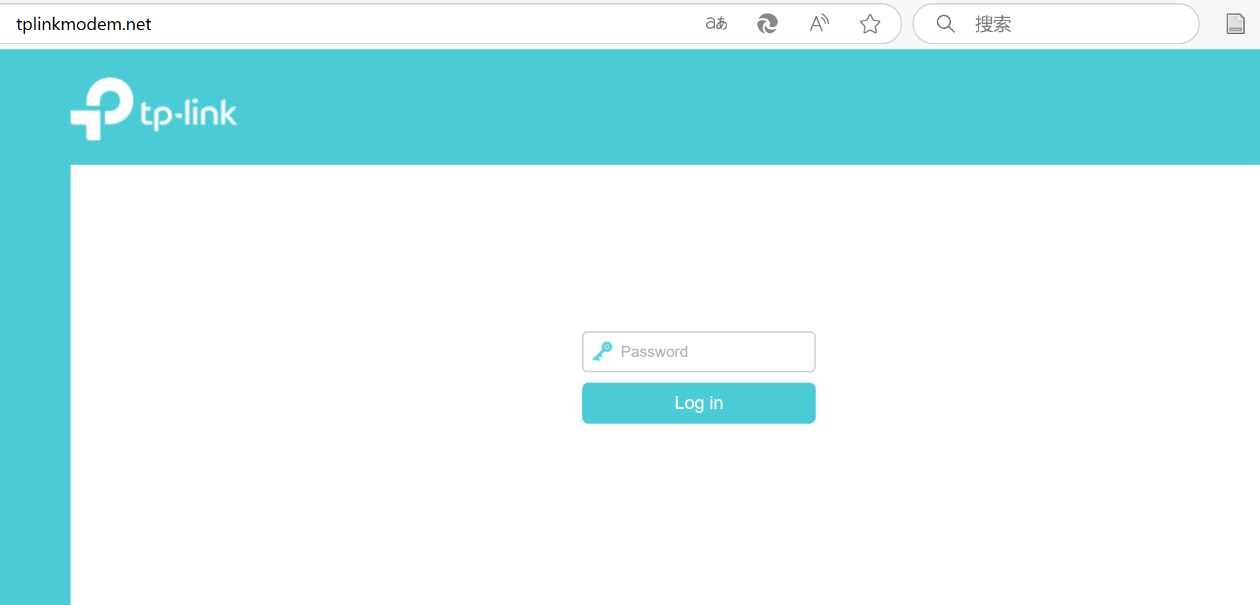
3. Access the web management page: Connect your computer or phone to the modem using WiFi or Ethernet cable and visit http://tplinkmodem.net.
4. Enter the password to manage your modem (the default password is "admin”). To get some help, please refer to What's the login/device password for TP-Link Customized Modem/Router?
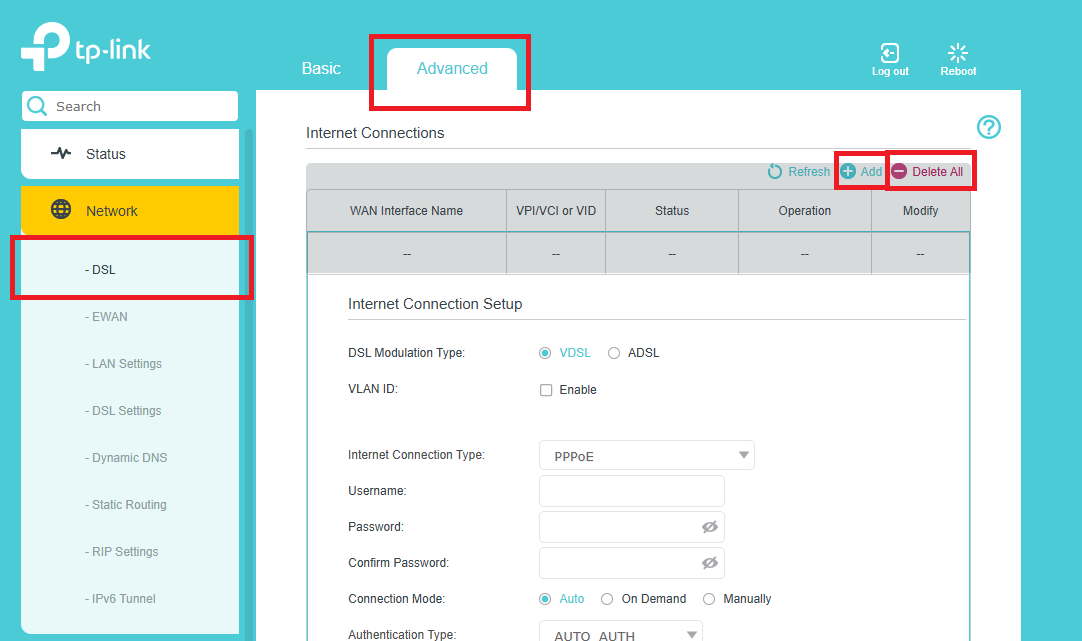
5. Go to Advanced > Network > DSL and click Delete All > Add.
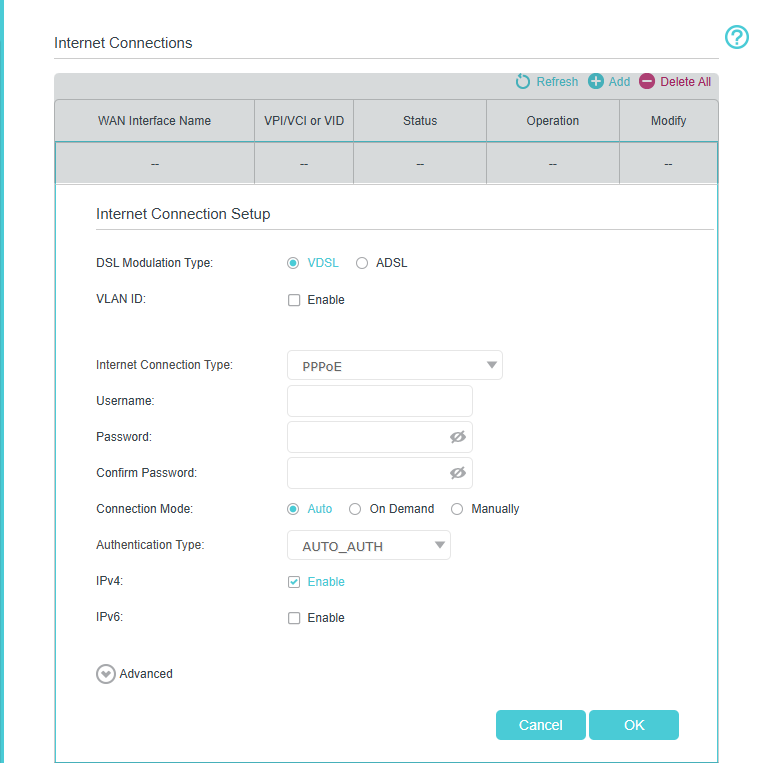
Here, we are only considering internet connectivity. If you need other services, please contact your ISP to confirm the details of the following items.
6. Enter the Internet connection information needed, including DSL Modulation type and Internet Connection Type, and click OK. The Common connection types of regular ISPs we collected are for reference only. If you don’t have the information, contact your Internet service provider.
7. Wait about 1-3 minutes. Check the Internet light on the VX220v-G2v. Then check the internet connection.
Guide for Setting up the Wireless Router Mode
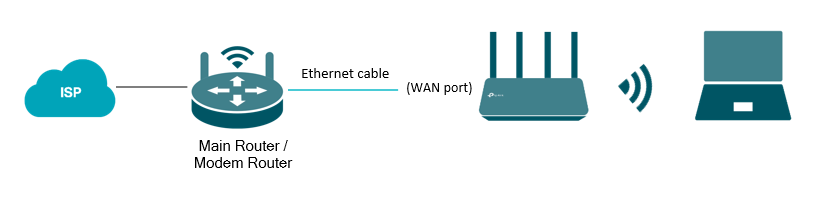
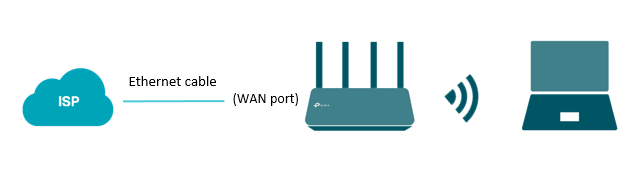
1. Power on your DSL modem router, and wire the Ethernet cable to the LAN4/WAN port of the modem router, from the existing modem, or NBN box, or the Ethernet jack on the wall.
- For connecting TP-Link modem to the existing modem
- For connecting TP-Link modem to the Ethernet port on the wall
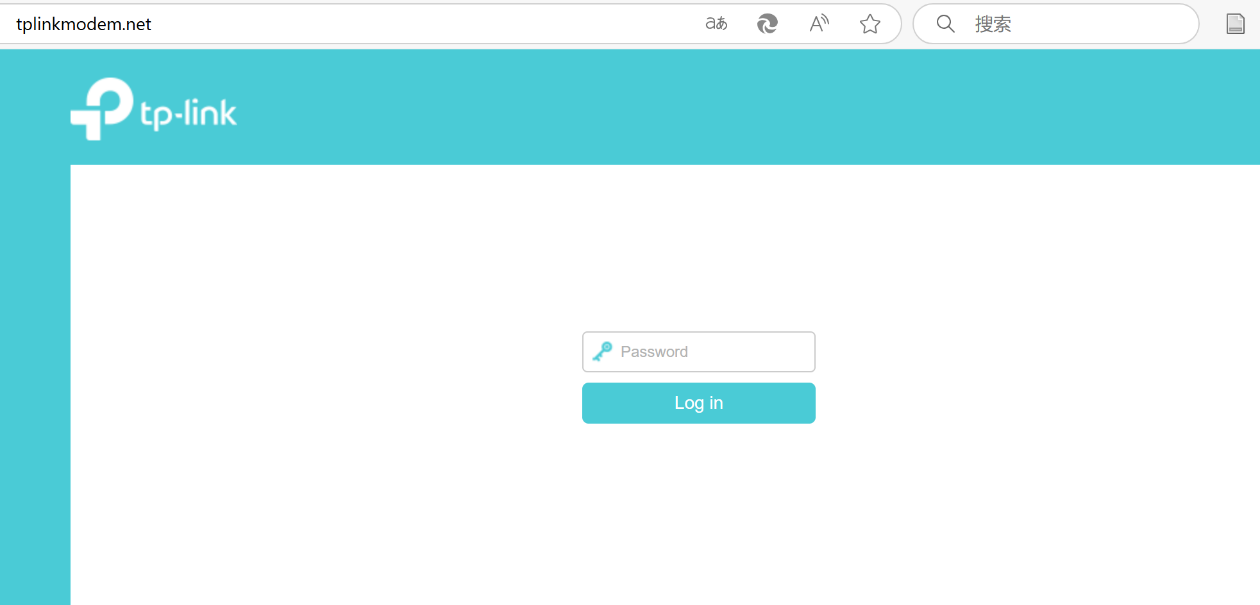
2. Access the web management page. Connect your computer or phone to the modem using WiFi or Ethernet cable and visit http://tplinkmodem.net.
Here, it takes VX420-G2h as a demonstration. The default password is “admin”. To get some help, please refer to What's the login/device password for TP-Link Customized Modem/Router?
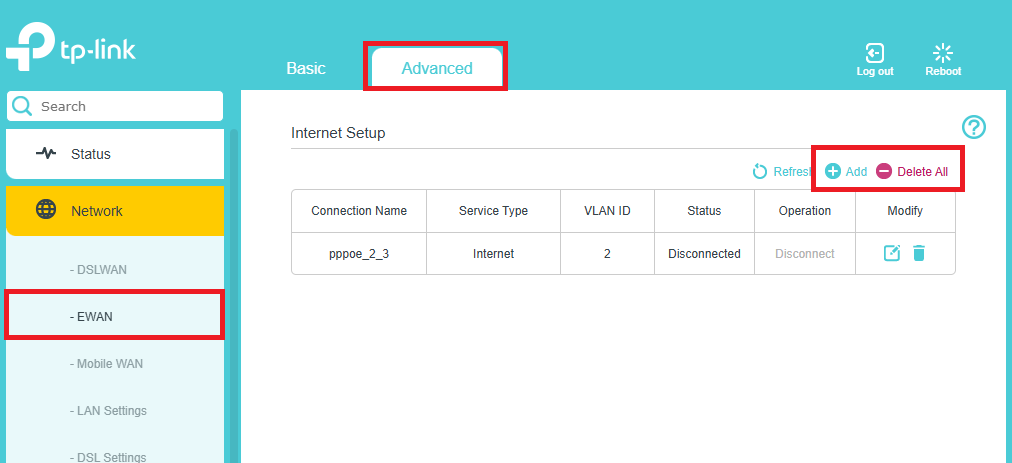
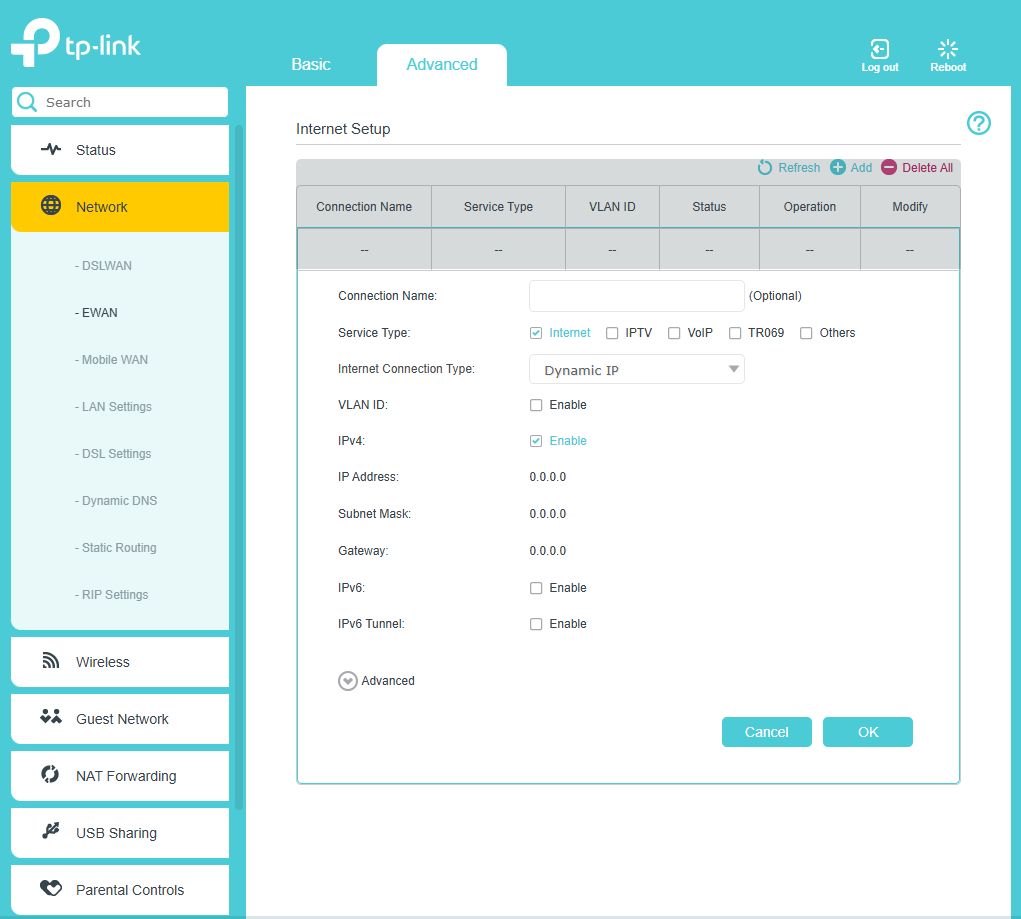
3. Go to Advanced > Network > EWAN click on “Delete all” and then click on “add”.
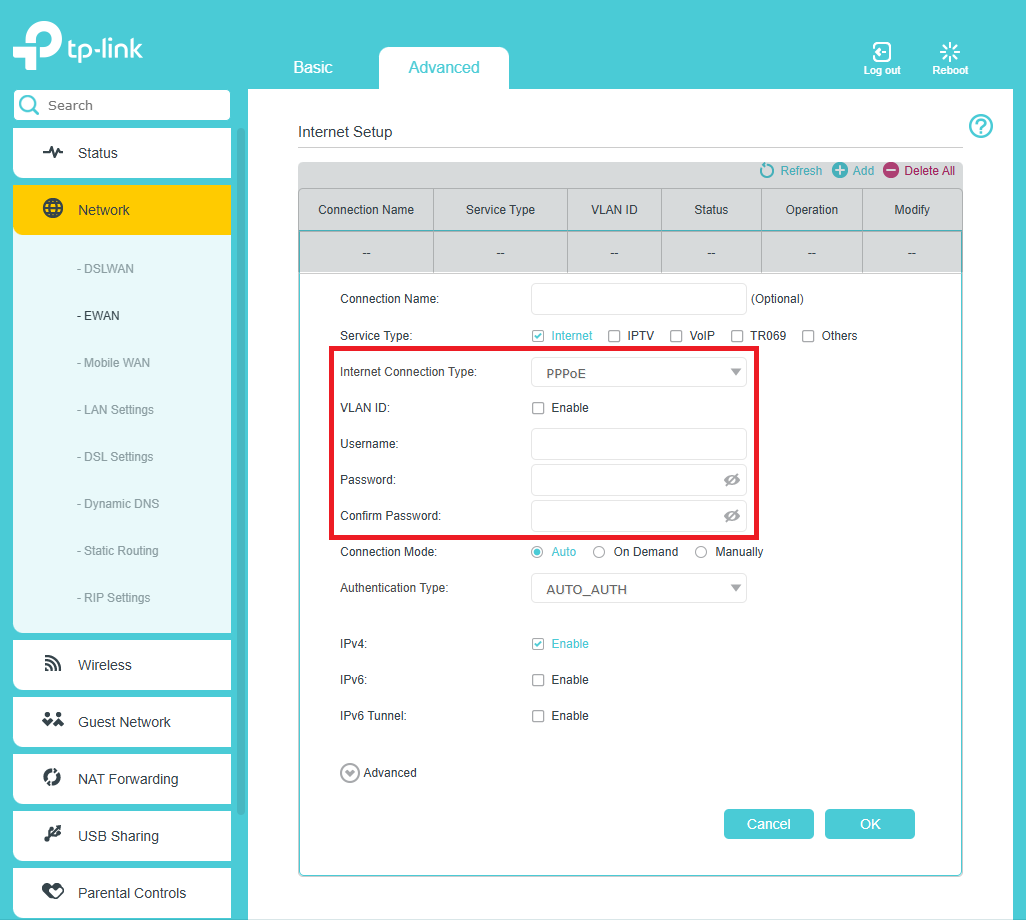
4. Fill in Internet parameters, including connection type and VLAN ID if needed. Contact your Internet service provider if you don’t have the setup information.
The Common connection types of regular ISPs we collected are for reference only.
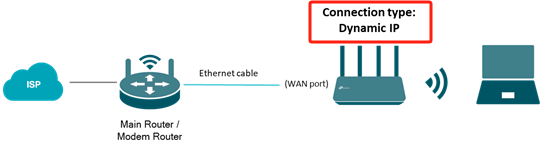
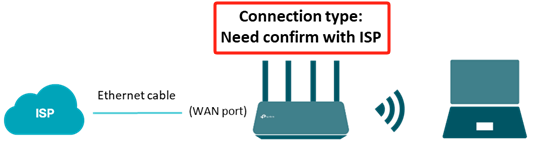
For connection type: You may choose Dynamic IP when the TP-Link modem is wired to a main router like Pic 1, or you are advised to confirm with ISP if your TP-Link Modem is wired to ISP directly like Pic 2.
Pic 1
Pic 2
If your connection type is Dynamic IP:
If your connection type is PPPoE, enter PPPoE Username and Password provided by Internet service provider:
If you have a VLAN ID, enable the VLAN tag and enter the ID number:
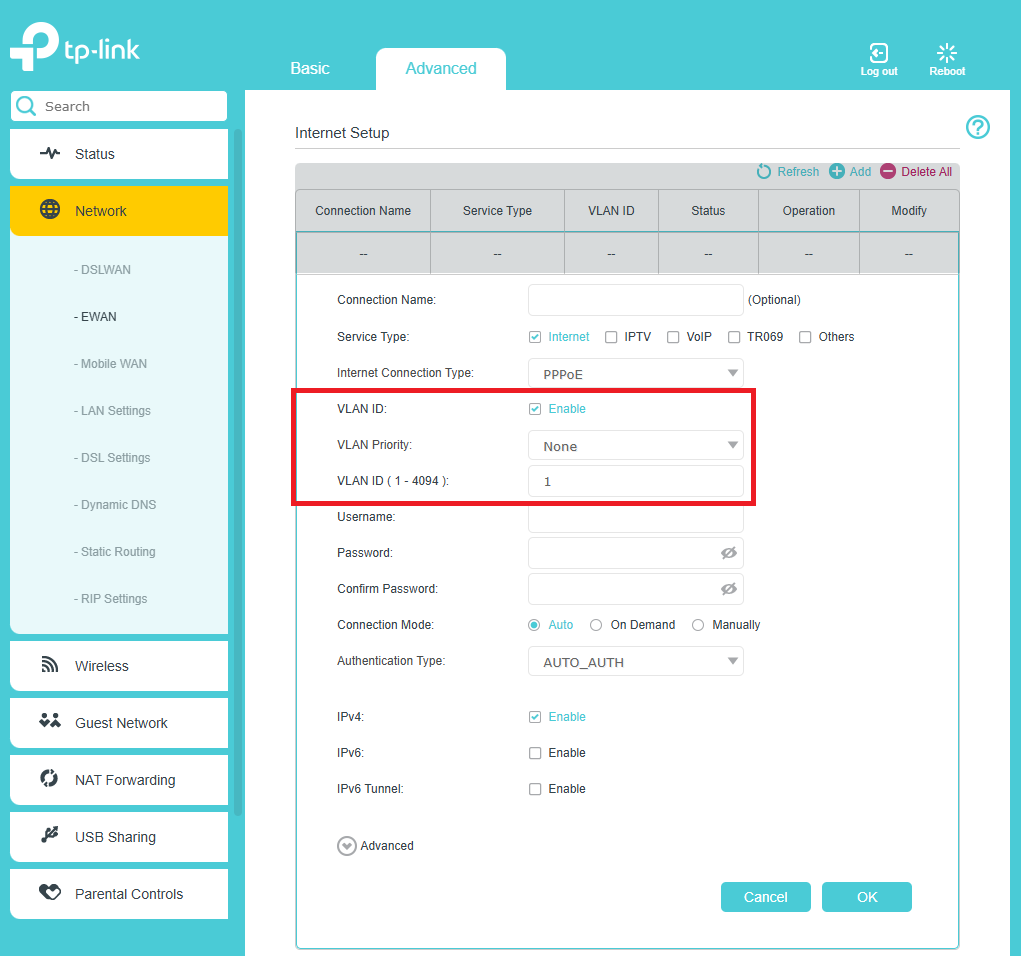
5. Wait about 3-5 minutes till the Internet LED solid on the VX420-G2h, then check the internet connection.
To get to know more details of each function and configuration please go to Download Center to download the manual of your product.
Guide for Setting up the 3G/4G Mode
Here, Archer VR2100 is taken as an example. The actual interface and function options shown in this FAQ may vary slightly from those of your product model. For more details, please refer to your router's User Guide.
Note: If your 3G/4G USB modem is incompatible with the modem router, it will not be identified. Find the 3G/4G Compatibility List on the web page. If your USB modem is incompatible, contact our technical support.
Scenario 1: As the only way to access the internet
Method 1: Via the web management page
1. Plug your USB modem into the modem router's USB port.
2. Connect to the TP-Link DSL Modem Router, and open a browser to visit tplinkmodem.net or 192.168.1.1 to log in to the web management page.
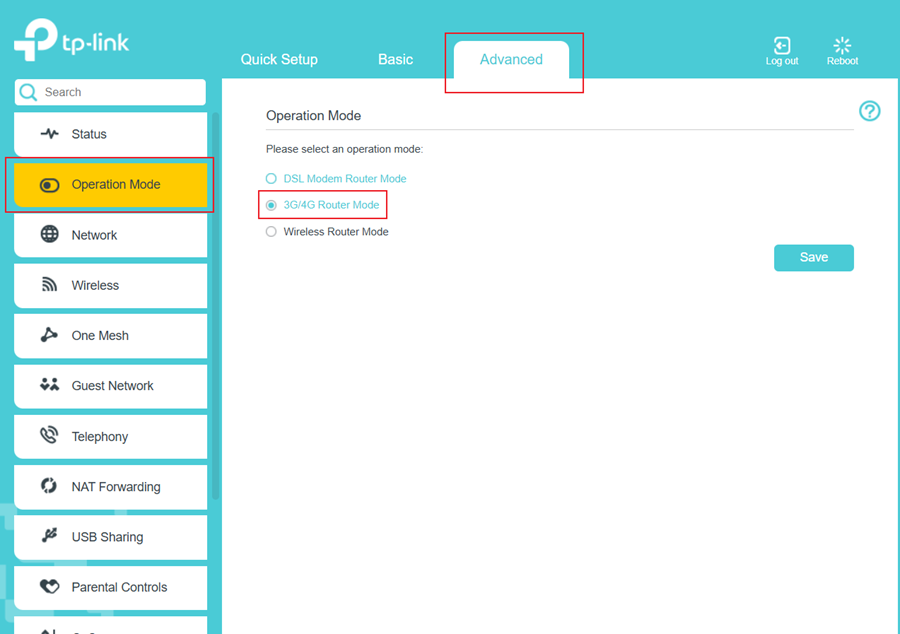
3. Once signed in to the web management page, select your Region and Time Zone, then click Next. Navigate to Advanced > Operation Mode, choose 3G/4G Router Mode, and click Save.
After the modem router is successfully rebooted, the settings will take effect.
If the modem is already installed without a prior reset, access the Advanced settings directly to make adjustments.
4. Log in to the web management page again, then go to Advanced > USB Sharing > 3G/4G Settings.
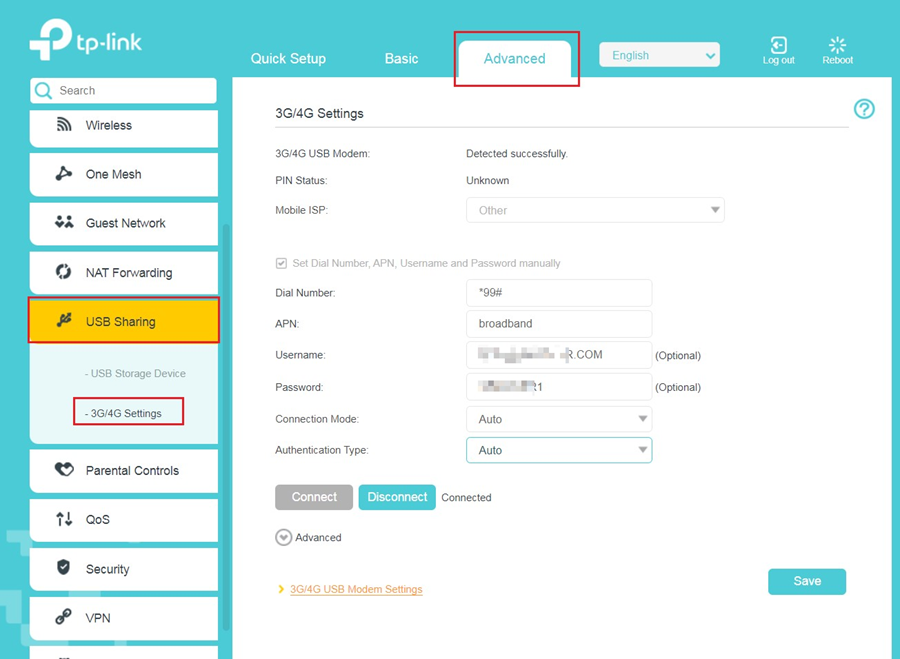
5. Verify that your 3G/4G USB Modem is successfully detected.
6. Verify that the modem router has correctly recognized your Mobile ISP. When your Mobile ISP is correct, you can enjoy the internet!
Otherwise, select the box Set the Dial Number, APN, Username, and Password manually and enter the information provided by your 3G/4G network service provider.
7. Select the Connection Mode. The default mode is Auto. You can choose On Demand or Manually.
- If you choose Manually, you need to click the Connect or Disconnect button to turn on or off the internet manually.
- If you choose On Demand, the network will automatically turn off when there is no internet request in Max Idle Time, and turn on again when you try to connect to the internet.
8. Click Advanced to access more configuration options if needed.
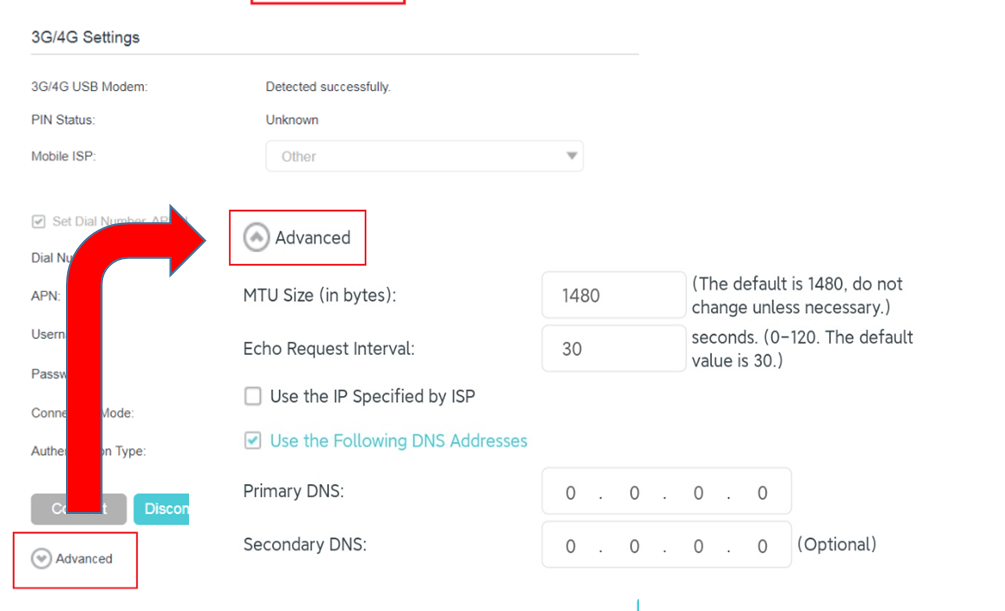
9. Click Save to apply the settings.
Method 2: Via the Tether app
1. Plug your USB modem into the modem router's USB port.
2. Connect the phone that downloads the Tether app to the TP-Link DSL Modem Router’s Wi-Fi, and open the app to select your TP-Link modem router from the device list. Follow the app to install it in the DSL modem router mode.
If the modem router is already installed without a prior reset, go directly to Step 3.
3. Go to More > Operation Mode, select 3G/4G Router, and click Apply. Then wait for the modem router to finish rebooting.
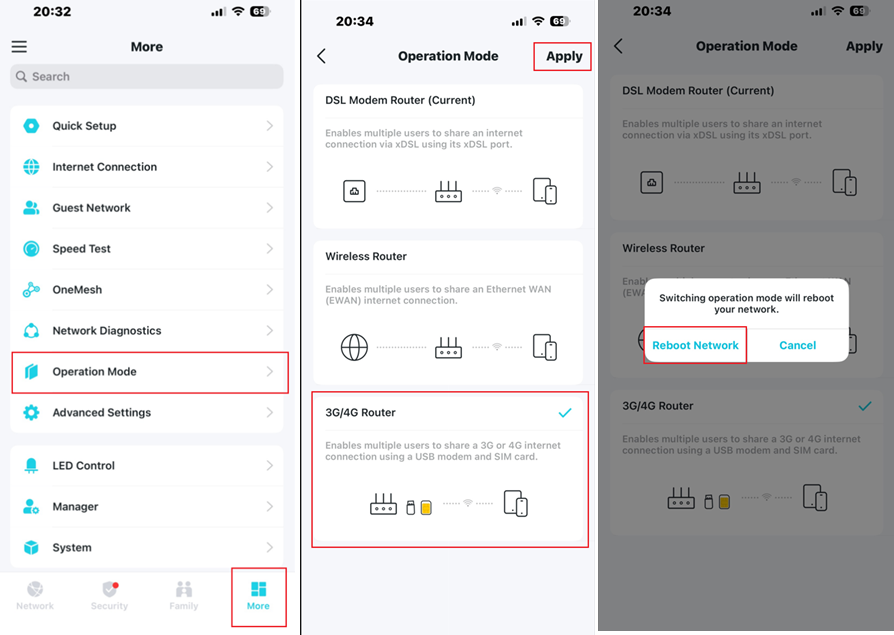
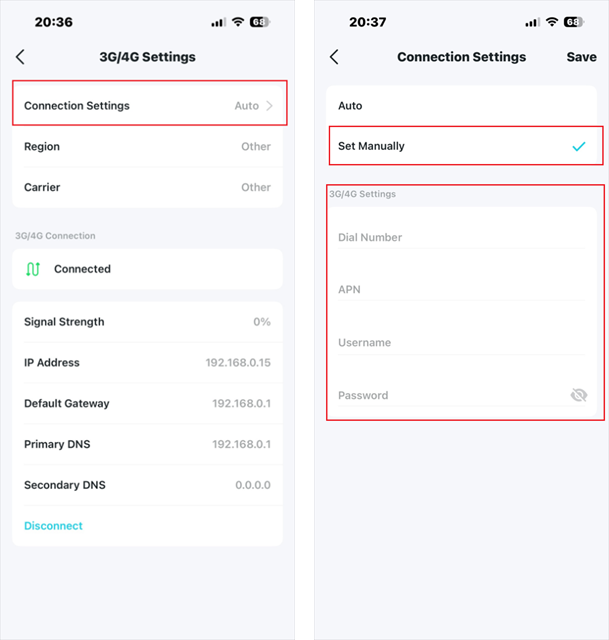
4. Go to More > Advanced Settings > 3G/4G Settings to verify that your 3G/4G USB Modem is successfully identified.
5. Verify that the modem router has correctly recognized your Mobile ISP. When your Mobile ISP is correct, you can enjoy the internet!
Otherwise, click Connection Settings, select Set Manually, then create a new APN profile by entering the information provided by your 3G/4G network service provider and click Save to apply the changes.
Scenario 2: As a backup solution for internet access
Method 1: Via the web management page
1. Plug the 3G/4G USB modem into the USB port of your modem router.
2. Connect the computer to the TP-Link DSL Modem Router wirelessly or wiredly, and open a browser to visit tplinkmodem.net or 192.168.1.1 to log in to the web management page.
3. Go to Advanced > USB Sharing > 3G/4G Settings, and select the Enable 3G/4G as a backup solution for Internet access checkbox.
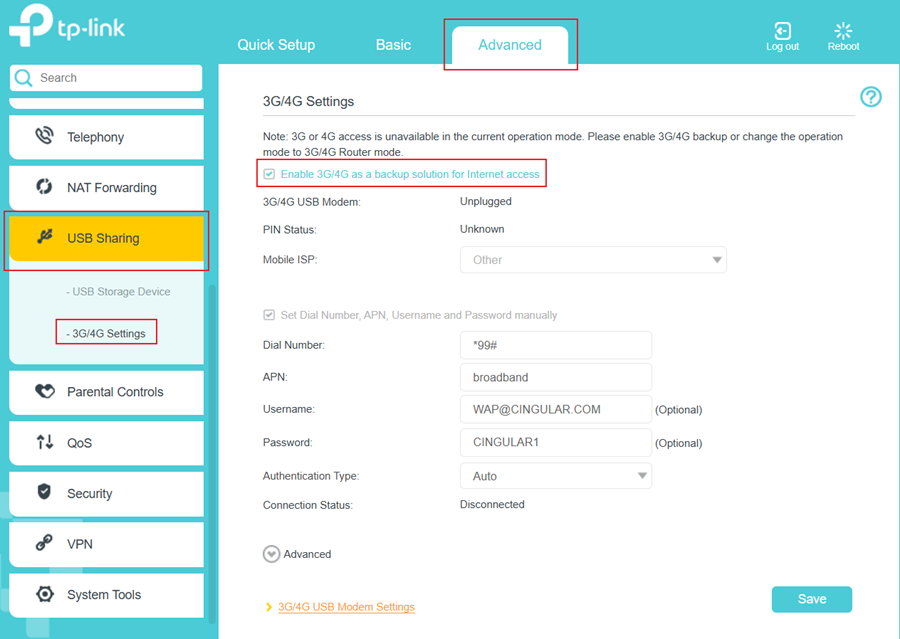
4. Verify that your 3G/4G USB Modem is successfully identified.
5. Verify that the modem router has correctly recognized your Mobile ISP. When your Mobile ISP is configured correctly, you have successfully set up 3G/4G network as a backup for internet access.
Otherwise, select the box Set the Dial Number, APN, Username, and Password manually and enter the information provided by your 3G/4G network service provider.
6. Click Advanced to access more configuration options if needed.
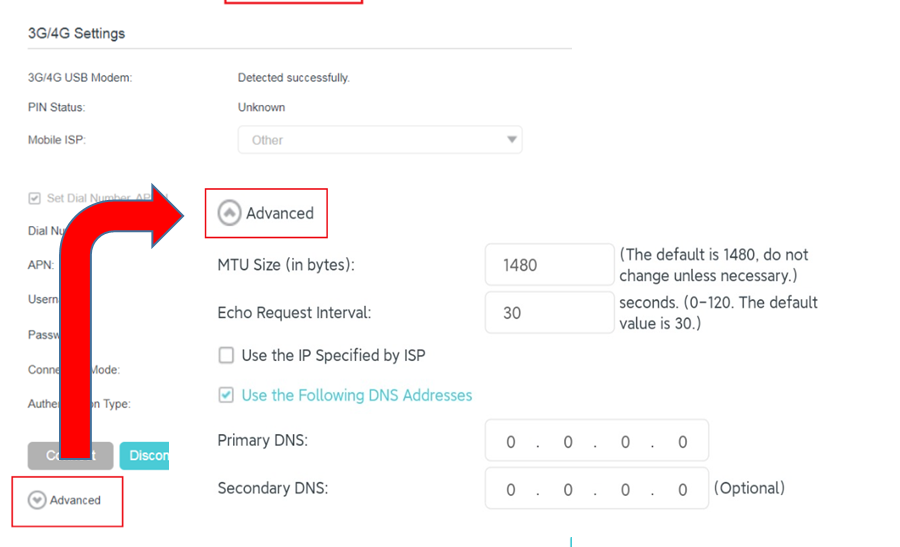
7. Click Save to apply the settings.
Method 2: Via the Tether app
1. Plug your USB modem into the modem router's USB port.
2. Connect the phone that downloads the Tether app to the TP-Link DSL Modem Router’s Wi-Fi, then open the Tether app and log in to the modem router using the device password.
3. Tap More > Advanced Settings > 3G/4G Settings, click Enable 3G/4G backup, then enable 3G/4G Backup.
If above troubleshooting still could not resolve the problem, please contact TP-Link Support.
Get to know more details of each function and configuration please go to Download Center to download the manual of your product.
Is this faq useful?
Your feedback helps improve this site.

TP-Link Community
Still need help? Search for answers, ask questions, and get help from TP-Link experts and other users around the world.