
Where can I find detection recordings of Tapo & Kasa cameras on the Tapo app?
 186712
Introduction
This article explains how to find and watch detection recordings from Tapo & Kasa cameras in the Tapo app.
Configuration
Step 1. Enable the detection.
On the Home page of the Tapo app:
- Click on the camera model to go to the Live View page.
- Tap the settings icon at the top right corner to go to the Device Settings page.
- Click on Detection to check if the related detection types are enabled. For example, please enable Motion Detection if you want the camera to record motion events.
Note: Different camera models support different detection types.
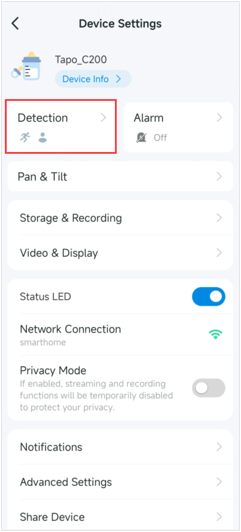
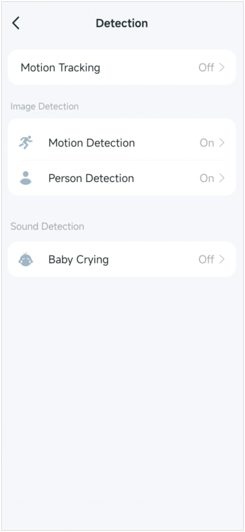
Step 2. On the Live View page, tap Playback & Download to view detection recordings.
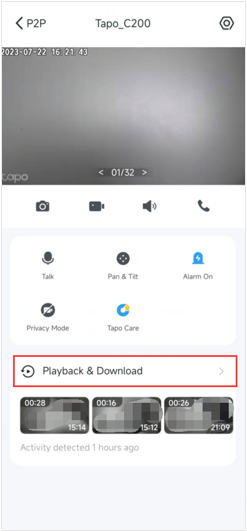
Case 1: For Cloud Videos
If you have subscribed to the Tapo/Kasa Care service, please tap the Cloud icon and select the date to find your desired detection recordings.
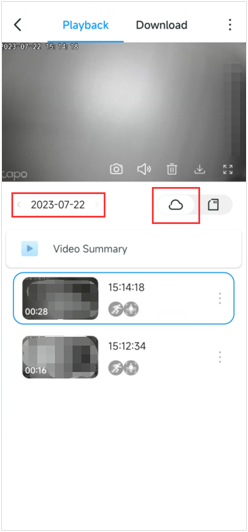
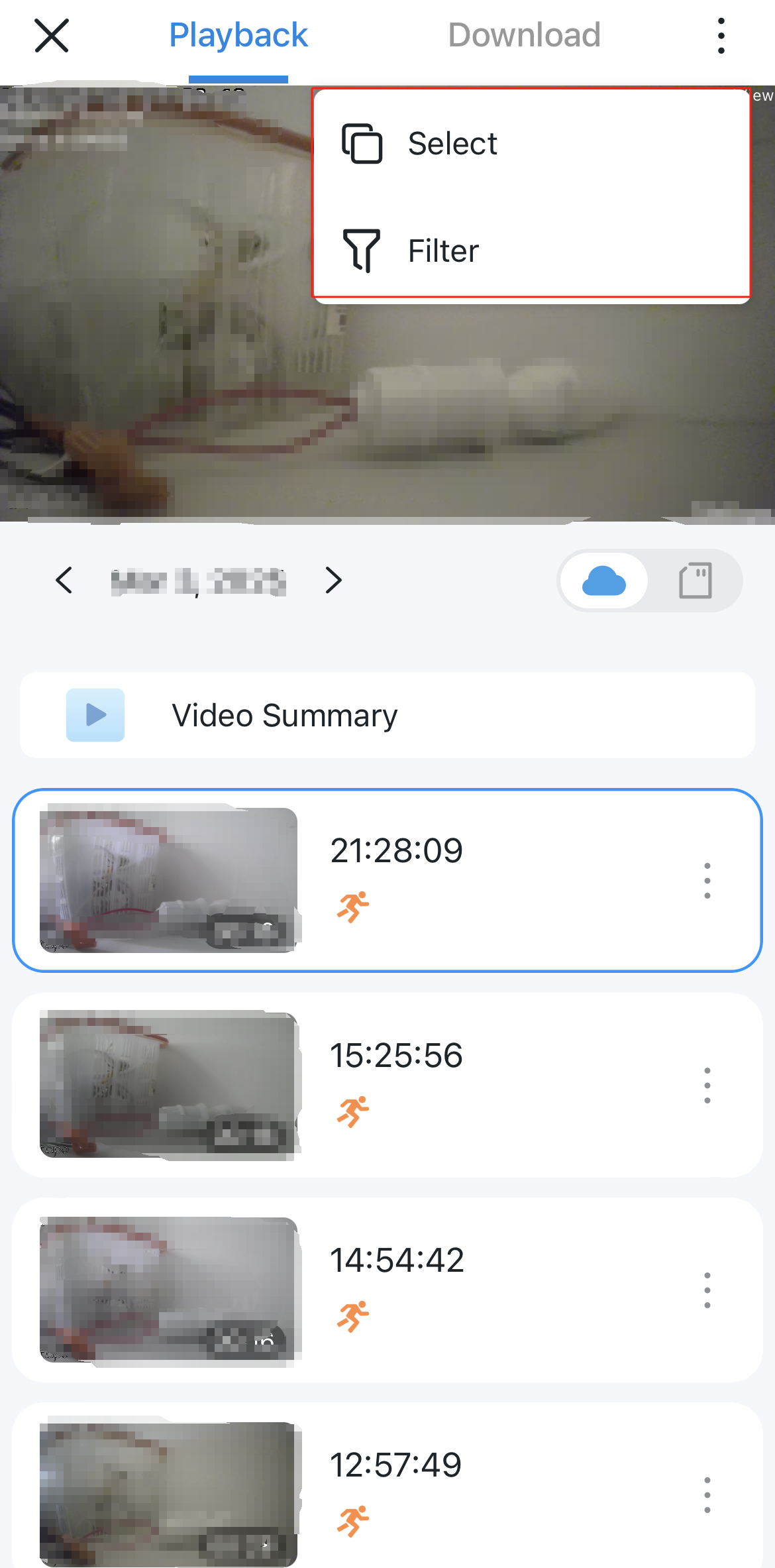
Tap the three dots icon at the top right corner, and you have Select and Filter options.
Select: It helps you select the recordings to delete.
Filter: It helps you filter the recordings according to the detection type. In addition, some cameras support Adjust Event Type, allowing you to manually adjust the event type during playback if the event type differs from the actual scenario to improve detection accuracy. Support of this feature may vary by model. Please refer to the app display for accurate information.
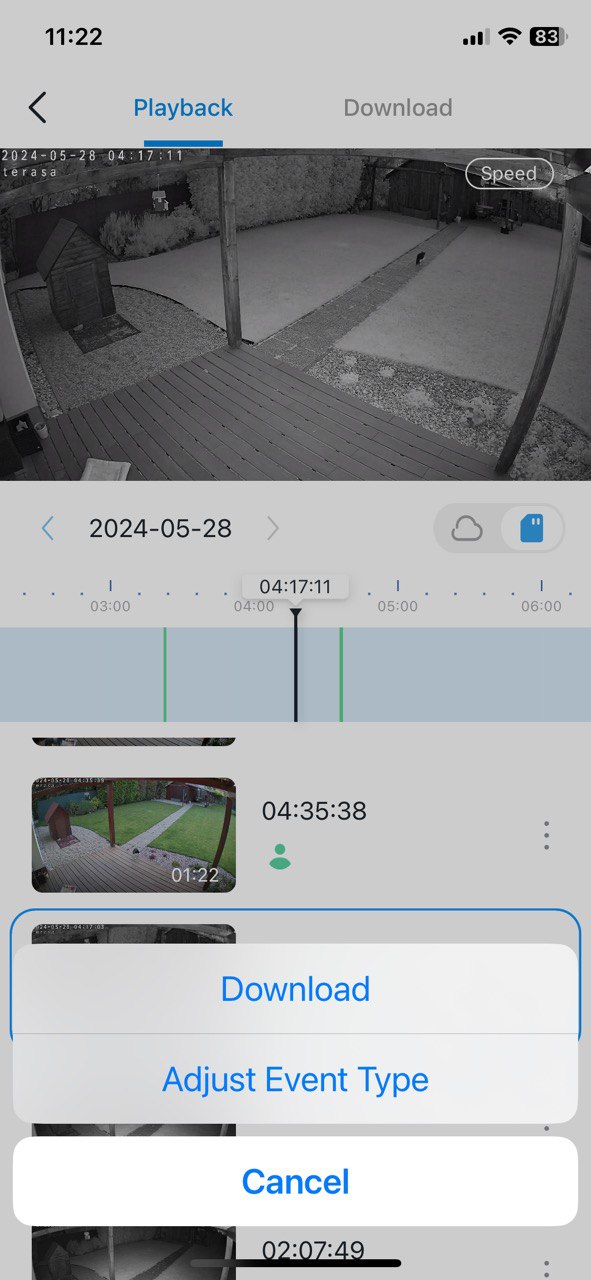
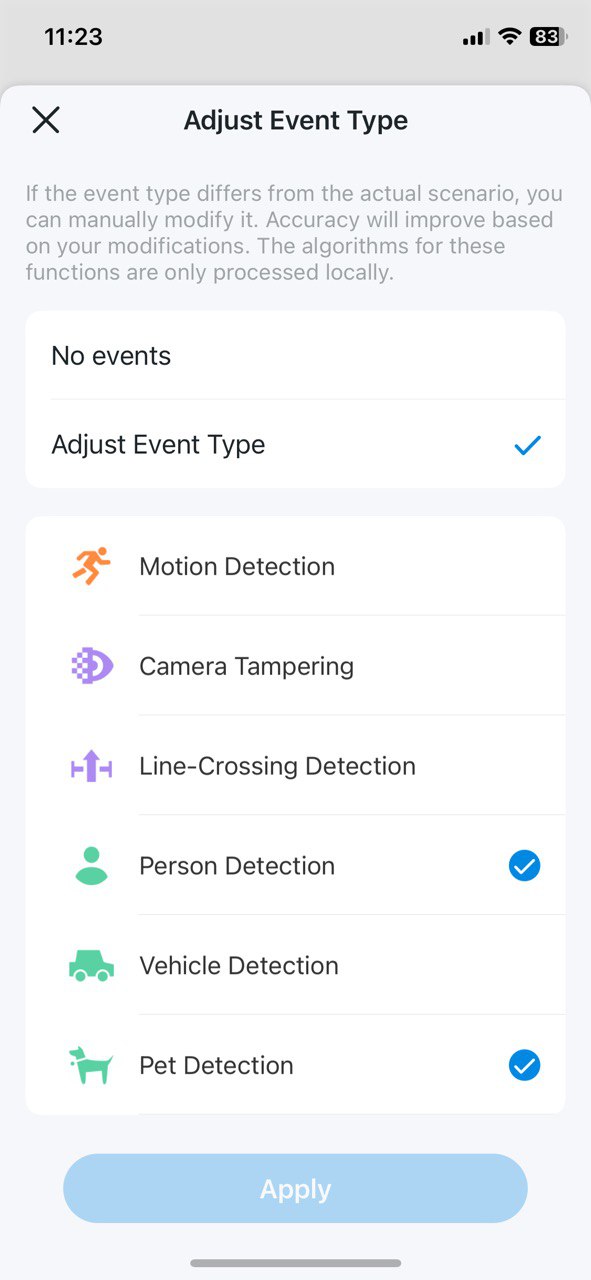
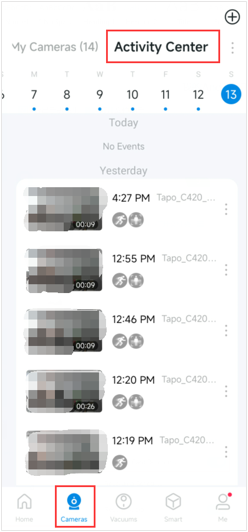
Note: You can also watch the cloud detection recordings on the Tapo app > Cameras tab > Activity Center; the Activity Center will show all your camera detection recordings.
Case 2: For Local Videos
If you have inserted a microSD card into the camera, please go to the camera’s Device Settings > Storage & Recording page to confirm that the microSD Card Recording feature is enabled. Then, the camera detection recordings will be stored on the microSD card.
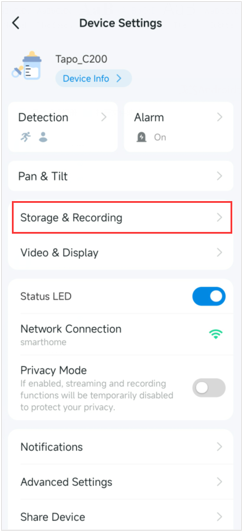
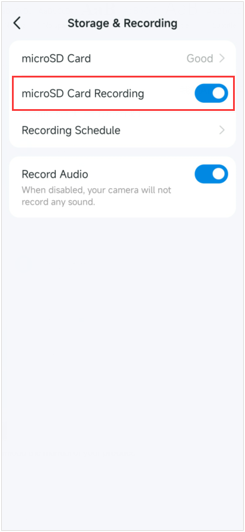
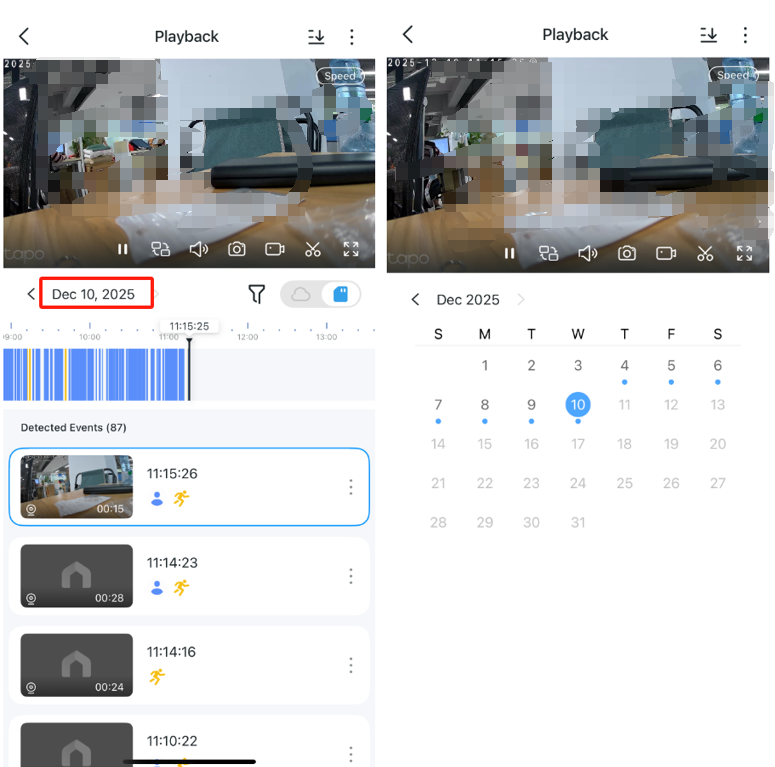
On the camera’s Live View > Playback & Download > Playback page, tap the SD Card icon, select the date, and then drag the timeline to find the detection recordings you want to view.
Note: Different detection recordings have different colors.
Get to know more details of each function and configuration please go to Download Center to download the manual of your product.
Is this faq useful?
Your feedback helps improve this site.

TP-Link Community
Still need help? Search for answers, ask questions, and get help from TP-Link experts and other users around the world.