
How to configure IPv6 of TP-Link Wireless 3G/4G/5G Router
 84542
84542Introduction
This article provides a step-by-step guide for configuring IPv6 on a TP-Link Wireless 3G/4G/5G Router.
Requirements
- Your SIM card is working properly with the router.
- Confirm with your ISP that this SIM card supports IPv6.
Configuration
Note: This article takes Archer MR600 as an example. The actual interface and function options shown in this FAQ may vary slightly from those of your product model.
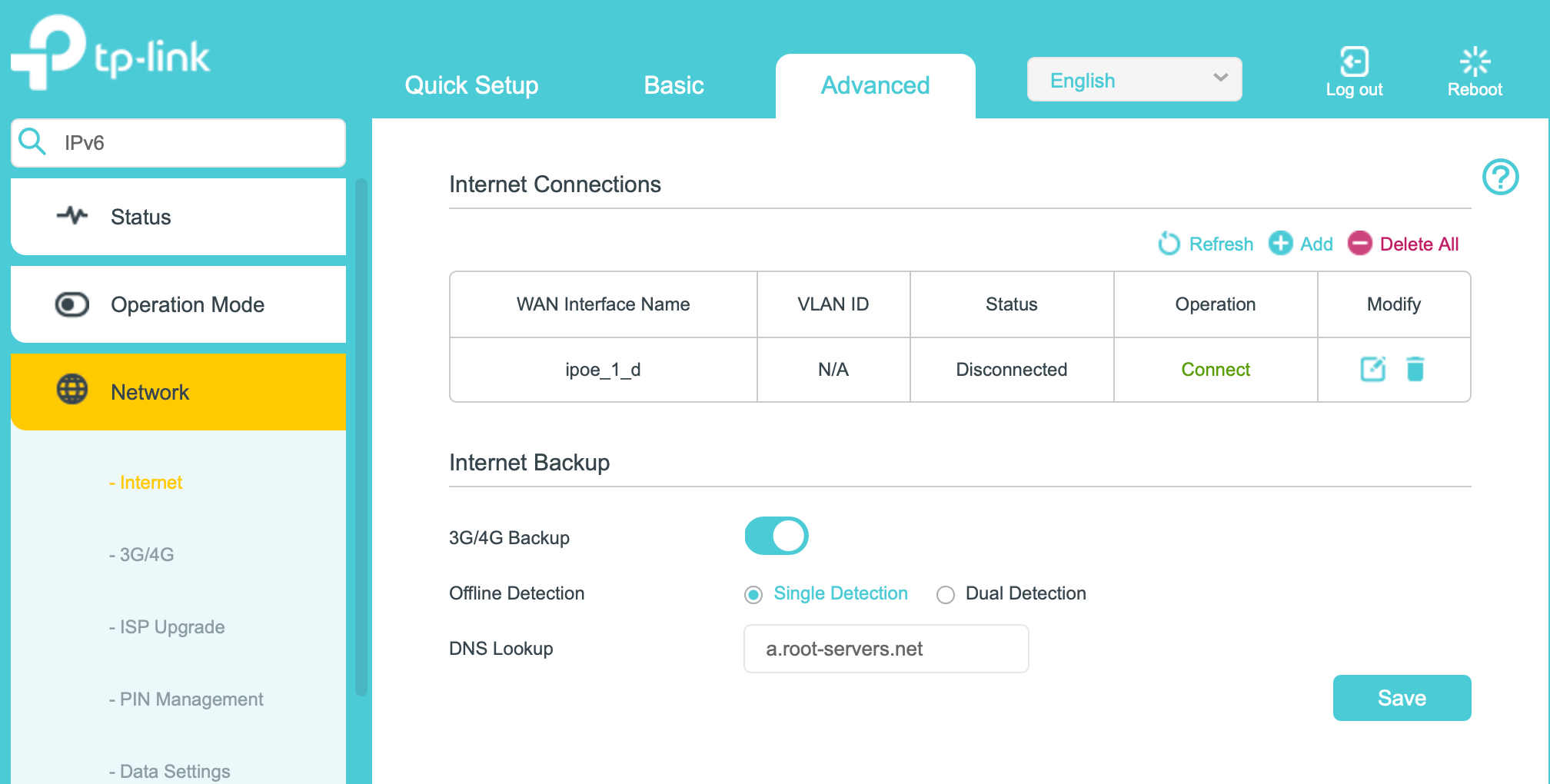
Step 1. Log in to the web management page. Go to Advanced > Network > Internet > Internet Connections
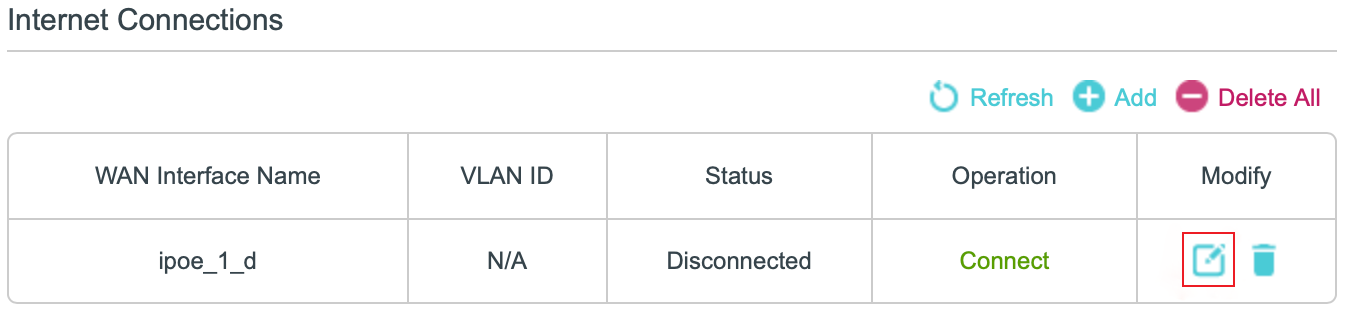
Step 2. Click the edit icon for the current entry in Internet Connections. The default name is ipoe_1_d.
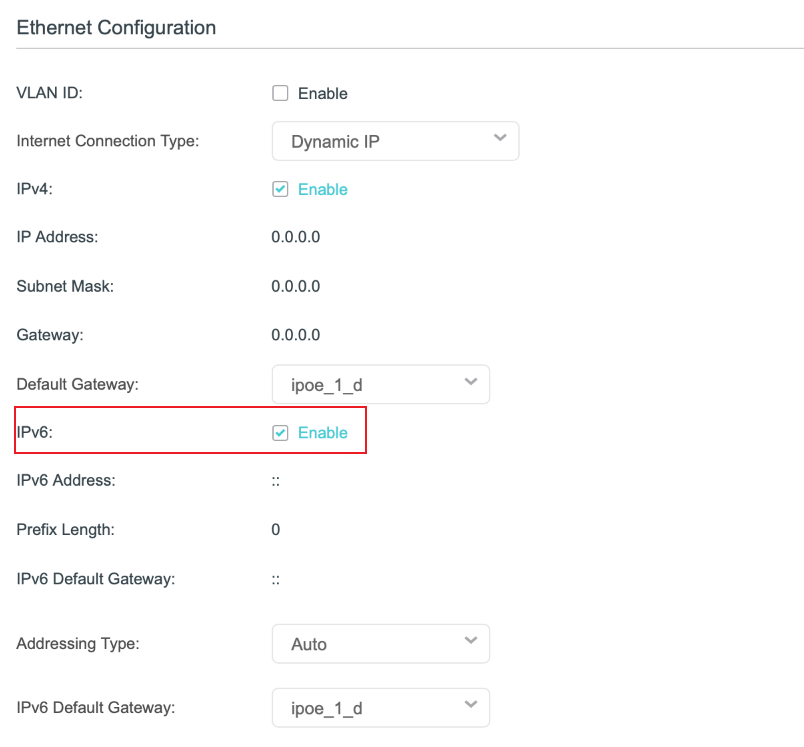
Step 3. In the pop-up edit page, check IPv6 to enable it.
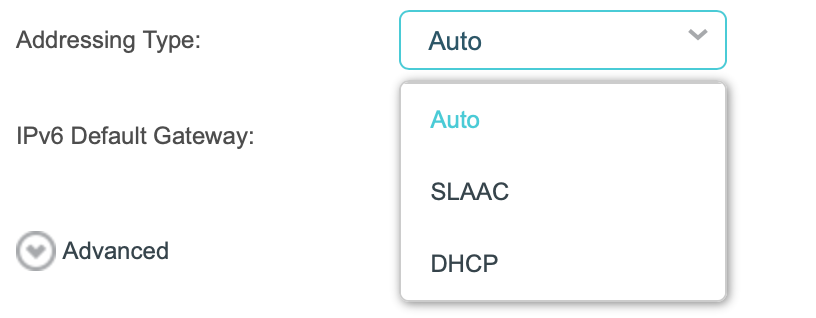
Step 4. Select the Addressing Type (SLAAC or DHCP) based on your ISP's IPv6 access type. The default option is Auto.
Step 5. Go to Advanced > Network > LAN Settings > DHCP Server > IPv6 to complete the configuration of the IPv6 network on the LAN side. Under normal circumstances, no changes to the corresponding settings are required.
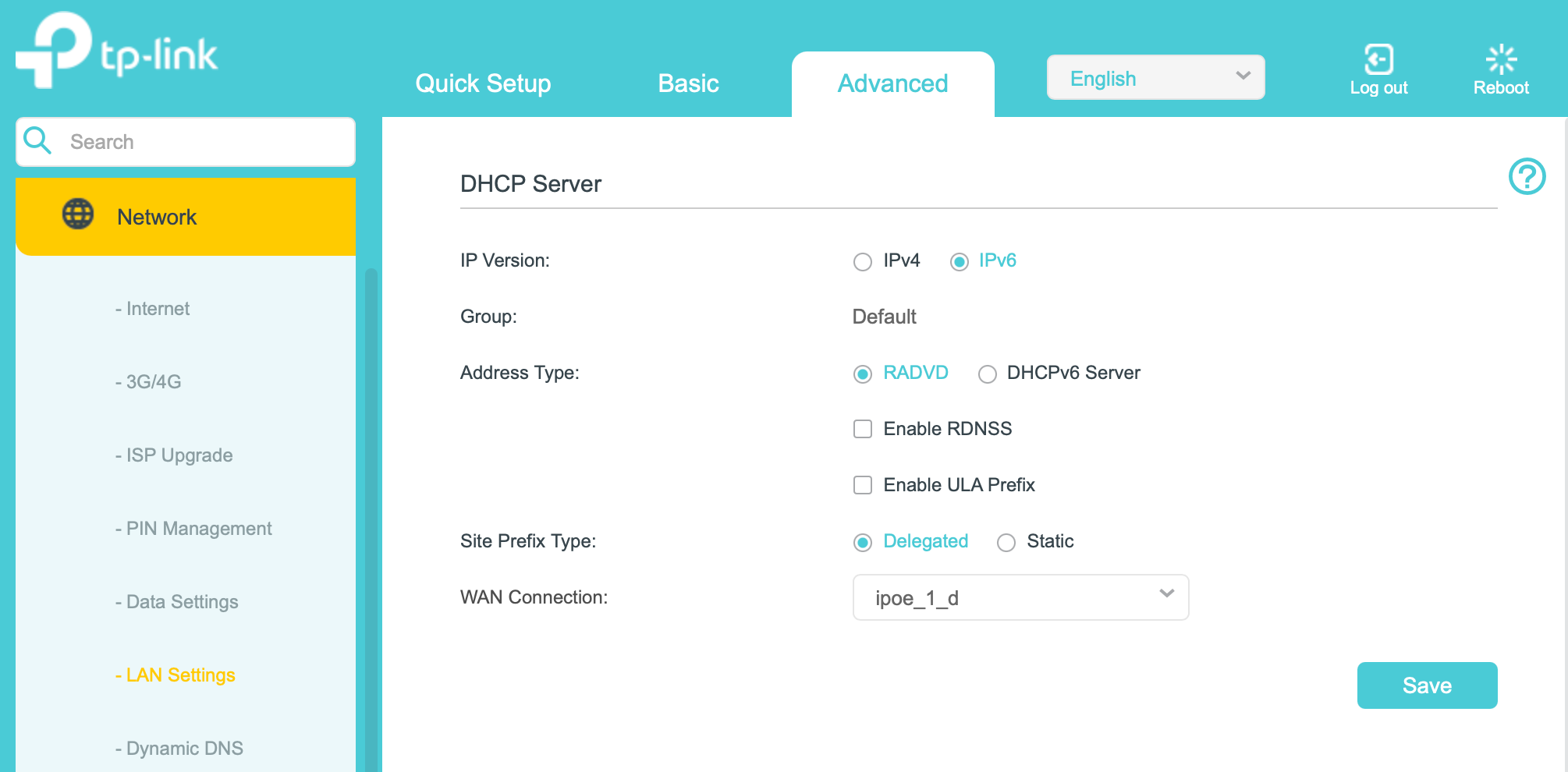
Step 1. Log in to the web management page. Go to Advanced > Network > Internet.
For 5G routers, the path is Advanced > Network > Mobile WAN.
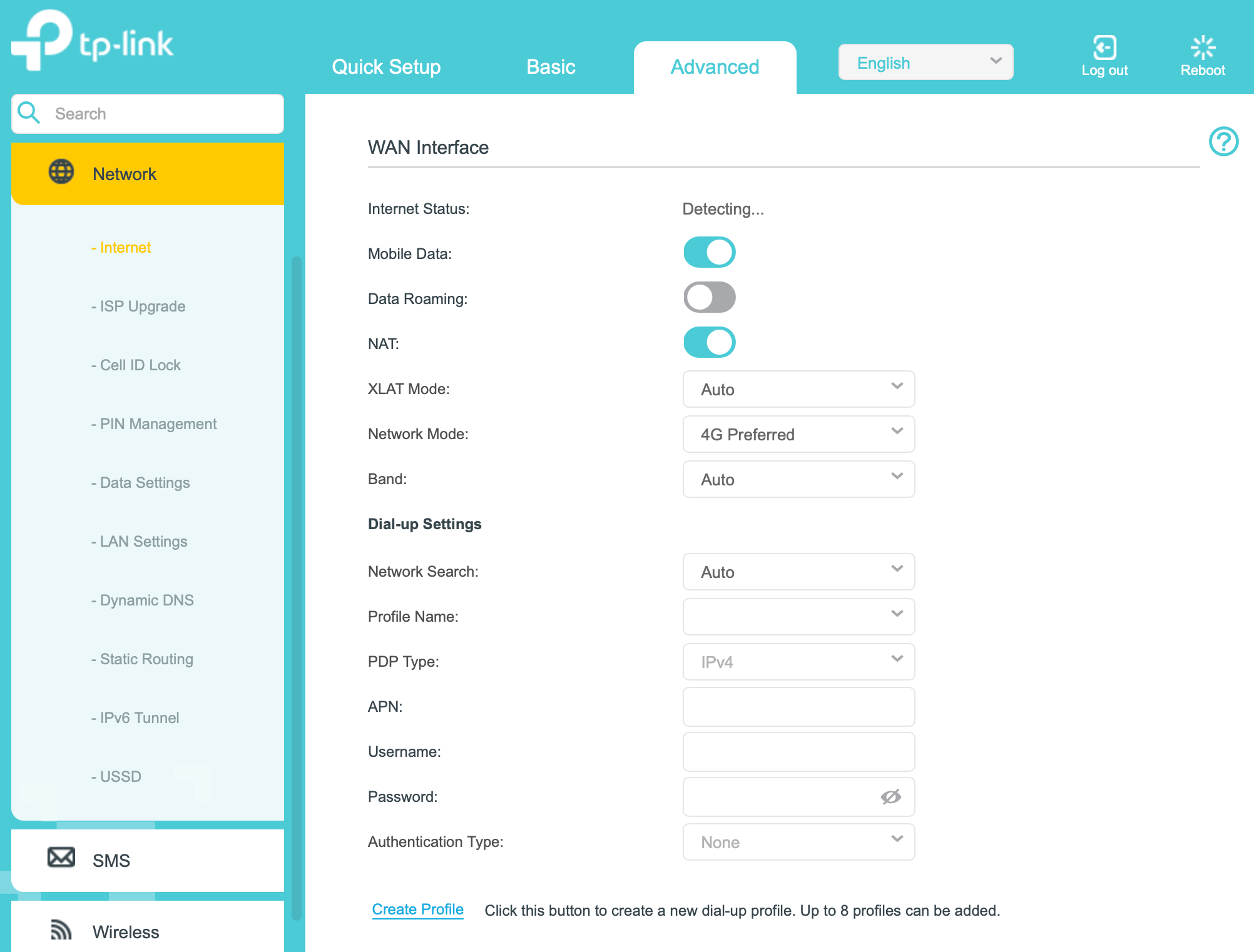
Step 2. Check the PDP Type. If it's IPv4, the Archer MR600 won't request an IPv6 address when dialing.
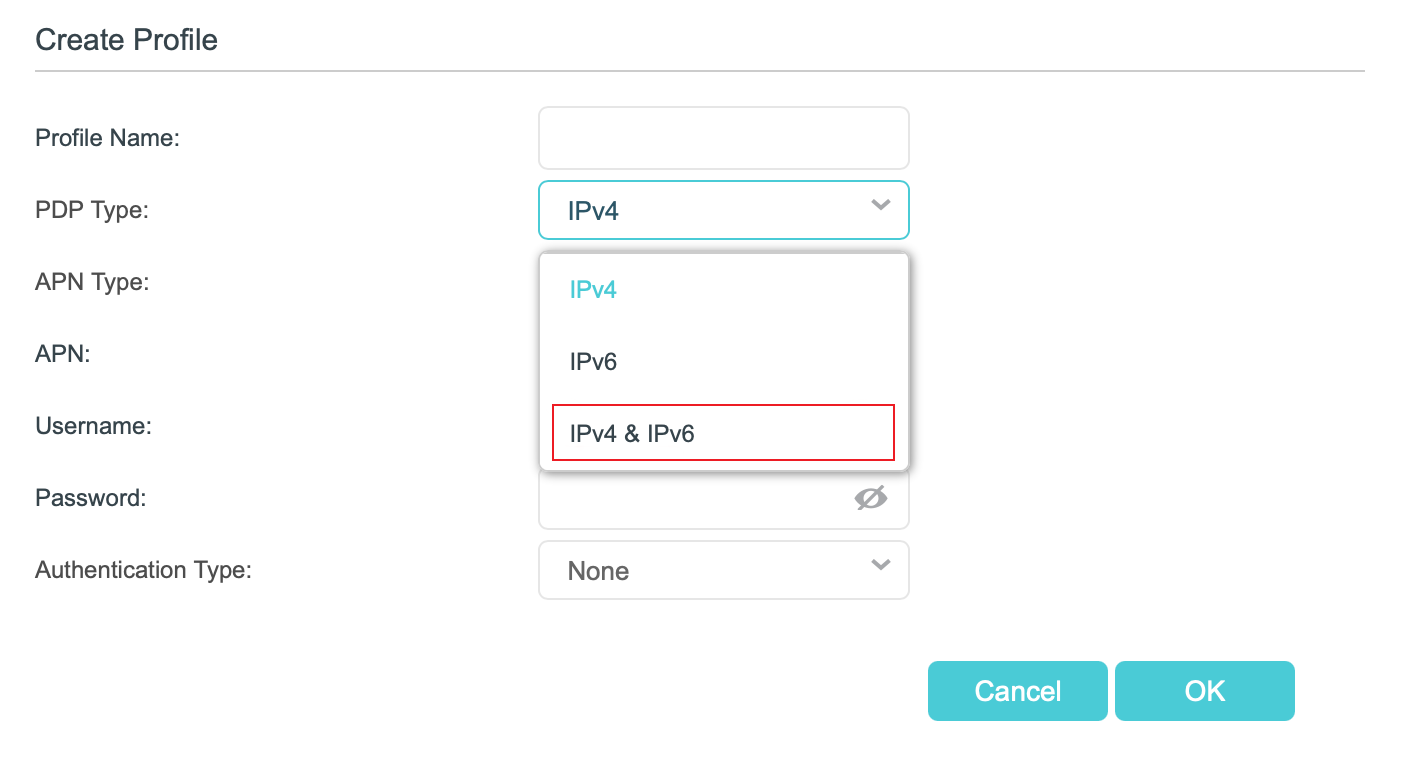
Step 3. To enable IPv6, click Create Profile at the bottom of this page to create a new ISP Profile with PDP Type set to IPv4 & IPv6 and fill in your ISP's APN configuration. Then click OK.
Note:
- Not all ISPs support IPv6 addresses. In some cases, changing the PDP Type may cause you to lose your network connection. In this case, please switch back to the default PDP Type.
- In 3G/4G/5G router mode, there is no configuration page for the IPv6 LAN side; RADVD is used by default.
- 5G routers do not have a distinction in Operation Mode, but the configuration methods for Ethernet and mobile networks can still be referred to this article.
¿Es útil esta pregunta frecuente?
Sus comentarios nos ayudan a mejorar este sitio.


