How to Filter Footage with People or Vehicles
 4039
4039Contents
Using the VIGI PC Client to View
Introduction
In current NVRs, you can filter events in playback. You can choose to filter out events recorded by the IPC for people and cars, and view them at specific times in the VIGI PC Client or NVR GUI. This helps you retrieve relevant records more quickly.
Requirements
-
NVR with Human/Vehicle Filtering Function
- VIGI PC Client
Configuration
Before viewing the filtered results, ensure that Human Detection and Vehicle Detection are enabled on the IPC. Configure these settings in the IPC's Event > Smart Event.
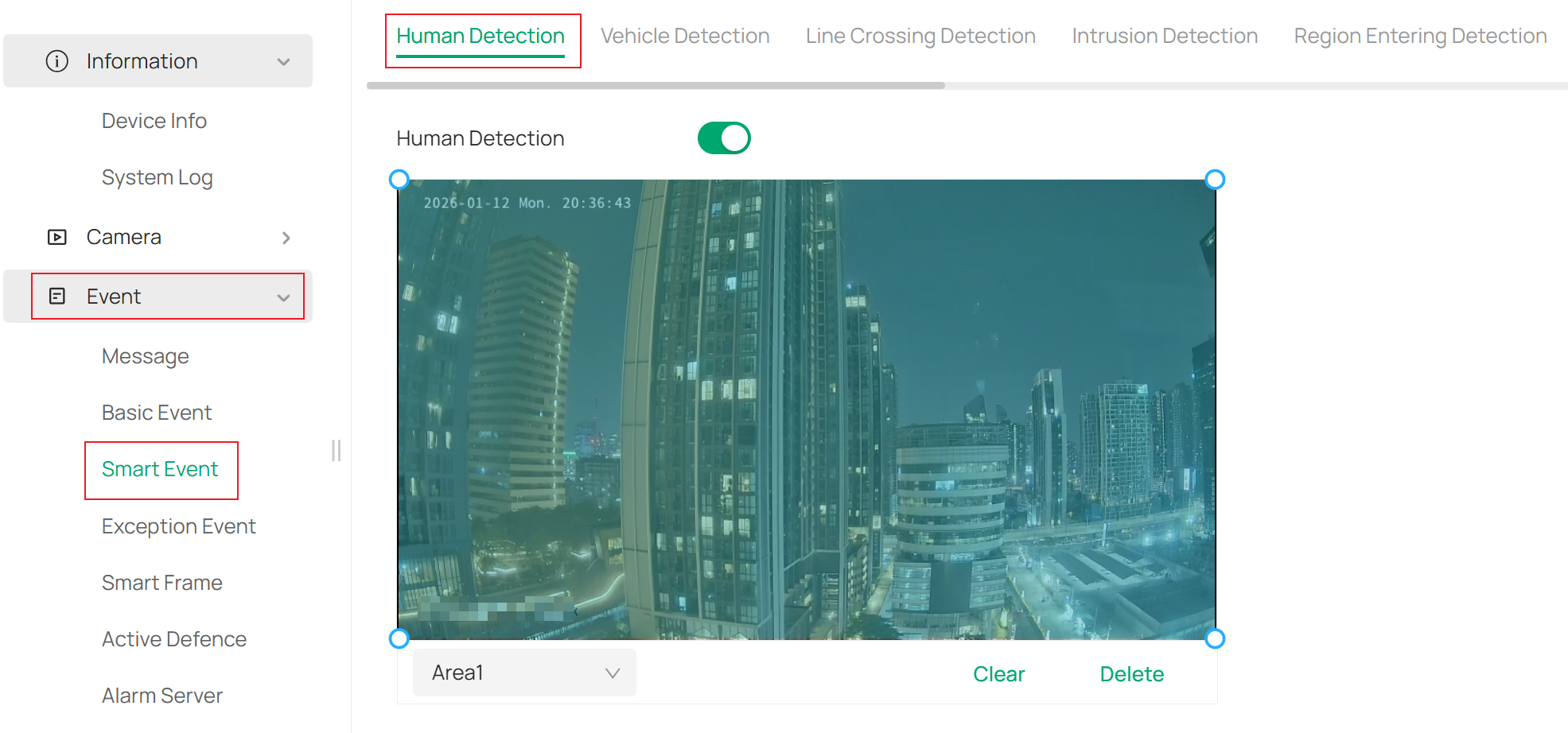
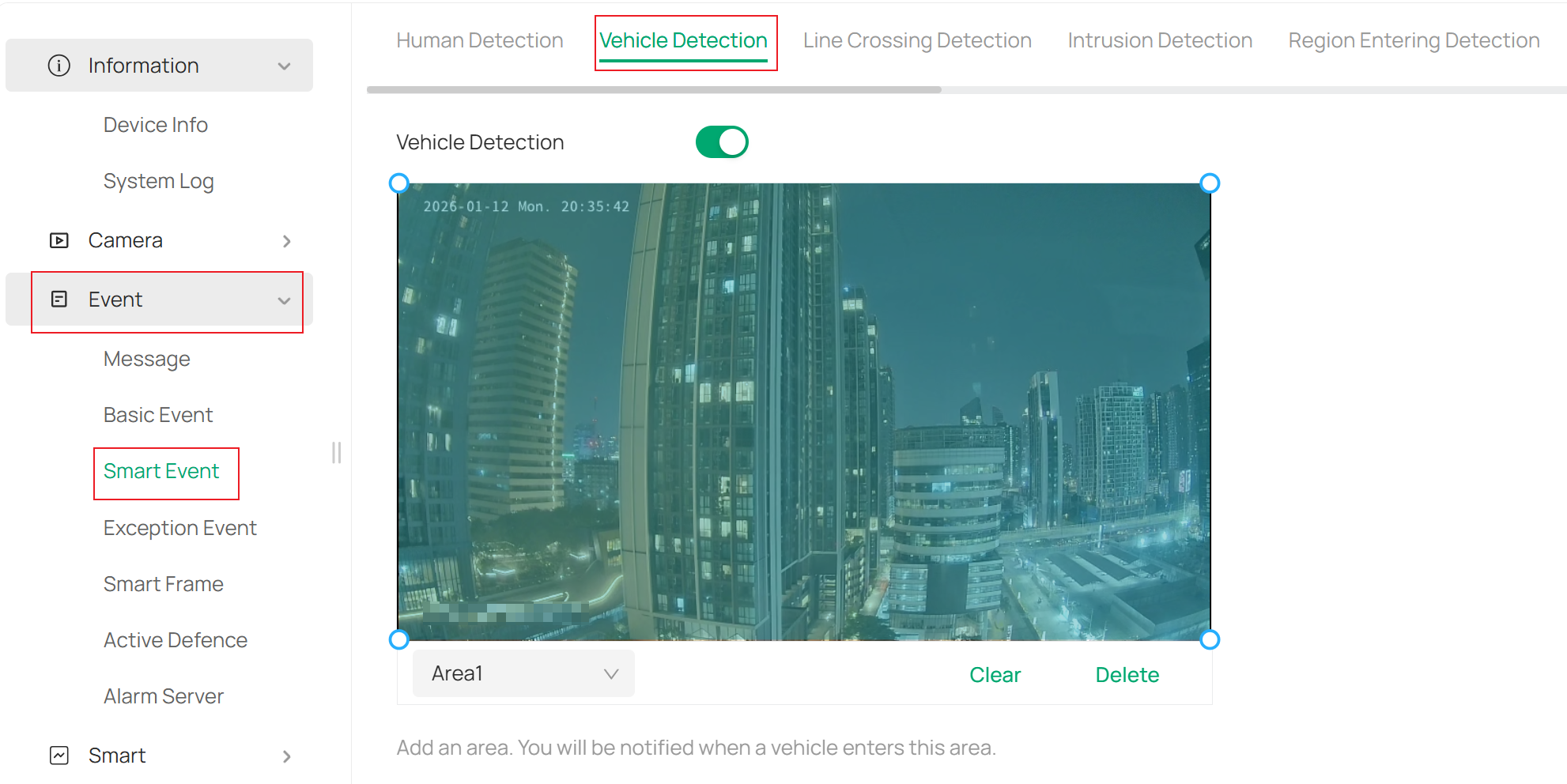
Next, we will separately introduce how to filter human and vehicle recording results in Playback using two different methods: the VIGI PC Client and the NVR GUI.
Using the VIGI PC Client to View
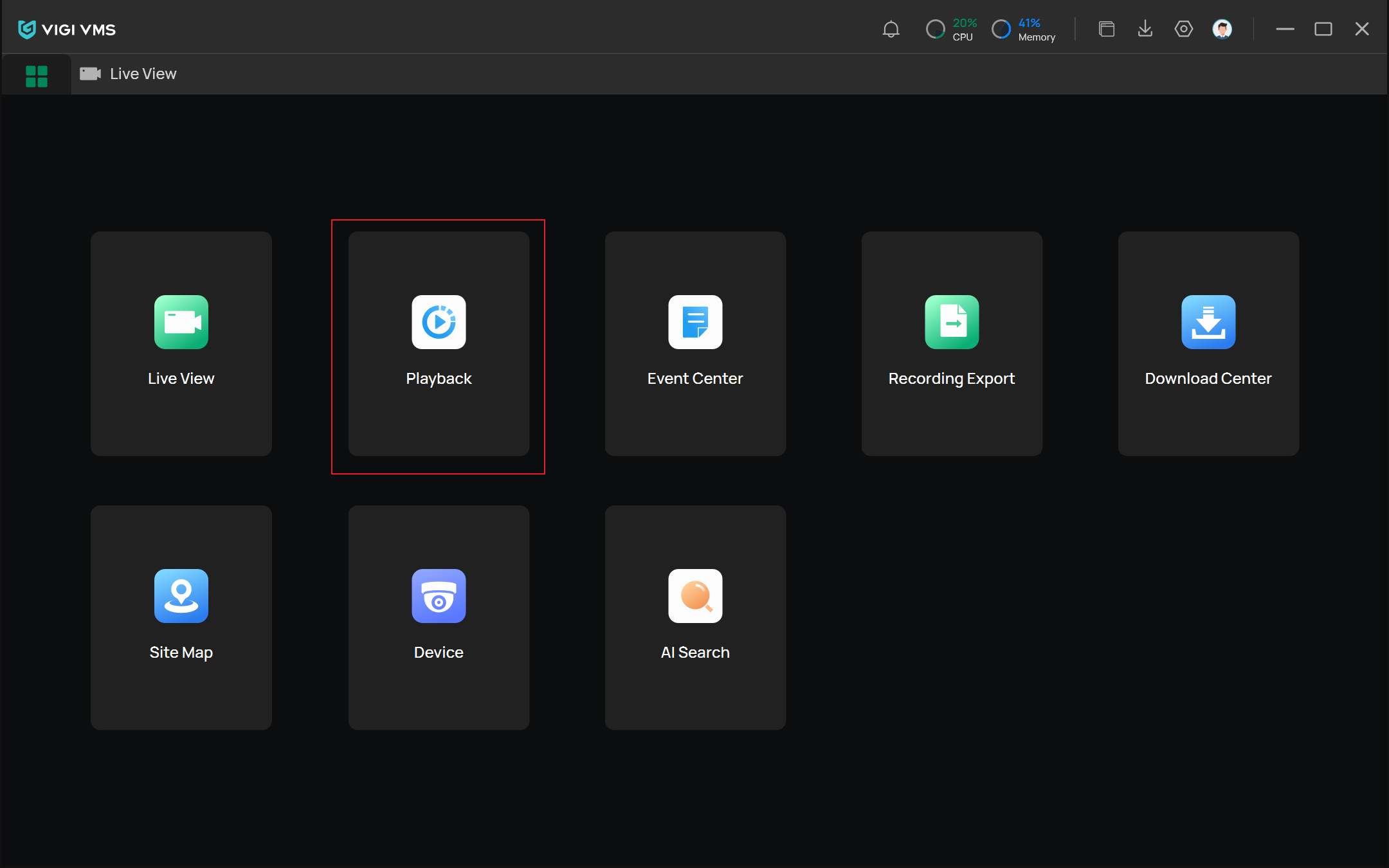
Step 1. Log in to the VIGI PC Client and navigate to Playback.
Step 2. Select one or more IPCs.
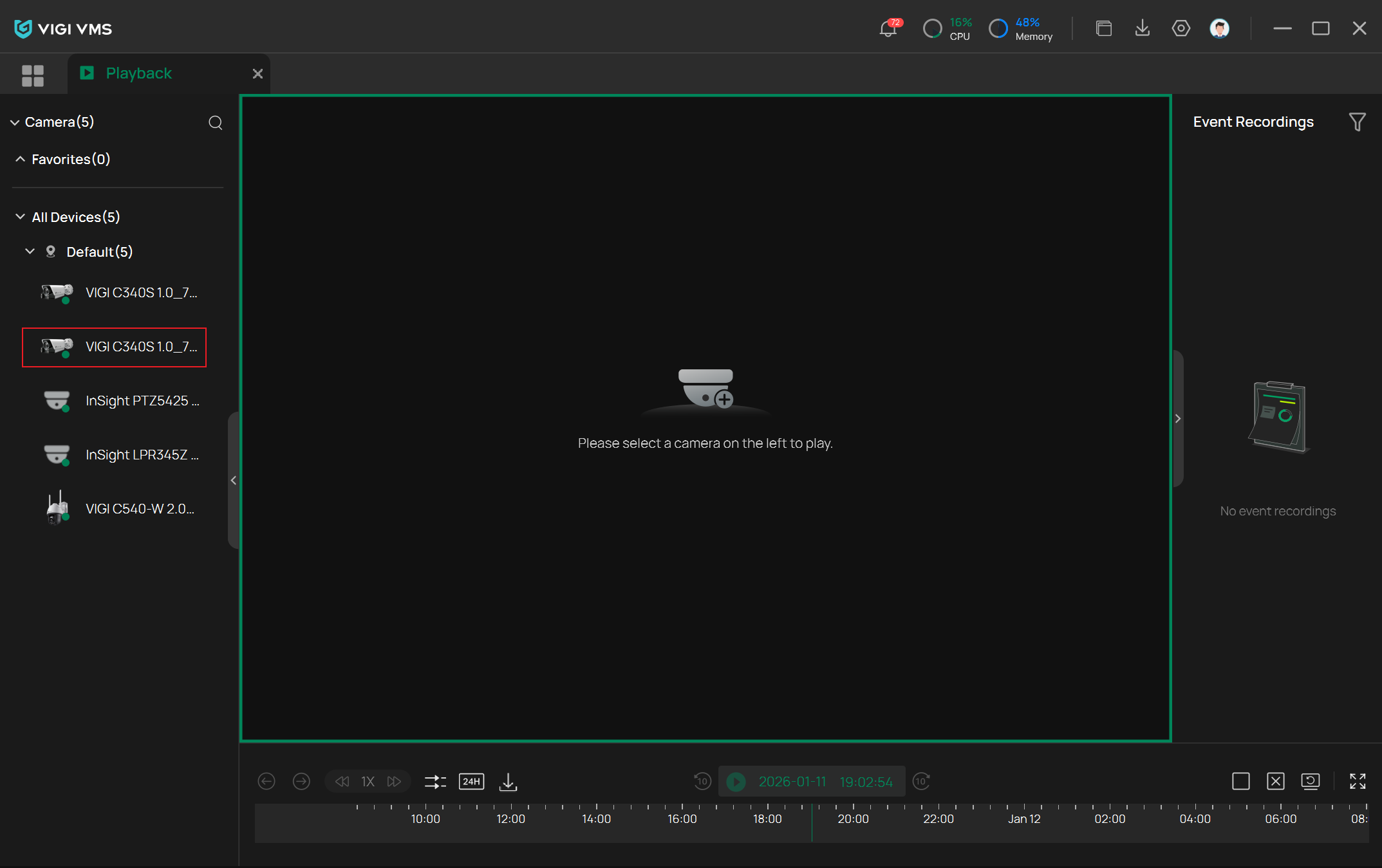
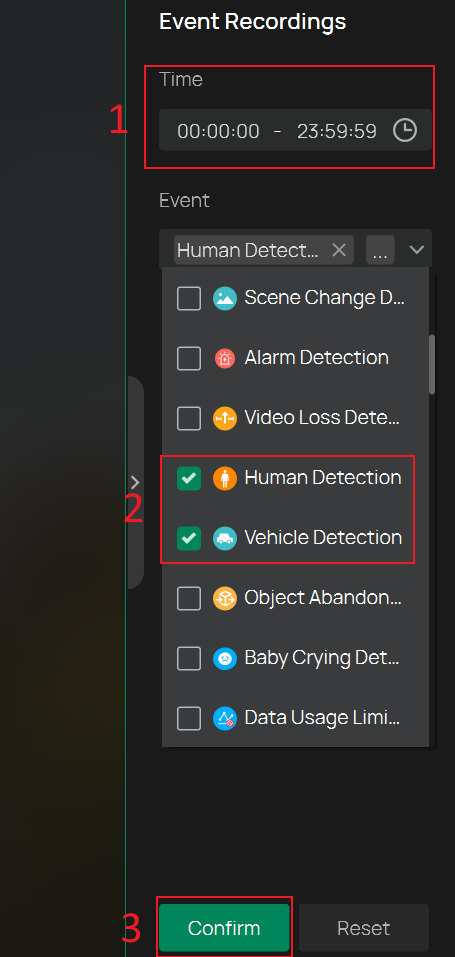
Step 3. Filter the results for recorded people and vehicles in Playback. Here, you can also set the desired time period to view.
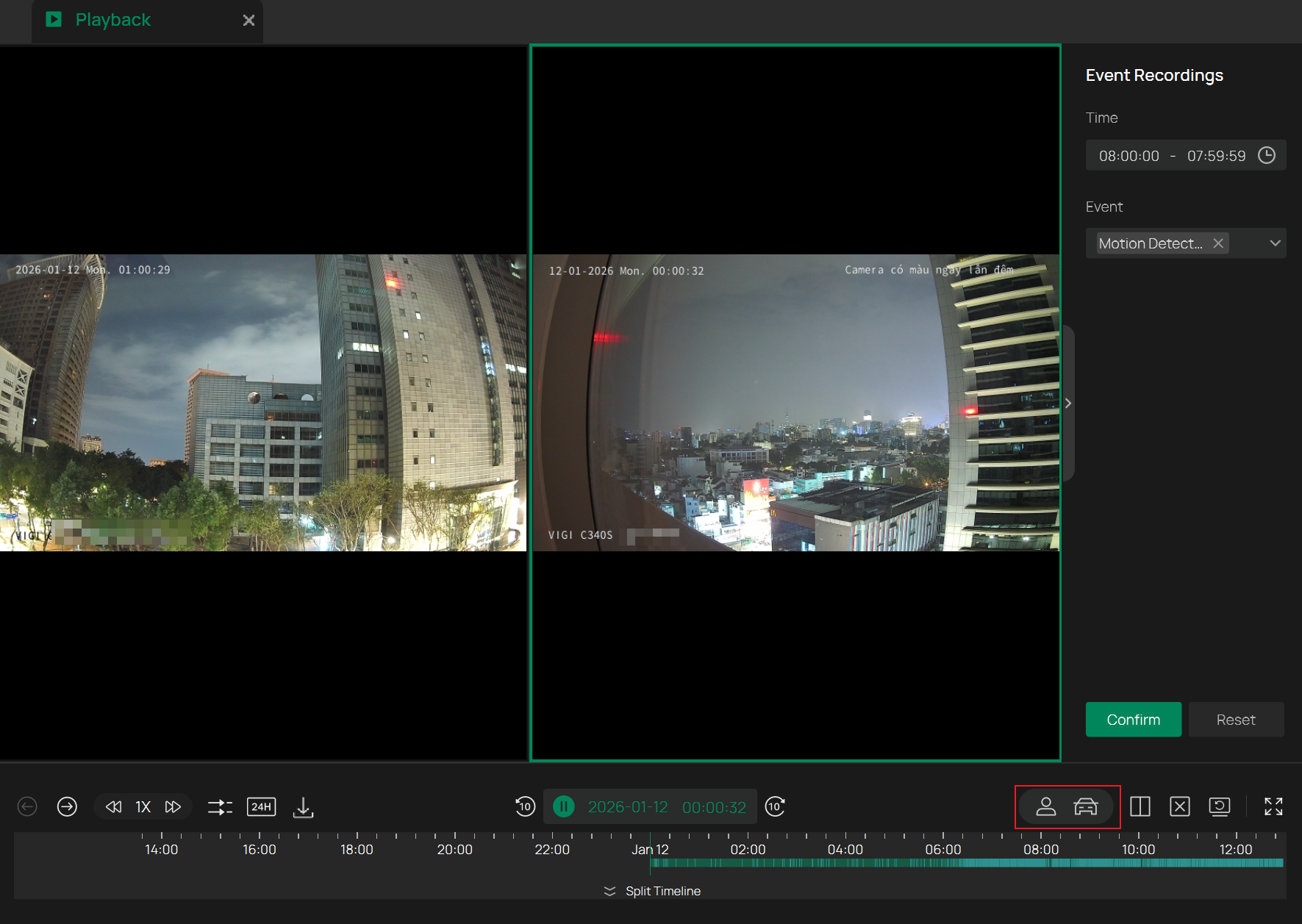
Alternatively, after selecting an IPC, you can click the human or vehicle icon at the bottom for quick filtering. After clicking, you will see the filtered results on the right side, and each entry will indicate the time when the event occurred.
Using the NVR GUI to View
This section explains how to use the NVR GUI to filter recordings of people and vehicles. The configuration on the GUI is relatively straightforward, mainly involving the following two steps:
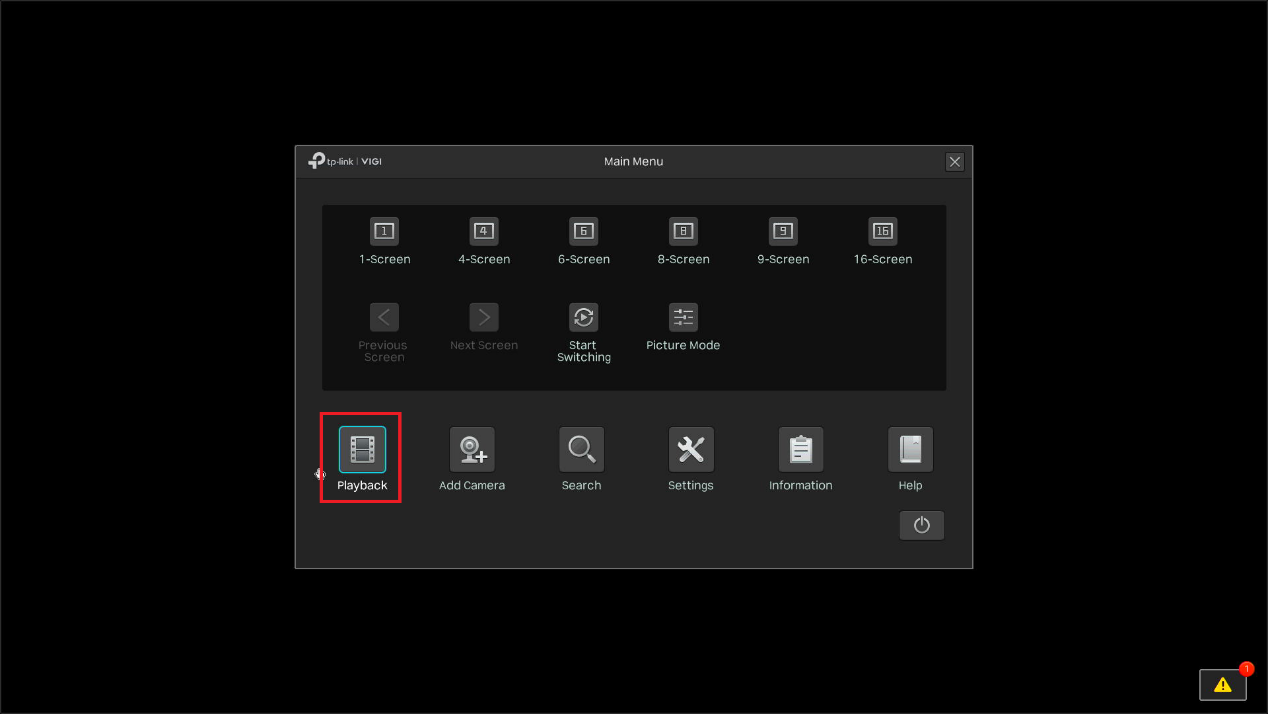
Step 1. Right-click to open the pop-up menu and click on Playback.
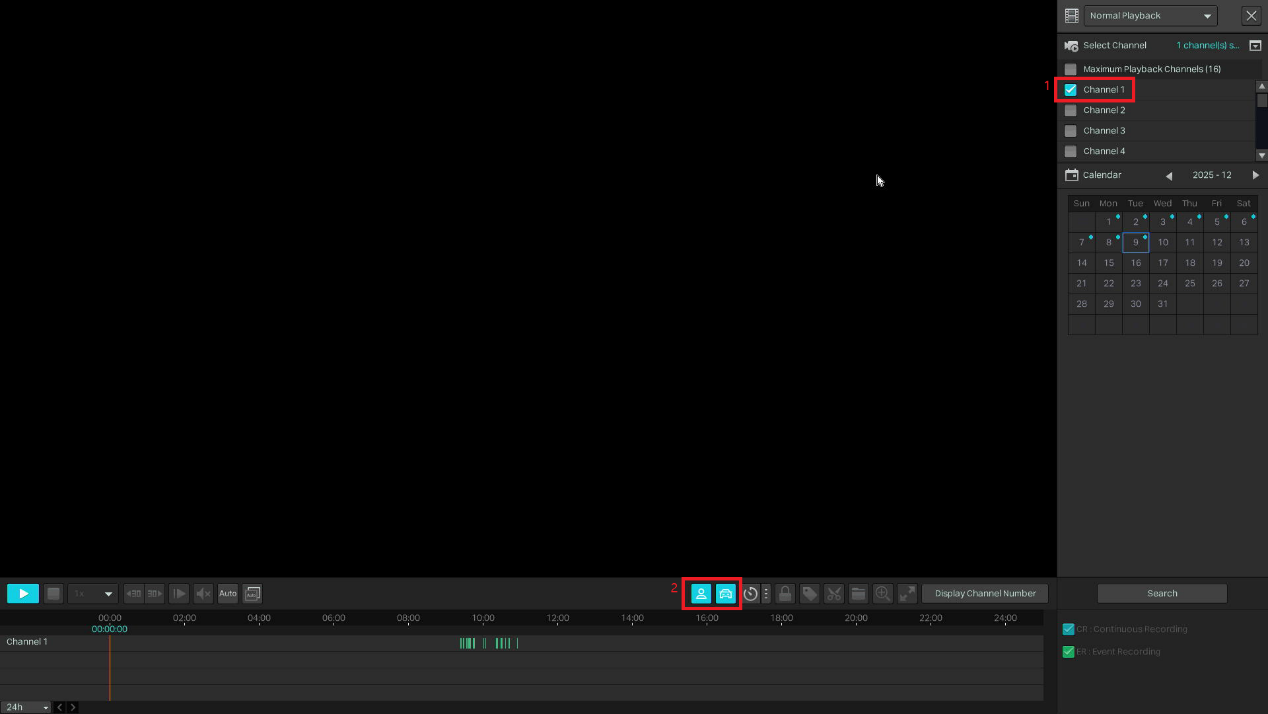
Step 2. After selecting the channel, click the human or vehicle icon at the bottom to filter human and vehicle data.
Conclusion
This article explains how to filter recorded people and vehicles in playback using both the VIGI PC Client and the NVR GUI.
Get to know more details of each function and configuration please go to Download Center to download the manual of your product.
Is this faq useful?
Your feedback helps improve this site.

TP-Link Community
Still need help? Search for answers, ask questions, and get help from TP-Link experts and other users around the world.