How to configure Snapshot in IPC and NVR
 2206
2206Obtain snapshot through browser
Introduction
URL-Snapshot is mainly intended for users who need to develop their own programs to obtain JPEG images. It can also be used to directly retrieve images through a web browser.
URL-Snapshot uses the HTTP/HTTPS protocol, where the image is requested via an HTTP/HTTPS GET request. After receiving the corresponding request, the camera returns the image data.
Requirements
- IPC/NVR with supported firmware
Configuration
Obtain snapshot through browser
Step 1. Obtain IPC IP address and port number for IPC URL-Snapshot.
Currently HTTP method is using Video Service Port, and HTTPS is using Web Stream Port.
You could find and edit them in Settings > Network Settings > Network Service.
By default, HTTP uses port 8800 and HTTPS using port 8443.
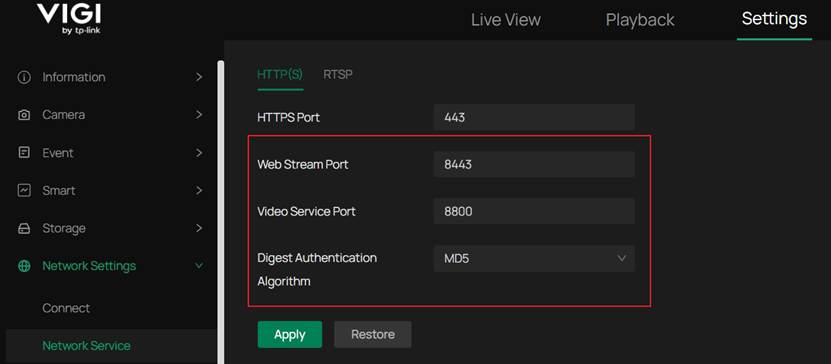
Note: NVRs also support URL-Snapshot but use different formats of URL, and only support HTTPS. NVR IP address and desired channel is required.
Step 2. Obtain Snapshot.
You could obtain snapshot by accessing the URL in browser:
IPC:
https://IP:8443/snapshot
http://IP:8800/snapshot
NVR:
https://IP/snapshot?channel=(number)
For example: https://192.168.1.235/snapshot?channel=2
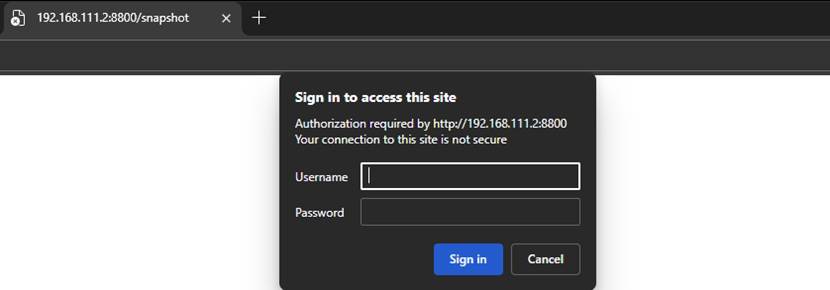
1. Accessing the URL accordingly

2. Fill in the login Username/password as required.
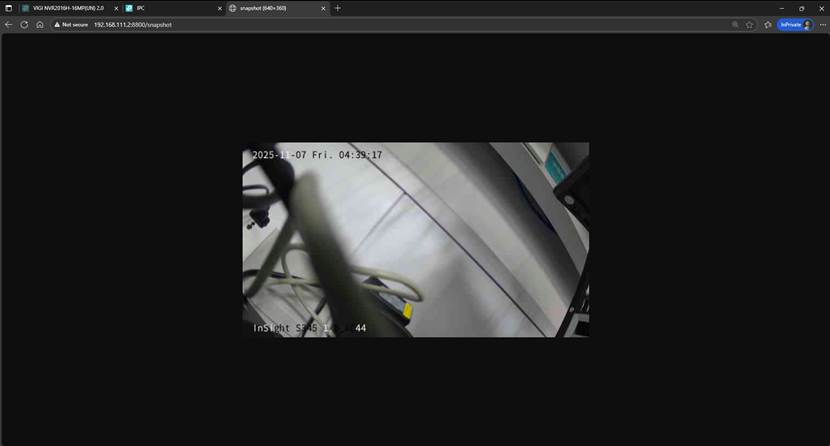
3. Obtained snapshot.
HTTP Request Process
After sending the request, if authentication is not provided, the response will contain information indicating that authentication is required. Once the digest result is calculated based on the returned information, the request is initiated again. If authentication is successful, the corresponding snapshot data is returned. If authentication fails, new authentication information will be returned, requiring another authentication attempt. After ten failed authentication attempts, the IP will be locked, and subsequent requests will return a 403 Forbidden error.
The HTTP request message is shown below:
|
GET /snapshot HTTP/1.1 Accept: text/html,application/xhtml+xml,application/xml;q=0.9,image/avif,image/webp,image/apng,*/*;q=0.8,application/signed-exchange;v=b3;q=0.7 Accept-Encoding: gzip, deflate, br, zstd Accept-Language: zh-CN,zh;q=0.9,en;q=0.8,en-GB;q=0.7,en-US;q=0.6 Connection: keep-alive Host: 192.168.137.171:8443 Sec-Fetch-Dest: document Sec-Fetch-Mode: navigate Sec-Fetch-Site: none Sec-Fetch-User: ?1 Upgrade-Insecure-Requests: 1 User-Agent: Mozilla/5.0 (Windows NT 10.0; Win64; x64) AppleWebKit/537.36 (KHTML, like Gecko) Chrome/142.0.0.0 Safari/537.36 Edg/142.0.0.0 sec-ch-ua: "Chromium";v="142", "Microsoft Edge";v="142", "Not_A Brand";v="99" sec-ch-ua-mobile: ?0 sec-ch-ua-platform: "Windows" |
|
HTTP/1.0 401 Unauthorized Server: Streamd Date: Thu, 06 Nov 2025 11:21:42 UTC Pragma: no-cache Cache-Control: no-cache Content-Length: 0 WWW-Authenticate: Digest realm="TP-LINK IP-Camera",algorithm="MD5",qop="auth",nonce="a4de8de3fb8309ad78fcbd957e448322",opaque="64943214654649846565646421" Connection: close |
|
GET /snapshot HTTP/1.1 Accept: text/html,application/xhtml+xml,application/xml;q=0.9,image/avif,image/webp,image/apng,*/*;q=0.8,application/signed-exchange;v=b3;q=0.7 Accept-Encoding: gzip, deflate, br, zstd Accept-Language: zh-CN,zh;q=0.9,en;q=0.8,en-GB;q=0.7,en-US;q=0.6 Authorization: Digest username="admin", realm="TP-LINK IP-Camera", nonce="a4de8de3fb8309ad78fcbd957e448322", uri="/snapshot", algorithm=MD5, response="bdff24f6b81b866ad0b4100f472129c3", opaque="64943214654649846565646421", qop=auth, nc=00000002, cnonce="5d40aa58a40e395d" Cache-Control: max-age=0 Connection: keep-alive Host: 192.168.137.171:8443 Sec-Fetch-Dest: document Sec-Fetch-Mode: navigate Sec-Fetch-Site: none Sec-Fetch-User: ?1 Upgrade-Insecure-Requests: 1 User-Agent: Mozilla/5.0 (Windows NT 10.0; Win64; x64) AppleWebKit/537.36 (KHTML, like Gecko) Chrome/142.0.0.0 Safari/537.36 Edg/142.0.0.0 sec-ch-ua: "Chromium";v="142", "Microsoft Edge";v="142", "Not_A Brand";v="99" sec-ch-ua-mobile: ?0 sec-ch-ua-platform: "Windows |
|
HTTP/1.0 200 OK Connection: close X-frame-options: SAMEORIGIN Cache-Control: no-cache Content-Type: image/jpeg Content-Length: 8624 X-Session-Id: 0 X-If-Encrypt: 0 timestamp: 19626901634
Snapshot JPEG data |
Digest Authentication Algorithm Description
The Snapshot authentication algorithm uses the standard Digest authentication algorithm, which is handled by the browser. Developers can refer to the standard documentation if needed.
It is important to note that when the Digest Authentication Algorithm is configured to a corresponding algorithm, the appropriate encryption algorithm must be used, including MD5, SHA256, and compatibility modes.
Go to Settings > Network Settings > Network Service for configure the algorithm on IPC. 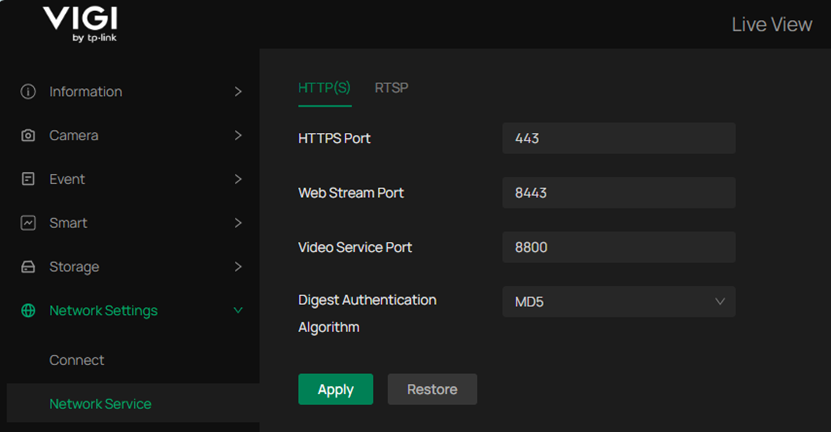
Please be aware that Safari browser does not support the SHA256 algorithm. Configuring keys for SHA256 and compatibility modes may prevent Safari from accessing the Snapshot.
Login Lockout Description
After 10 failed login attempts, the current IP will be locked for half an hour. Once locked, the browser will receive a 403 error code indicating that access is forbidden. For developer users, after receiving the 403 error code, the lockout time can be read from the HTTP header. The corresponding field is as follows, with the number indicating the lockout time in seconds:
Ip-Locked-Time: 1776
Conclusion
Now you can try using the URL to do snapshots.
Get to know more details of each function and configuration please go to Download Center to download the manual of your product.
Is this faq useful?
Your feedback helps improve this site.

TP-Link Community
Still need help? Search for answers, ask questions, and get help from TP-Link experts and other users around the world.