How to use Power Up Action function
 2008
2008Contents
Introduction
The InSight PTZ5425 high-speed dome camera supports power-off memory retention, allowing it to resume executing designated PTZ tasks after an unexpected power failure and restart, ensuring continuous protection.
Requirements
- InSight PTZ5425
Configuration
Step 1. On the management page of the camera, go to Settings -> PTZ -> General PTZ Settings -> Power Up PTZ Actions, then enable the Power Up PTZ Actions.
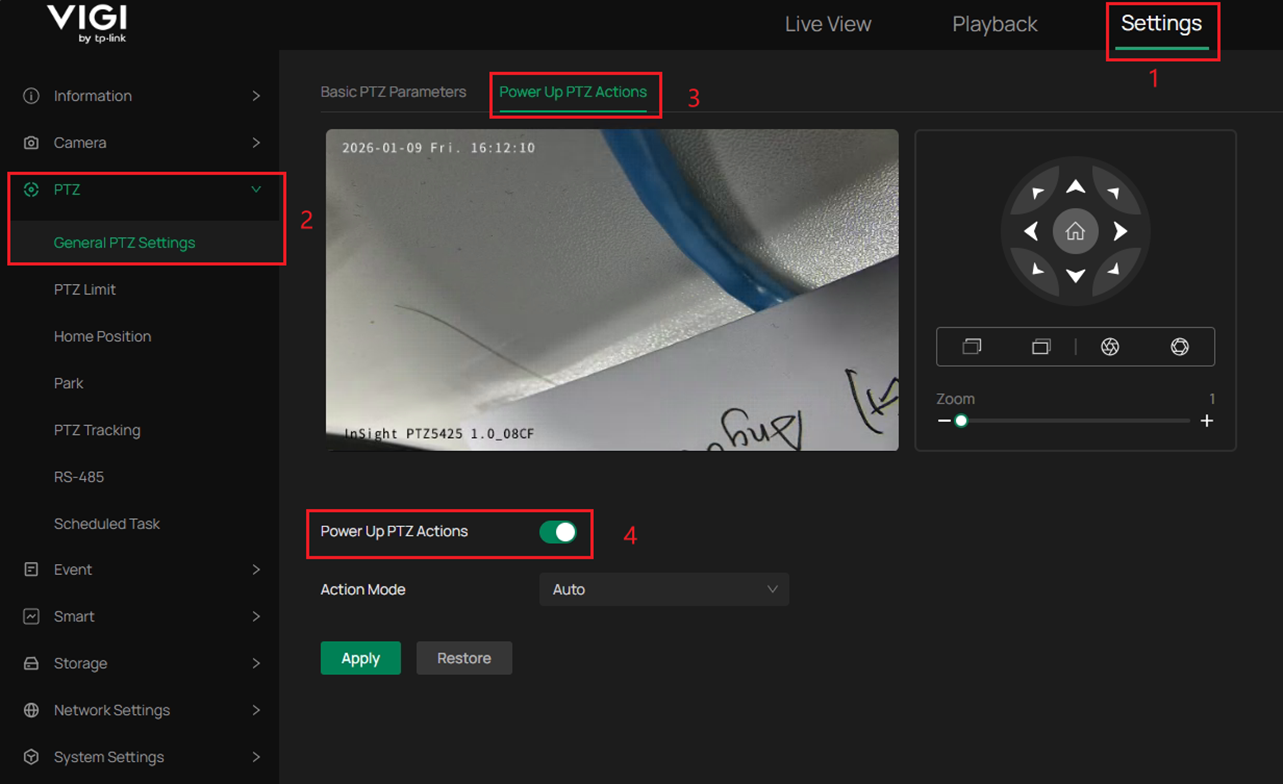
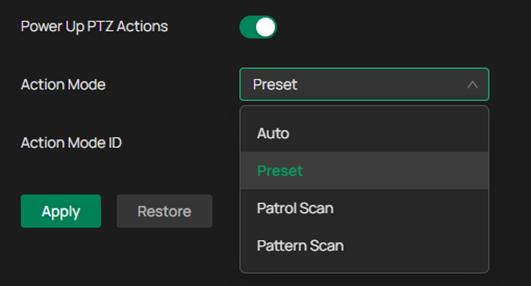
Step 2. Select the Action Mode.
There are four Action Modes available. For the different modes, the camera will perform different actions based on the mode you set:
- Auto: This is the default mode. Once the camera is powered on again, it will reset to a certain position before the power outage, so the position after each restart may vary.
- Preset: The camera will return to the designated position after powering up.
- Patrol Scan: The camera will cycle patrol between preset points in sequence.
- Pattern Scan: The camera will cycle patrol along a user-defined path.
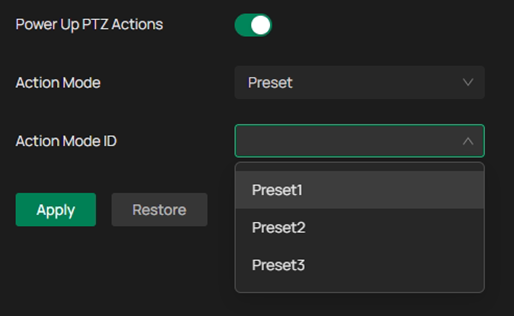
Step 3. If you select a mode other than "Auto", you need to select an Action Mode ID, which determines how the camera acts. Click Apply to make the configuration take effect.
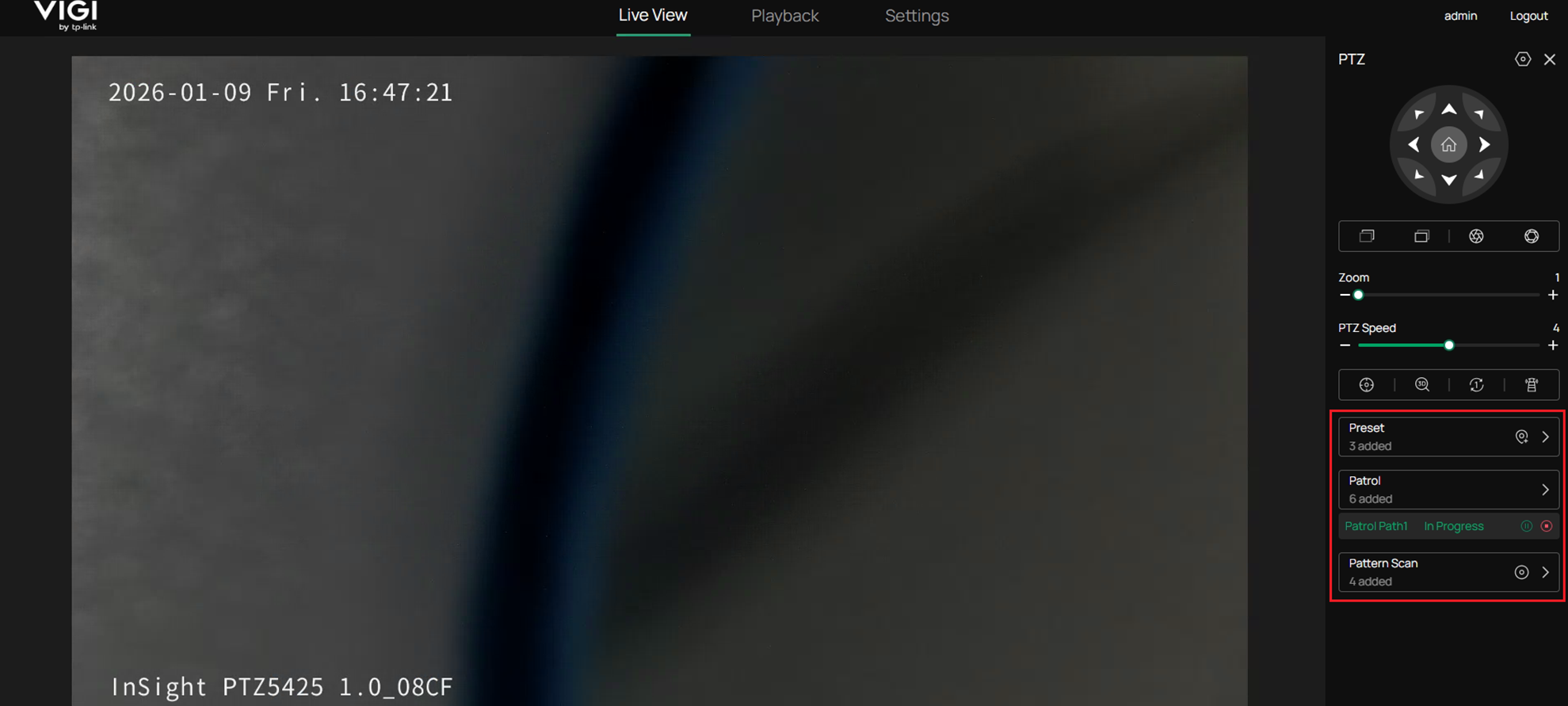
If there is no Action Mode ID for selection, you need to add a new Action Mode ID first. You can manage the Action Mode IDs on the Live View page. You can add new Action Mode IDs here, and also delete existing ones.
Verification
For verification, you can power off the camera after configuring the Power Up Action, then power on the camera to check if it performs the action as you configured. If you have configured other scan missions, the camera will process the Power Up Action first after powering on, then proceed to execute the preset tasks.
Conclusion
You have now successfully configured the Power Up Action function.
Get to know more details of each function and configuration please go to Download Center to download the manual of your product.
Is this faq useful?
Your feedback helps improve this site.

TP-Link Community
Still need help? Search for answers, ask questions, and get help from TP-Link experts and other users around the world.