How to use the Home Position Function
 3632
3632Contents
By configuring a commonly used view as the camera’s default PTZ position, users can quickly invoke the Home Position Function from any other position, allowing the camera to return to the predefined view without delay. This FAQ explains how to configure the Home Position and how to recall it when needed. Currently, only the InSight PTZ5425 supports the Home Position Function.
- InSight PTZ5425
- PC
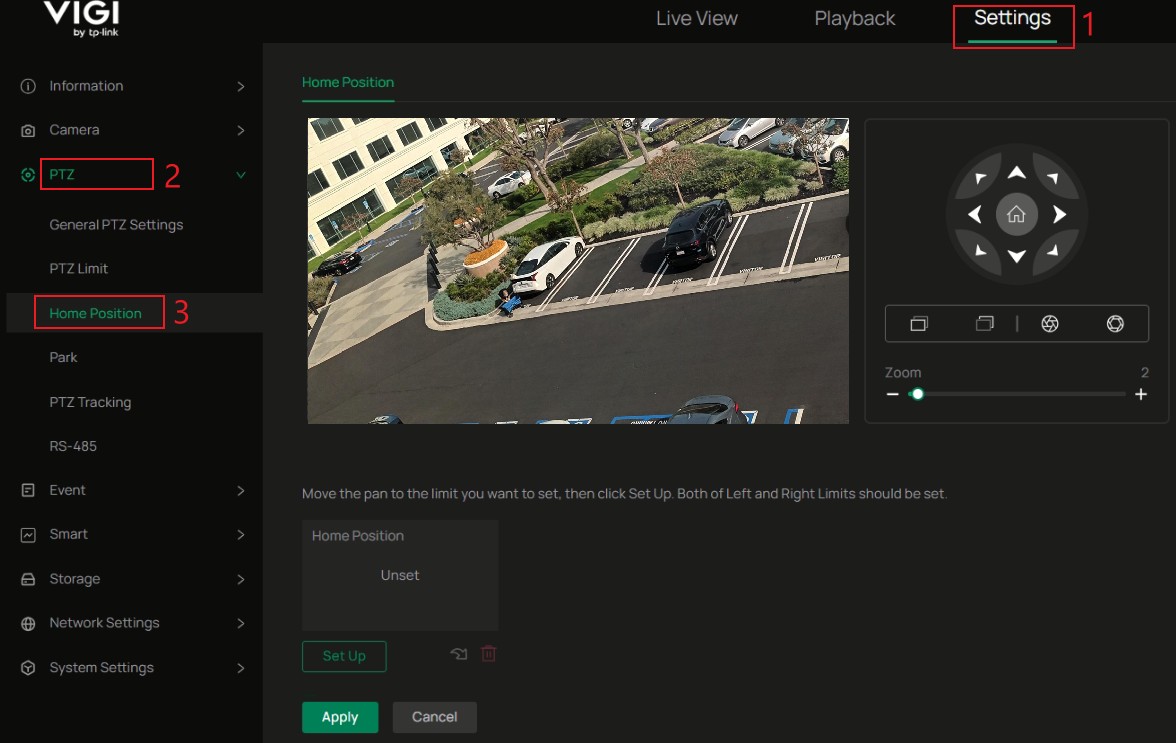
Step 1. Log in to the IPC web management interface by IP address and navigate to the Home Position setting within the IPC settings. Go to Settings > PTZ > Home Position.
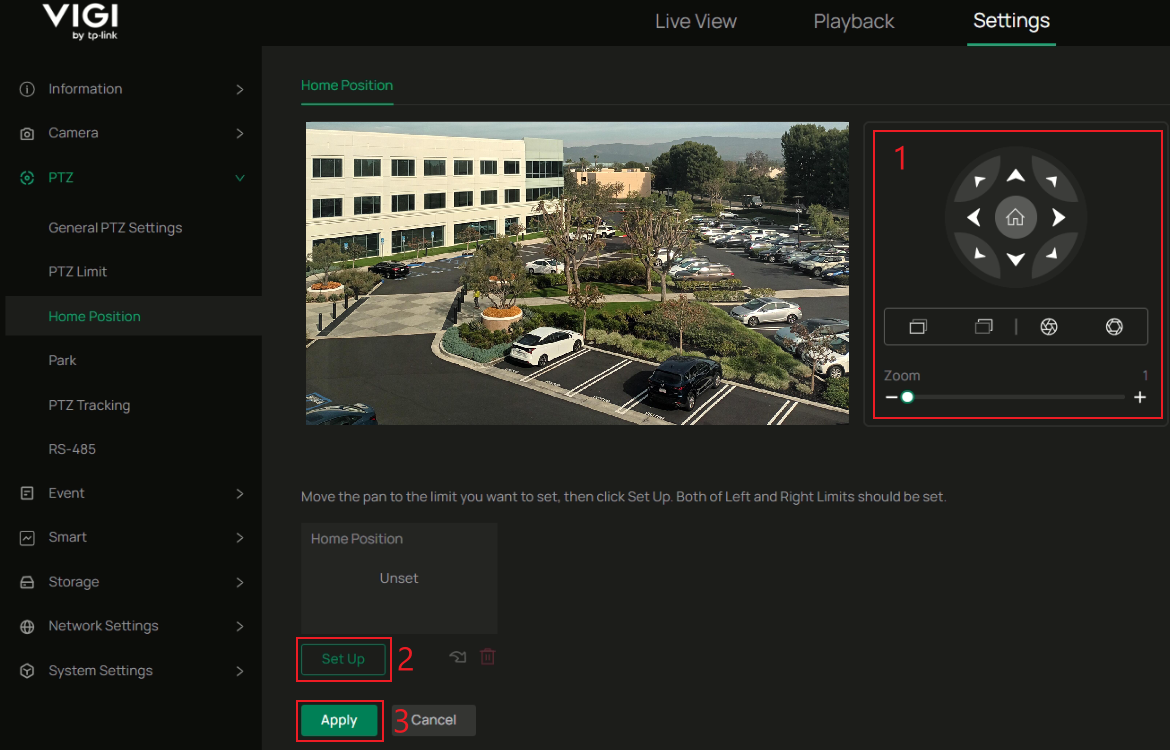
Step 2. Adjust the camera angle and zoom to the desired Home Position using the PTZ Control Panel. After confirming the desired position, press the Set Up button and click Apply. Once configured, if the camera is moved to another position, pressing the Home button will automatically return the camera to the Home Position.
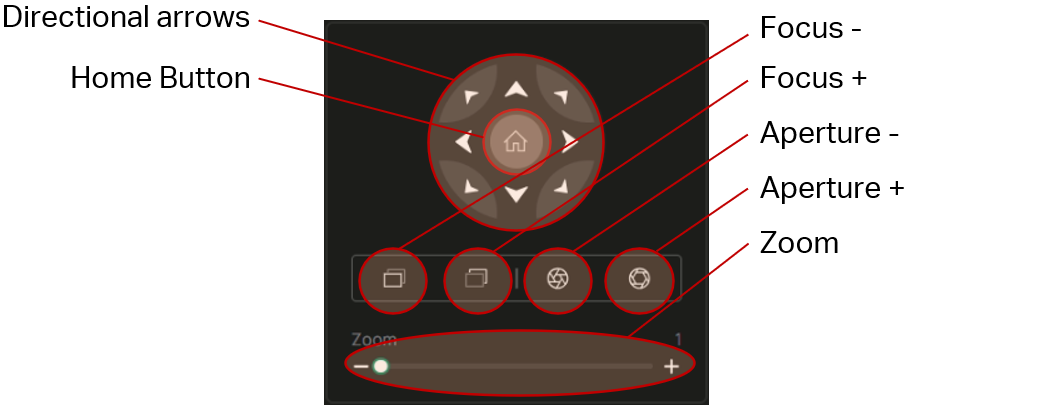
An explanation of the PTZ Control Panel settings is as follows:
Directional arrows: Pan or tilt the camera to the desired view.
Home button: Returns the camera to its default Home Position.
Focus -: Adjusts focus toward nearer objects.
Focus +: Adjusts focus toward distant objects.
Aperture -: Decreases light intake (darker image).
Aperture +: Increases light intake (lighter image).
Zoom: Adjusts the camera’s field of view (zoom in or out).
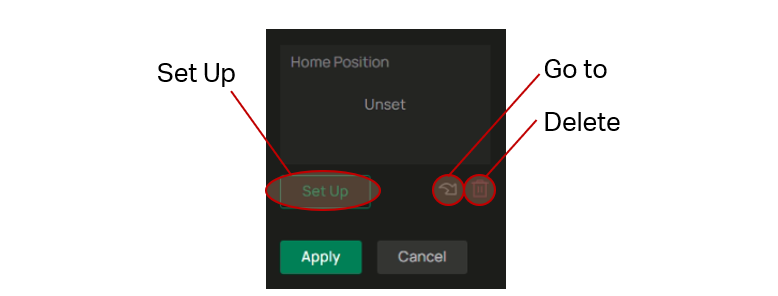
An explanation of the Set Up panel settings is as follows:
Set up: Saves the camera’s current position as the Home Position.
Go to: Moves the camera to the configured Home Position.
Delete: Removes the configured Home Position.
Step 1. Go to Live View by selecting Live View. Press the Home button. The camera will return to the Home Position.
Note: This action can be performed from any interface that provides access to the Home button, including the Home Position configuration screen described above.
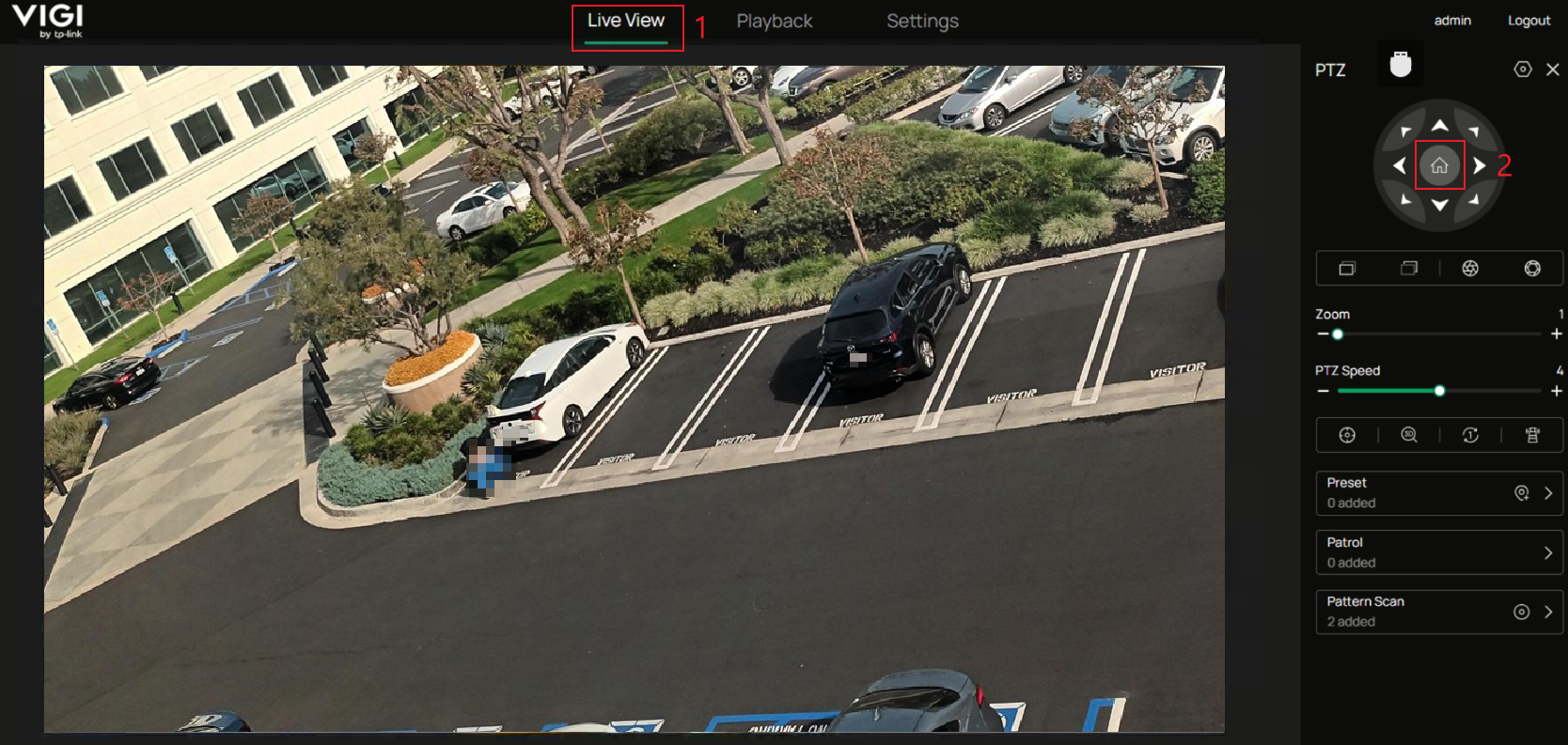
Step 2. Confirm the camera has returned to its Home Position.
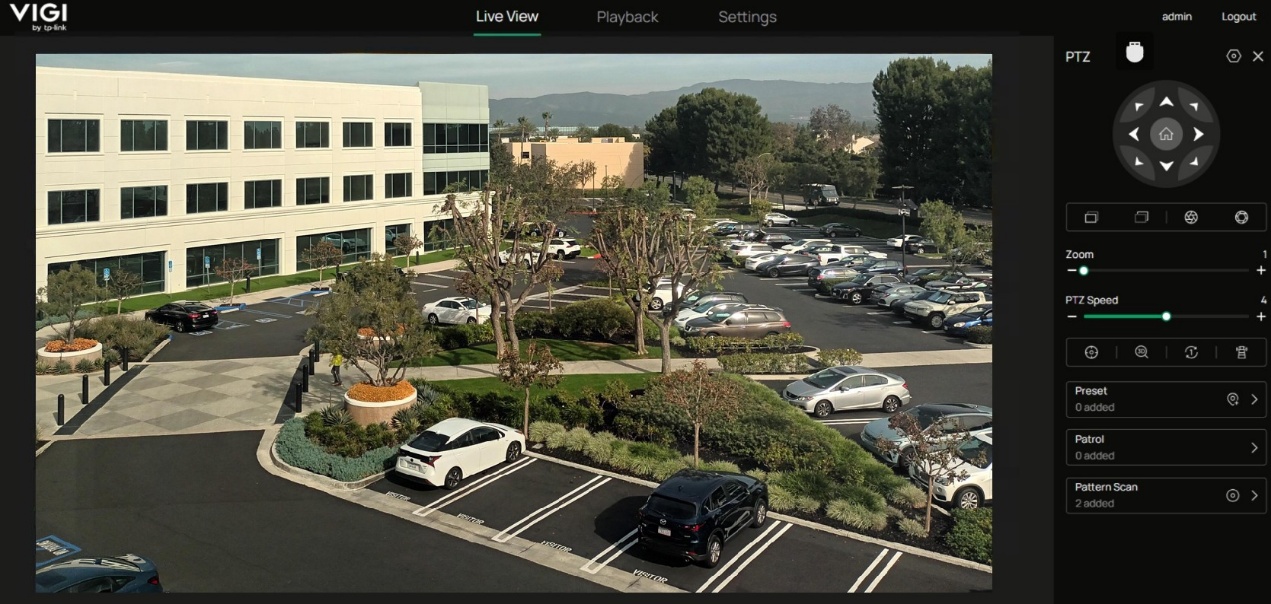
For more details on each function and configuration, please visit the Download Center to download the manual.
Q1: Will the Home Position change automatically after moving the camera?
A1: No. Moving the camera does not update the Home Position. The Home Position only changes when a new position is manually set and applied.
Q2: Why does the camera not return to the Home Position when I press the Home button?
A2: Ensure that a Home Position has been properly set and applied.
Q3: Does setting a Home Position affect image quality or focus?
A3: No. Image quality is not affected. However, the zoom value saved with the Home Position will be applied when the camera returns to it.
Is this faq useful?
Your feedback helps improve this site.

TP-Link Community
Still need help? Search for answers, ask questions, and get help from TP-Link experts and other users around the world.