How to correlate NVR alarm outputs with exception detection in NVR or IPC
 2772
2772Contents
Objective
This guide provides instructions for correlating NVR alarm outputs with exception detection in NVR or IPC.
Requirements
- VIGI NVR
- VIGI IPC
Introduction
NVR alarm outputs are physical relay signals triggered when the system detects abnormalities, allowing integration with sirens, lights, or other external alarm equipment. In the VIGI interface, exception detection includes both Login Exception—such as excessive failed login attempts—and System Exception events, including video signal loss, network disconnection, and other system-level abnormalities. When these exceptions occur, the NVR can trigger physical Alarm Outputs (AO1–AO4). By understanding how exception detection maps to specific alarm output channels, administrators can more effectively interpret system behavior, deploy automated responses, and maintain a reliable and responsive surveillance environment.
Configuration
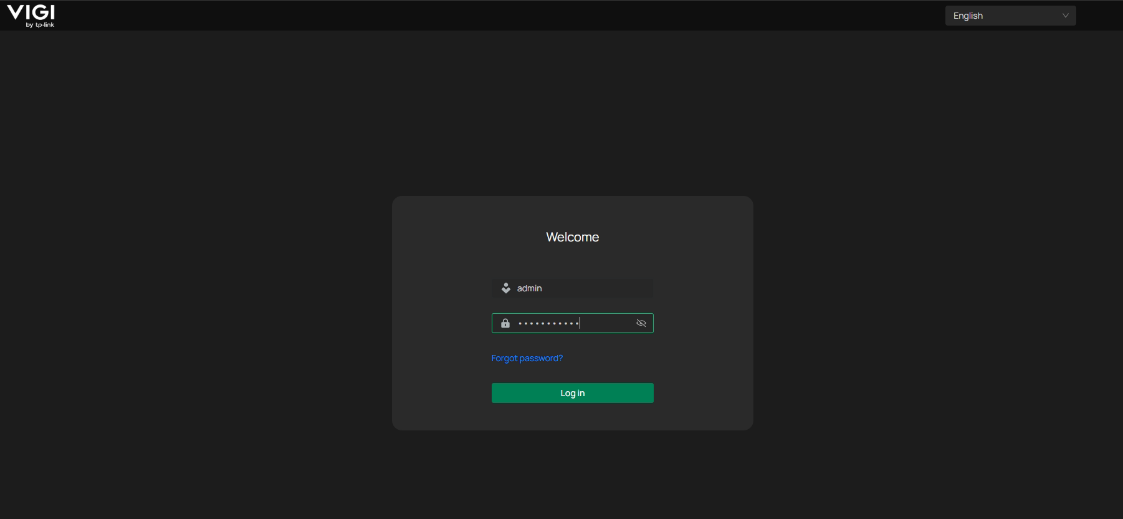
Step 1. Enter the account and password and login to your NVR.
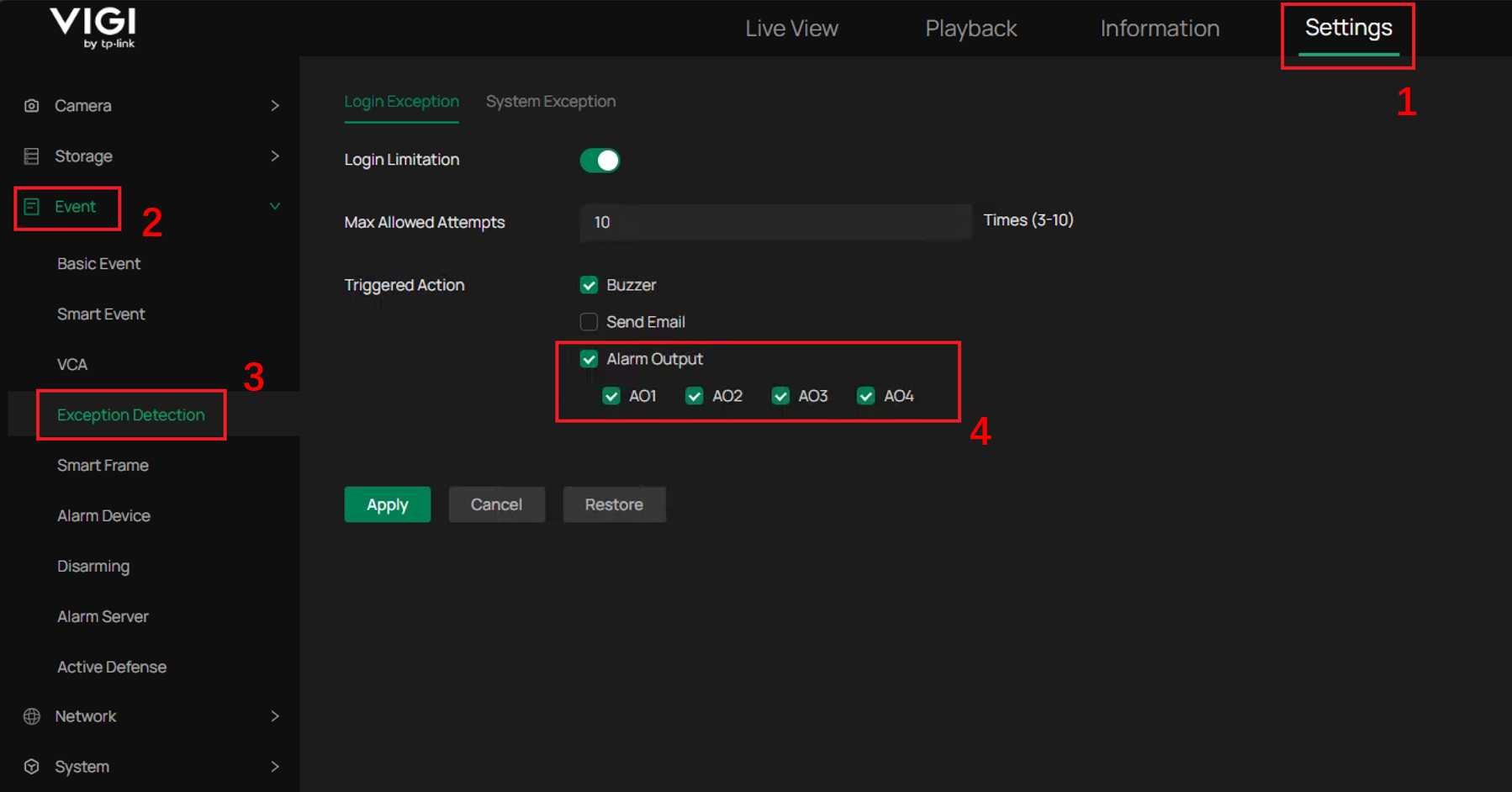
Step 2. After configuring the alarm output (refer to How to connect alarm device to VIGI NVR | TP-Link), click Settings > Events > Exception Detection. Then you can see all the connected alarm outputs and select the output you want to bind with the NVR Login Exception.
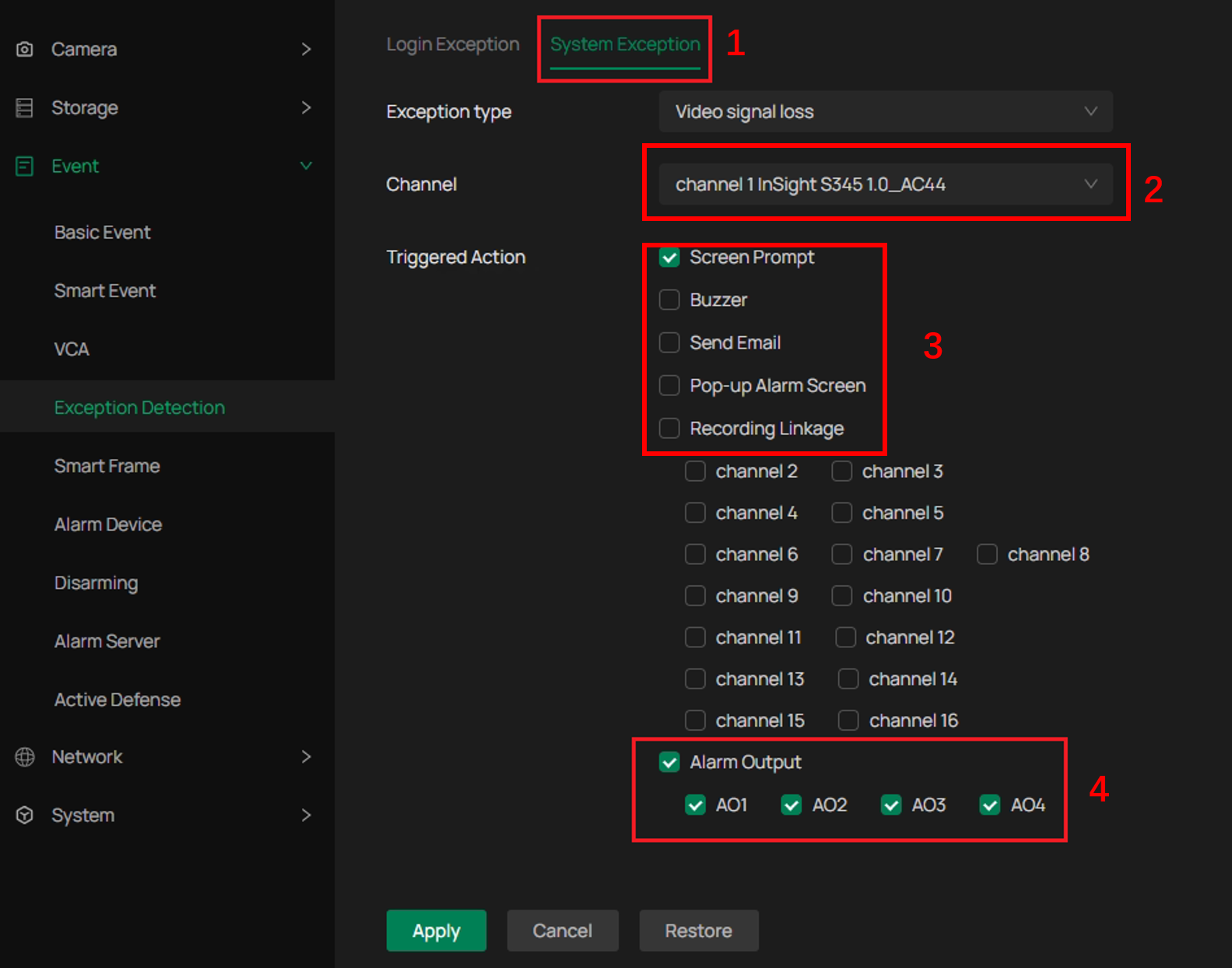
Step 3. If you want to bind the alarm output to IPC exception under different channels, click System Exception. Then you can select different channels/actions and bind them to different outputs.
Get to know more details of each function and configuration please go to Download Center to download the manual of your product.
Is this faq useful?
Your feedback helps improve this site.

TP-Link Community
Still need help? Search for answers, ask questions, and get help from TP-Link experts and other users around the world.