What Is an Access Point? Business Wi-Fi Guide
An access point, often called a wireless access point or simply an AP, is a networking device that extends a wired network by allowing wireless devices to connect to it. Unlike a router, its primary role is to bridge wireless clients, such as laptops, phones, and VoIP handsets, to the wired local area network (LAN).
A single router may be sufficient for a small office with a handful of users. But once Wi-Fi has to cover an entire enterprise floor, a second building, an outdoor space, or dozens of active devices, a single router often can't provide enough coverage or capacity.
This guide explains what an access point is, how it works, and how it differs from a router, extender, and mesh node. You'll also learn about the main types available and get answers to the most common questions about access points.
Key Takeaways
- An access point (AP) is a networking device that bridges wireless clients, such as laptops, phones, and VoIP handsets, to a wired network.
- APs are not routers. A router moves traffic between a LAN and the internet, while an AP bridges wireless clients to the LAN that a router already manages.
- Access points come in several form factors, including ceiling-mount, wall-plate, desktop, and weather-rated outdoor models, and can run standalone or under controller management.
- You need one or more APs when a router can't cover the area, handle enough concurrent devices, or meet requirements such as VLAN segmentation, seamless roaming, or multi-site management.
- Business-grade APs managed through a centralized controller simplify deployment, scaling, and troubleshooting across one or more sites.
What Is an Access Point?
An access point is a networking device that allows wireless clients to connect to a wired network. On one side, it communicates with wireless clients over Wi-Fi. On the other side, it connects through Ethernet to a switch or router, often receiving power through Power over Ethernet (PoE).
The term is sometimes used loosely. "Access point" or "Wi-Fi access point" can be used casually to refer to any Wi-Fi connection point, including the wireless radio built into a home router. In a business context, however, it almost always refers to a dedicated, standalone device designed to handle wireless traffic.
That distinction matters because of where an AP operates. An AP works at Layer 2, forwarding data frames between wireless clients and the wired LAN. It does not route traffic between networks or assign IP addresses. Those functions are handled elsewhere on the network by the router.
How Does a Wireless Access Point Work?
A simple way to understand an access point is to follow the path data takes from a wireless device to the network. A laptop sends data over the 2.4 GHz, 5 GHz, or 6 GHz band. The access point receives the wireless frame and forwards it over Ethernet to the wired network. From there, the traffic may stay on the local network or pass through a router to reach the internet.
Each band trades off differently: 2.4 GHz favors range over speed, 5 GHz balances both, and 6 GHz minimizes congestion at a shorter range.
How efficiently an access point handles traffic on those bands depends partly on the Wi-Fi standard it supports. Wi-Fi 6 expanded the use of MU-MIMO (Multi-User, Multiple Input, Multiple Output) to improve efficiency, and introduced OFDMA (Orthogonal Frequency Division Multiple Access) for the same reason. Wi-Fi 7 builds on these capabilities with features such as Multi-Link Operation (MLO), which uses multiple bands simultaneously to improve throughput and reliability, especially in congested, high-density environments.
Business APs typically broadcast multiple SSIDs, or network names, with each SSID often mapped to a different virtual local area network (VLAN) for traffic separation. In managed Wi-Fi deployments, a cloud, software, or hardware controller coordinates channel selection and configuration across multiple APs, helping maintain consistent settings and seamless roaming behavior throughout the network.
Powering an Access Point
Most business APs draw power the same way they send data: through the Ethernet cable. PoE carries both electricity and data over the same cable, so an AP only needs a mount point, not a nearby power outlet.
PoE comes in tiers. The 802.3af standard delivers up to 15.4W per port, 802.3at (PoE+) delivers up to 30W per port, and 802.3bt (PoE++) delivers up to 60W (Type 3) or 100W (Type 4) per port. High-power Wi-Fi 7 APs typically require PoE+ or PoE++ to operate at full capacity, and in an Omada deployment, a PoE switch usually provides that power.
How an AP Fits Into a Managed Network
In a single-AP setup, configuration happens directly on the device. Once a deployment grows beyond one or two APs, a controller becomes more practical.
A cloud, on-premises software, or hardware controller pushes configuration to every managed AP at once, keeping settings consistent whether a business runs one AP or several hundred. Zero-touch provisioning lets new APs automatically pull their configuration, and configuration templates apply the same settings to every new site without having to rebuild them from scratch.
Access Point vs. Router vs. Range Extender vs. Mesh Node
An access point, a router, a range extender, and a mesh node can all appear in the same Wi-Fi setup, but they perform very different roles. A router connects your network to the internet, an access point extends Wi-Fi coverage and capacity over Ethernet, a range extender repeats an existing wireless signal, and a mesh node works with other nodes to create a single Wi-Fi network.
| Device | What It Does | Where It Sits in the Network | Best For |
|---|---|---|---|
| Router | Routes traffic between the LAN and the internet, assigns IP addresses, and runs DHCP and firewall functions | Between the internet connection and the internal network | Basic internet connectivity and traffic management |
| Access point | Bridges wireless clients to an existing wired LAN without routing traffic | Connected to a switch or router through Ethernet | Extending coverage, capacity, and control across larger spaces |
| Range extender | Receives and rebroadcasts an existing Wi-Fi signal to extend coverage | Wirelessly connected to the router's signal | Quick, low-cost fixes for small coverage gaps |
| Mesh node | Cooperates with other mesh nodes over a wired or wireless backhaul to form a single network | Distributed throughout a space | Flexible, self-organizing coverage |
A range extender rebroadcasts an existing Wi-Fi signal to expand coverage. Because it relies on the same wireless link for both receiving and retransmitting traffic, performance is often lower than that of a wired access point. An access point connects directly to the wired network through Ethernet, avoiding that retransmission overhead. In managed deployments, centralized management keeps network names, security policies, and roaming behavior consistent across all APs.
Most business networks use a router paired with several access points rather than extenders or consumer mesh, since that combination scales more predictably. For more on mesh networking, see this breakdown of Omada mesh, Deco mesh, and OneMesh.
Types of Access Points
Access points vary by where they're installed, how they're powered, and how they're managed, not just by Wi-Fi standard.
Indoor APs (Ceiling, Wall-Plate, Desktop)
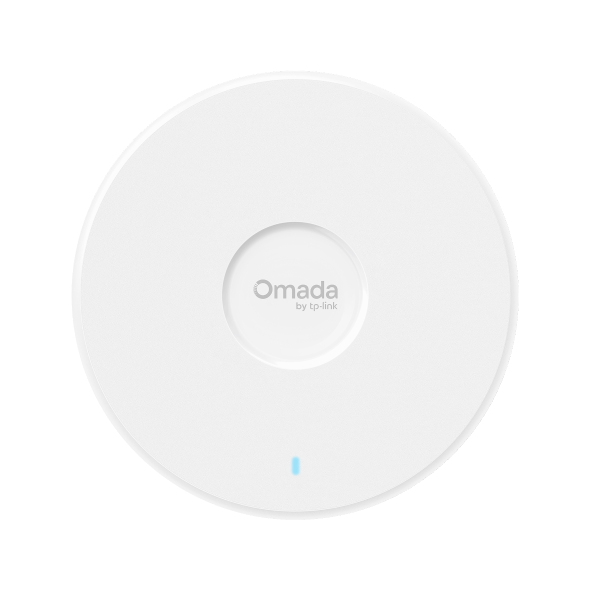
- Ceiling-mount APs are the standard choice for open-plan offices, retail floors, and hotel corridors. Models like the Omada 7 Pro provide high-performance tri-band Wi-Fi 7 connectivity with centralized management, making them well suited to high-density business environments.
- Wall-plate APs replace an existing Ethernet wall jack. They're common in hospitality and student housing, where one AP per room is standard. They mount directly over a standard wall junction box, fitting into the same space as the outlet they're replacing.
- Desktop APs sit on a flat surface rather than being mounted. They work well for home labs or temporary deployments where drilling isn't practical.
Outdoor APs
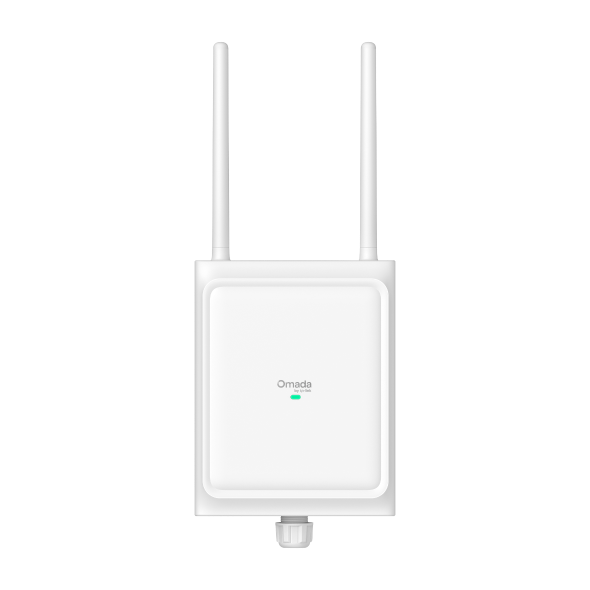
Outdoor access points handle environments that ceiling or wall-plate models can't. Weather-rated models typically carry an IP65 rating or higher, with operating ranges far broader than indoor APs. The Omada 7 Pro Outdoor, for example, features an IP68-rated weatherproof enclosure, anti-UV coating, and 6kV lightning protection, making it well suited to courtyards, warehouses, and parking lots.
For hotel patios, school campuses, outdoor retail spaces, and multi-dwelling unit common areas, outdoor APs extend the same managed Wi-Fi experience found indoors. Explore Omada's outdoor Wi-Fi solutions for options built for exposed environments.
Standalone vs. Controller-Managed APs
A standalone AP is configured through its own web interface. That's manageable for one or two access points. Add a third, fourth, or tenth, and you're logging into each one separately, with no shared view of the network.
Controller-managed APs scale cleanly from a handful of devices to hundreds, with one configuration interface, centralized firmware updates, and unified monitoring. This is the Omada model: every access point in the Omada Wi-Fi collection can be managed from a single controller, whether that's cloud-based, software, or hardware.
APs by Wi-Fi Standard (Wi-Fi 5, 6, 6E, 7)
Access points are available across several Wi-Fi generations, with each offering different levels of speed, capacity, and efficiency. Choosing the right standard depends on the number of devices you expect to support, your performance requirements, and how long you plan to keep the network in service.
Wi-Fi 5 access points remain suitable for many small deployments, while Wi-Fi 6 and Wi-Fi 6E improve efficiency in environments with many simultaneous users through technologies such as MU-MIMO and OFDMA. Wi-Fi 6E also adds access to the less-congested 6 GHz band. Wi-Fi 7 access points introduce features such as Multi-Link Operation (MLO), 320 MHz channels, and 4K-QAM to deliver even greater throughput and lower latency for demanding, high-density deployments.
Wi-Fi 6 remains the mainstream business choice, while Wi-Fi 7 is the forward-looking option for high-density, latency-sensitive environments.
When Do You Need an Access Point?
A few scenarios signal it's time to add an access point. Outgrowing a consumer router or mesh system often shows up as dead zones or degraded performance as more devices connect. It can also mean limited support for features such as VLANs, which separate guest, staff, and point-of-sale traffic. Multi-floor or multi-building coverage is another common trigger, since a single router can't reliably reach through multiple walls, floors, or long distances.
High-density environments, such as classrooms, hotel ballrooms, busy retail floors, or open-plan offices with a high concentration of active devices, need more radio capacity than a single router can provide. Outdoor coverage is another common factor, calling for weather-rated APs in spaces like patios, parking lots, or warehouse yards. Multi-site operations, including branch offices, retail chains, and MSP-managed locations, benefit from centralized management across every location.
Benefits of Business-Grade Access Points
Business-grade access points offer more than expanded Wi-Fi coverage. Features such as seamless roaming, centralized management, and network segmentation simplify deployment and management at scale.
- Seamless roaming keeps calls and video connected. Using standards such as 802.11k, 802.11r, and 802.11v, business APs hand devices off between access points in under 50 milliseconds, so VoIP calls and video streams don't drop as people move through a building.
- Centralized management simplifies multi-site oversight. A cloud, software, or hardware controller configures every AP from a single interface, while zero-touch provisioning allows new sites to adopt existing settings automatically.
- Scalability supports growth without a redesign. Adding new APs to accommodate rising headcount or higher device density seamlessly expands the network without requiring a complete infrastructure overhaul. Omada's high-density Wi-Fi solutions outline how to plan AP placement for heavy concurrent usage.
- Network segmentation keeps traffic types separate. VLANs isolate guest Wi-Fi, employee devices, IoT equipment, and point-of-sale systems from one another, so a compromised guest device can't reach sensitive systems.
- PoE simplifies deployment. A single Ethernet cable delivers both power and data to each AP, eliminating the need for a nearby power outlet at every mount point.
Choosing the Right Access Point for Your Network
An access point is the bridge between wireless devices and the wired network that already runs your business, not a replacement for your router. You add one, or several, when a single router runs out of coverage, capacity, or control.
Business-grade access points managed through a centralized controller can scale from a single site to dozens of sites, minimizing the operational overhead of managing each location individually. Zero-touch provisioning and unified monitoring keep that growth manageable.
If you're ready to compare specific models, the Omada Wi-Fi access points collection includes ceiling-mount, wall-plate, desktop, and outdoor options across Wi-Fi 5 through Wi-Fi 7, so you can match the right AP to your space and device count.
Frequently Asked Questions
What is an access point used for?
An access point lets wireless devices, like laptops, phones, and VoIP handsets, connect to a wired network. Businesses use them to extend coverage beyond a single router's reach and apply consistent policies, such as VLANs, across a building.
What's the difference between a router and an access point?
A router manages traffic between your network and the internet, assigning IP addresses and running DHCP and firewall functions. An access point bridges wireless clients to the wired LAN that a router already manages.
What's the difference between a Wi-Fi extender and an access point?
A Wi-Fi extender rebroadcasts an existing wireless signal to expand coverage, but because it relies on a wireless connection to the main network, performance is often lower than that of a wired access point. An access point connects directly to the network through Ethernet, providing more consistent performance and capacity.
Is an access point the same as a hotspot?
No. A hotspot is typically a temporary, mobile connection, such as one a phone creates by sharing its cellular data. An access point is a fixed device providing ongoing coverage on a permanent wired network.
How does a device connect to an access point?
A device scans for available network names, or SSIDs, then sends a connection request after a user selects one and enters any required credentials. Once connected, the access point forwards the device's traffic to the wired network.
How many devices can a single access point handle?
It depends on the model and workload. Many business APs support 100 to 250 or more concurrent connections, while some high-capacity Wi-Fi 6 and Wi-Fi 7 models are rated for 1,000 or more connected devices.
Can I use an access point at home?
Yes. Home lab enthusiasts often add a standalone access point to strengthen coverage or build a more advanced setup than a consumer router provides, though most won't need controller-based management.