How to Transfer Organization Ownership on VIGI Cloud VMS
Content
Introduction
VIGI Cloud VMS now supports transferring organization ownership to another account. This FAQ explains how the current Owner can transfer ownership to another permanent administrator.
Requirements
- VIGI Cloud VMS
- The current organization Owner account
- A valid TP-Link ID for the new organization Owner
- A PC with internet access
Configuration
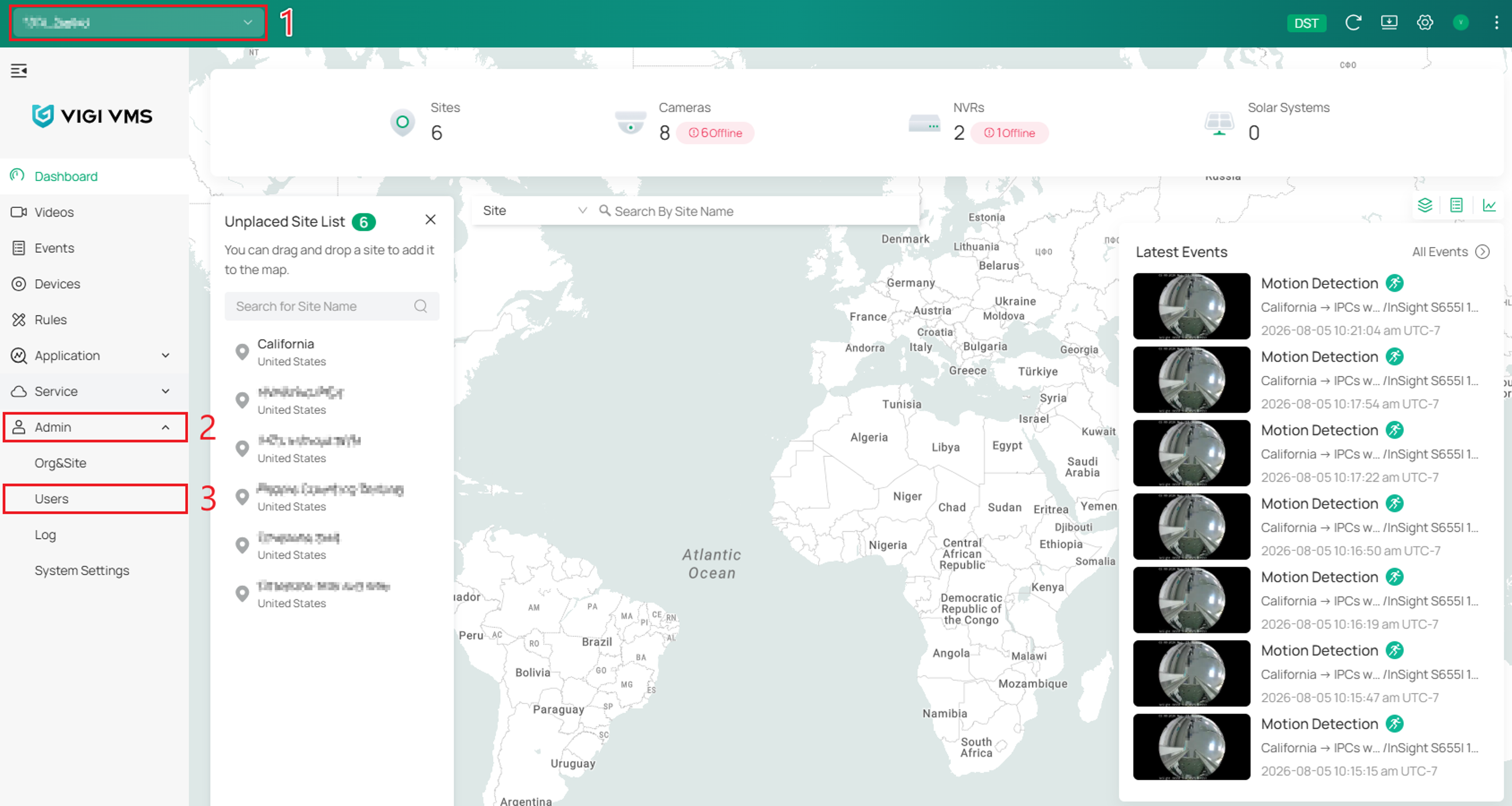
Step 1. Log in to VIGI Cloud VMS using the current Owner account.

Step 2. Go to Organization, select the organization, and then go to Admin > Users.
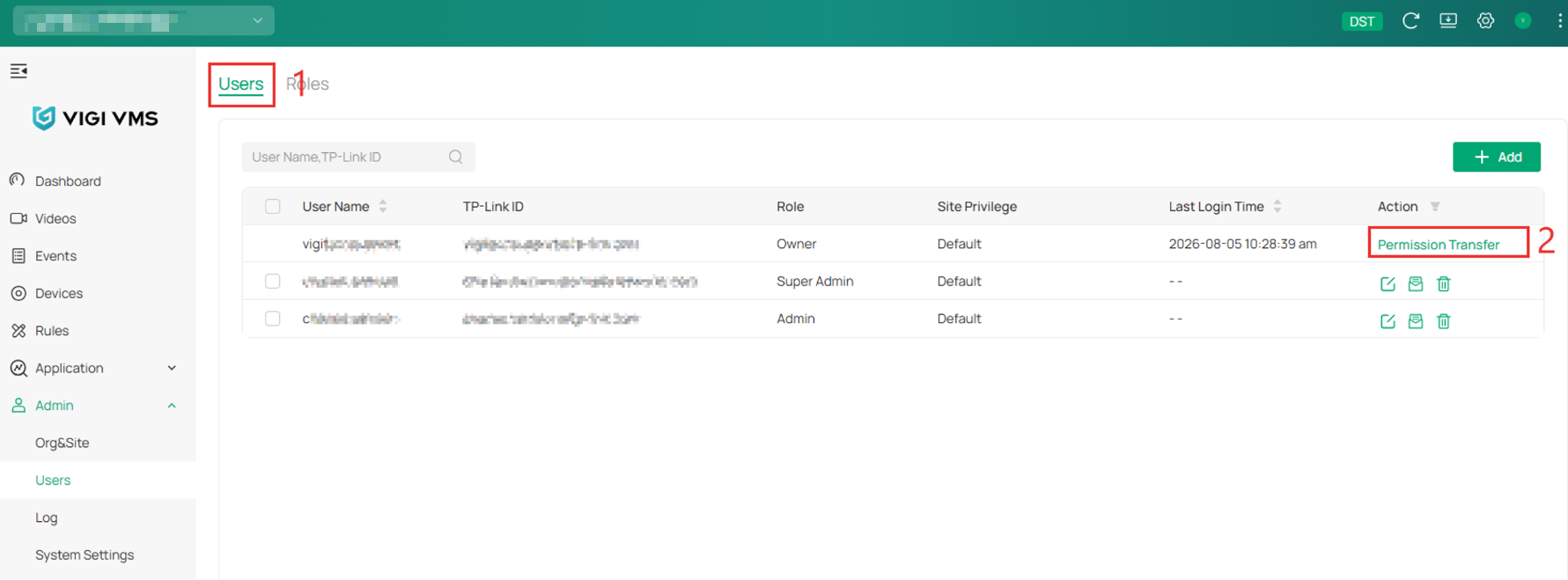
Step 3. On the Users tab, select Permission Transfer next to the account with the Owner role.
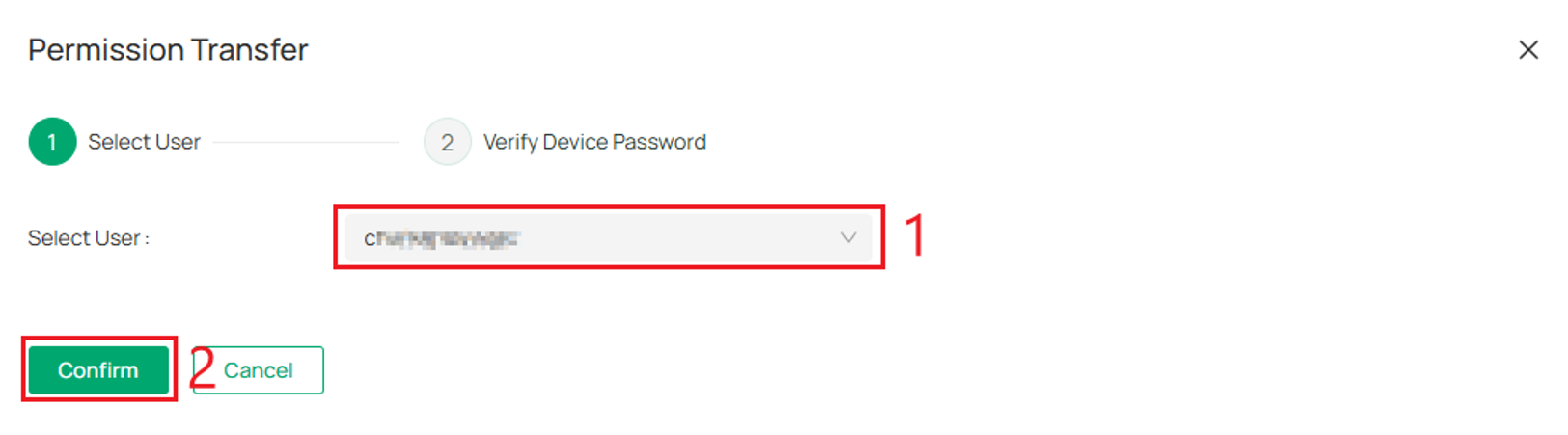
Step 4. Open the Select User drop-down menu, select the permanent administrator who will become the new Owner and then select Apply.
Note: This change is permanent. Confirm that the selected account is the correct recipient before transferring ownership.
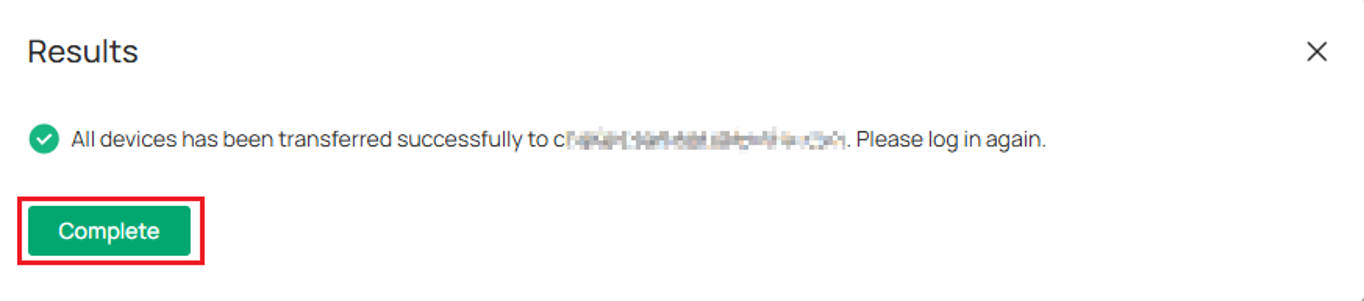
Step 5. The menu will automatically move to the Verify Device Password step, and prompt the user to log into VIGI Cloud VMS again. Selecting Complete will require the user to sign in again.
Verification
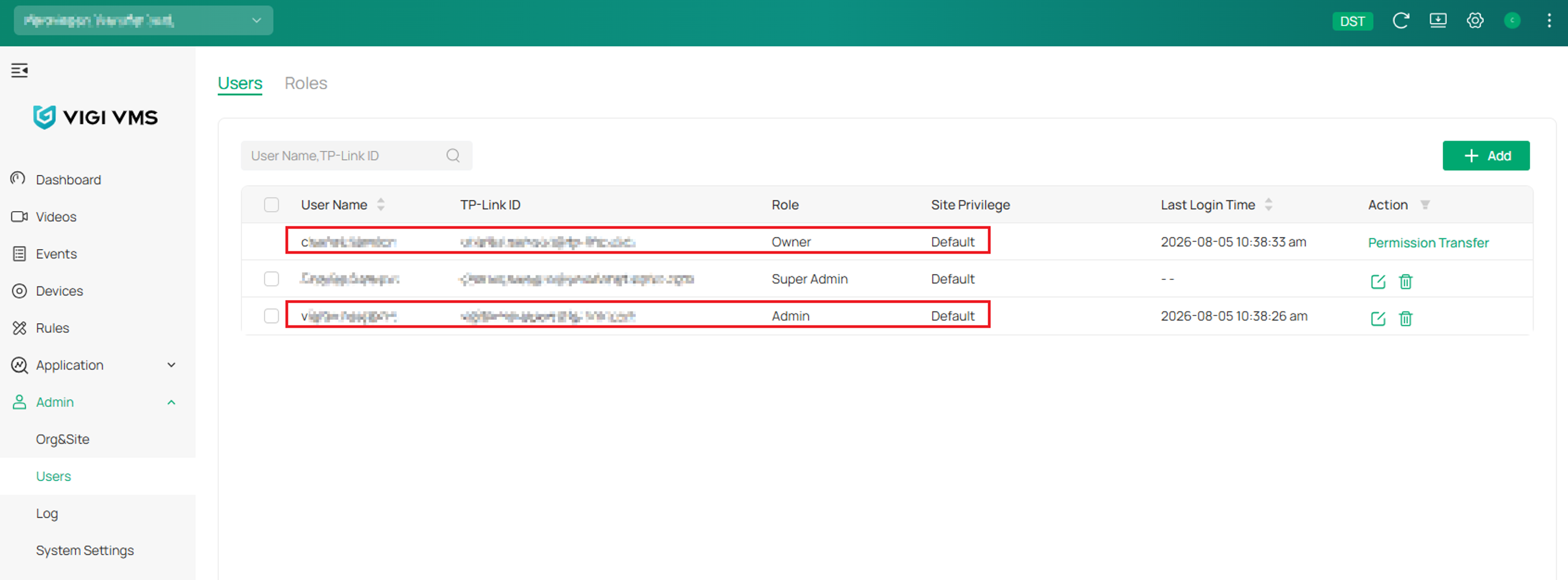
After the transfer is completed, the selected account will have the Owner role, and the previous Owner account will be changed to Admin.
Conclusion
You have now transferred ownership of the VIGI Cloud VMS organization to another permanent administrator. The selected account becomes the new Owner, while the previous Owner retains access with the Admin role.
QA
Q1: Why does the target account not appear in the account list?
A1: Confirm that the account has already been added to the organization and has a permanent role. Temporary accounts cannot receive organization ownership.
Q2: Can ownership be transferred to a temporary account?
A2: No. The target account must have a permanent role within the organization.
Q3: What happens to the current Owner after the transfer?
A3: The current Owner is changed to Admin after ownership is transferred successfully.
Q4: What permissions does the selected account receive?
A4: The selected account becomes the Owner and receives ownership of the organization.
Q5: Can more than one account be the Owner?
A5: No. Only one account can hold the Owner role for the organization at a time.
Q6: What should I do if a “Permission Transfer is not allowed” error appears?
A6: Make sure there are no offline devices in the organization and that an eligible permanent administrator is available to receive ownership.
Q7: How can I confirm that the transfer was successful?
A7: Go to Organization > Admin > Users. Confirm that the selected account has the Owner role and the previous Owner has the Admin role.
Q8: Why can I not perform the transfer from an Admin account?
A8: The ownership transfer must be initiated using the current Owner account.
Q9: What should I check before selecting Apply?
A9: Confirm that the selected account is the intended recipient before selecting Apply, as the ownership transfer takes effect immediately.
To learn more about each function and configuration, please visit Support Home to download or check the manual for your product.
Looking For More
Is this faq useful?
Your feedback helps improve this site.


TP-Link Community
Still need help? Search for answers, ask questions, and get help from TP-Link experts and other users around the world.