What Should I Do If My VIGI Camera Does Not Respond to Controls
Contents
Case 1: Unable to control the VIGI camera on the local network
Case 2: Unable to control the VIGI camera remotely
Introduction
If you have successfully configured your VIGI device to the VIGI App but are unable to control it through a VIGI management platform, such as configuring detection settings or operating Pan/Tilt functions, please refer to this article for troubleshooting steps.
Requirements
- VIGI camera
Troubleshooting
Case 1: Unable to control the VIGI camera on the local network
Step 1. Verify that the router is operating properly and that the network connection is stable.
Step 2. Check whether the local network has any security or access control features enabled, such as MAC address filtering, firewall rules, or Access Control Lists, which may restrict device communication.
Step 3. If the device is connected via Ethernet, ensure that the camera and router are directly connected and check the quality of the Ethernet cable. It is recommended to use a known-good Ethernet cable approximately 3 feet long during troubleshooting to help isolate the possible cause of the issue.
If your VIGI camera is wireless, adjust the device's distance to minimize signal attenuation caused by walls and optimize the wireless network environment.
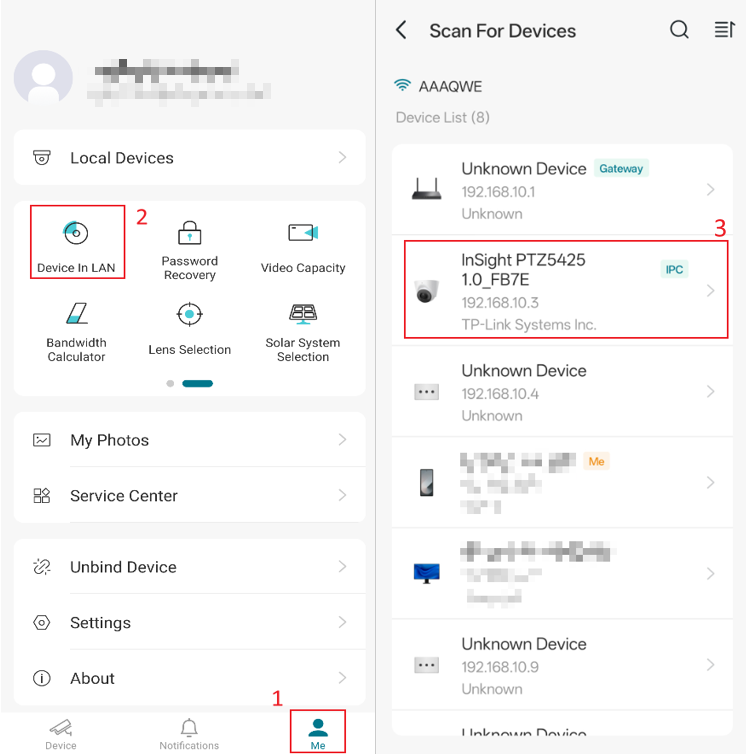
Step 4. Use a phone/tablet connected to the same local network as the VIGI camera and open the VIGI app. Go to Me > Device in LAN and check whether the app can discover the camera.
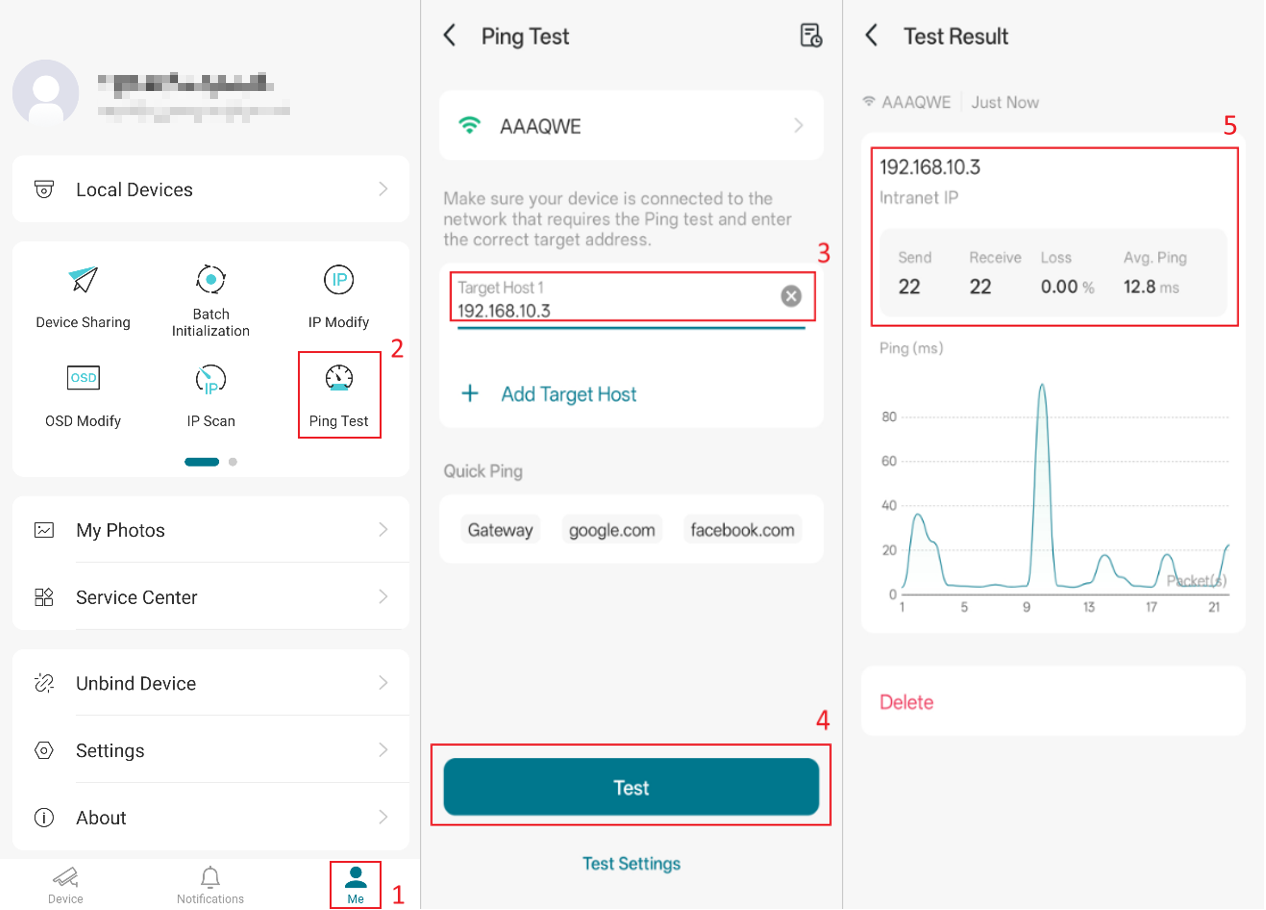
If the camera can be discovered, tap Ping Test on the Me page and ping the camera's IP address.
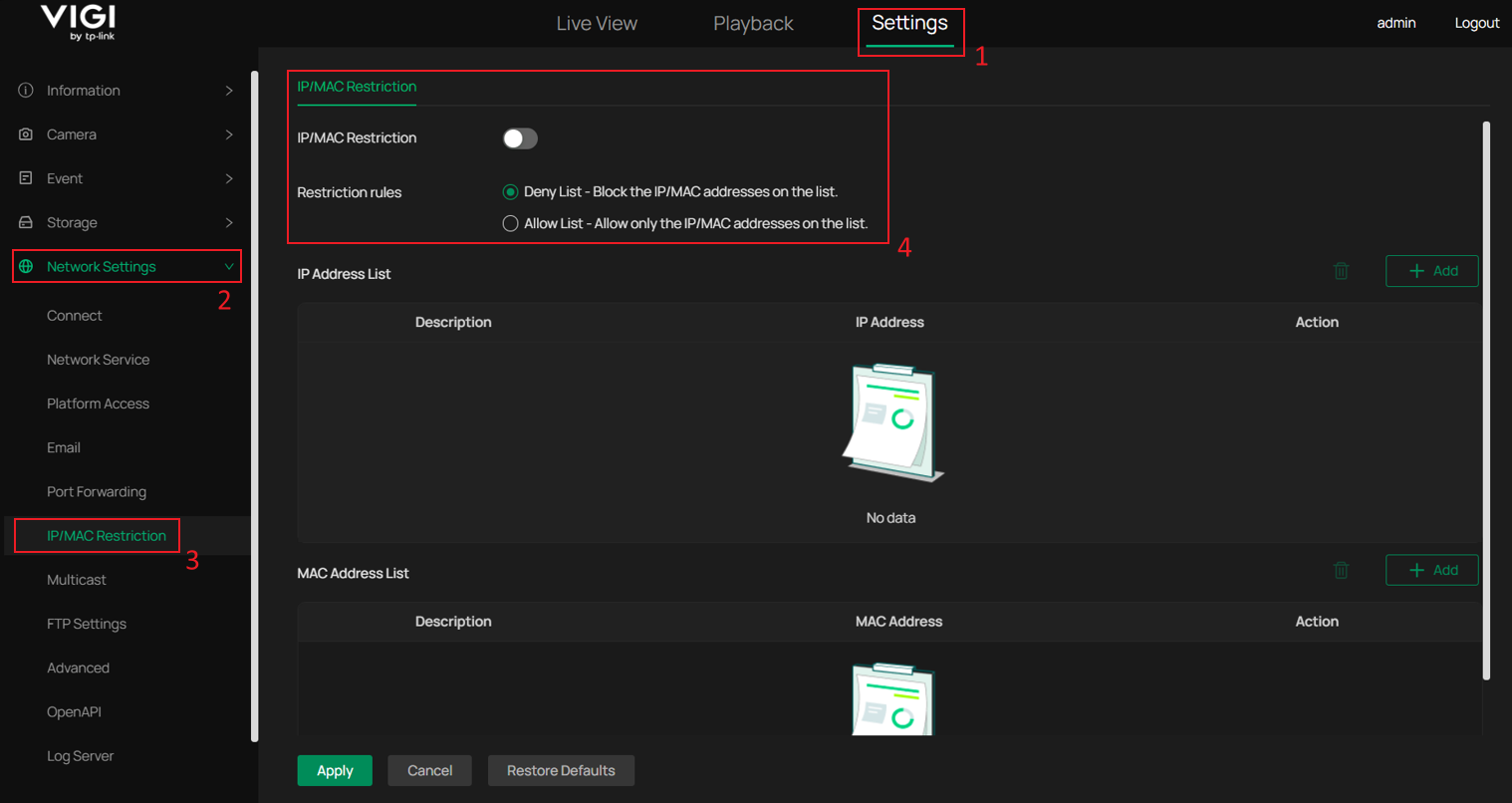
If the ping succeeds, it means the phone and the camera can communicate over the local network. Please log in to the camera's web interface and go to Settings > Network Settings > IP/MAC Restriction. Check whether any IP/MAC Restriction rules have been configured that could affect access to the camera.
Step 5. Update the firmware for your VIGI device.
Step 6. Reboot the camera and the management platform (such as the NVR, VIGI App, or VMS), then test again.
Case 2: Unable to control the VIGI camera remotely
Step 1. Ensure you can control the VIGI device in the local network. If you are unable to control the VIGI device in the local network, please refer to Case 1 for troubleshooting.
Step 2. If you can access the VIGI camera locally, go to Settings > Network Settings > Connect and ensure that Internet Connection Status shows Connected. You may refer to the Web UI example below.
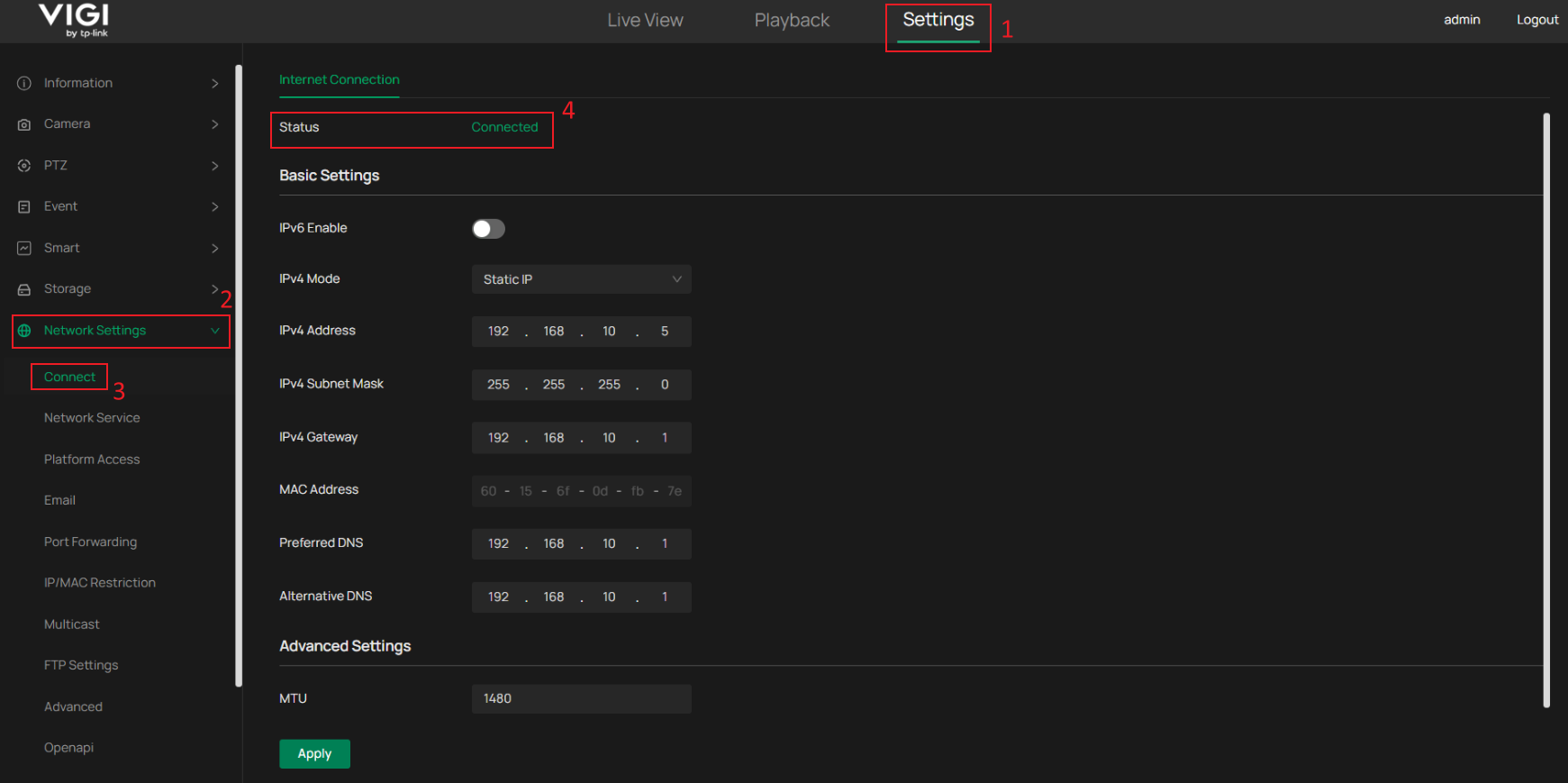
If the status shows Disconnected, check the camera's network settings on this page and make sure they are configured correctly. Also, verify that the local network has a stable Internet connection.
Step 3. Go to Settings > Network Settings > Platform Access and make sure that Connection Status shows Connected. If the status is Disconnected, try disabling and then re-enabling Access to VIGI Cloud to re-establish the connection.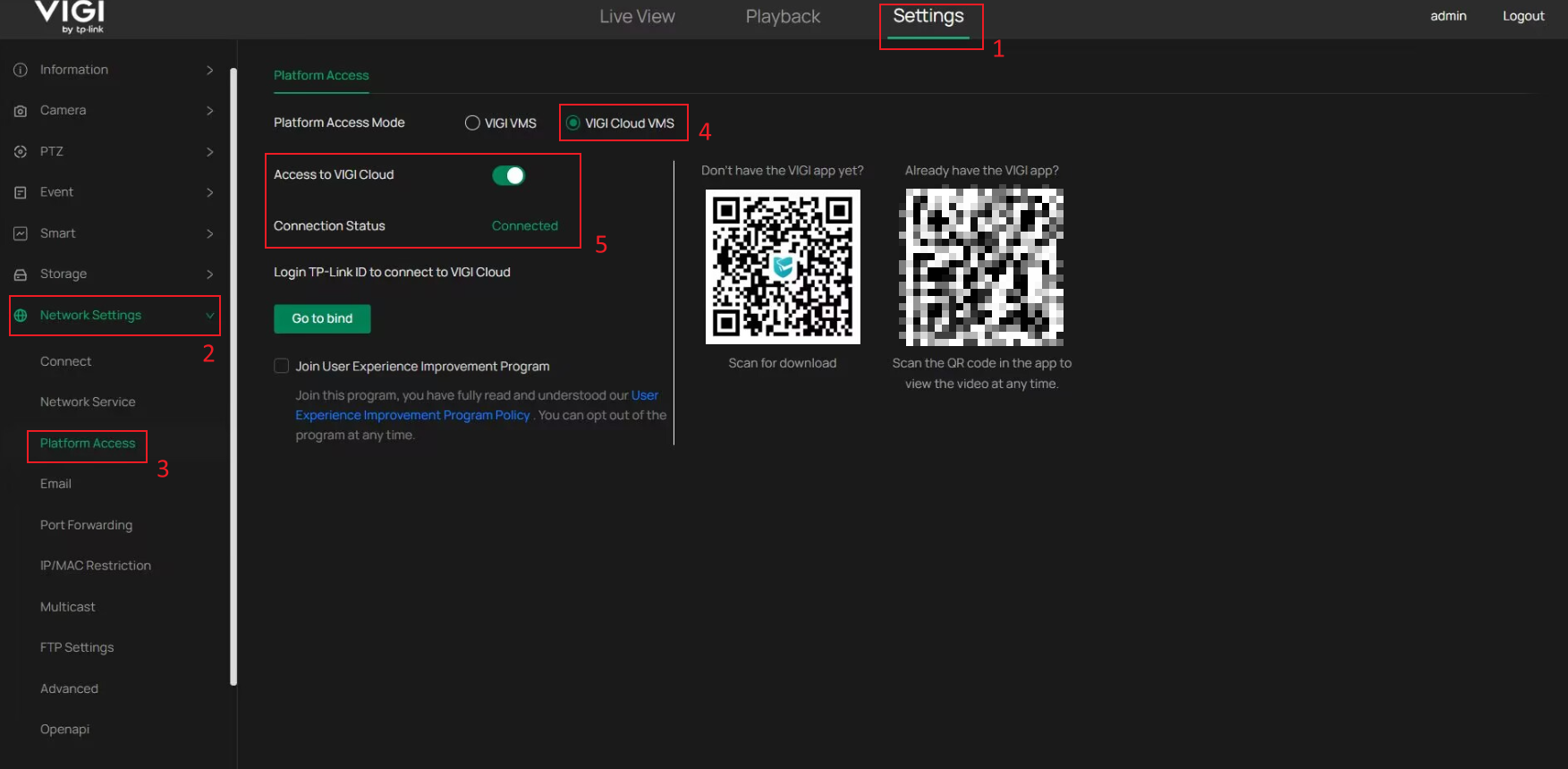
Step 4. Update the firmware for your VIGI device.
Step 5. Using a public DNS server may improve the connection. Try changing your router's DNS server settings to 8.8.8.8 and reducing the MTU value. If you don't know how to do this, please contact your router's customer support.
Step 6. Check whether the local network has any features enabled that may affect remote connectivity, including MAC address filtering, firewall rules, antivirus software, or ACLs.
Conclusion
You have now learned the basic troubleshooting steps for situations where a VIGI camera cannot be controlled, whether locally or remotely. By systematically checking the network environment, device status, firmware version, and security settings, most common causes can be identified and resolved efficiently. If the issue persists after completing the above troubleshooting steps, please collect the relevant test results and contact Technical Support for further assistance.
To learn more about each function and configuration, please visit Support Home to download or check the manual for your product.
Looking For More
Чи була ця стаття корисною?
Ваш відгук допомагає вдосконалити цей сайт.



TP-Link Community
Still need help? Search for answers, ask questions, and get help from TP-Link experts and other users around the world.