
How to set up TP-Link Tapo smart device (Bluetooth) via the Tapo app
 111488
Introduction
TP-Link smart devices can be controlled via the Tapo app, both locally and remotely. By this means, we can easily make the home smart. This article will introduce how to connect the TP-Link Tapo Smart Device (Bluetooth) to the home network.
Requirements
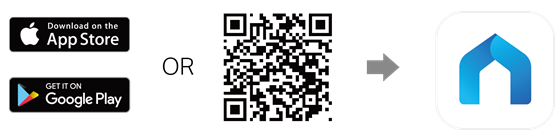
- Go to Google Play or the Apple App Store or scan the QR code below to download the Tapo app.
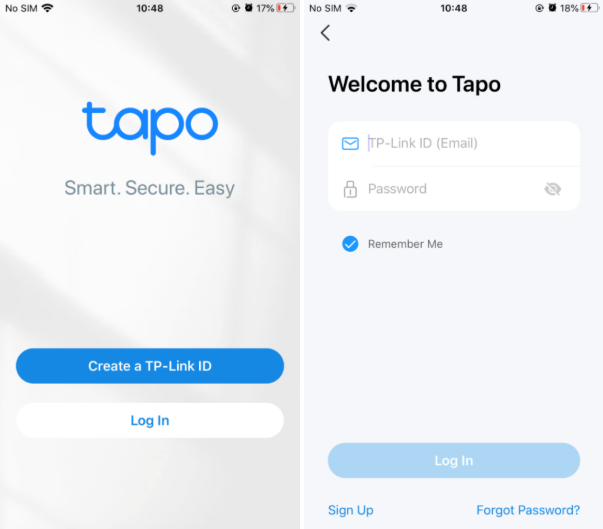
- Open the app and use your TP-Link ID to log in. If you don’t have a TP-Link ID, tap Create a TP-Link ID to create one, and the app will guide you through the rest.
- If your Apple device is iOS 14 or above, please have the "Local Network" enabled.
Configuration
Here, we take Tapo P110 as an example.
Step 1. Add the smart device on Tapo App. Tap the “+” icon and select “Add Device”, then click on “Plugs” and select the model number.
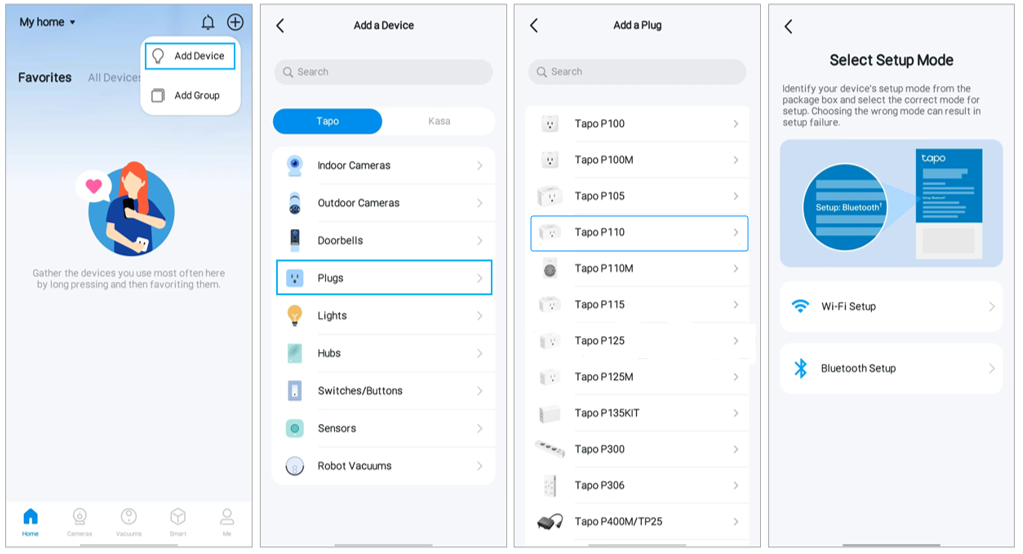
Note: Some models may support different setup modes due to hardware differences. Please identify your device's setup mode carefully to determine whether it is a Wi-Fi setup model or a Bluetooth setup model. If your device broadcasts a default Wi-Fi signal (e.g., Tapo_Plug_XXXX) in your phone's Wi-Fi list, it is a Wi-Fi setup model. Please refer to this FAQ for setup instructions. If your device does not broadcast a default Wi-Fi signal, please proceed with the Bluetooth setup steps below.
For Matter-enabled devices, please choose “Bluetooth Setup” directly.
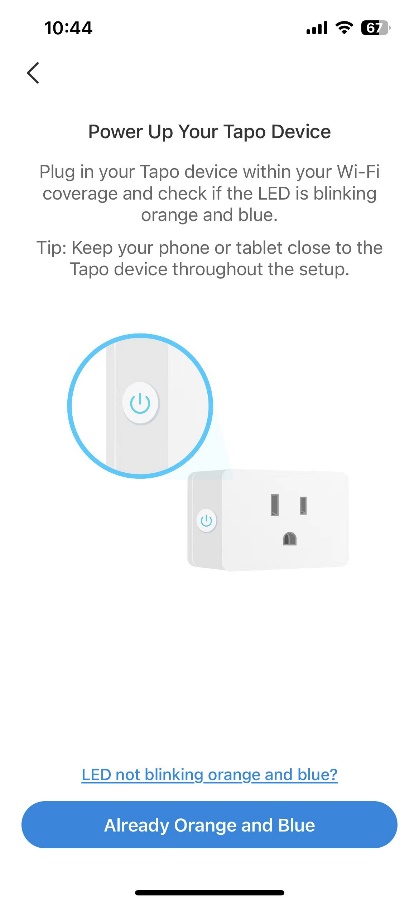
Step 2. Plug your Tapo plug into a power outlet and wait until the LED is blinking Orange and Green/Blue. Enable Bluetooth on your phone, then tap the “ALREADY ORANGE AND GREEN” button. Keep your phone or tablet close to your Tapo plug during the setup.
Note: If the LED does not blink orange and green, tap "LED not blinking orange and green?" for help or reset the device as per the instructions.
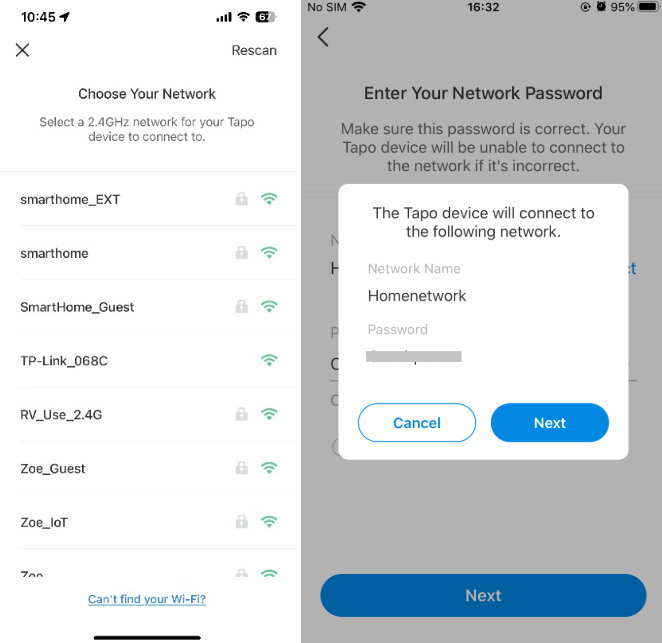
Step 3. After the device is discovered, please connect it to your home Wi-Fi, then follow the instructions in the app to complete setup. If you cannot find your home network in the Wi-Fi list, please click “RESCAN” in the upper-right corner. If the issue persists, please click on “Can’t find your Wi-Fi?” at the bottom, then enter your home network SSID and password manually.
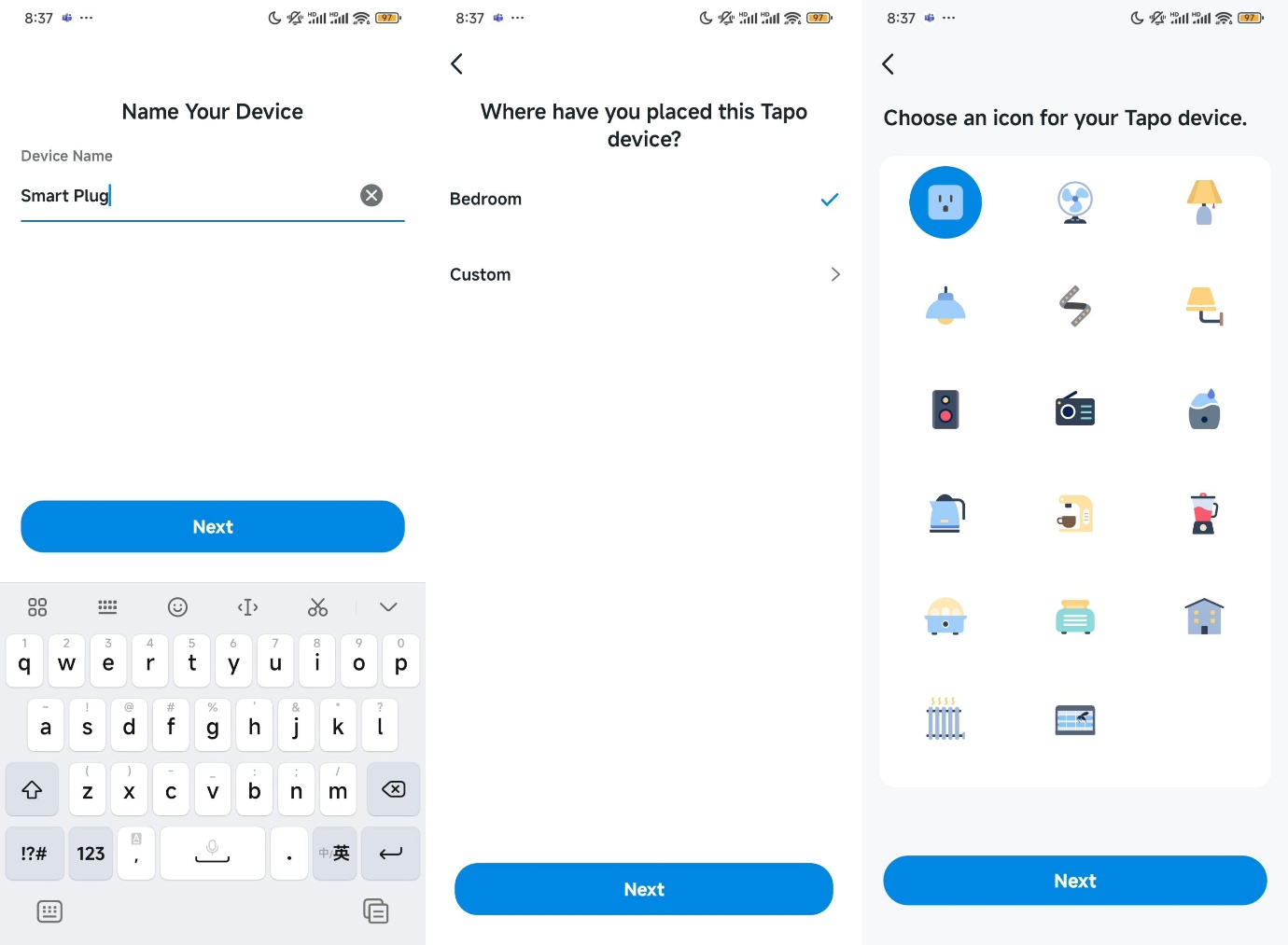
Step 4. After your Tapo device is connected to the home Wi-Fi, you can give your Tapo device a name, set the location, and customize its icon for you to identify it easily.
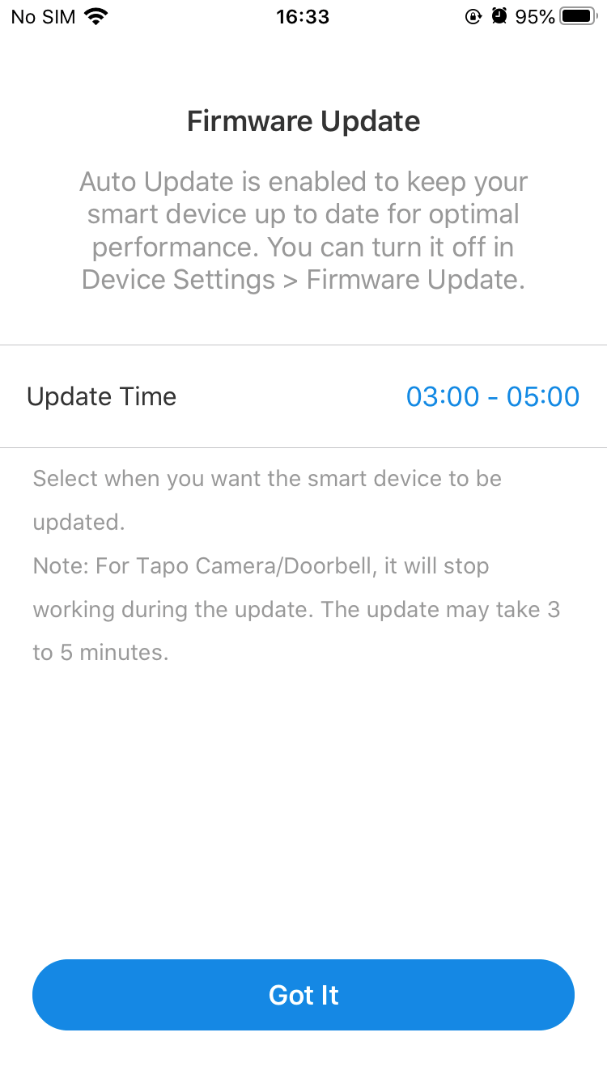
Step 5. After setting it up, you can check for the latest firmware to ensure optimal performance.
Step 6. Set the Auto Update time to keep your smart devices up to date.
Step 7. Done! Now you can manage your Tapo plug via the Tapo App anytime, anywhere.
QA
Q1: What should I do if I fail to configure the Tapo devices?
A1: You may refer to https://www.tapo.com/faq/92/ for detailed troubleshooting.
Q2: How can I use Amazon Echo or Google Home to manage Tapo smart device after configuration?
A2: For this purpose, you can refer to the FAQs below for instructions:
How to make my Tapo / Kasa device work with Amazon Alexa | Tapo
How to connect Tapo / Kasa smart device to Google Home | Tapo
To get to know more details of each function and configuration, please go to Download Center to download the manual of your product.
Czy ten poradnik FAQ był pomocny?
Twoja opinia pozwoli nam udoskonalić tę stronę.
z United States?
Uzyskaj produkty, wydarzenia i usługi przeznaczone dla Twojego regionu.