How to Lower Ping Rate for a Smoother Gaming Experience (2026 Update)
Published: May 3, 2024 · Last Updated: July 2026
Quick Answer: What's a Good Ping for Gaming?
-
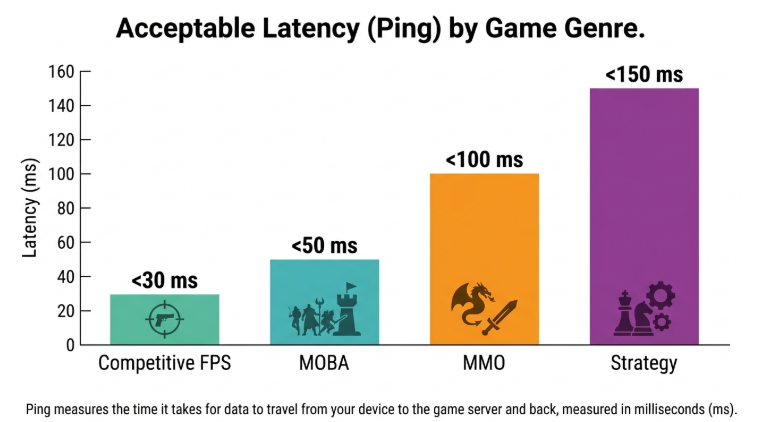
Competitive FPS (Valorant, CODM): Under 30 ms - every frame matters
-
MOBA (Mobile Legends, DOTA 2): Under 50 ms - playable and responsive
-
Casual gaming (MMO, RPG, strategy): Under 100 ms - acceptable for non-ranked play
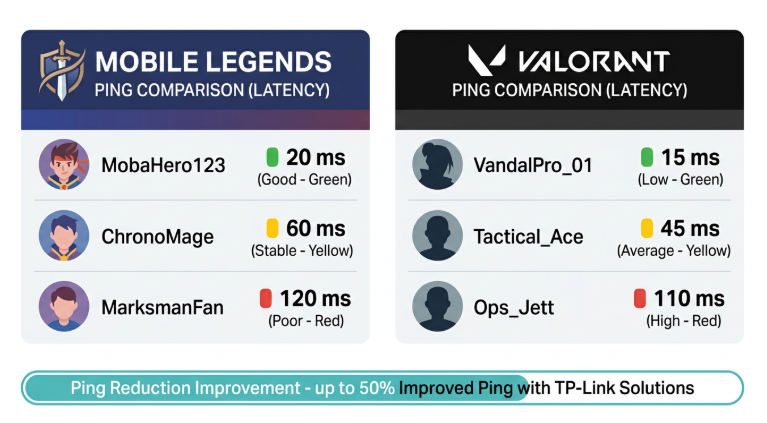
Ping is the time it takes for data to travel from your device to a game server and back, measured in milliseconds (ms). For competitive online gaming, a ping below 50 ms is considered good. Anything above 100 ms causes noticeable lag that will cost you kills in Valorant or makes your Mobile Legends hero teleport across the map.
This guide covers 12 proven ways to lower your ping, updated for 2026 with Wi-Fi 7 router recommendations and tips built for Philippine gamers on PLDT, Globe, and Converge. For a deeper technical look at how latency works at the network level, see our guide on latency: a simple explanation and how to reduce ping. This article stays focused on gaming-specific fixes.
Table of Contents
What Causes High Ping in Online Games?
How to Lower Your Ping: 12 Proven Fixes
Lowering Ping for Specific Games
Best TP-Link Routers for Low-Ping Gaming in 2026
How to Check Your Ping Rate
The fastest way: visit Speedtest.net or Fast.com, which display your ping alongside your internet speed. Most online games also show live ping in their HUD or network settings. In Mobile Legends, it appears in the top-right corner during a match. In Valorant, open the settings and enable Show Network Round Trip Time.
If your in-game ping is consistently higher than your Speedtest result, the issue is likely server routing or game-side congestion rather than your home network. You can also use internet speed testing tools to measure your connection at different times of day and compare peak vs. off-peak performance.
What Causes High Ping in Online Games?
Three causes account for the vast majority of ping complaints from Philippine gamers:
-
Distance to the game server. Philippine players on SEA servers (Singapore and Manila) typically get 20 to 50 ms. Connecting to North American servers jumps to 200 to 250 ms and European servers to 270 to 300 ms. Always verify your server region before a ranked session. For better game performance, always connect to the closest available server.
-
ISP peak-hour congestion. Network traffic in the Philippines peaks between 7 and 10 PM. During this window, PLDT, Globe, and Converge all experience higher congestion, and ping spikes are common even on good plans. Try hacks to boost connection speed and apply fixes during peak hours.
-
Wi-Fi interference in dense PH buildings. If you are using WiFi in a condo or apartment building where dozens of competing networks share the 2.4 GHz band, ping will be higher and less stable than a wired connection.
How to Lower Your Ping: 12 Proven Fixes
Ordered from easiest and free to more involved hardware upgrades.
1. Use a Wired Ethernet Connection
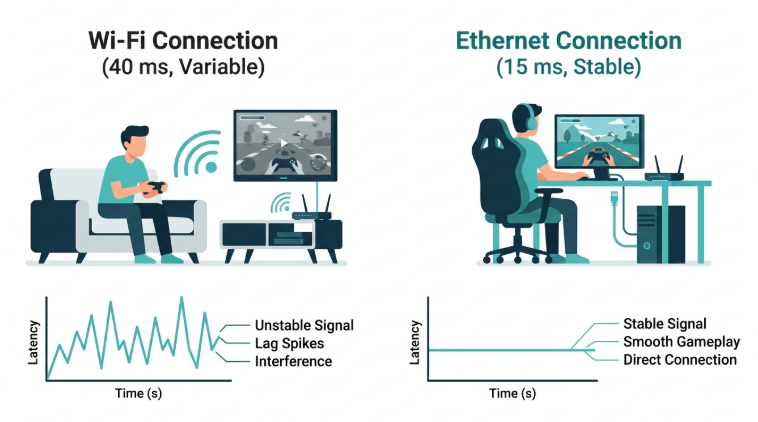
Connect your gaming device directly to your router using an Ethernet cable instead of relying on Wi-Fi. Wired connections bypass wireless interference entirely, delivering lower and more stable ping. For PC and console gamers, this is the single most impactful free fix.
Check out the different types of Ethernet cables to make sure you are using the right one. Cat6 or better is recommended for gaming.
2. Choose Game Servers Closest to Your Location
When a game gives you a server selection screen, always pick SEA Singapore and Manila servers, which deliver the lowest ping for Philippine players. Avoid North America or Europe unless that is where your friends play - the ping cost is high (often 200+ ms). Some games, like Valorant, automatically assign you to the closest server, but you can override this in settings.
3. Close Background Applications
Applications running in the background, game launchers updating, cloud sync services, streaming platforms, and Windows Update quietly consume bandwidth and increase ping. Before a ranked session, close everything you are not using. On mobile, disable auto-updates and restrict background data for apps you do not need.
4. Enable Quality of Service (QoS) on Your Router
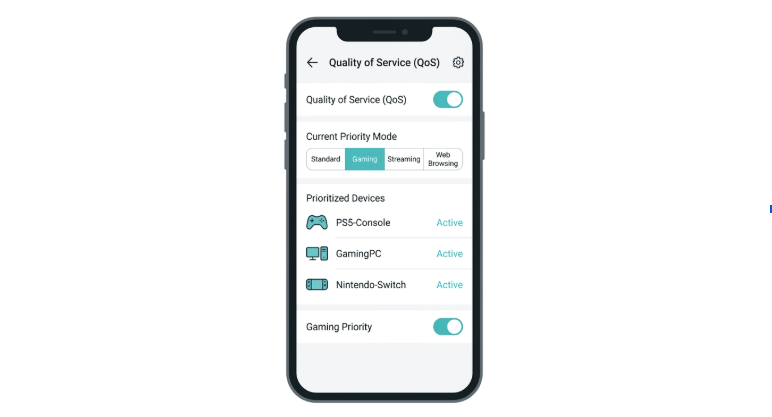
QoS (Quality of Service) settings let your router prioritize gaming data packets over other traffic on your network. This means your game gets bandwidth first, even when other family members are watching Netflix. Most TP-Link routers support QoS through the Deco app or the Tether app. Enable it and add your gaming device as a priority device. For a step-by-step, see improved network performance.
This is the single best fix for households where multiple family members share the connection during peak hours, especially the 7 to 10 PM window in Philippine homes.
5. Connect to the 5 GHz Band or Upgrade to Wi-Fi 6/7
If wired is not an option - especially for mobile gamers - switch from the 2.4 GHz to the 5 GHz band. The 5 GHz band is less congested and delivers lower latency, though it has a shorter range. Upgrade to a router that supports Wi-Fi 6 or the newer Wi-Fi 7 standard. The AX11000 Tri-Band Wi-Fi 6 Gaming Router offers Wi-Fi speeds over 10 Gbps with dedicated gaming bands that minimize interference.
6. Limit Bandwidth on Non-Gaming Devices
Set bandwidth limits on devices and apps that do not need full speed during your gaming sessions. This is best for Filipino households where multiple family members are online simultaneously during the 7 to 10 PM peak window. You can manage this through your router's device management settings or the Deco app.
7. Minimize Wireless Interference
Keep your router away from microwaves, cordless phones, and Bluetooth speakers, which disrupt Wi-Fi signals on the 2.4 GHz band. Position your router in an elevated, central location in your home for better signal distribution. In dense apartments with many competing networks, a mesh system like the Deco can eliminate dead zones and stabilize your connection throughout the unit.
8. Optimize In-Game Network Settings
Most games have a network section in their settings. Lower your rendering resolution and texture details if your device is struggling. Reducing CPU and GPU load means faster packet processing. In Mobile Legends, switch to the Smooth graphics setting during the rank season. In DOTA 2, reducing the rendering scale can lower both ping and frame drops on older hardware.
9. Update Firmware and Network Drivers
Regularly update your router's firmware and the drivers for your network adapter. These updates often include latency improvements, security patches, and compatibility fixes. For TP-Link routers, firmware updates are available directly through the Tether app or the router's admin panel.
10. Upgrade Your Internet Plan or Switch ISPs
If your plan's base speed is below 50 Mbps, consider upgrading. In the Philippines, selecting the best internet service matters for gaming. PLDT Game+ and Globe Gaming bundles are specifically designed with gaming traffic prioritization. Converge fiber plans also offer low-latency options, particularly in Metro Manila and key cities. If your current plan already offers high speeds but ping remains high, the issue is more likely routing or congestion.
11. Use Powerline Adapters for Wired-Like Speeds Without Long Cables
If running a long Ethernet cable through your home is not practical, powerline adapters use your home's electrical wiring to transmit a wired network signal. They deliver lower and more stable ping than Wi-Fi, particularly in multi-floor Philippine homes. TP-Link's powerline adapter range provides a clean solution. See ways to fix Wi-Fi issues for more connection stability options.
12. Invest in a Gaming Router
Gaming routers are built to improve overall network performance for real-time traffic. Features like dedicated gaming bands, prioritization, and low-latency firmware give your gaming data a clear lane on the network. This matters most in households with multiple devices competing for bandwidth during peak hours.
Explore TP-Link's full gaming router lineup or browse the complete range of Wi-Fi routers to find the right fit for your setup.
Ping Benchmarks by Game Type
|
Game Type / Title |
Target Ping |
Acceptable Ping |
Notes |
|---|---|---|---|
|
Competitive FPS (Valorant, CODM) |
Under 30 ms |
Under 60 ms |
Every frame matters in FPS; sub-30 ms is the goal for ranked play |
|
MOBA (Mobile Legends, DOTA 2) |
Under 50 ms |
Under 80 ms |
Playable and responsive; above 100 ms causes skill delays in teamfights |
|
Battle Royale (CODM, PUBG Mobile) |
Under 50 ms |
Under 80 ms |
Packet loss matters more than raw ping in battle royale |
|
Casual / MMO / RPG / Strategy |
Under 100 ms |
Under 150 ms |
Acceptable for non-ranked play |
|
Cloud Gaming (GeForce Now, Xbox Cloud) |
Under 20 ms |
Under 35 ms |
The entire game streams from a remote server; every ms counts |
Lowering Ping for Specific Games
General fixes help across the board, but each major Philippine game has its own quirks. Here is what to prioritize for each.
Mobile Legends: Bang Bang
Server region: Singapore (SEA) for Philippine players. Typical ping on SEA servers: 20 to 60 ms. During rank season, 7 to 9 PM is the hardest window; queues are full, and ISP congestion peaks simultaneously. Enabling the router's device prioritization and setting your phone to the 5 GHz band before your ranked session makes a noticeable difference. Target: below 50 ms for ranked play.
DOTA 2
Server region: Singapore (SEA) for Philippine players. Typical ping: 40 to 80 ms on SEA, 200+ ms on US East. DOTA 2 lets you manually set your server region under Settings > Network. Lock it to Singapore to avoid automatic routing to a further server during off-peak hours. Target: below 80 ms for normal play; below 50 ms for competitive.
Valorant
Server region: Valorant's Philippine players are routed to Singapore. Typical ping: 30 to 60 ms for most Metro Manila players. Valorant is an FPS where sub-30 ms ping is the goal for ranked play; anything above 80 ms causes visible shot registration issues. Wired Ethernet or 5 GHz Wi-Fi 6 is strongly recommended. Target: below 30 ms for competitive, below 60 ms for casual.
Call of Duty Mobile (CODM)
Server region: CODM uses regional matchmaking; Philippine players are routed to SEA servers automatically. Typical ping: 30 to 70 ms on mobile data, 20 to 50 ms on stable home Wi-Fi. CODM is particularly sensitive to packet loss on mobile LTE; switching to 5G or home Wi-Fi significantly reduces erratic ping spikes. Target: below 50 ms for battle royale; below 30 ms for multiplayer ranked.
Best TP-Link Routers for Low-Ping Gaming in 2026
Here are the top TP-Link options for Philippine gamers, organized by use case.
Mobile Gaming (Phone + Tablet on Wi-Fi)
The TP-Link Archer AX73 brings Wi-Fi 6 speeds and efficient handling of multiple simultaneous connections, ideal for households where several people are gaming and streaming at once. For gaming on mobile data outside the home, check out TP-Link's Mobile WiFi (MiFi) devices for stable LTE and 5G connections on the go.
Casual PC Gaming
The TP-Link Archer GX90 features a dedicated gaming band that keeps gaming traffic separated from everyday browsing and streaming. Its built-in traffic prioritization tools reduce latency spikes during peak hours automatically.
Competitive PC Gaming
For serious Valorant or DOTA 2 players who need every millisecond, the AX11000 Tri-Band Wi-Fi 6 Gaming Router is the benchmark. With tri-band architecture, a dedicated 4804 Mbps gaming band, and higher-speed internet connection handling, it is built for the kind of stable, low-latency performance competitive gaming demands.
Whole-Home Mesh for Gaming Households
If your home has dead zones or multiple gamers on different floors, the TP-Link Deco XE75 Pro creates a seamless mesh network with fast roaming support so devices maintain a stable connection throughout the house. For additional coverage options, browse TP-Link's Network Expansion range, which includes extenders and mesh nodes that pair seamlessly with your existing setup.
Frequently Asked Questions
Does using a gaming router help reduce ping?
Gaming routers measurably reduce ping in busy multi-device households. Routers like the TP-Link Archer GX90 use dedicated gaming bands and advanced traffic management to prioritize real-time game data over background traffic.
Can Wi-Fi cause high ping?
Wi-Fi is a direct cause of high and inconsistent ping in most Philippine gaming setups. Wi-Fi is more prone to interference, signal drops, and congestion than wired connections, which leads to higher and less stable latency. Using the 5 GHz band or switching to a wired Ethernet connection lowers ping reliably. If Wi-Fi is your only option, see our guide on boosting your home Wi-Fi with a Wi-Fi 6 extender for the most stable results.
Do powerline adapters help reduce ping?
Powerline adapters consistently deliver lower ping than standard Wi-Fi in Philippine multi-floor homes. They use your home's electrical wiring to deliver a wired-like connection without running long cables through walls or ceilings, making them a practical option for Philippine homes where routing Ethernet between floors is not feasible. Ping stability improves significantly versus 2.4 GHz Wi-Fi, particularly during the 7-10 PM congestion window.
Should I use a VPN for gaming to reduce ping?
Using a VPN for gaming almost always raises ping rather than lowering it. VPNs add an extra routing hop that increases latency. The one exception is if your ISP is actively throttling gaming traffic, a gaming-specific VPN can sometimes route around that bottleneck. For a better solution to routing issues, check the Deco BE25 for improved home network management.
Why does my ping spike at 7 to 10 PM?
Evening ping spikes are caused by ISP congestion on shared network infrastructure - not your router or home setup. When millions of subscribers go online simultaneously, shared network segments in Metro Manila and provincial cities get overloaded. Your ISP may be able to help if the issue is consistent; they can check line quality and local congestion. Meanwhile, enabling QoS on your router ensures gaming traffic gets priority even when your overall connection is strained.
What ping should I target for Mobile Legends ranked?
For Mobile Legends ranked play, below 50 ms is the target. The 50 to 80 ms range is still manageable, but above 100 ms, you will notice skill delays and inconsistent hero movement. During the rank season, the worst congestion window for Philippine ISPs falls between 7 and 9 PM.
Does cloud gaming require lower ping than regular gaming?
Cloud gaming requires significantly lower ping than standard online gaming. Services like NVIDIA GeForce Now and Xbox Cloud Gaming stream the entire game from a remote server, so every frame depends on your connection. These services recommend below 20 to 35 ms for a smooth experience, which is stricter than any local game.
How do I get 0 ping?
Zero ping is physically impossible; even light through fiber-optic cable takes time to travel a distance. Realistically, anything below 30 ms feels instantaneous in most competitive games. If you are dealing with consistently high ping regardless of your setup, it may be time to check your Modem. Connecting directly to the modem for testing a modern modem that supports DOCSIS 3.1 or fiber-compatible standards can reduce latency at the source before your signal even reaches the router.
Final Thoughts
Ping problems are almost always fixable. Start with the free wins: use a wired connection, close background apps, pick the right server region, and enable the router's traffic prioritization. If those do not solve it, your hardware or ISP plan may need an upgrade.
The TP-Link gaming router lineup covers every use case from mobile gaming households to full competitive setups with the tools to keep your ping where it belongs: low, stable, and out of the conversation during rank season.
Whether you are climbing in Mobile Legends, grinding ranked in Valorant, or coordinating raids in DOTA 2, a stable low-latency connection is the foundation on which everything else builds. Explore the full TP-Link gaming solution lineup to find the right fit for your setup.
By Laviet Joaquin, Head of Marketing, TP-Link Philippines | Published: May 3, 2024 · Last Updated: July 2026