What Should I Do if My VIGI Camera Firmware Update Fails
Contents
Introduction
Firmware updates may provide new features, security enhancements, bug fixes, and performance improvements for VIGI devices. If a firmware update fails, the issue may be related to network connectivity, firewall settings, or the update method being used. This article provides troubleshooting steps and alternative update methods to help resolve the issue.
Requirements
- VIGI Camera
- VIGI App, VIGI NVR, VIGI PC Client, VIGI Cloud VMS, or VIGI Local VMS
Troubleshooting
Follow the steps below if the firmware update fails.
Step 1. Reboot the VIGI device
Restart the VIGI camera and wait until it is fully online before attempting the firmware update again.
Step 2. Verify Network Connectivity
A stable network connection is required during the firmware update process.
- Ensure that the camera has a reliable connection to the network.
- Check the Ethernet cable and replace it with a shorter, known-working cable if necessary.
- Verify that the camera can access the Internet.
Note: If the camera is managed by a VIGI NVR, check whether Network Isolation is enabled. This function may block the camera from the Internet.
Step 3. Check Firewall and Security Settings
Firewalls, antivirus, or network security settings may block the firmware update process.
- Temporarily disable firewall or security filtering settings on the router if applicable.
- Verify that network security policies are not preventing the camera from reaching the firmware server.
- After making changes, try the firmware update again.
Step 4. Try Updating Through Another Management Platform
If the update fails through the VIGI App, try updating the device through the device's web interface, VIGI NVR, VIGI Config Tool, or VIGI VMS.
Step 5. Update Firmware Manually
If automatic updates fail, manually upload the firmware to the camera.
- Download the correct firmware version from the Download Center | TP-Link
- Verify that the firmware matches the device model and hardware version.
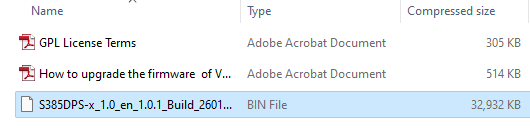
- Extract the firmware file from the downloaded compressed package.
- Upload the firmware file (.BIN File) to the camera through the supported management platform or device web interface.
Note: Always verify the hardware version before downloading firmware. Installing incorrect firmware may cause update failures.
Step 6. Use Recovery Mode
If the firmware update still fails, you can try to recover the camera using Recovery Mode.
Recovery Mode allows you to restore the device firmware when the camera cannot be upgraded normally or becomes inaccessible after a failed firmware update.
For detailed instructions, please refer to: How to use recovery mode to recover firmware for VIGI Camera and NVR.
Note: Recovery Mode may require additional preparation steps depending on the camera model. Refer to the Recovery Mode guide for device-specific instructions.
Conclusion
You have now completed the recommended troubleshooting procedures for a failed VIGI firmware update. By verifying the device status, network connectivity, security settings, and alternative update methods, most firmware update failures can be identified and resolved successfully.
To learn more about each function and configuration, please visit Support Home to download or check the manual for your product.
QA
Q1: Why does the firmware update fail?
A1: Firmware update failures are commonly caused by unstable network connections, firewall restrictions, interrupted downloads, or incorrect firmware files.
Q2: Why can't I find the latest firmware version for my device?
A2: Verify the device model and hardware version before searching the TP-Link Download Center. Firmware files are hardware-version specific, and selecting the wrong hardware version may prevent the correct firmware from being displayed.
Q3: Can I update multiple cameras at the same time?
A3: Yes. Depending on the management platform and device model, batch firmware updates may be supported. Refer to How to upgrade managed VIGI devices via VIGI VMS and VIGI Config Tool.
Looking For More
¿Es útil esta pregunta frecuente?
Sus comentarios nos ayudan a mejorar este sitio.



TP-Link Community
Still need help? Search for answers, ask questions, and get help from TP-Link experts and other users around the world.