How to configure Network Modes on VIGI Dual-Port NVRs
 12006
12006Contents
Configure Network Modes in Omada Central
Configure Network Modes in NVR GUI
Objective
This article will show you how to configure NVR’s network with different network modes, both in Omada Central and the NVR GUI.
Requirements
- NVR4016H, NVR4032H, NVR4064H
Introduction
Some NVRs (like NVR4016H/NVR4032H/NVR4064H) have dual ports and support three operating modes: Fault-tolerant mode, Multiple-access mode, and Port Aggregation mode. You can configure the network according to your needs with this article.
Configuration
Configure Network Modes in Omada Central
Fault-tolerant Mode
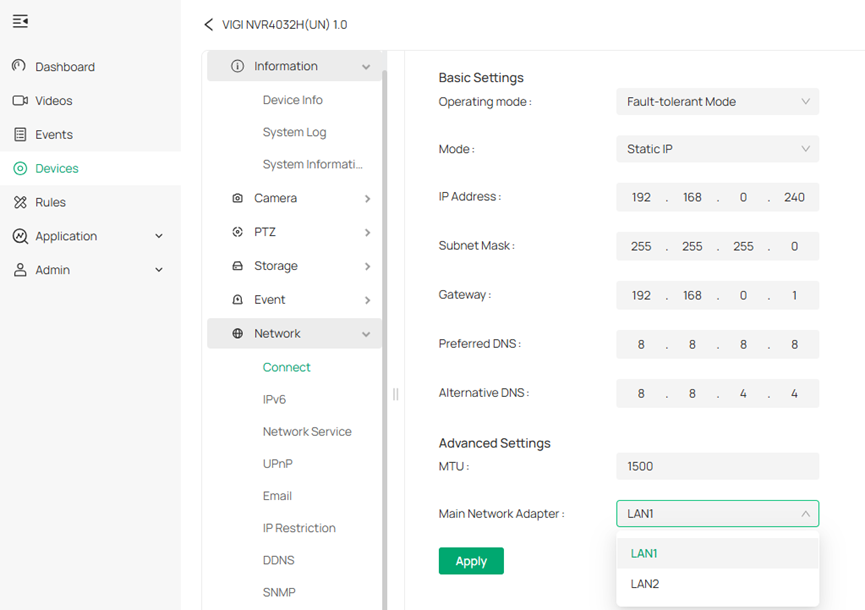
In Fault-tolerant mode, the LAN1 port and LAN2 port share the same IP address. After setting a main port, when the main port connection fails, the system enables the other port as a backup port to ensure that the system’s network works properly and stably.
Follow the steps below to configure the Fault-tolerant mode.
1. Click on the Omada Guard screen and click Settings icon in the Devices page. Go to Network > Connect.
2. Select the Fault-tolerant operating mode and follow the instructions below.

• To assign a static IP address to NVR, select Static IP as the mode and configure the following parameters:
Multi-access Mode
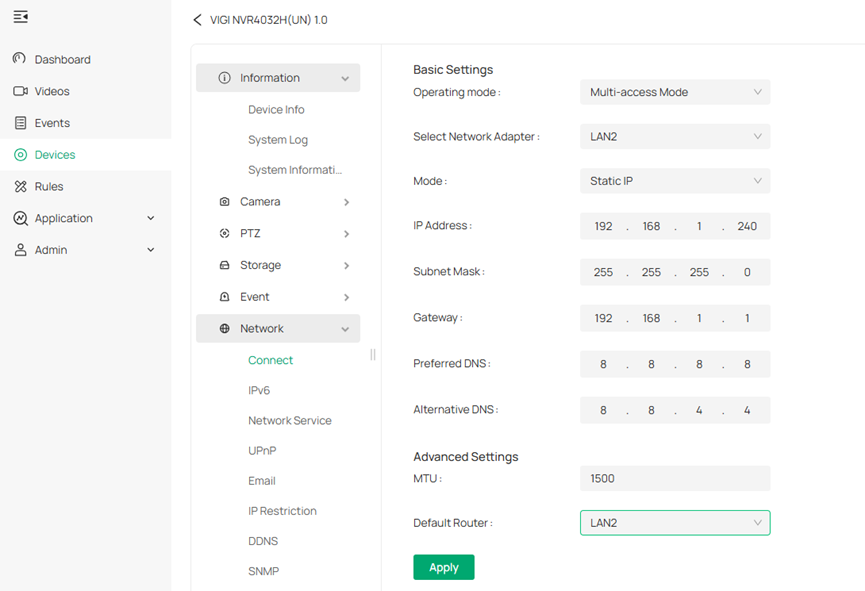
In Multi-access mode, the network settings of LAN1 port and LAN2 port are independent of each other and belong to different VLANs, and the two ports work with each other.
Set LAN1 and LAN2 respectively, and you can select a port as the default router. The LAN port connected to the external network needs to be set as the default router.
A LAN port set as the default router can communicate with other network segments, such as the external network or other network segments on a Layer 3 switch. A LAN port that is not the default router cannot communicate with other network segments.
Here we take port 2 and port 5 which the dual-port NVR connects in switch for example:
LAN 1 connects Port 2 in switch in default VLAN, and the LAN 2 connects Port 5 in a new VLAN.

Follow the steps below to configure the Multi-access mode.
1. Click on the Omada Guard screen and click Settings icon in the Devices page. Go to Network > Connect.
2. Select the Multi-access operating mode and follow the instructions below.
• To assign a static IP address to NVR, select Static IP as the mode and configure the following parameters for LAN 1 and LAN 2 separately. Each network port has its own IP address and can connect to a different network.

Port Aggregation Mode
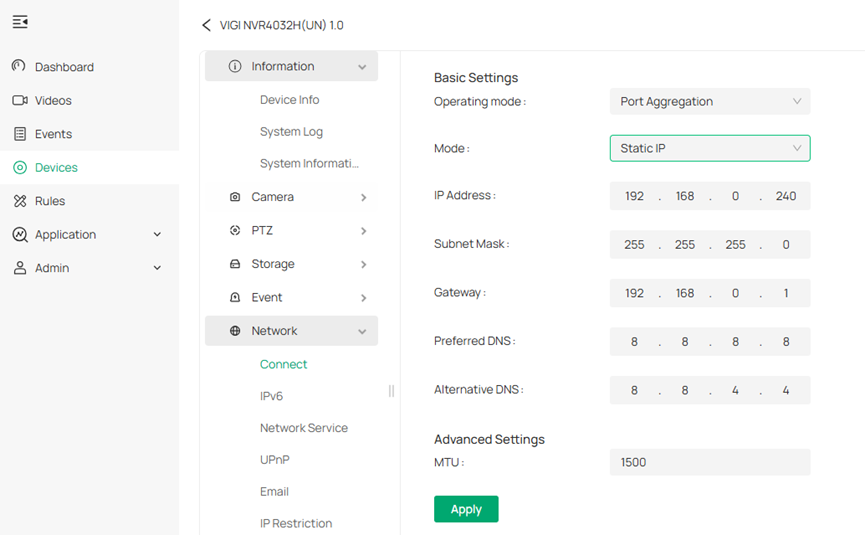
In Port Aggregation mode, the two LAN ports use the same IP address to aggregate the two network ports of the NVR to form a logical physical port, which can increase the bandwidth; at the same time, the two network ports dynamically back up the settings of each other to improve the connection reliability.
Note: When Port Aggregation mode is configured, the two network ports connected to the switch must first set up port aggregation to enhance bandwidth; otherwise, the network port can only dynamically back up settings.
Here we take port 5 and port 8, which the dual-port NVR connects to the switch for example:

Follow the steps below to configure the Port Aggregation mode.
1. Click on the Omada Guard screen and click Settings icon in the Devices page. Go to Network > Connect.
2. Select the Port Aggregation operating mode and follow the instructions below.
• To assign a static IP address to NVR, select Static IP as the mode and configure the following parameters:
Configure Network Modes in NVR GUI
Fault-tolerant Mode
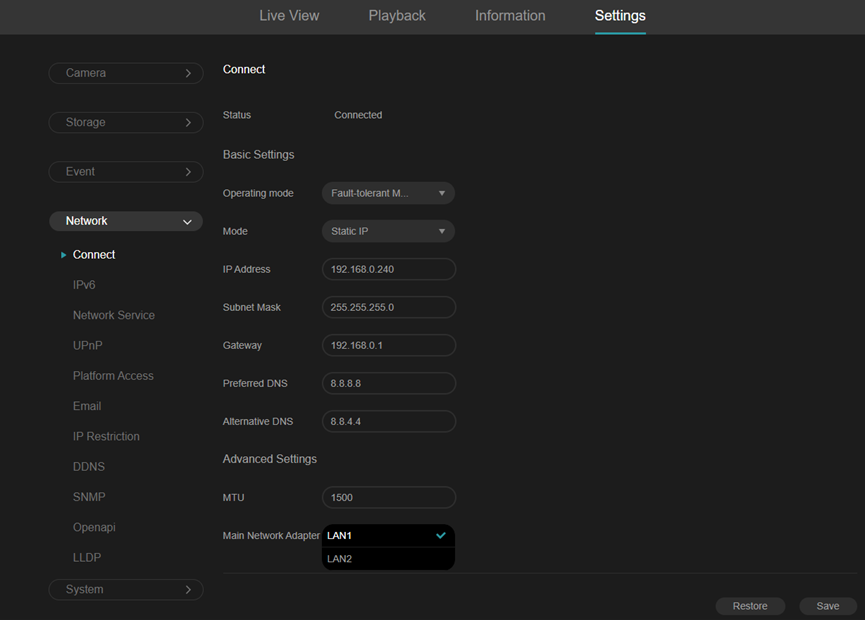
In Fault-tolerant mode, the LAN1 port and LAN2 port share the same IP address. After setting a main port, when the main port connection fails, the system enables the other port as a backup port to ensure that the system’s network works properly.
Follow the steps below to configure the Fault-tolerant mode.
1. Right-click on the Live View screen and click Settings in the Main Menu. Go to Network > Connect.
2. Select the Fault-tolerant operating mode and follow the instructions below.
• To assign a static IP address to NVR, select Static IP as the mode and configure the following parameters:
Multi-access Mode
In Multi-access mode, the network settings of LAN1 port and LAN2 port are independent of each other and belong to different VLANs, and the two ports work with each other.
Set LAN1 and LAN2 respectively, and you can select a port as the default router. The LAN port connected to the external network needs to be set as the default router.
A LAN port set as the default router can communicate with other network segments, such as the external network or other network segments on a Layer 3 switch. A LAN port that is not the default router cannot communicate with other network segments.
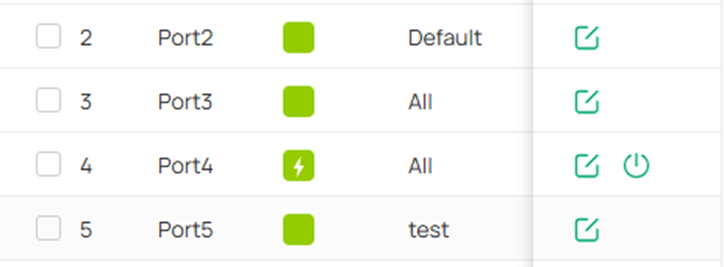
Here we take port 2 and port 5, which the dual-port NVR connects to the switch for example:
LAN 1 connects Port 2 on the switch in the default VLAN, and the LAN 2 connects Port 5 in a new VLAN.
Follow the steps below to configure the Multi-access mode.
1. Right-click on the Live View screen and click Settings in the Main Menu. Go to Network > Connect.
2. Select the Multi-access operating mode and follow the instructions below.
• To assign a static IP address to NVR, select Static IP as the mode and configure the following parameters for LAN 1 and LAN 2 separately. Each network port has its own IP address and can connect to a different network.


Port Aggregation Mode
In Port Aggregation mode, the two LAN ports use the same IP address to aggregate the two network ports of the NVR to form a logical physical port, which can increase the bandwidth; at the same time, the two network ports dynamically back up the settings of each other to improve the connection reliability.
Note: When Port Aggregation mode is configured, the two network ports connected to the switch must first set up port aggregation to enhance bandwidth; otherwise, the network port can only dynamically back up settings.
Here we take port 5 and port 8 in switch for example:

Follow the steps below to configure the Port Aggregation mode.
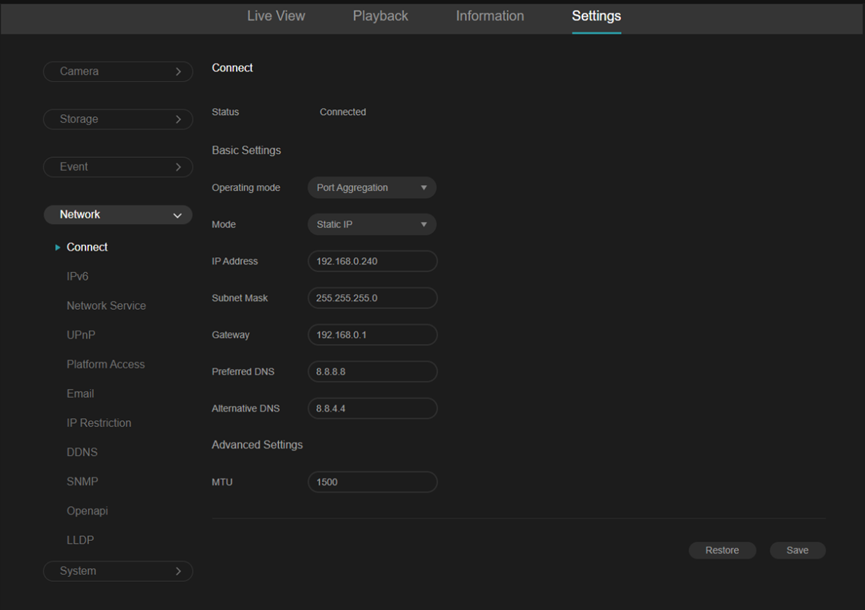
1. Right-click on the Live View screen and click Settings in the Main Menu. Go to Network > Connect.
2. Select the Port Aggregation operating mode and follow the instructions below.
• To assign a static IP address to NVR, select Static IP as the mode and configure the following parameters:
Conclusion
With the above steps, you can setup corresponding network modes according to your network requirements.
Get to know more details of each function and configuration please go to Download Center to download the manual of your product.
Is this faq useful?
Your feedback helps improve this site.


