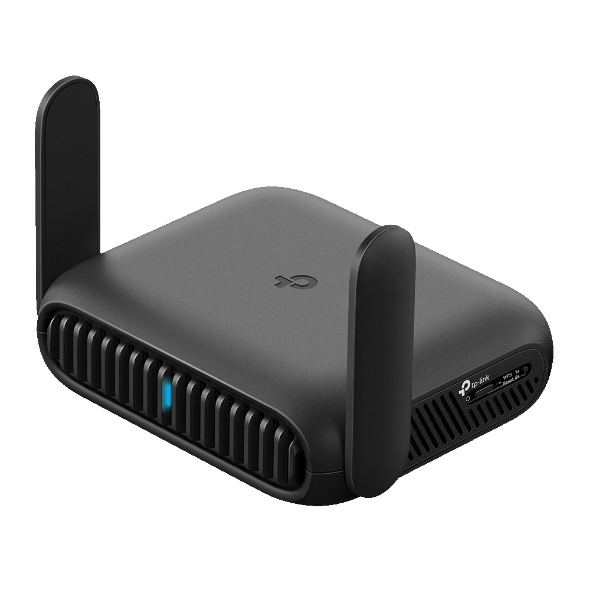
Archer C5400 , Archer C4 , Archer C5 , TD-W8968 , Archer C2 , Archer AX95 , Archer C59 (EU) , Archer AX96 , AX3000 , Archer VR1200v , TL-WR710N , Archer GE550 , TL-WR940N , Archer C58HP , Archer C8 , Archer C9 , Archer C6 , Archer C7 , Archer AX90 , TL-WR843N , Archer C5400X , Archer AX5400 , Archer AX53 (RU) , Archer A1200 , TL-WR820N , Archer AX73 (EU) , TD-W8901GB , TL-R402M , Archer BE600 , TD-W8961N , TL-WR941ND , Archer AX80 , Archer VR400 , TL-WR844N , Archer AX4200 , Archer C3200 , TF-3239D , Archer A2 , Archer AX75 , Archer BE9700 , Archer BE5100 , Archer AX73 , Archer VR2100 , TL-R860 , Archer VR2800v , Archer VR600v , TD-W8980 , TD-W9950 , TL-WR720N , TL-WR841N , Archer VR1210v , TL-WR1502X , Archer A6 , Archer A7 , Archer AX72 , TD-W8960N , Archer A5 , Archer BE4800 , Archer A8 , Archer A9 , Archer AX68 , Archer AX5300 , TD-W8970 , Archer BE260 , Archer Air R5 , TL-WR842N , TD-8811 , TD-8810 , TL-WR841HP , Archer AXE300 , Archer AX1500 , TL-WDR4900 , Archer BE700 , Archer AX60 , Archer VR300 , AD7200 , Archer AX73V , Archer AX3000 , Archer AX57 , Archer AX58 , Archer A2600 , Archer AX55 , Archer BE5000 , TL-WR841ND , Archer AX56 , Archer AX53 , TL-WR3012X , Archer AX51 , Archer C50 V3.0 , Archer D50 , TD-W8101G , Archer VR2800 , TD-8840 , Archer GE230 , TL-WR1512X , Archer AX50 , Archer AX6000 , Archer C25 , Archer C24 , Archer VR900 v1 , Archer AX10/A , Archer C21 , Archer C20 , TL-WR840N , Archer AX1800 , Archer BE800 , Archer VR200 , Archer BE3600 , Archer BE805 , VC420-G3v , Archer BE7200 , TL-WR3602BE , Archer C900 , Archer AX4400 , TL-WR3002X , Archer C50 , Archer BE9500 , Archer C20(RU) , Archer C1900 , TD-W8960NB , Archer AC1900(USW) , Archer AX80V , TL-WR740N , Archer C20i , Archer C2(RU) , Archer A2600 Pro , Archer C5 v4.0 , Archer AX55 (RU) , Archer AXE5400V , Archer AXE200 Omni , TD-W150KIT , Archer C5 Pro , Archer C2300 , Archer BE6100 , Archer AX23 , Archer AX20 , Archer VR2100v , Archer AX21 , Archer AX3000V , Archer A3000 , Archer D20 , Archer BE220 , TD-8610 , Archer BE900 , Archer GE800 , Archer BE3500 , TL-WR940N Plus , Archer AX3200 , Archer VR900 , Archer AC1900 , Archer C1200 , Archer AX12 , Archer VR2600v , Archer AX10 , TD-W8961ND , Archer AX17 , Archer VR2600 , Archer AX18 , Archer C6U , Archer AX15 , Archer BE450 , TL-WR741ND , TL-WR1043N , Archer C80 , Archer AXE95 , Archer AX53 (EU) , Archer AX10000 , TL-WR1043ND , TD-W9970B , TL-WR829N , Archer A20 , Archer C60 , Archer C64 , Archer AXE5400 , Archer AX5400 Pro , Archer D7b , TL-WR949N , Archer AX23V , Archer C59 , Archer BE9300 , Archer C58 , Archer AC1200 , Archer BE3200 , Archer A10 , Archer C50 , TL-R460 , Archer C55 , TD-VG3511 , Archer C54 , Archer BE670 , Archer BE550 , TD-VG3631 , Archer AXE75 , Archer AX72 Pro , Archer AX1450 , Archer VR900v , Archer C4000 , Archer AX55 Pro , TL-WR902AC , TL-WR802N , Archer BE220W , TD-W9977 , Archer C5200 , Touch P5 , TD-W9970 , Archer VR400v , TD-W8970B , Archer A2200 , TD-W9960v , Archer C3150 , Archer C20 V4 , Archer VR900v v1 , Archer GXE75 , Archer BE3600 Pro , TD-W8901G , TGR1900 , Archer A64 , Archer C2 V1 , Archer C2600 , TD-W9960 , Archer AX72 (RU) , TD-W8901N , Archer C2 V3 , Archer A10 Pro , Archer BE400 , TD-8840T , Archer VR600 , TL-WR945N , Archer AX206 , TD-W300KIT , TD-W8151N , Archer C3000 , TL-WR941HP , Archer A54 , Archer AX4800 , TD-W8980B , TD-VG5612 , Archer A2300 , Archer GE650 , TL-WR845N , Archer GX90 , Archer VX1800v , TL-WR942N , TL-WR841HP V1 , Archer C2(EU) , Archer D2 , Archer BE550 Pro , Archer AX3000 Pro , Archer D5 , Archer BE6500 , Archer C2700 , Archer C88 , Archer AX55 (EU) , Archer C86 , Archer C90 , Archer D9 , Archer C50(RU) , Archer AX1300 , Archer D7 , Archer AX11000 , TL-WR846N , TL-WR810N , Archer GE400
Les mises à jour récentes peuvent avoir étendu l'accès aux fonctionnalités décrites dans cette FAQ. Consultez la page d'assistance de votre produit, sélectionnez la version matérielle correspondant à votre appareil et consultez la fiche technique ou la section relative au micrologiciel pour connaître les dernières améliorations apportées à votre produit. Veuillez noter que la disponibilité des produits varie selon les régions et que certains modèles peuvent ne pas être disponibles dans la vôtre.

 1049207
 -ou-
-ou-
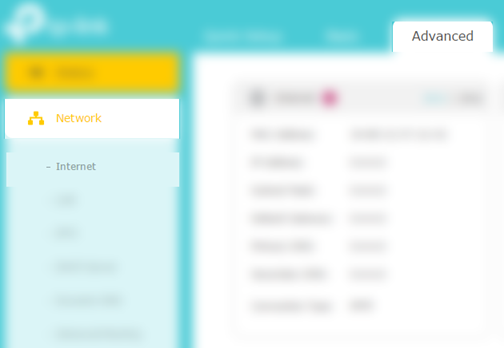
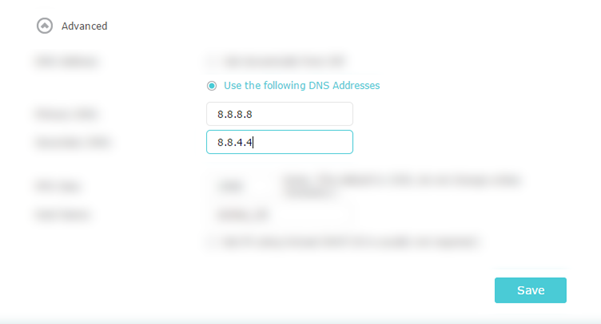
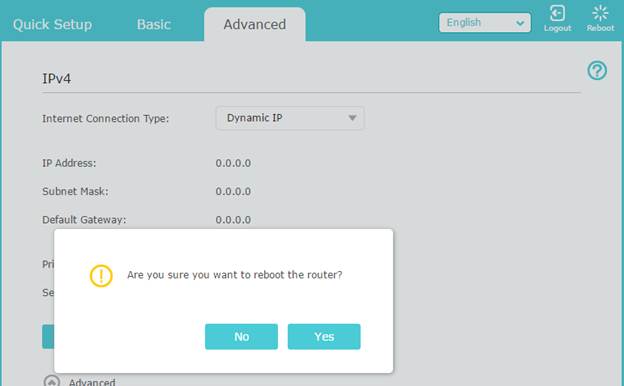
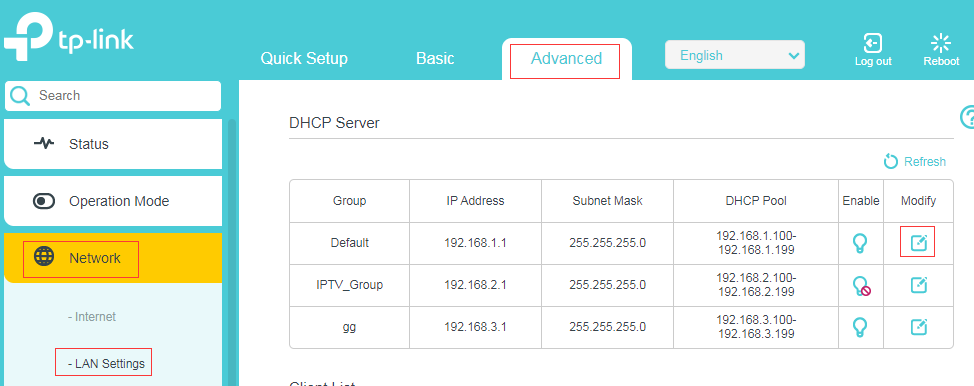
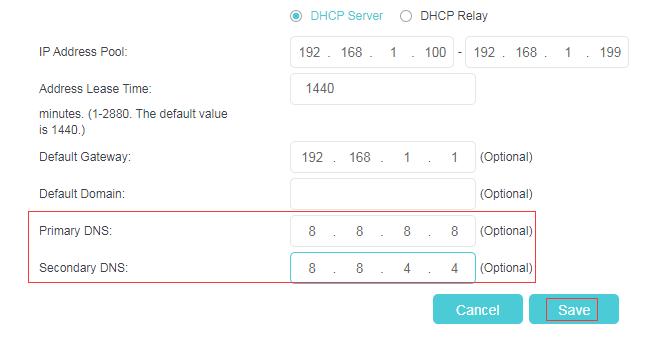
2.0-A_normal_1584497370574v.png)