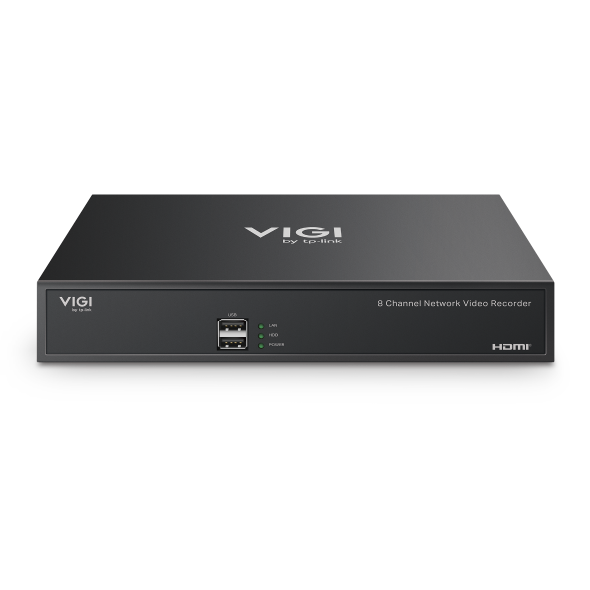
Como resolver o problema da tela preta durante a reprodução de conteúdo do InSight S385DPS na interface gráfica do NVR?
 11049
11049Conteúdo
Métodos de Resolução de Problemas
Introdução
Este artigo descreve o procedimento de solução de problemas para a questão da tela preta que ocorre ao visualizar ou reproduzir filmagens na interface gráfica (GUI) de um dispositivo InSight S385DPS emparelhado com um NVR VIGI.
Requisitos
- InSight S385DPS & NVR VIGI (Neste exemplo, selecionamos o NVR4032H)
- Monitor
Reprodução do Problema
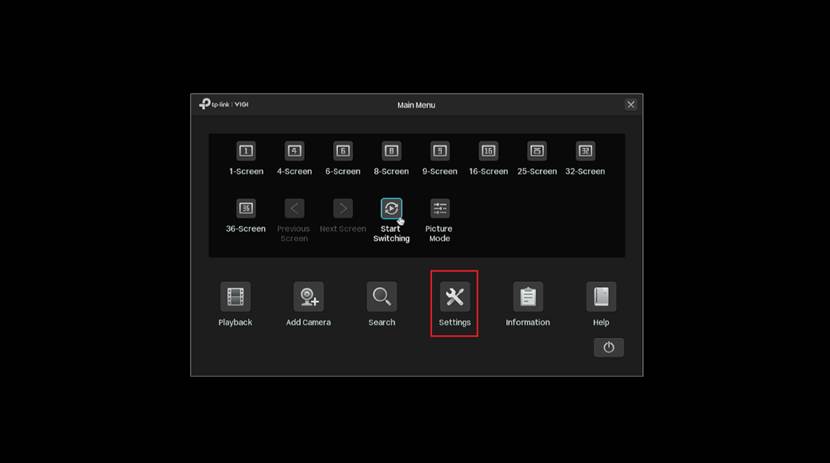
Passo 1. Clique com o botão direito na tela de visualização da GUI do NVR e clique em Settings (Configurações) na janela pop-up.
Passo 2. Navegue até Camera > Device Access > Add Device, adicione a câmera InSight S385DPS ao NVR4032H para o gerenciamento de canais.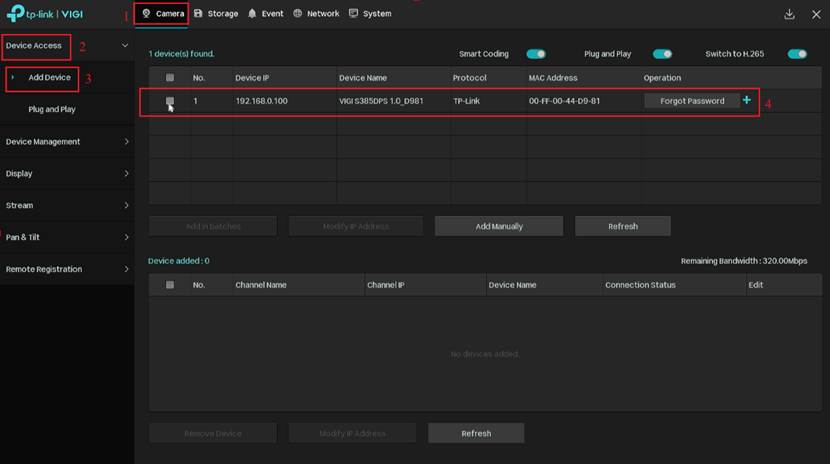
Passo 3. Verifique se a InSight S385DPS foi adicionada e conectada com sucesso. Em seguida, clique no botão de fechar no canto superior direito para retornar à interface de visualização ao vivo da GUI do NVR.
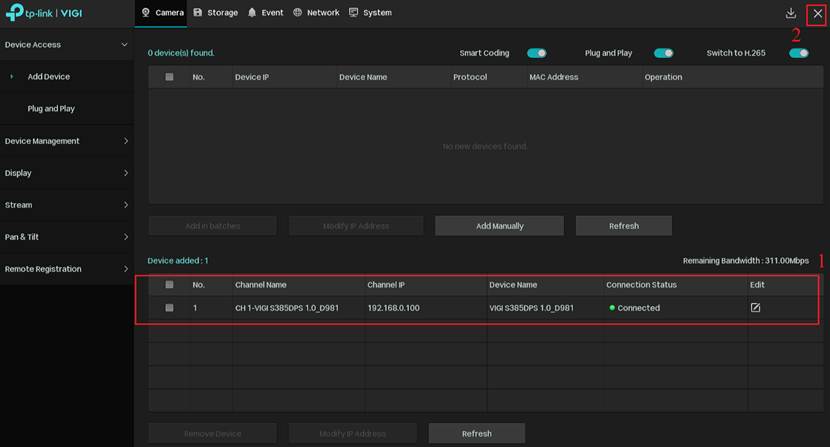
Passo 4. Você observará que a tela de visualização permanece preta, sem saída de vídeo.

Passo 5. Clique com o botão direito na tela de visualização da GUI do NVR e clique em Playback (Reprodução) na janela pop-up.
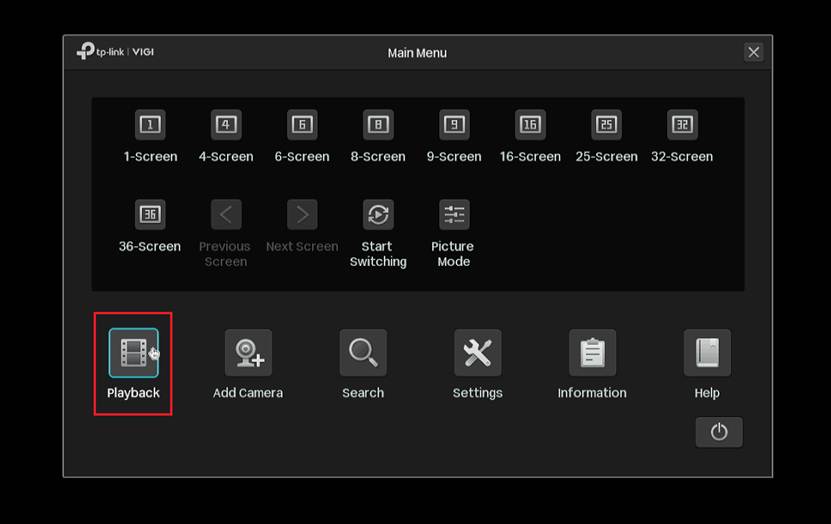
Passo 6. Selecione o canal correspondente à câmera InSight S385DPS para reprodução. Você observará que a tela de reprodução permanece preta, sem saída de vídeo.
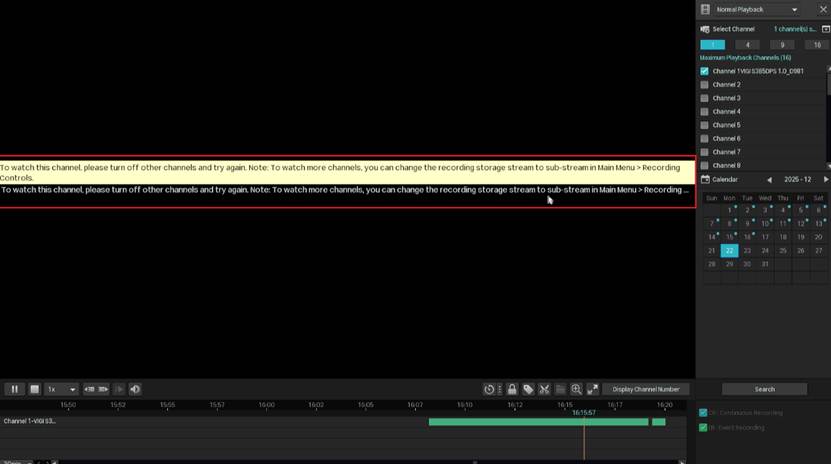
Nota: Para assistir a este canal, desligue outros canais e tente novamente.
Nota: Para assistir a mais canais, você pode alterar o fluxo de armazenamento de gravação para sub-stream (fluxo secundário) no Menu Principal > Recording Controls (Controles de Gravação)
Métodos de Resolução de Problemas
Visualização ao Vivo
Método 1. Alterar de HD para SD
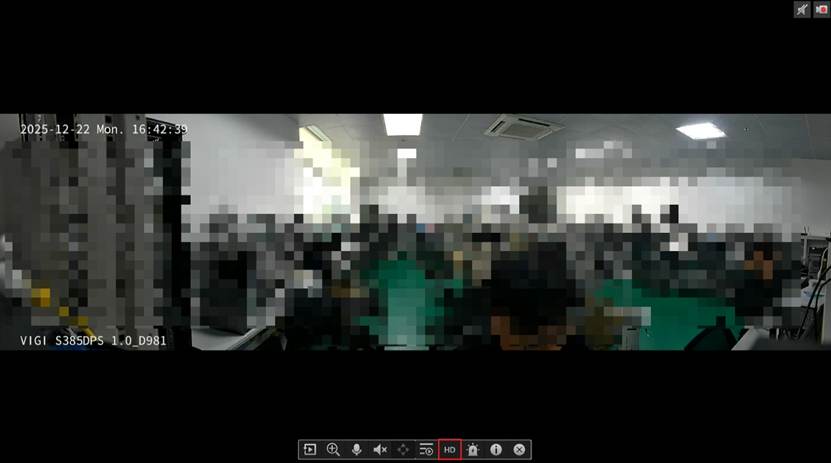
Passo 1. Clique com o botão esquerdo na tela de visualização da GUI do NVR, altere a qualidade de visualização de HD para SD na janela pop-up.

Passo 2. Após alterar a qualidade de HD para SD, você verá que a tela de visualização voltará ao normal e poderá reproduzir a imagem ao vivo normalmente.
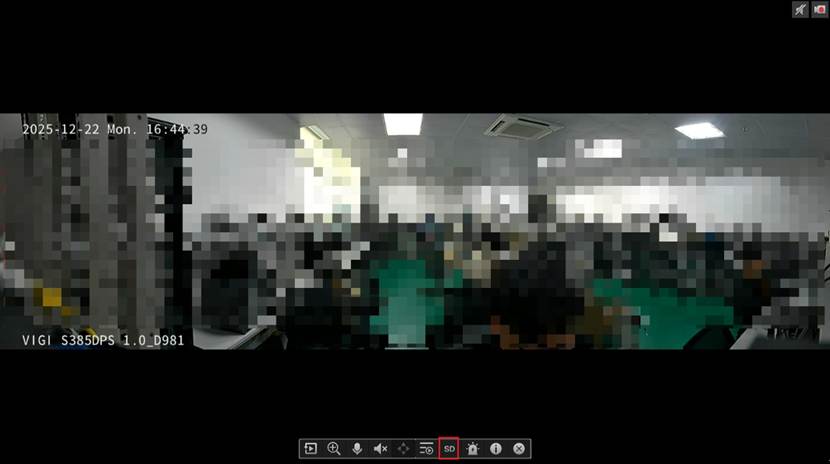
Método 2. Reduzir a resolução do Main Stream (Fluxo Principal)
Passo 1. Clique com o botão direito na tela de visualização da GUI do NVR e clique em Settings na janela pop-up.
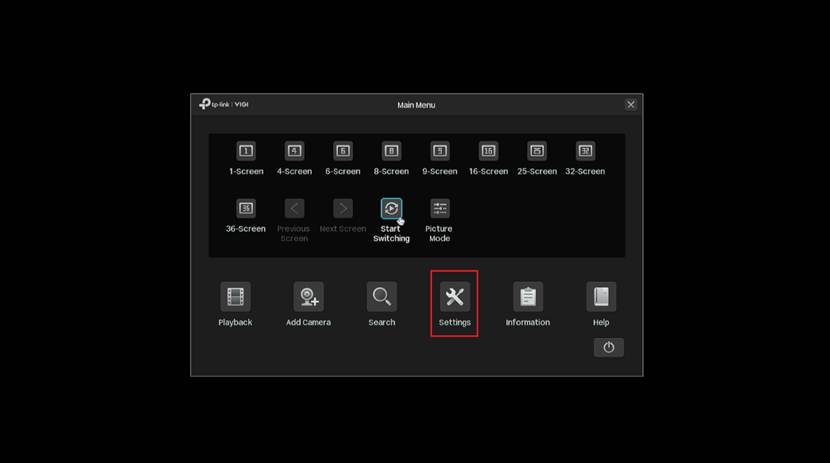
Passo 2. Navegue até Camera > Stream > Videos, selecione a InSight S385DPS como canal e altere a resolução do Main Stream do padrão 54561520. Aqui, escolhemos a resolução para 40961152. Clique em Apply (Aplicar) para concluir a configuração e depois clique no botão fechar no canto superior direito para retornar à tela de visualização da GUI do NVR.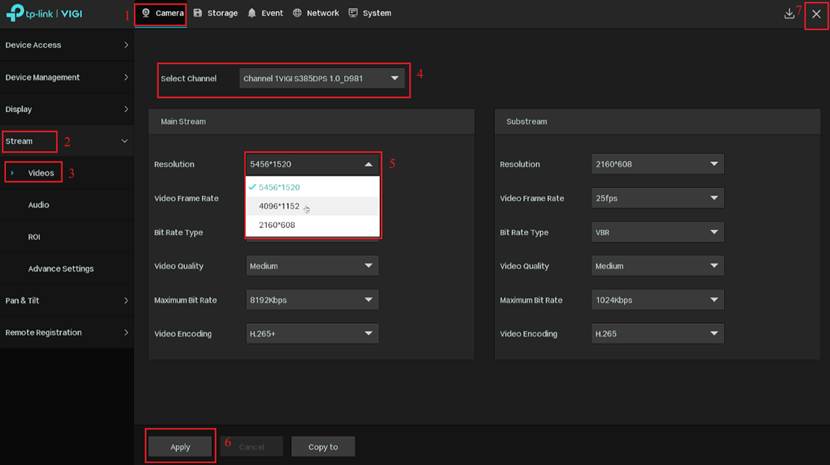
Passo 3. Após alterar a resolução de 54561520 para 40961152, você verá que a tela de visualização voltará ao normal e poderá reproduzir a imagem ao vivo normalmente.
Método 3. Atualizar o firmware do NVR para a versão mais recente
Nota: No futuro, será lançada uma versão de firmware do NVR compatível com a InSight S85DPS. Após a atualização do NVR para o firmware correspondente, a visualização ao vivo poderá ser reproduzida normalmente.
Reprodução
Método 1. Alterar o fluxo de armazenamento de Main Stream para Substream
Passo 1. Clique com o botão direito na tela de visualização da GUI do NVR e clique em Settings na janela pop-up.
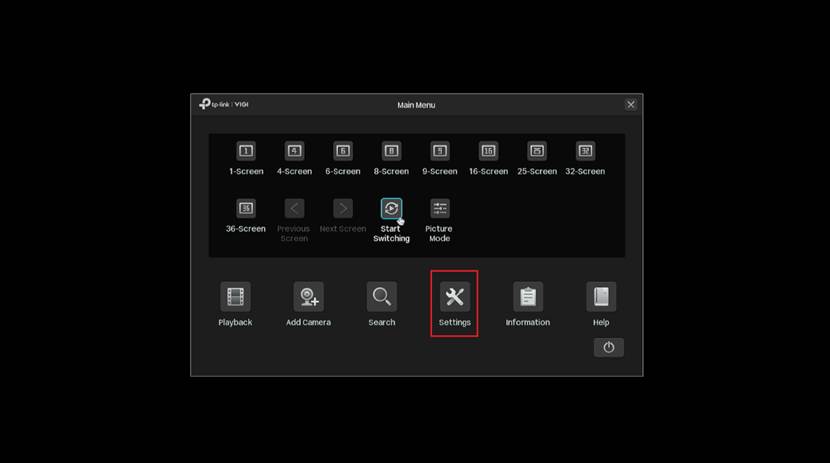
Etapa 2. Navegue até Armazenamento > Controles de gravação , altere o Fluxo de armazenamento de Fluxo principal para Substream .
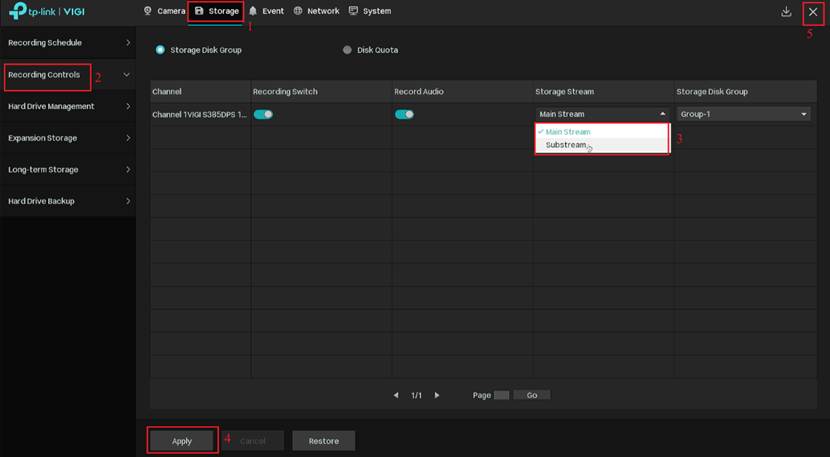
Passo 3. Após alterar o Storage Stream de Main Stream para Substream, você verá que a tela de reprodução voltará ao normal e poderá assistir às gravações normalmente.
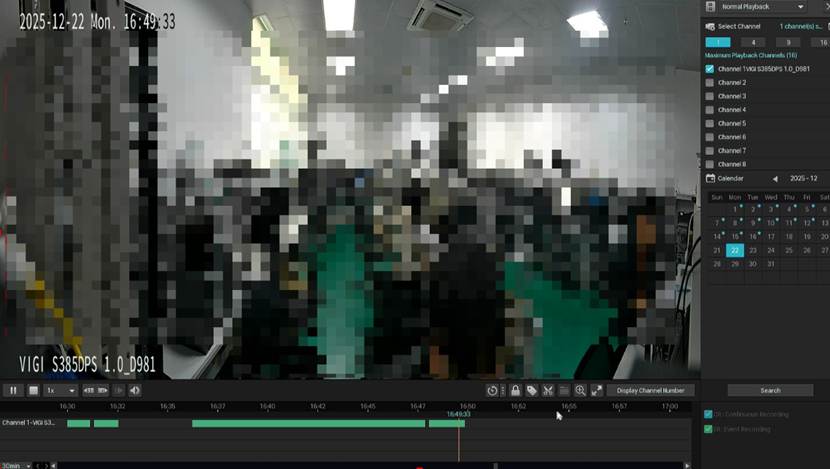
Método 2. Reduzir a resolução do Main Stream
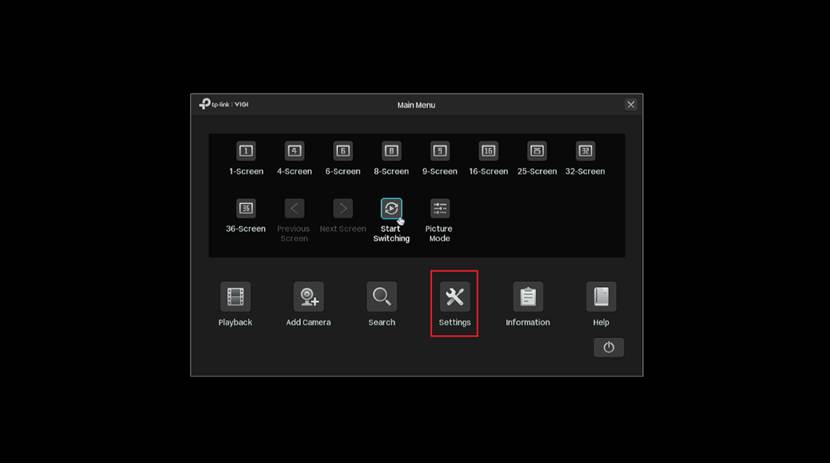
Passo 1. Clique com o botão direito na tela de visualização da GUI do NVR e clique em Settings na janela pop-up.
Passo 2. Navegue até Camera > Stream > Videos, selecione a InSight S385DPS como canal e altere a resolução do Main Stream do padrão 54561520 para 40961152. Clique em Apply para concluir e depois no botão fechar no canto superior direito.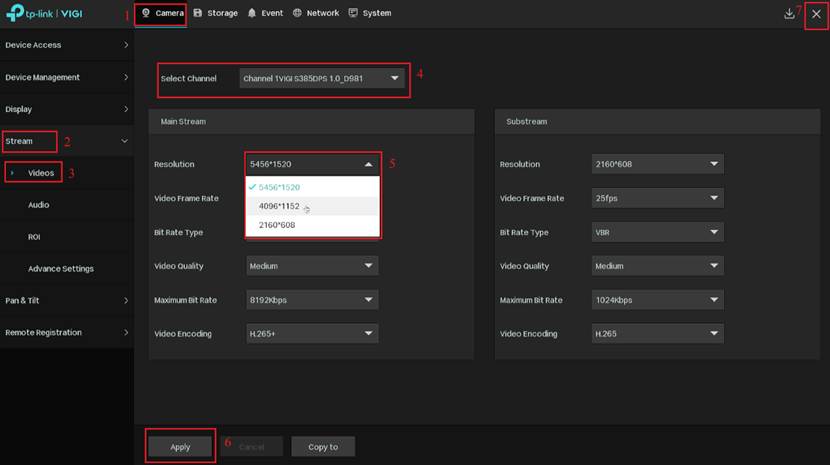
Passo 3. Após alterar a resolução para 4096*1152, você verá que a tela de reprodução voltará ao normal.
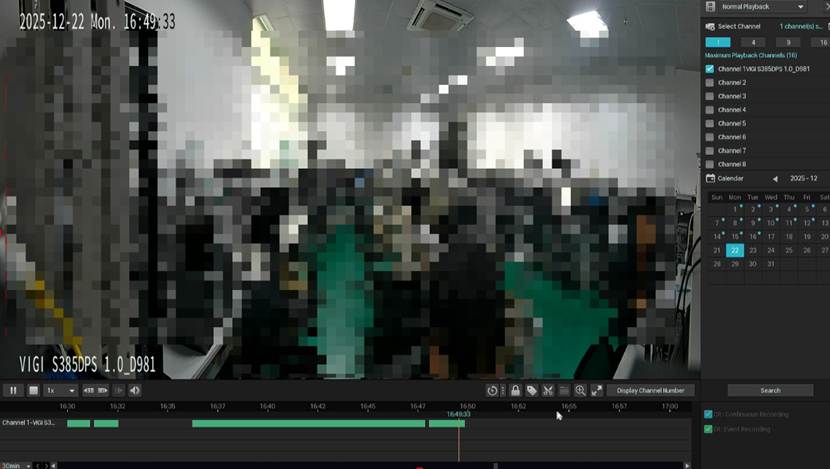
Método 3. Atualizar o firmware do NVR para a versão mais recente
Nota: No futuro, será lançada uma versão de firmware do NVR compatível com a InSight S85DPS. Após a atualização do NVR, a reprodução de gravações funcionará normalmente.
Conclusão
Você resolveu com sucesso o problema em que a tela de visualização e reprodução da GUI do NVR ficava preta quando a InSight S385DPS era emparelhada com o NVR.
Para saber mais detalhes de cada função e configuração, visite o Download Center para baixar o manual do seu produto.
Perguntas Frequentes
P1: O que causa o problema da tela preta?
R1: A resolução padrão da Insight 385DPS é 5456*1520, que é relativamente alta. Quando conectada a um NVR e reproduzida em sua GUI, devido a uma questão de firmware desatualizado, ocorre a tela preta durante a decodificação de hardware do fluxo principal (main stream). Este problema é causado apenas pela versão antiga do firmware do NVR e não é uma falha do dispositivo. Após atualizar o NVR para o firmware mais recente, o problema da tela preta desaparece imediatamente. Outros métodos introduzidos no FAQ também podem ser usados para contornar a situação.
Esta FAQ é útil?
Seu feedback ajuda a melhorar este site.