


How to Batch Configure Allow and Block Lists for VIGI LPR Cameras Using VIGI Config Tool
 1409
1409Batch Configuration of Allow and Block Lists
Introduction
In large-scale parking lot deployments, efficient management of license plate allow, and block lists are critical for access control and operational efficiency. The VIGI Config Tool (VCT) provides a batch configuration capability that allows users to quickly deploy consistent settings across multiple LPR345Z cameras, reducing configuration time and minimizing human error.
Requirements
- VIGI Config Tool (Supports batch configuration of allow/block lists)
- VIGI Camera supports License Plate Recognition
Configuration
Prerequisites
Before starting, please download and install the VIGI Config Tool that supports batch configuration from the link below:
VIGI Config Tool for LPR345Z Batch Configuration
Please ensure the correct version is used, otherwise the batch configuration function may not be available.
Batch Configuration of Allow and Block Lists
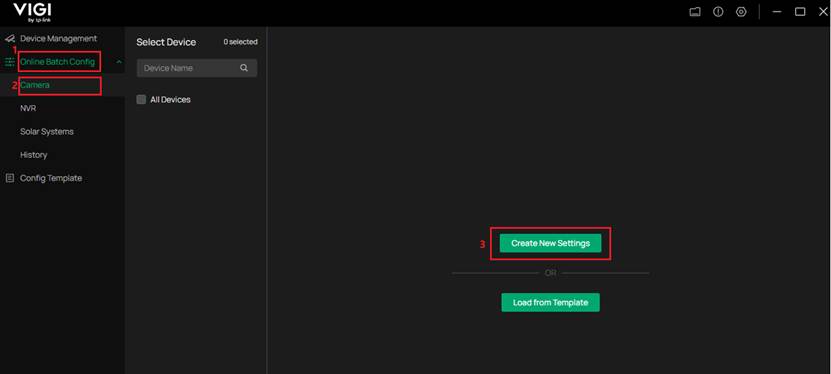
Step 1. Go to the Online Batch Config section on the left panel, select the Camera page, and click Create New Settings to create a new template.
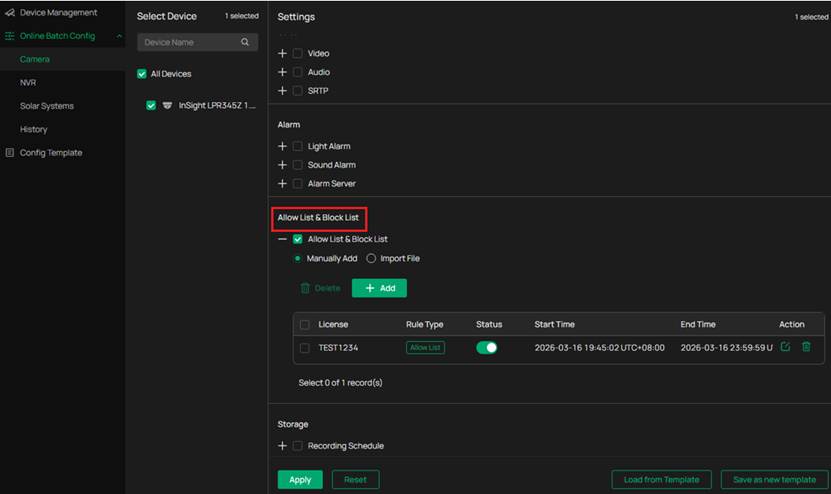
Step 2. Enable Allow List & Block List, then choose one of the following methods:
- Select Manually Add to add entries manually. Click +Add to create new license plate rules, including license plate number, rule type (Allow List or Block List), validity period (start time and end time), and enable status.
- Or select Import File to import an existing allow/block list file.
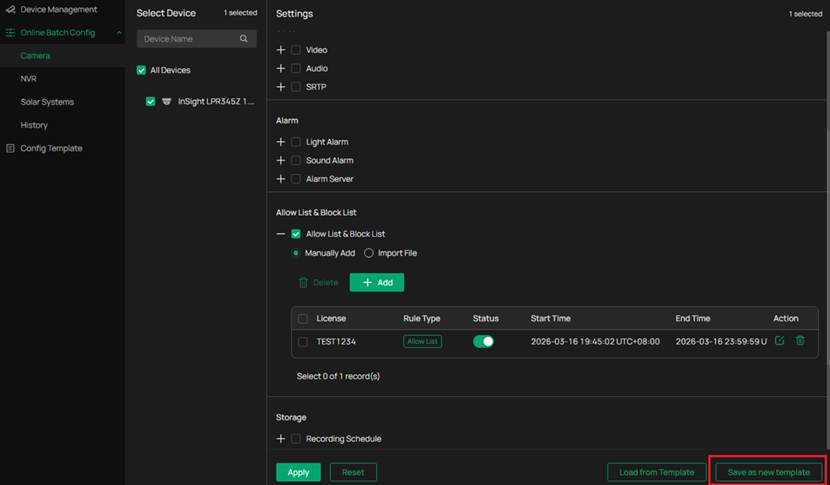
Step 3. After completing the configuration, click Save as New Template in the lower-right corner, enter a template name, and save the current configuration.
The saved templates can be viewed under Config Template.
Note:When using the Import File mode, the selected allow/block list file will not be saved within the configuration template.
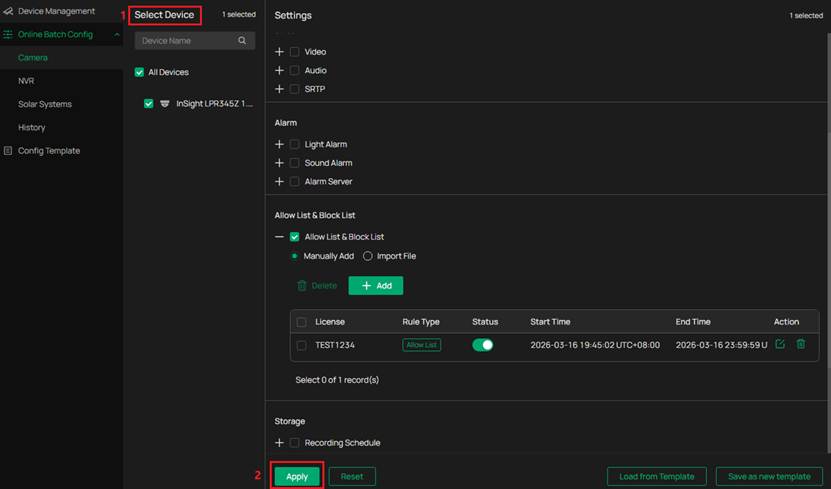
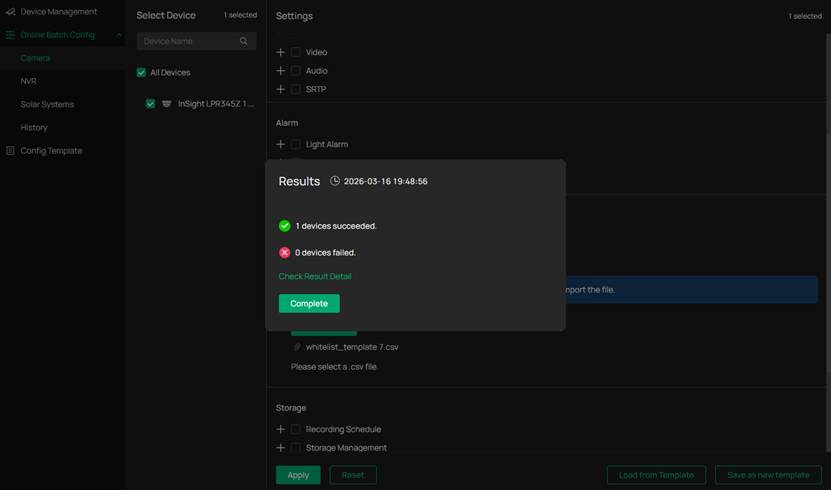
Step 4. Under Select Device, choose the cameras to which the template will be applied, then click Apply to deploy the configuration.
Step 5. After applying, you can check the import results on each device.
Conclusion
By following the above steps, you can successfully complete the batch configuration of allow and block lists using VIGI Config Tool.
QA
Q1: Do I need to prepare the allow/block list file in advance?
A: Yes. The allow/block list file must be prepared in advance before using the import function.
Q2: Are imported allow/block list files saved within the configuration template?
A: No. The configuration template only stores configuration parameters. Imported files are not embedded in the template.
Get to know more details of each function and configuration please go to Download Center to download the manual of your product.
Is this faq useful?
Your feedback helps improve this site.

TP-Link Community
Still need help? Search for answers, ask questions, and get help from TP-Link experts and other users around the world.