How to Unbind a VIGI Device from a TP-Link Account
Contents
Unbind devices through the VIGI App
Unbind devices through the device web interface
Unbind devices through the VIGI Config Tool
Introduction
A VIGI device can be associated with a TP-Link ID for cloud-based management and remote access. If you need to transfer device ownership, move the device to another account, or remove it from the current account, you can unbind the TP-Link ID from the device. This article explains how to unbind a TP-Link ID through the VIGI App, the device web interface, or VIGI Config Tool.
Requirements
- VIGI Camera or VIGI NVR
- VIGI App, device web interface, or VIGI Config Tool
Configuration
Follow one of the methods below to unbind a VIGI device from the current TP-Link ID.
Unbind devices through the VIGI App
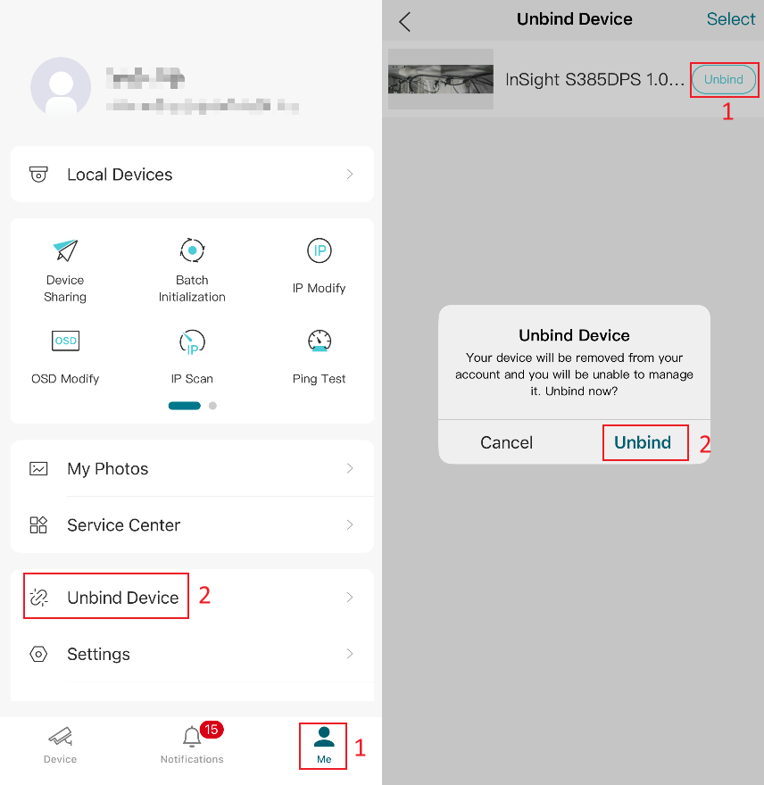
Option 1. Unbind through the Me page
Open the VIGI App and go to Me, tap Unbind Device, select the device you want to remove, and follow the on-screen instructions to complete the unbinding process.
Note: This method only applies to devices managed in the VIGI App Personal Edition (My VIGI).
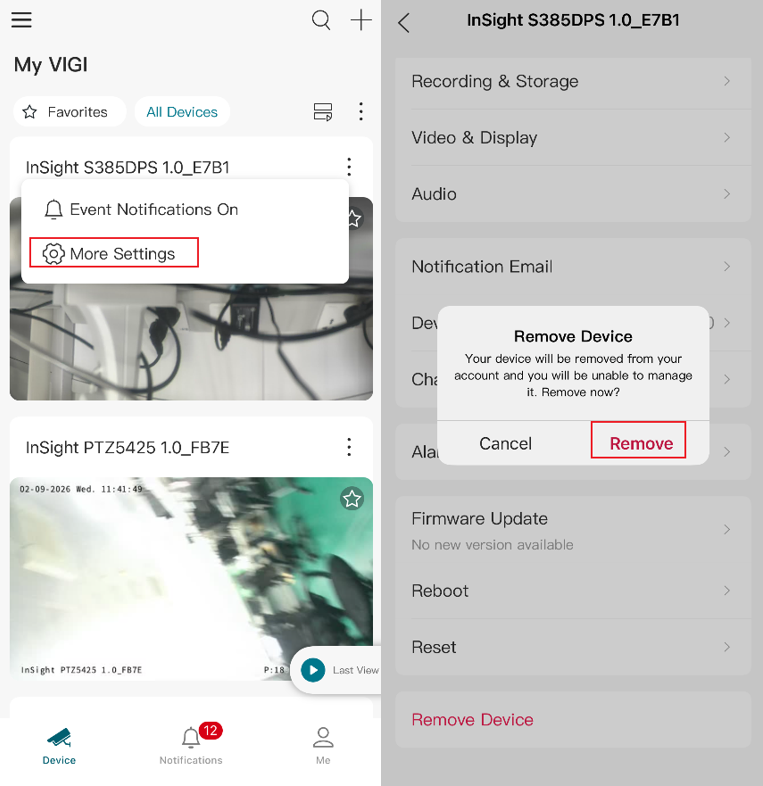
Option 2. Unbind through Device Settings
On the Device page, tap the three-dot icon next to the device. In this example, a VIGI camera is used. Tap More Settings, scroll to the bottom of the Device Settings page, and tap Remove Device. Once completed, the device will no longer be associated with the current TP-Link ID.
Unbind devices through the device web interface
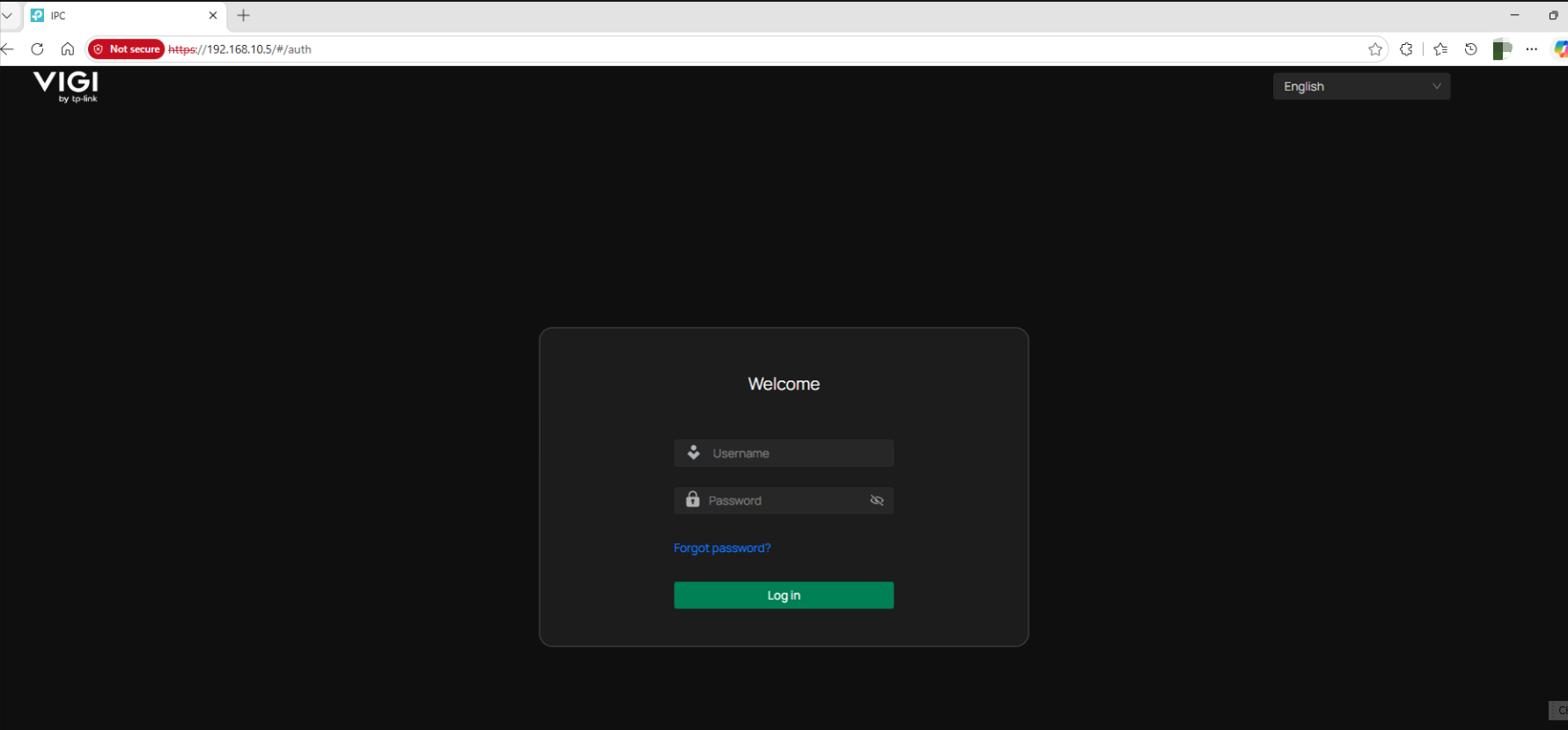
Step 1. Open a web browser and enter the VIGI device's IP address. Here we take a VIGI camera as an example.
Note: You can find the device IP via the router's DHCP Client list or VIGI Config Tool.
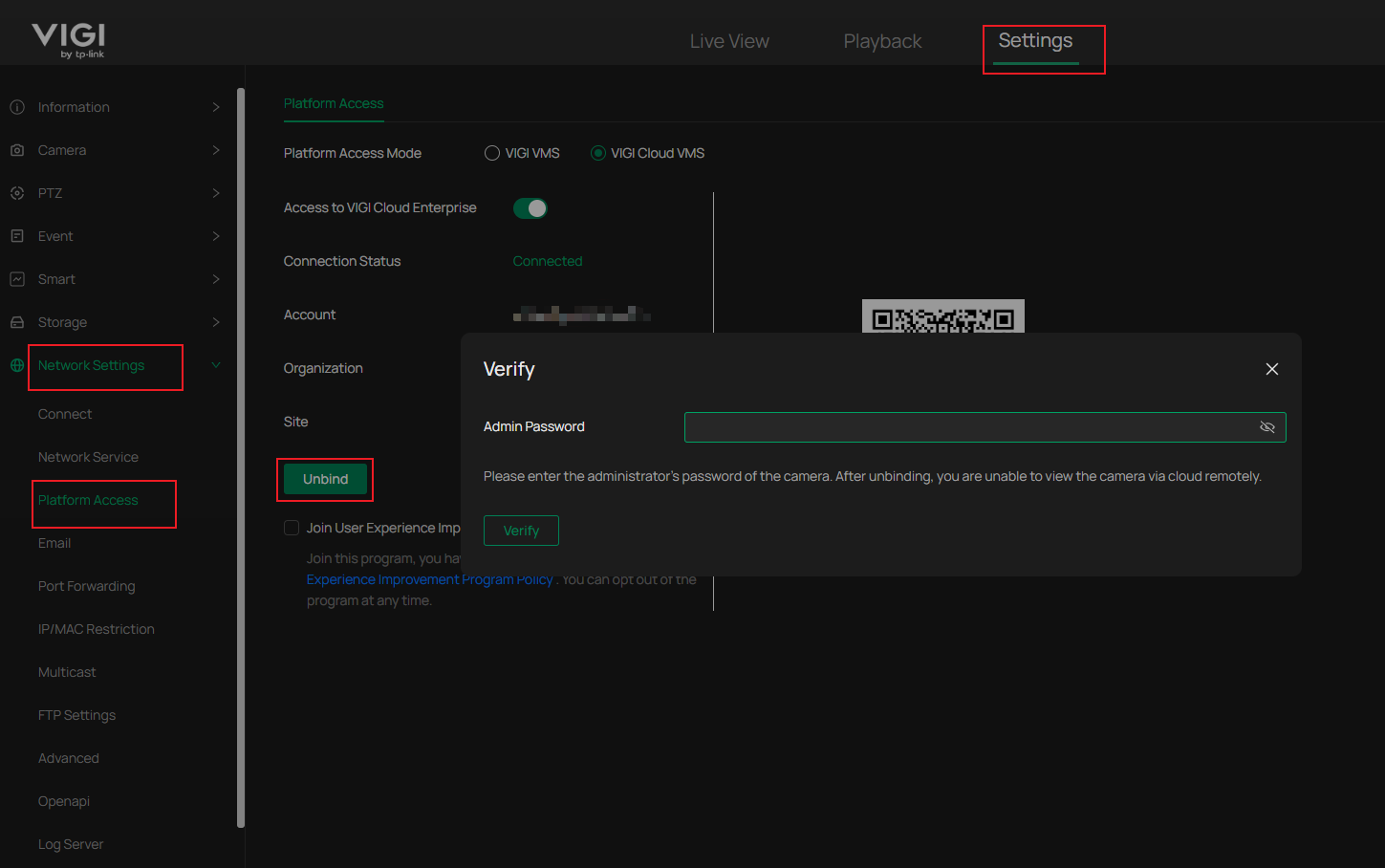
 Step 2. Log in using the device administrator account. Go to Settings > Network Settings > Platform Access > VIGI Cloud VMS, tap Unbind, and verify the Admin Password to unbind the device.
After the operation is completed, the device will no longer be associated with the current TP-Link ID and can be added to another account.
Note: Available options may vary depending on the device model and software version.
Unbind devices through the VIGI Config Tool
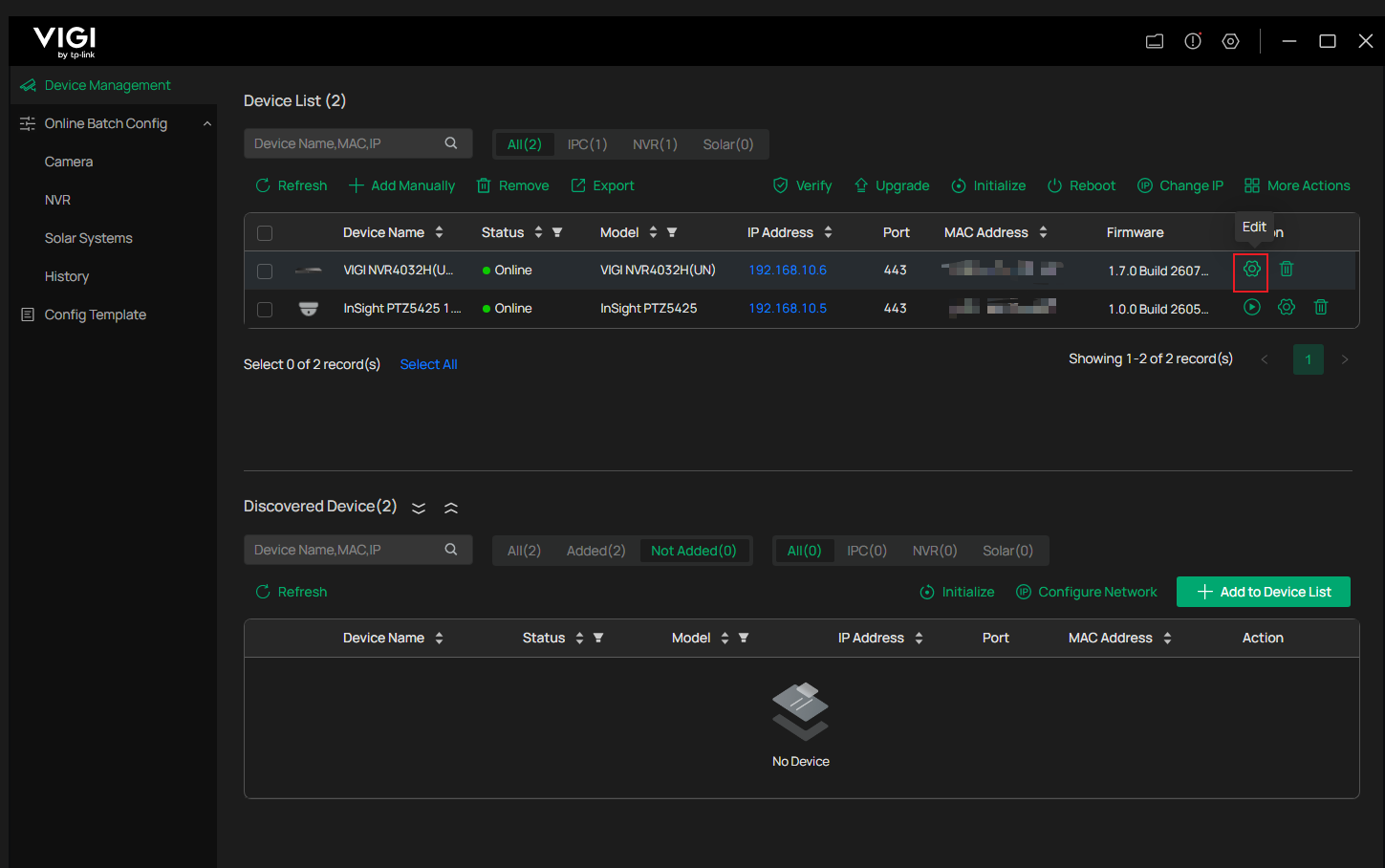
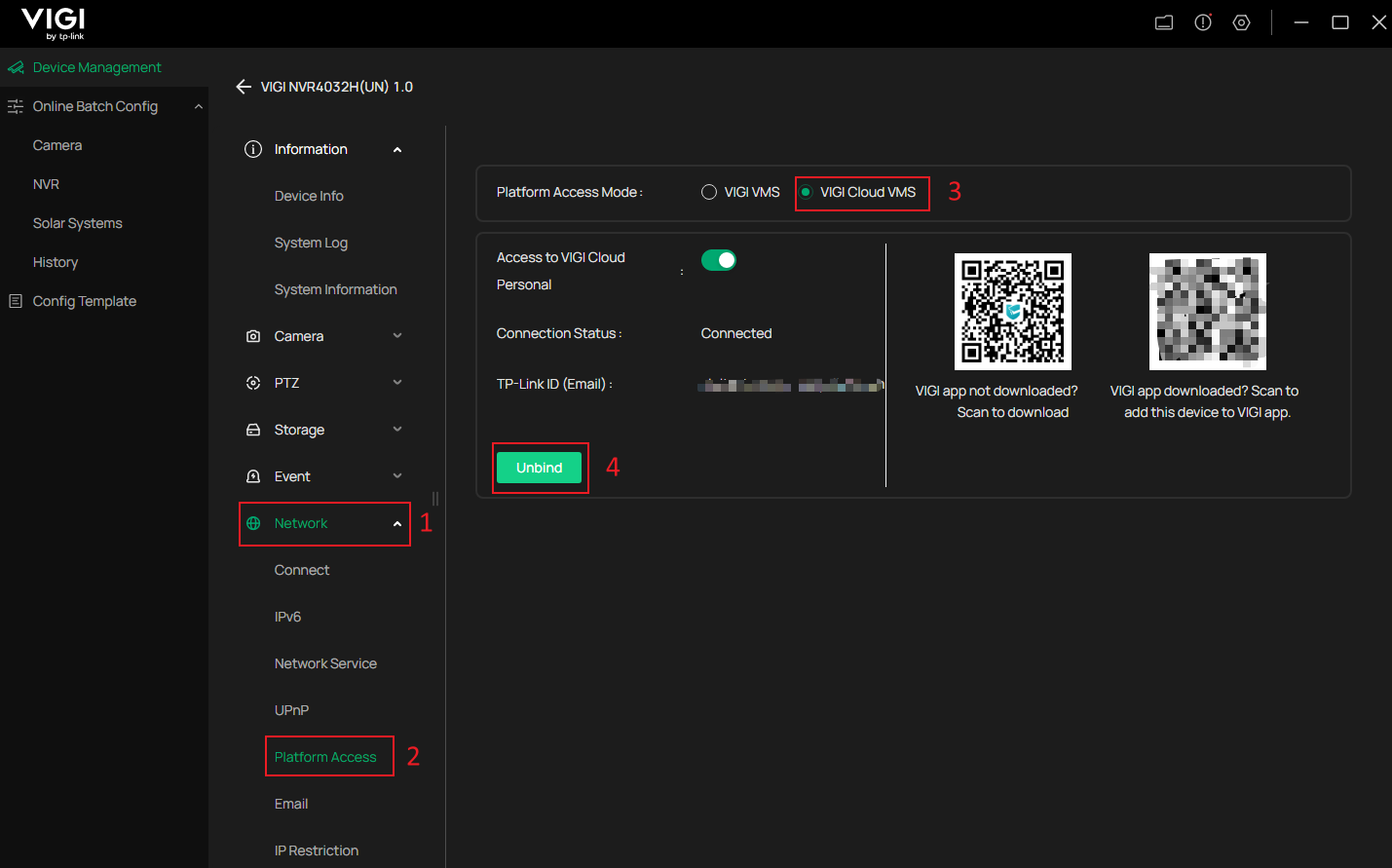
If you are using the VIGI Config Tool, navigate to Device Management > Device List, choose one added device and click Edit, then go to the Device Settings > Network > Platform Access > VIGI Cloud VMS > Unbind to unbind the device.
Conclusion
You have now successfully unbound a VIGI device from a TP-Link ID. The device can now be added to another TP-Link ID or managed according to your deployment requirements.
To learn more about each function and configuration, please visit Support Home to download or check the manual for your product.
QA
Q1: Can I add the device to another TP-Link ID after unbinding it?
A1: Yes. After the device is unbound from the current TP-Link ID, it can be added to another TP-Link ID.
Q2: What should I do if I can no longer access the TP-Link ID or device administrator account?
A2: If you can no longer access the TP-Link ID associated with the device, or if you forgot the device administrator password and cannot log in to the device, please refer to How to reset the password of the VIGI camera. After obtaining the verification QR code, contact TP-Link Support to request device unbinding. Please note that proof of purchase may be required.
Looking For More
Is this faq useful?
Your feedback helps improve this site.

-1.0_normal_1614068215524j.png)
1.0-package-cmyk_normal_20231211022459k.png)

TP-Link Community
Still need help? Search for answers, ask questions, and get help from TP-Link experts and other users around the world.