


How to Reduce Motion Detections from Rain, Snow, or Insects, etc.
 107318
Using the motion detection feature on an outdoor camera, you may receive many unwanted notifications and recordings from rain, snow, or insects. This is more likely to happen when the camera is in night vision mode with the IR light on.
Motion detection, as its name implies, will detect most movements from all kinds of objects, not just the human body.
How does motion detection work?
Before reducing unwanted detections, we need to understand how camera motion detection works.
The basic camera's detection mechanism is based on image changes between different frames. The frame is one of the many still images that compose the complete moving picture. If there is a difference between the frames, the camera will recognize it as a motion detected.
When it rains, the raindrops will cause a significant change in the image; this kind of detection cannot be avoided.
Tips to reduce other detections:
1. Configure Object Classification.
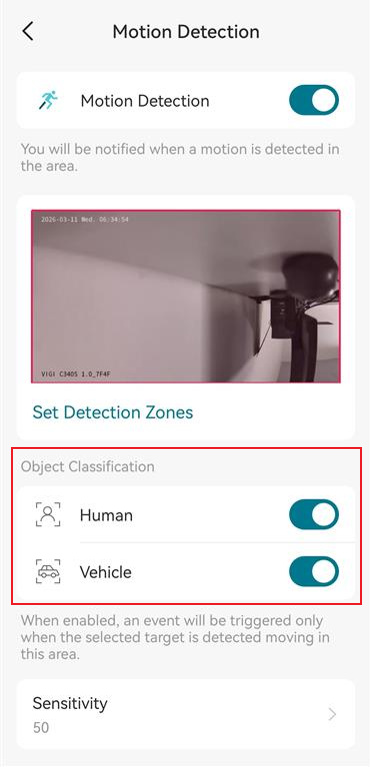
You can configure Object Classification within Motion Detection. Navigate to the Device > Device Settings > Detection > Motion Detection. Enable it to view additional parameters. In Object Classification, you can enable Human or Vehicle options to trigger the desired notifications.
2. Adjust activity zone and sensitivity
Based on your use conditions, adjusting the detection zone and sensitivity may help reduce too many detections.
(1) Set Detection Zone allows you to define a specific area that you want your camera to detect; everything outside of the zone will be ignored.
NOTE: Exclude the areas which have objects or small movements like trees, bushes, leaves waving in the wind; light changes like sunset or sunrise, car lights of passing vehicles, tree shadows, reflections; public areas like busy streets, sidewalks, etc.
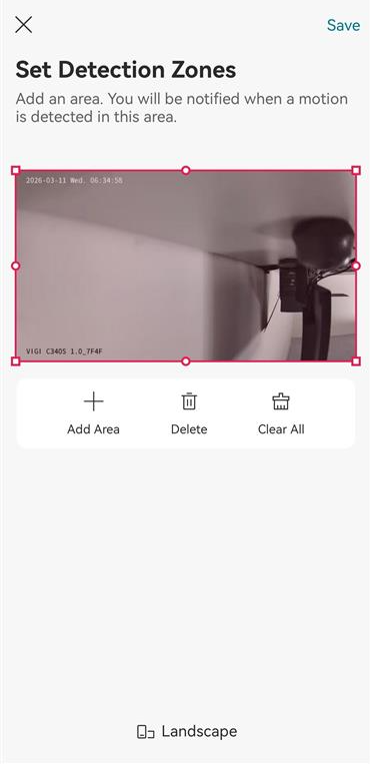
(2) Setting the detection Sensitivity to a lower level can also help reduce the detections, but it may defeat the purpose of true motion detection. You may find that you’re missing alerts when there is a real person or animal in the camera’s view.
3. Adjust the angle and location of the camera
You may also adjust the installation angle to be away from the false alerts trigger. Try to avoid pointing the camera at busy public areas like busy streets, sidewalks, etc.
Is this faq useful?
Your feedback helps improve this site.



TP-Link Community
Still need help? Search for answers, ask questions, and get help from TP-Link experts and other users around the world.