


How to configure Online Detection for WAN link testing
 736
736Contents
Introduction
Online Detection is used to detect the online status of the WAN port, and it is a feature mainly used together with Link Backup. This article mainly introduces how to configure Online Detection as different working mode for different requirements in standalone mode and controller mode.
Requirements
- Omada Gateway(Using the ER8411 v1.20 as an Example).
- Omada Software/Hardware/Cloud-Based Controller v6.0 and above.
Configuration
In Standalone Mode
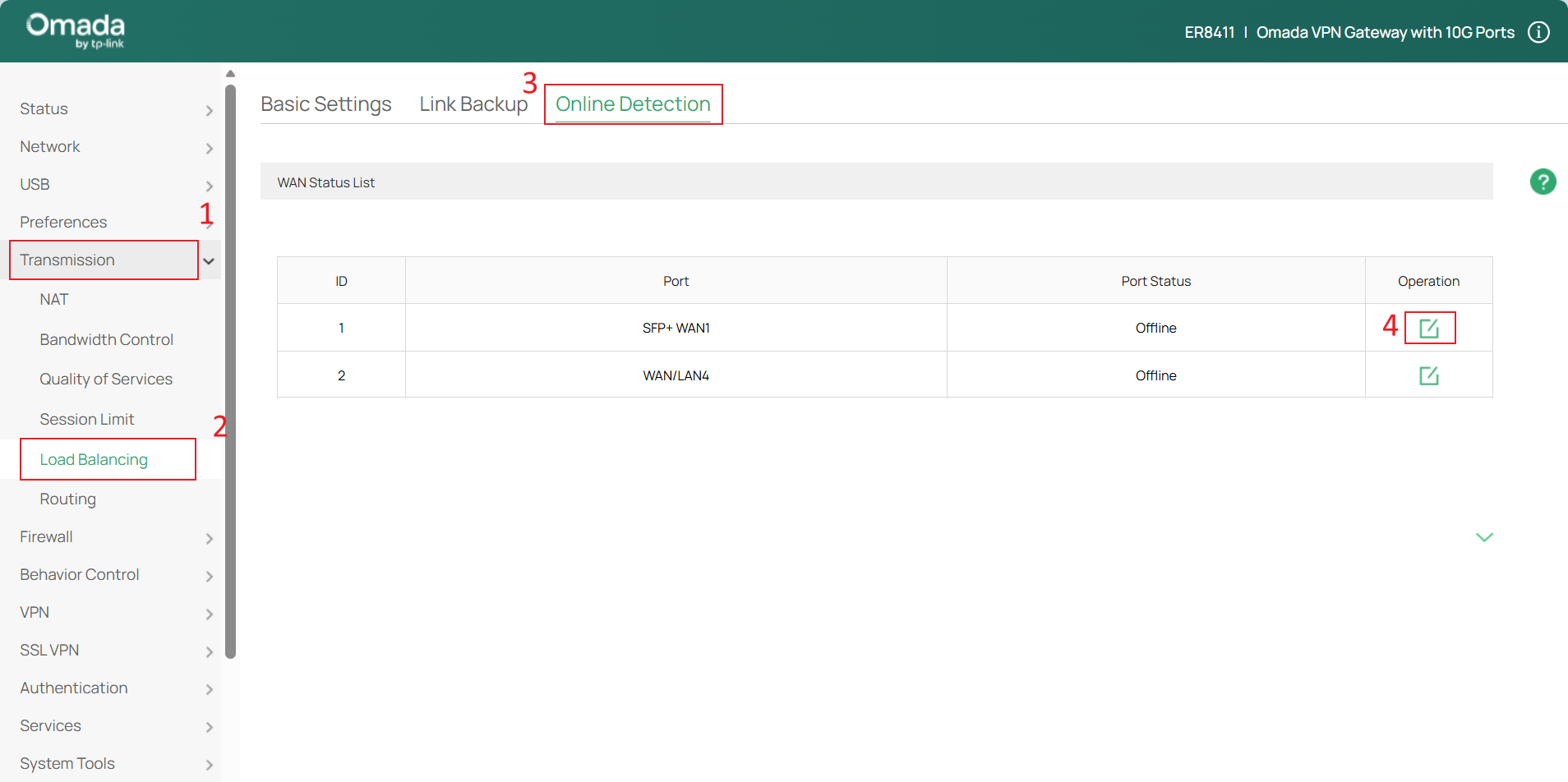
Step 1. Go to Transmission > Load Balancing > Online Detection on the web management interface, then you can configure this feature based on the WAN port.
Step 2. For each port, you could choose one of the three working modes, Auto, Manual or Always Online.
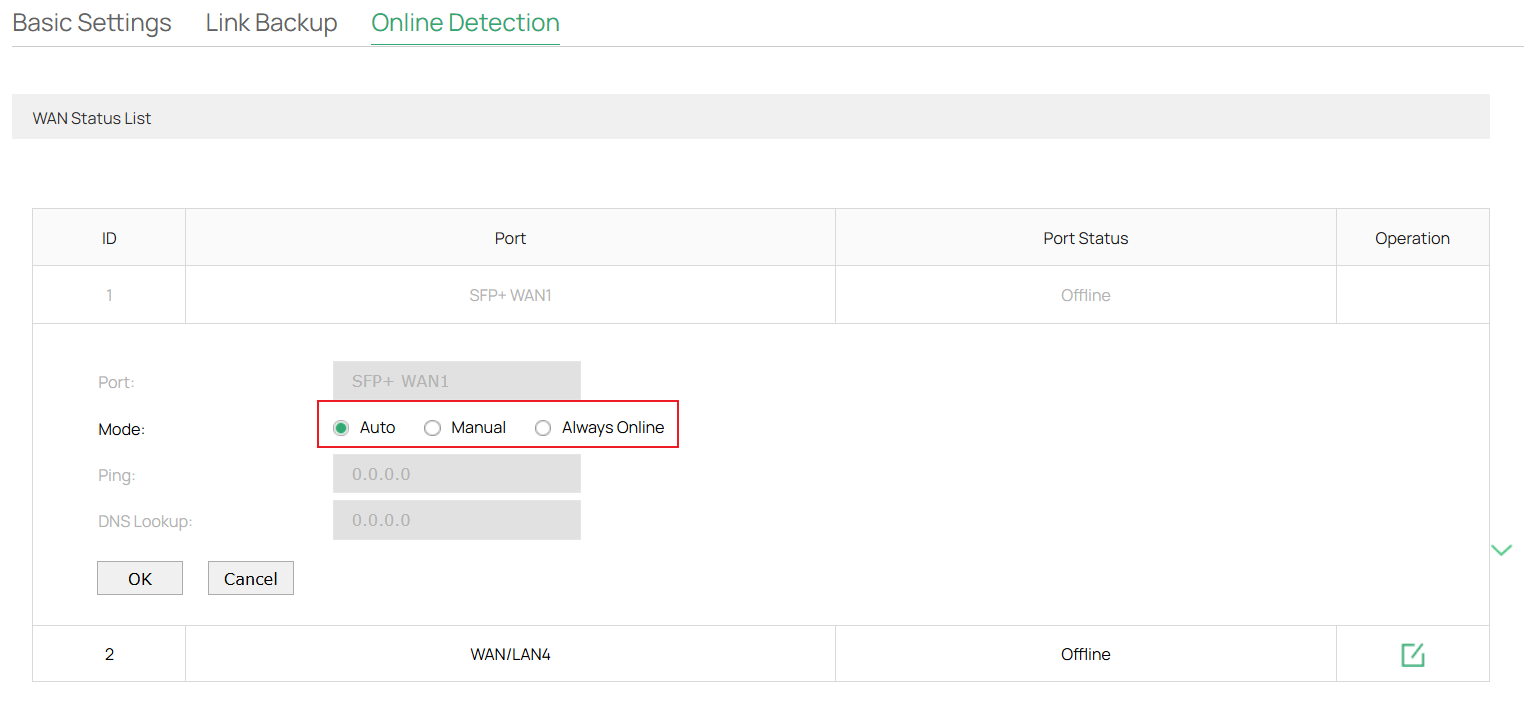
The explanation of parameters is as follows:
Auto
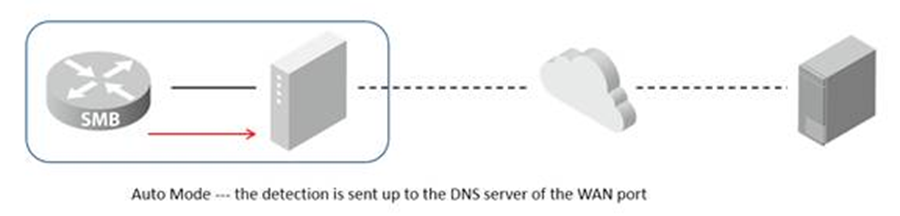
In Auto mode, Router would send DNS Lookup packets to the DNS Server of the WAN port automatically. The DNS Lookup packets traverse many famous domains, such as www.google.com, then the DNS Server of the WAN port shall make Domain Resolution for these domains and send back the results. As long as the router receives any one of the IP addresses resolved from these domains by the DNS Server, the WAN port would show as Online. Otherwise, the WAN port would show as Offline.
Note: In this mode, the Ping and DNS Lookup tab is marked as grey that cannot be configured. This verifies not only the connection between the Router and the DNS Server of the WAN port, but also the Domain Resolution that the DNS Server shall make for the Router.
Manual
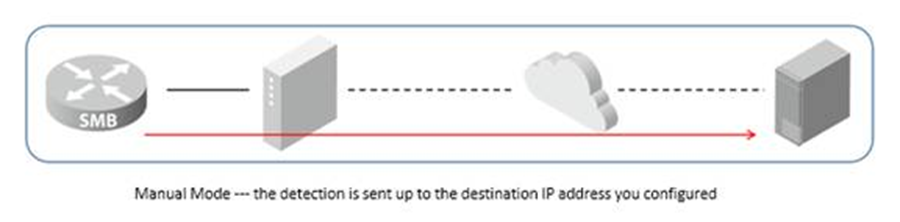
In Manual mode, Router would send both Ping and DNS Lookup packets to the DNS Server of the WAN port manually. Here manually means you can configure the destination IP address for Ping and DNS Lookup in these two tabs by yourself. Once the Router receives any reply packets for either Ping or DNS Lookup, the WAN port would show as Online. Only when the Router neither receives neither Ping nor DNS Lookup reply, the WAN port would show as Offline.
Note: If you configure 0.0.0.0 in the tab of either Ping or DNS Lookup, it means you have disabled this detection, and the status of the WAN port would only be verified by the other detection.
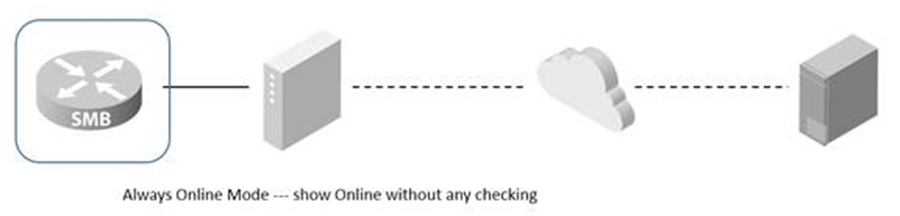
Always Online
In Always Online mode, the status of the WAN port will always show as Online, no matter the configuration and connection of it.
Note: In this mode, the Ping and DNS Lookup tab is marked as grey that cannot be configured.
In Omada Controller
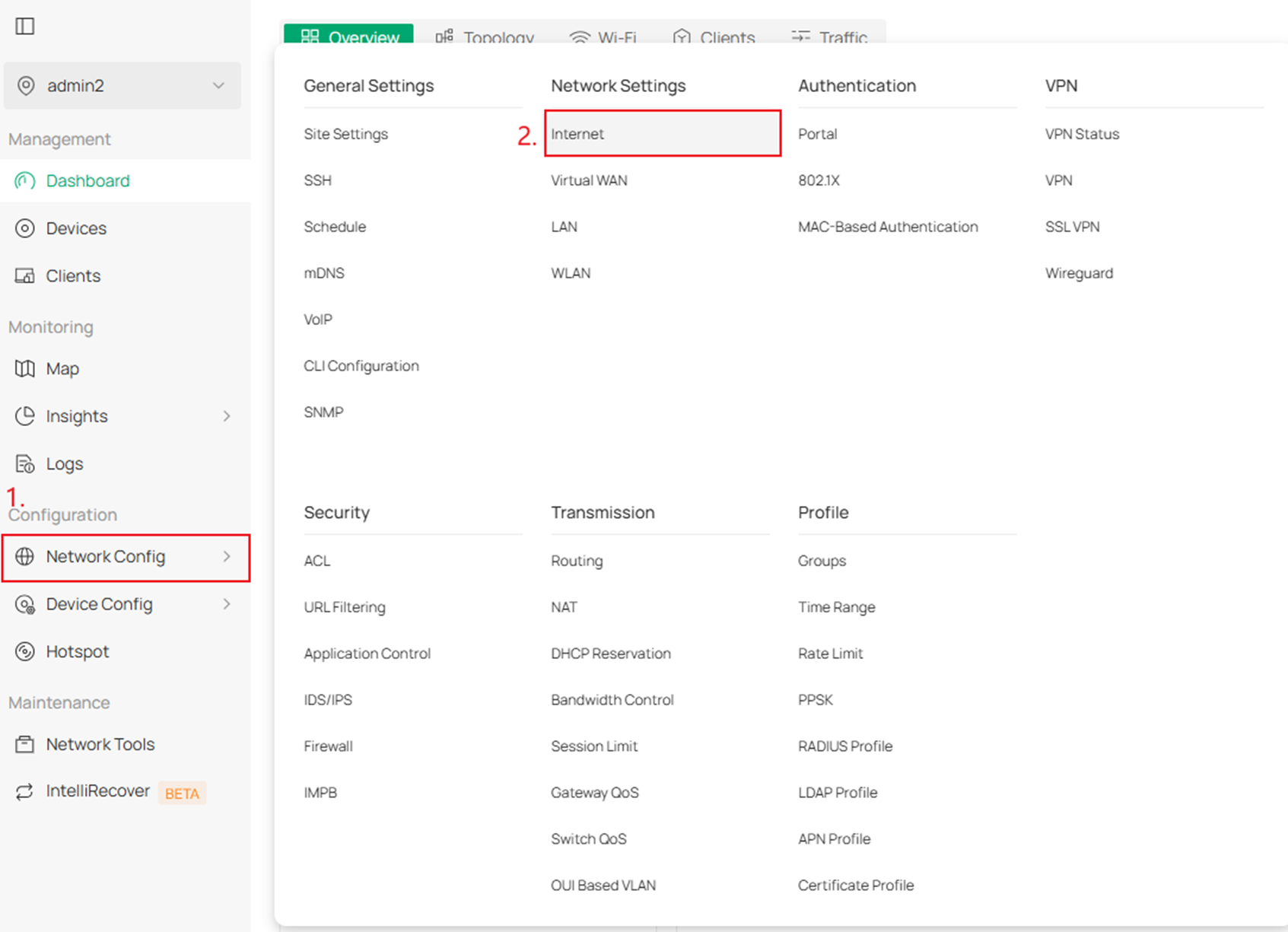
Step 1. Log in to the Controller Web Page, and switch to the Site view. Navigate to Network Config > Internet.
Step 2. Configure the online detection interval parameter. You can disable, select a time interval from the list, or customize the time interval within the range of 1-3600s.
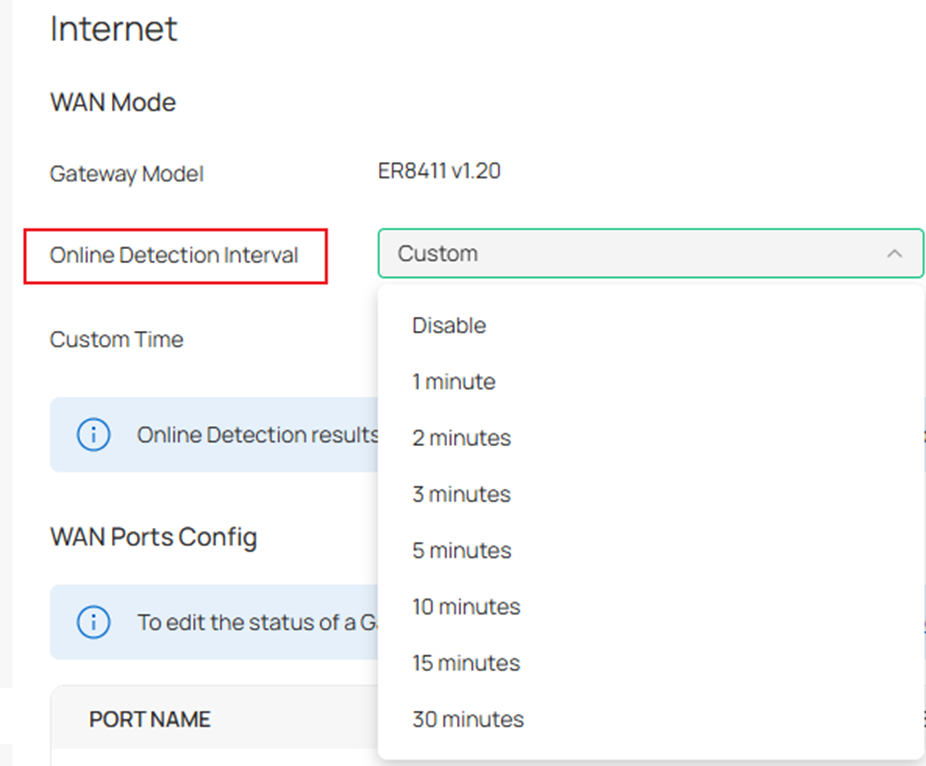
Note: Online Detection results will influence whether Load Balancing and Link Backup features take effect. The smaller the online detection interval, the faster Load Balancing and Link Backup features will respond, and meanwhile more detection packets will be sent.
Conclusion
This article introduces how to configure Online Detection feature in standalone mode and Omada controller.
Get to know more details of each function and configuration please go to Download Center to download the manual of your product.
Is this faq useful?
Your feedback helps improve this site.

TP-Link Community
Still need help? Search for answers, ask questions, and get help from TP-Link experts and other users around the world.