
How to Set Up Your TP-Link Range Extender via the Web Interface
This guide walks you through connecting your TP-Link range extender to your router using the TP-Link Web Management Page (accessible via a web browser). Follow these steps to extend your Wi-Fi coverage in minutes.
Note: The interface may vary slightly by model. Please refer to your actual interface for accuracy.
Key Takeaways
- Use a web browser to access the extender’s management page at tplinkrepeater.net or its IP address.
- Plug in the extender near your router during setup, then move it to the ideal location.
- If you want to connect the extender to your router via an Ethernet cable, select Access Point Mode during setup.
- Otherwise, follow the on-screen steps to connect the extender to your router's Wi-Fi.
- If your router is broadcasting an EasyMesh or OneMesh wireless network, the extender will inherit the router’s wireless settings and cannot have its own SSID changed.
- A solid blue Signal LED confirms a good connection to the router.
Step-by-Step Configuration Guide
Step 1: Access the Extender’s Management Page
Power on the extender near the router (within 10ft, with a clear line of sight).
Wait until the power LED turns solid.
Connect your phone or computer to the extender via Wi-Fi (default: TP-Link_Extender) or an Ethernet cable.
Open a web browser and visit one of the following:
the extender’s IP address (default: https://192.168.0.254/)
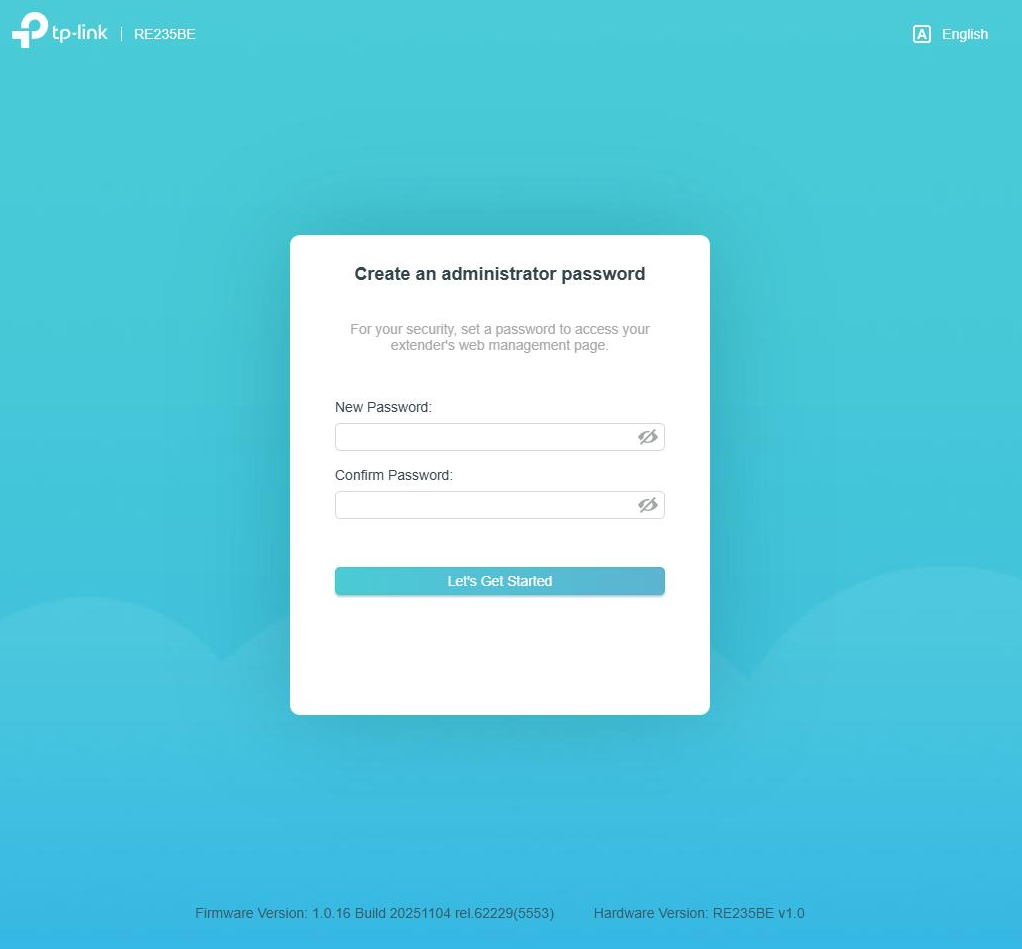
The page will ask you to create a login password for managing the extender. Enter and confirm a password.
Step 2: Change an Operation Mode (Optional)
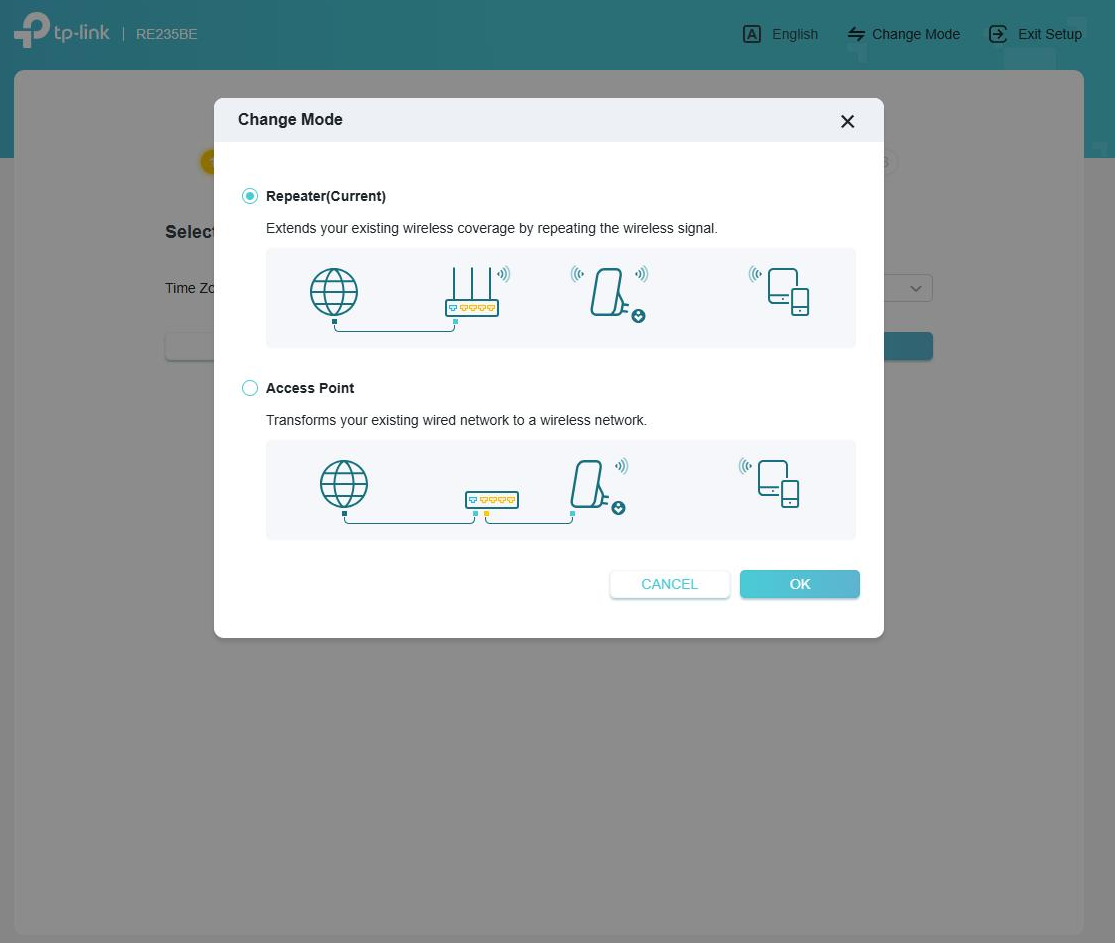
If your extender has an Ethernet port, you can choose how it connects to your router:
Access Point Mode: Select Access Point and click Save if you want to connect the extender to your router via an Ethernet cable. For detailed guidance, see How to Configure Your TP-Link Range Extender to Access Point Mode.
Repeater Mode (Default mode): Tap OK if you want the extender to connect to your router via Wi-Fi.
Step 3: Connect the Extender to Your Router
Select your Time Zone from the drop-down menu.
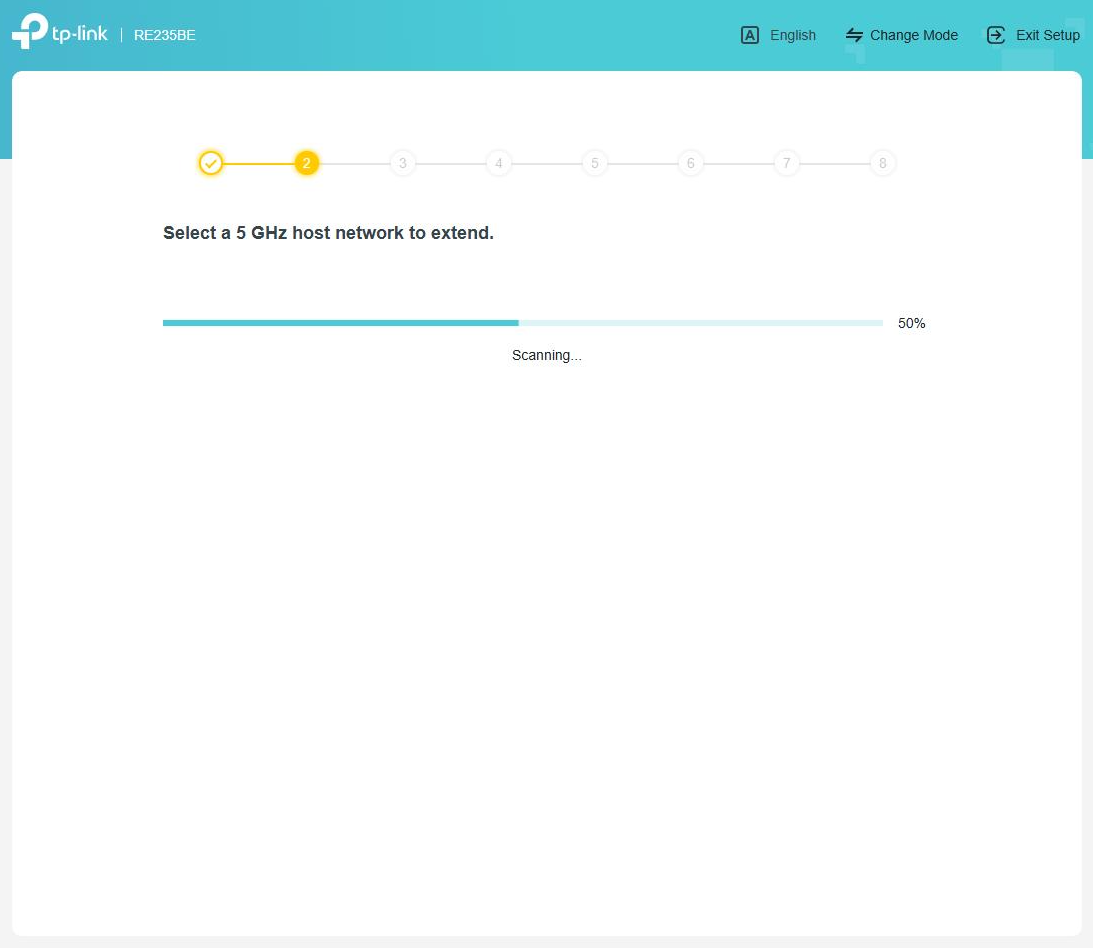
The extender will scan for available wireless networks nearby (first 5GHz, then 2.4GHz).
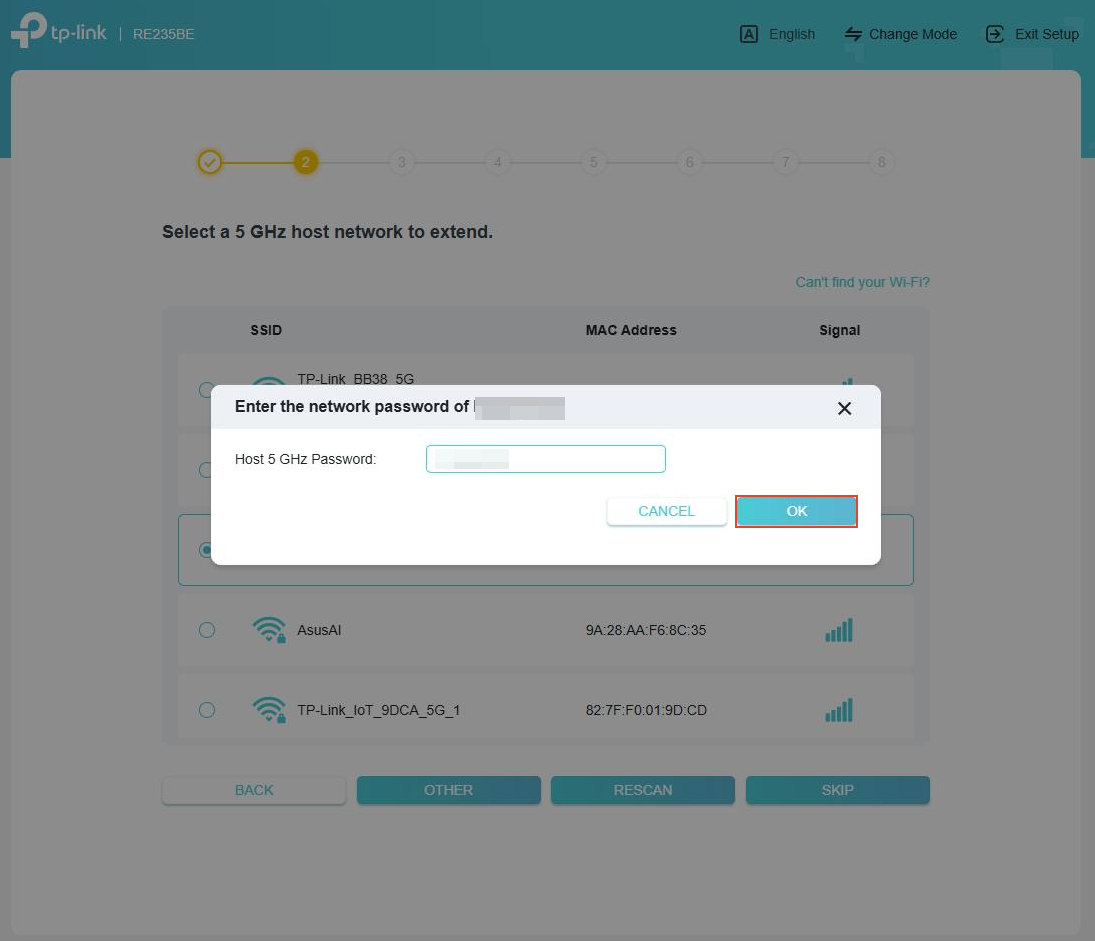
Select your router’s 5GHz Wi-Fi network from the list, enter its password, and click OK.
Repeat the same process for the 2.4GHz.
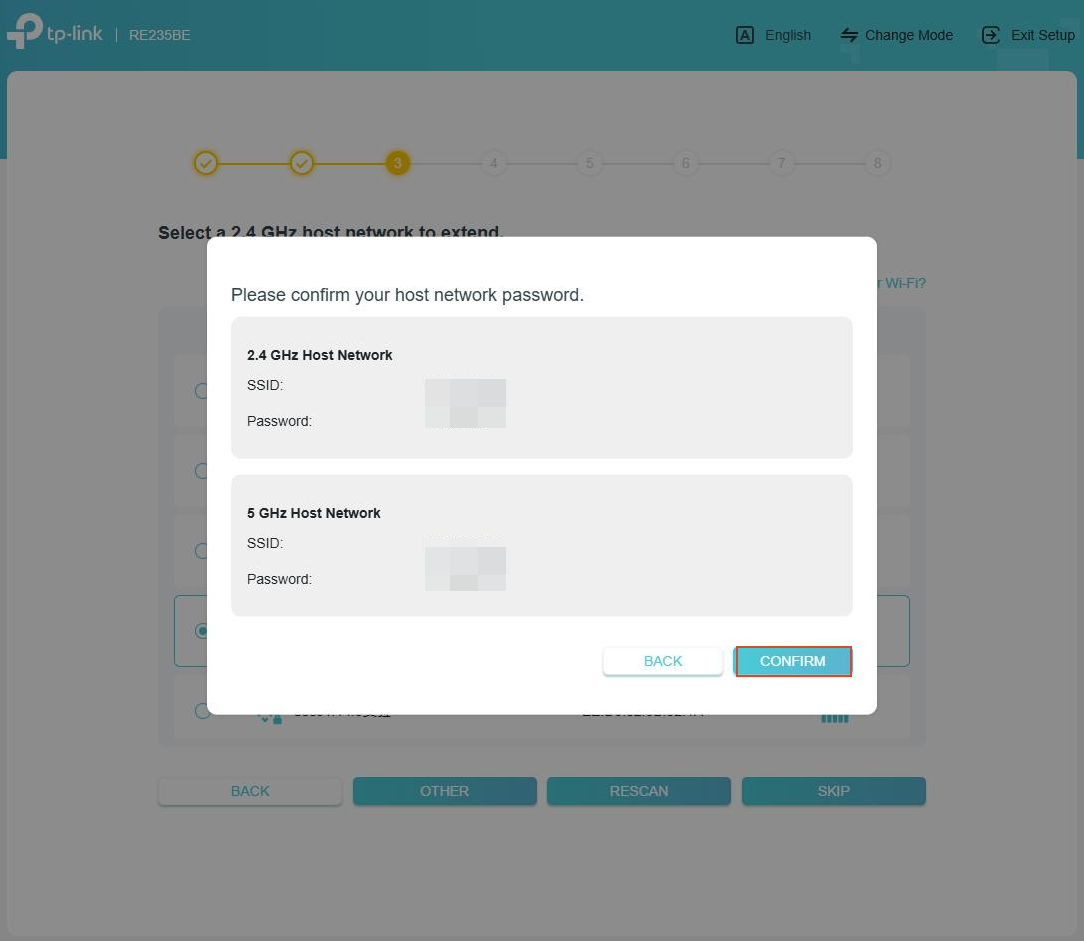
Review the passwords to make sure they are correct, then click Confirm.
Step 4: Enable Auto Update (Optional)
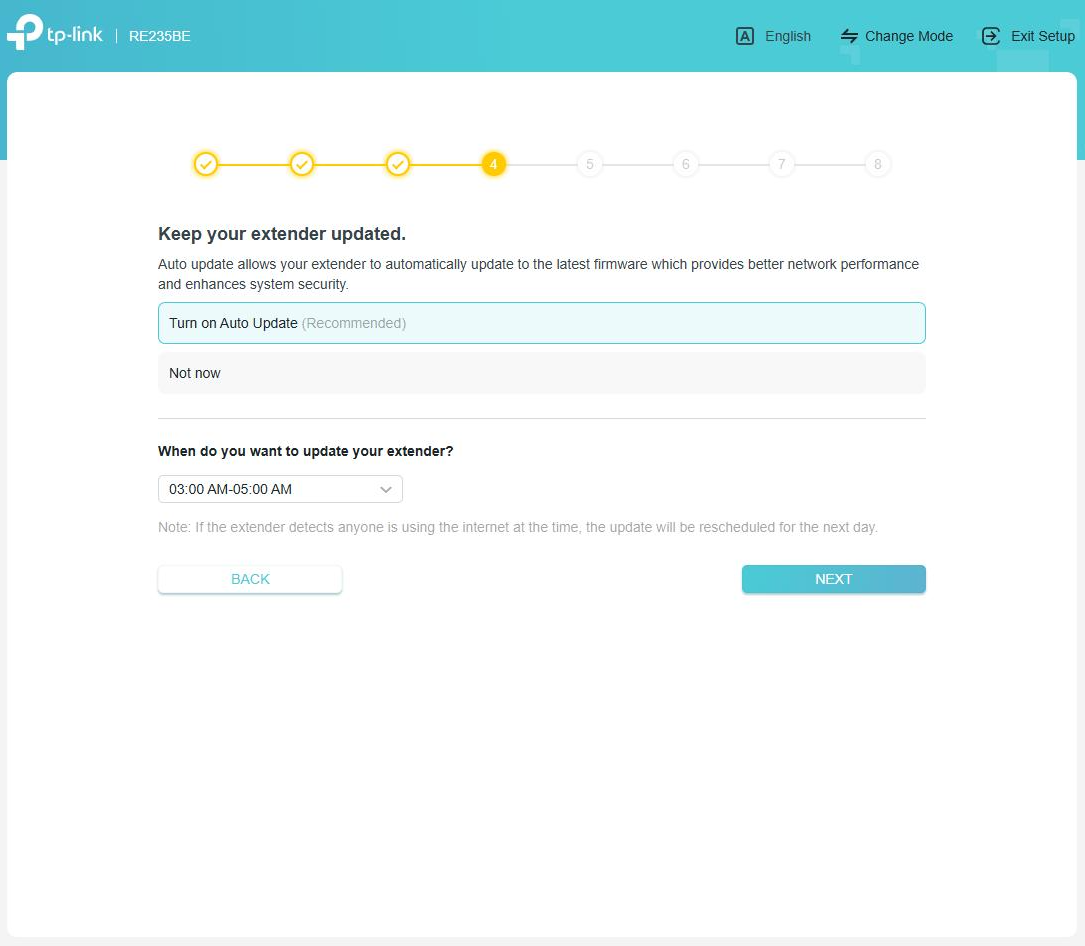
Select an Update Time range (e.g., 2:00 AM – 4:00 AM) to keep the extender’s firmware up to date automatically.
If you prefer not to enable this, select Not Now.
Tap Next to continue.
Step 5: Join User Experience Program (optional)
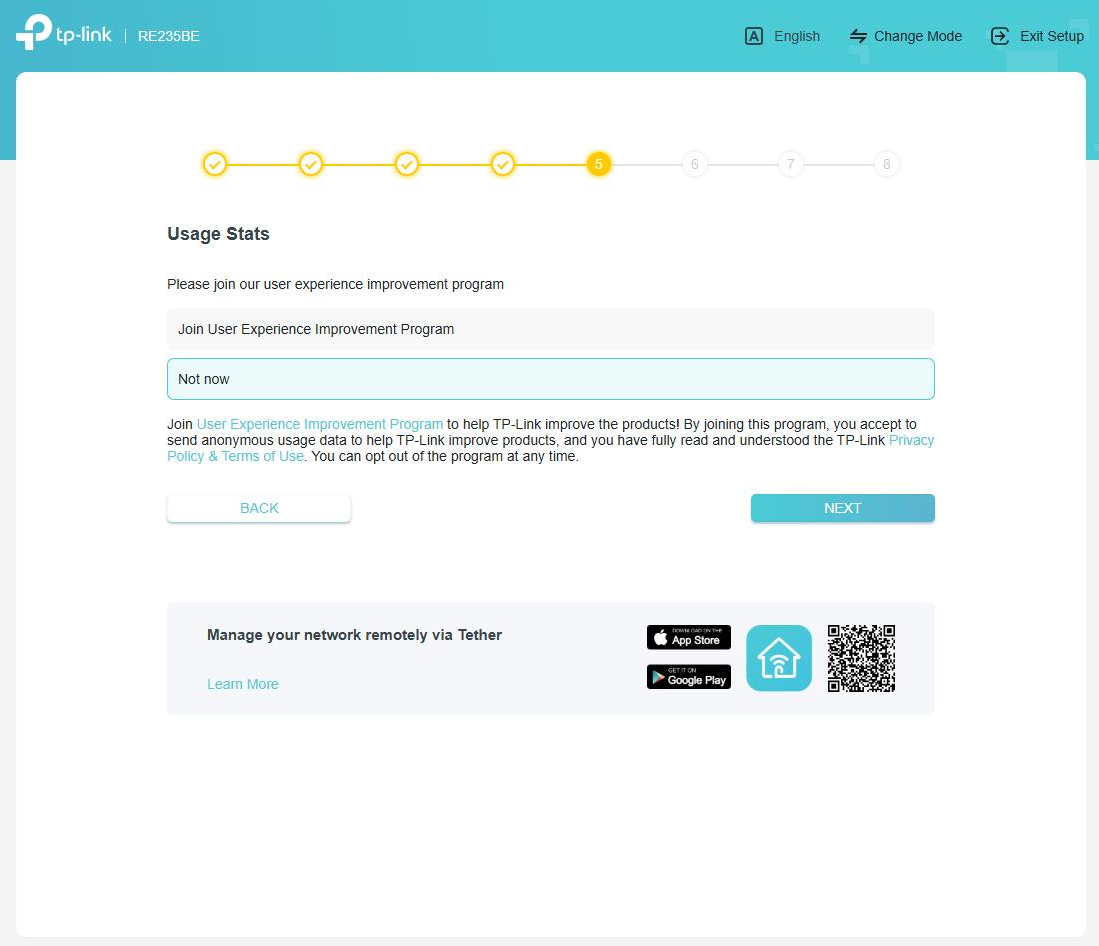
If you agree to send anonymous usage data to help us improve our products, select Join User Experience Improvement Program.
If you’re not interested, select Not now.
Tap Next to continue.
Step 6: Set the Extender’s Wi-Fi Name
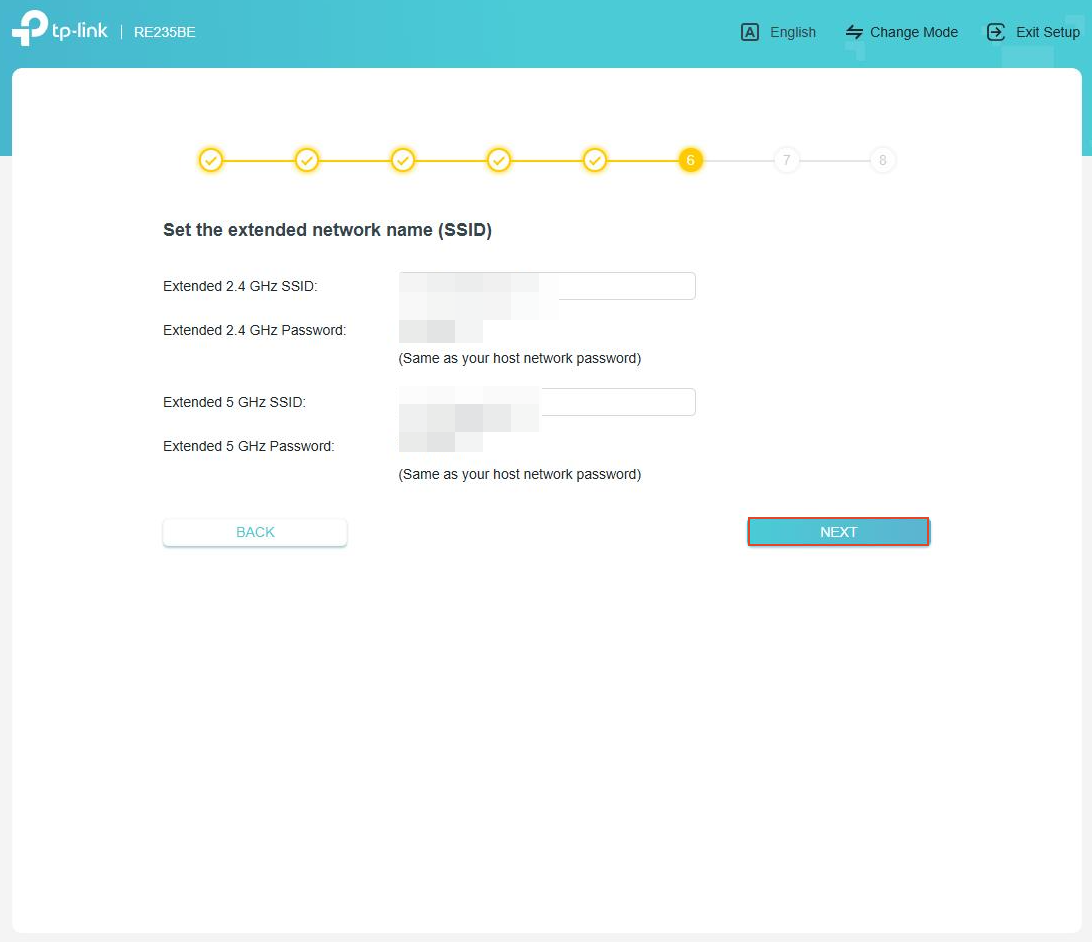
By default, the extender adopts the same Wi-Fi name as your router, or adds _EXT at the end of the router’s Wi-Fi name.
You can customize its Wi-Fi name here if you prefer a different name.
Click Next, and the extender will reboot to apply the settings.
Note: If your router uses EasyMesh/OneMesh, the extender will have to use the same Wi-Fi settings as the router.
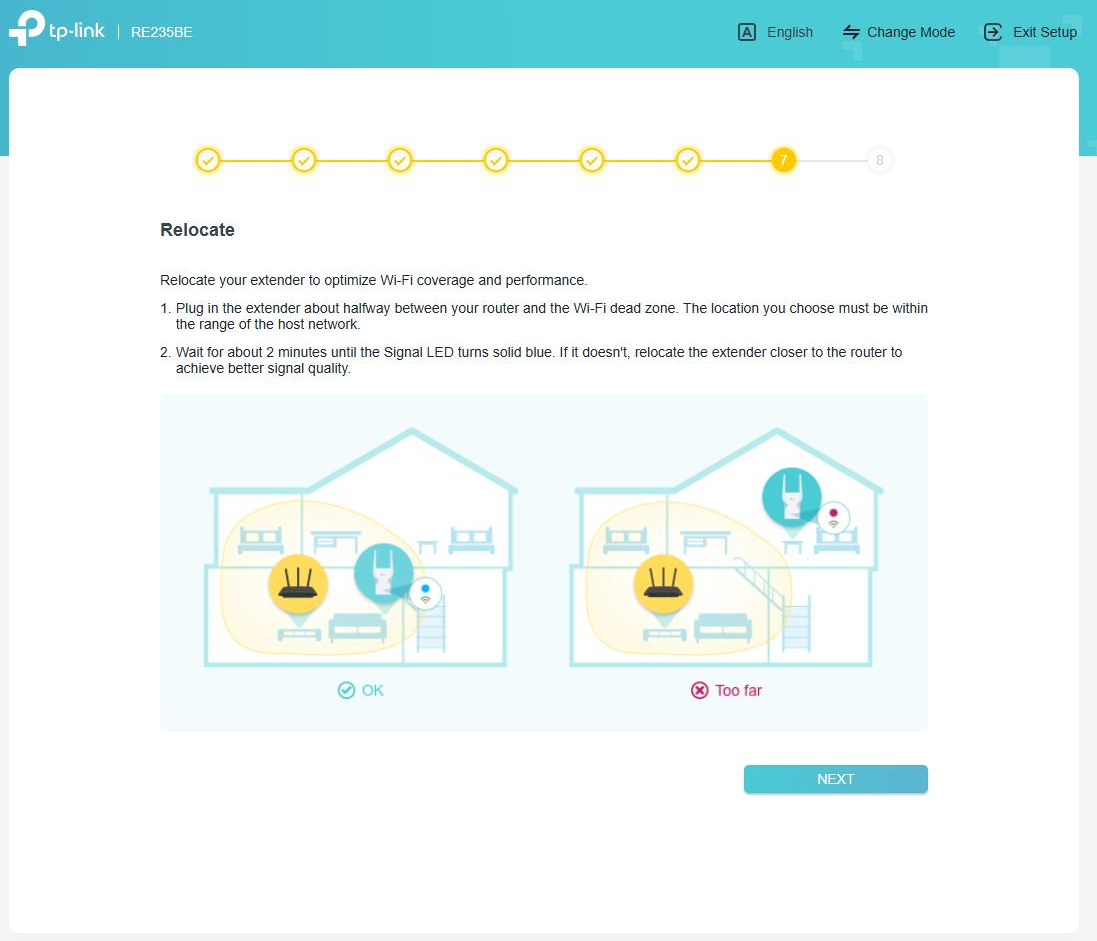
Step 7: Relocate the Extender
Unplug the extender, and place it halfway between your router and the area where you need better Wi-Fi coverage. For detailed guidance, refer to How to Place Your TP-Link Wi-Fi Extender for the Best Signal and Performance.
Wait until the Signal LED turns solid blue again, then click Next.
Note: If the signal light is red, the extender is experiencing a poor signal. Move it closer to the router.
Step 8: Connect Your Devices to the Extender
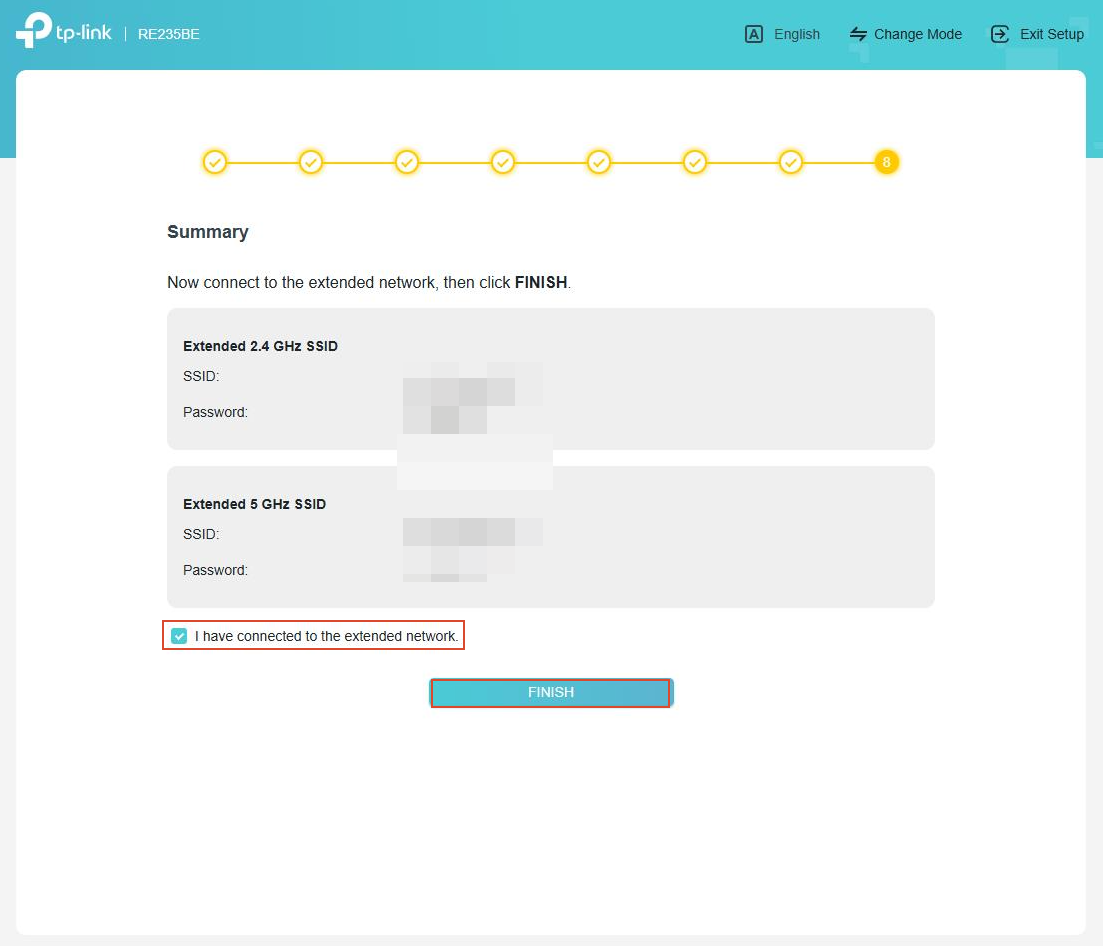
Connect your devices (phone, laptop, smart TV, etc.) to the extender's new Wi-Fi network using the name and password displayed in the interface.
Check the “I have connected to the extended network” box, then tap Finish.
Enjoy your extended Wi-Fi coverage!
To get to know more details of each function and configuration, please go to the Download Center to download the manual for your product.
Looking for More
Is this faq useful?
Your feedback helps improve this site.



TP-Link Community
Still need help? Search for answers, ask questions, and get help from TP-Link experts and other users around the world.