How to Reset a Forgotten TP-Link ID Password for Tapo and Kasa Devices
The TP-Link ID is the shared account used to log in to both the Tapo and Kasa apps. If you have a Tapo/Kasa account and have forgotten your password, this page provides step-by-step instructions to reset it. There are two methods: via the Tapo/Kasa app or via the TP-Link Cloud website.
Key Takeaways
- The TP-Link ID is a shared account used for both the Tapo and Kasa apps — resetting the password applies to both.
- Passwords can be reset via the Tapo/Kasa app or the TP-Link Cloud website.
- A reset email is sent to the email address associated with the TP-Link ID — click the link in the email to set a new password.
- If the reset email is not received within 60 seconds, tap Resend in the app and verify the email address is correct.
How to Reset TP-Link ID Password
Method 1: Via Tapo/Kasa app
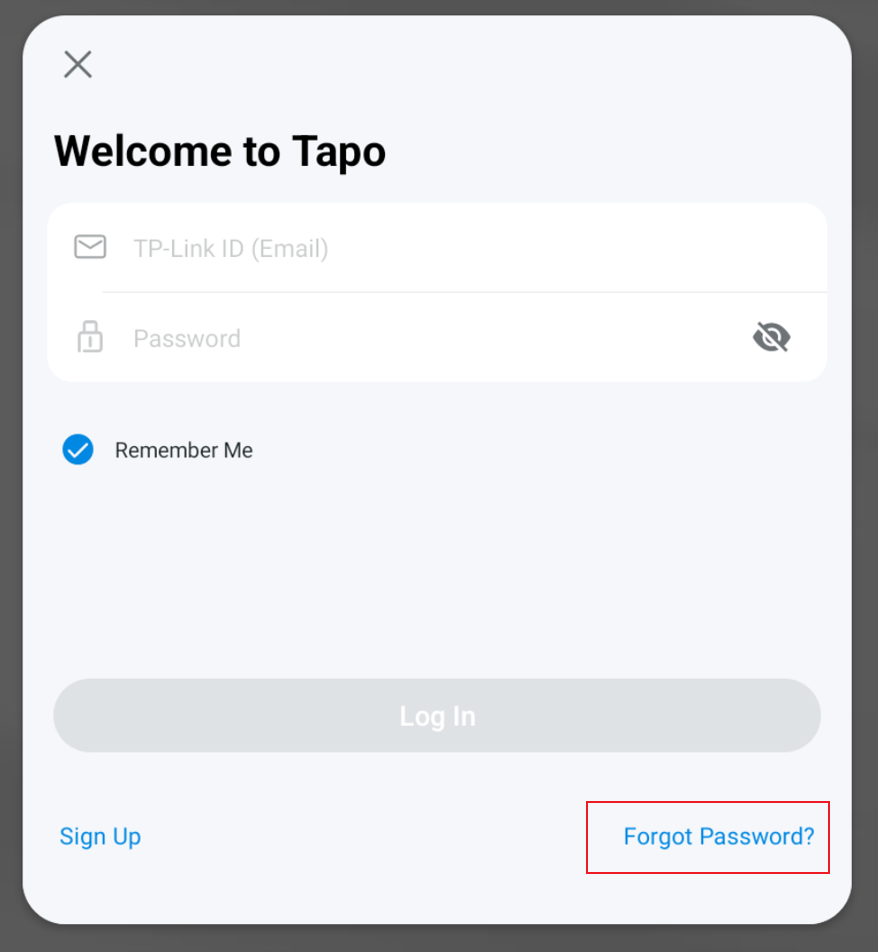
Step 1. On the Log In page of your Tapo/Kasa app, click on Forgot Password?
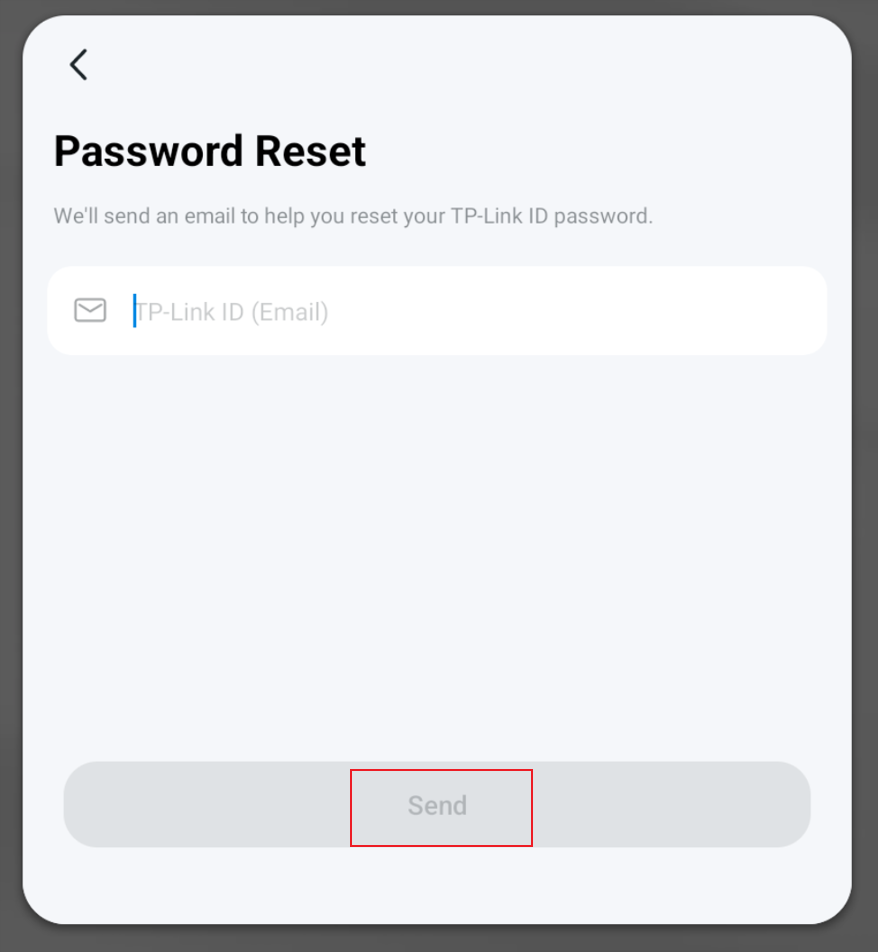
Step 2. Input your TP-Link ID (Email Account), then click on Send.
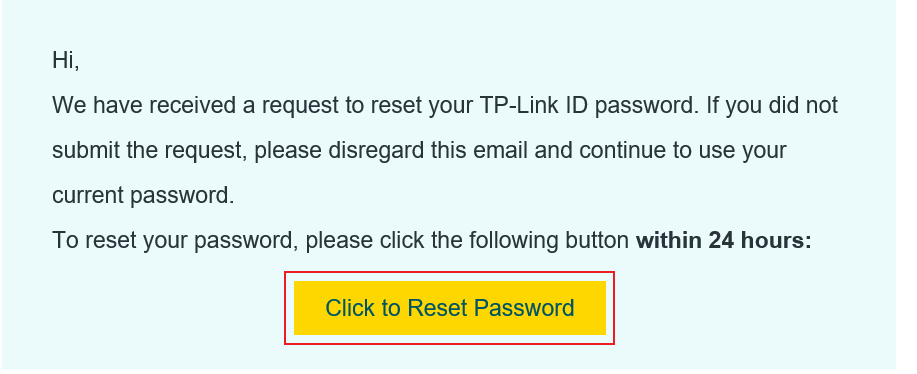
Step 3. Open the inbox for the email address linked to your TP-Link ID, find the email from TP-Link, and click Click to Reset Password to be taken to the password reset page.
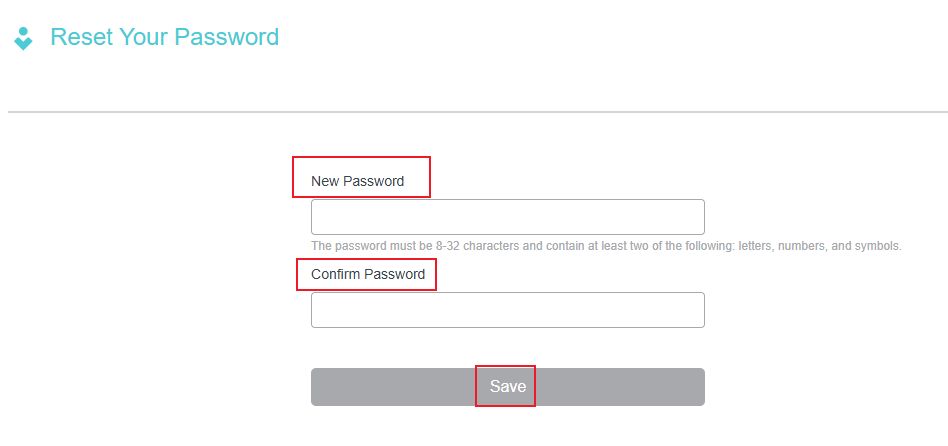
Step 4. Enter the new password for your TP-Link ID, confirm it, then click Save.
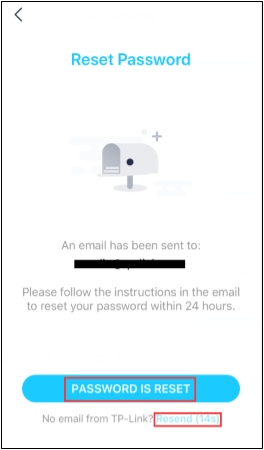
Step 5. Password reset is complete. Return to the Tapo/Kasa app, tap PASSWORD IS RESET, and log in with your new password.
Note: If you don’t receive the reset email within 60 seconds, please click Resend in the app and ensure you have entered the correct email address.
Method 2: Via TP-Link Cloud Website
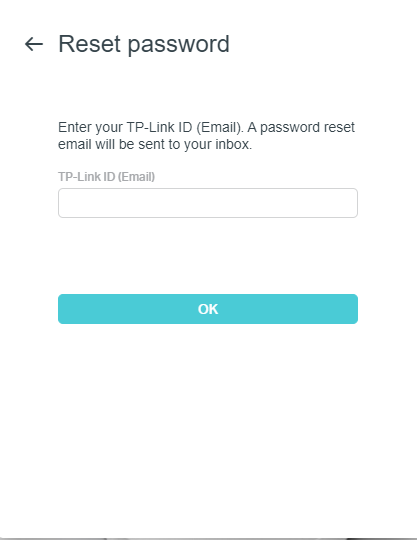
Step 1. Open a browser and log in to the TP-Link Cloud website. Enter your TP-Link ID email account, and a password reset email will be sent to your mailbox.
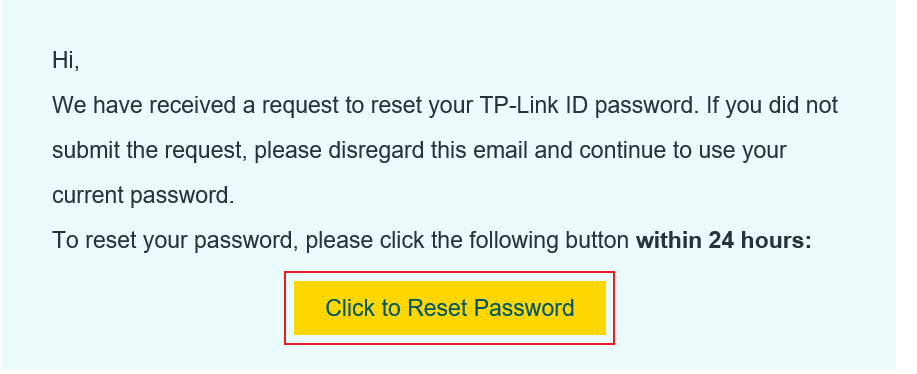
Step 2. Open the inbox of the email account associated with your TP-Link ID, find the email from TP-Link, and click on Click to Reset Password. This will take you to the password reset page on the TP-Link cloud website.
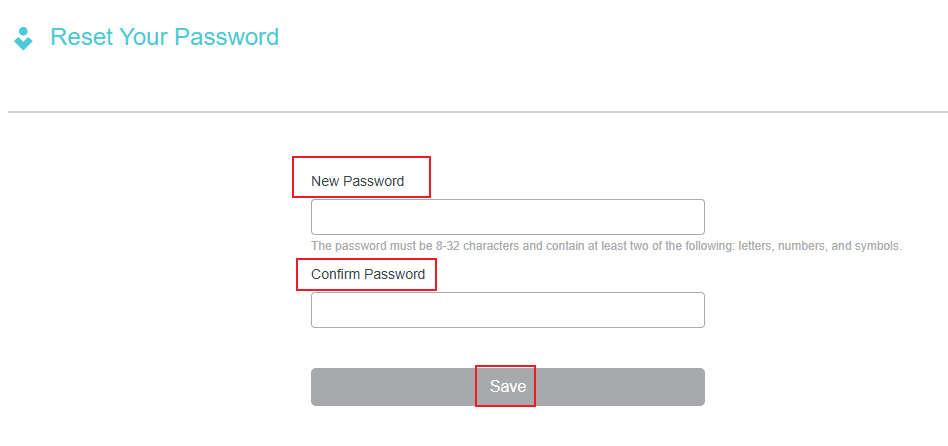
Step 3. Enter the new password for your TP-Link ID, confirm it, then click Save.
QA
Q1: What should I do if I don’t receive the password reset email?
You may refer to this FAQ for troubleshooting suggestions: What should I do if I don't receive the email when I register a cloud account or reset my password?
To learn more about each function and configuration, please visit the Download Center to download the manual for your product.