How to configure Home feature and Room feature in Tapo app
Introduction
This feature allows you to customize your smart home experience, making it simple to control different devices based on where they are located. Whether you have multiple properties or just want to keep your living spaces organized, setting up Homes and Rooms helps streamline your smart device management.
Configuration
Scenario 1: How to create a Home
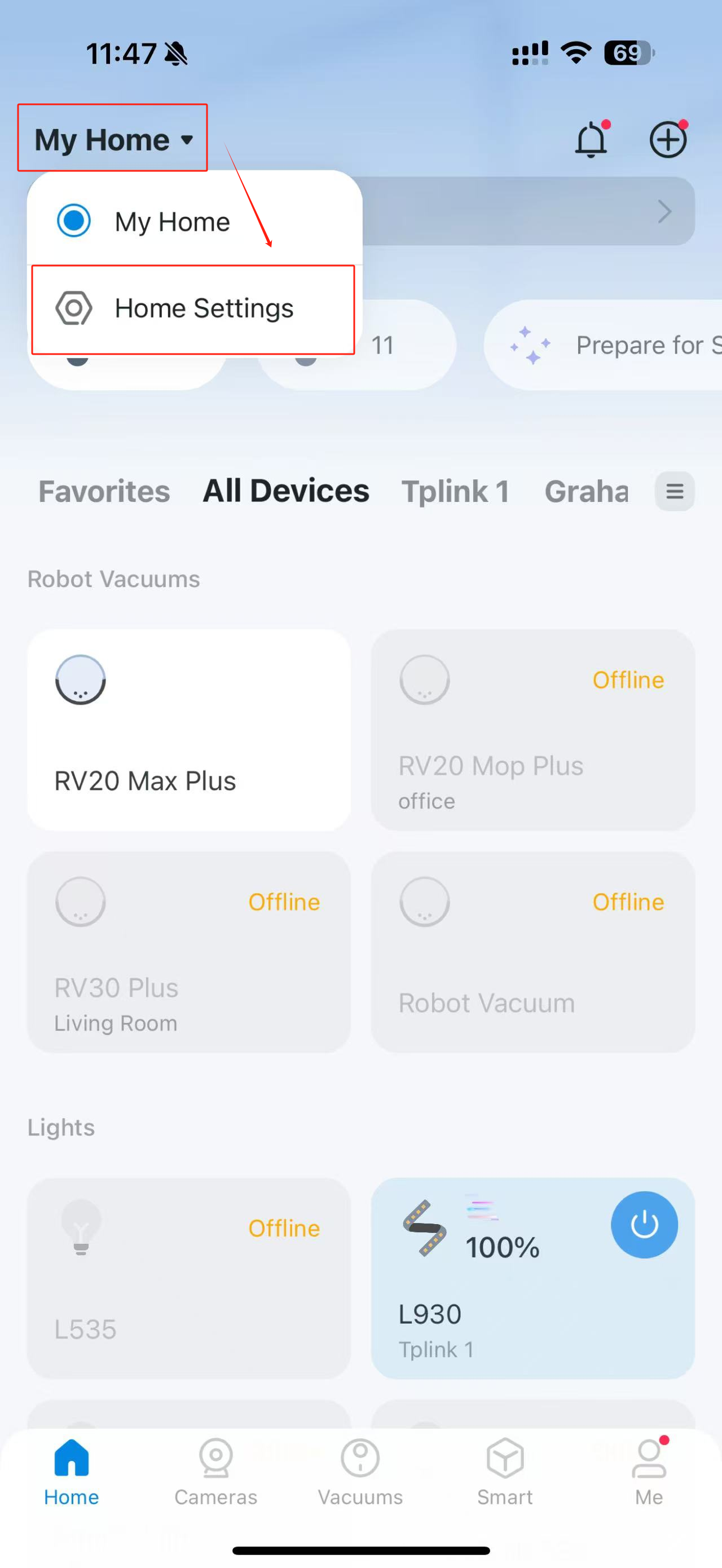
Step 1. Open the Tapo app and tap the “My Home” icon. Select “Home Settings” from the menu.
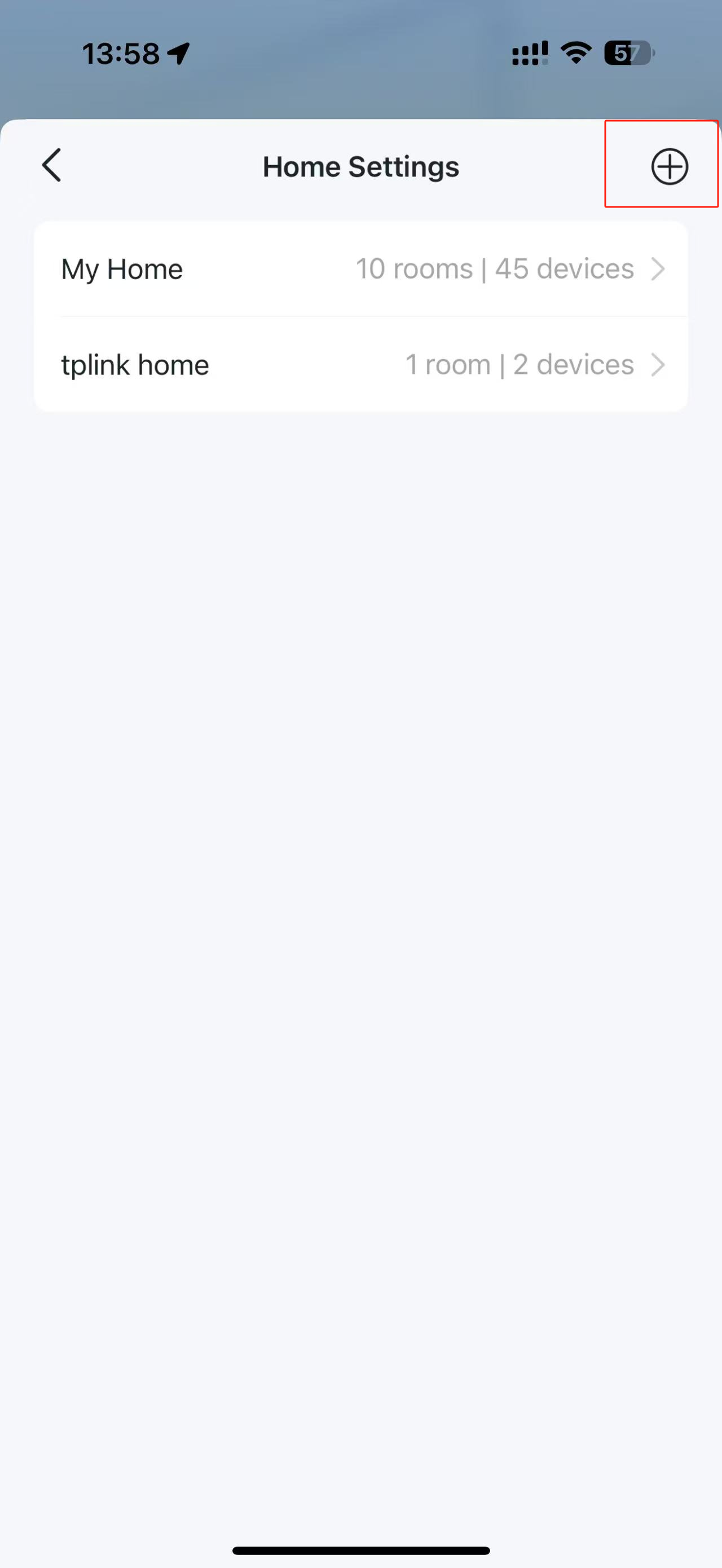
Step 2. Tap the “+” icon to create a new home.
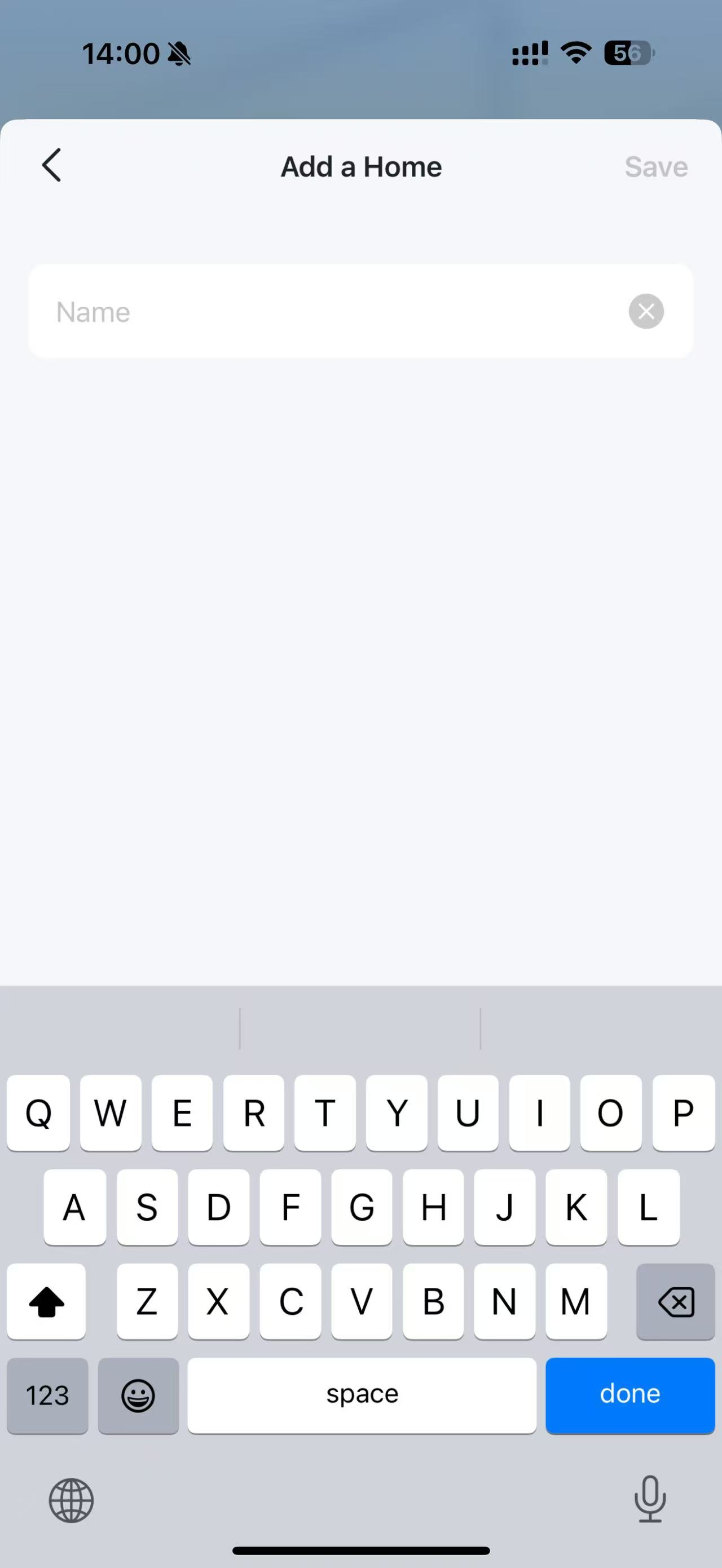
Step 3. Create a name for the home and tap “Save”.
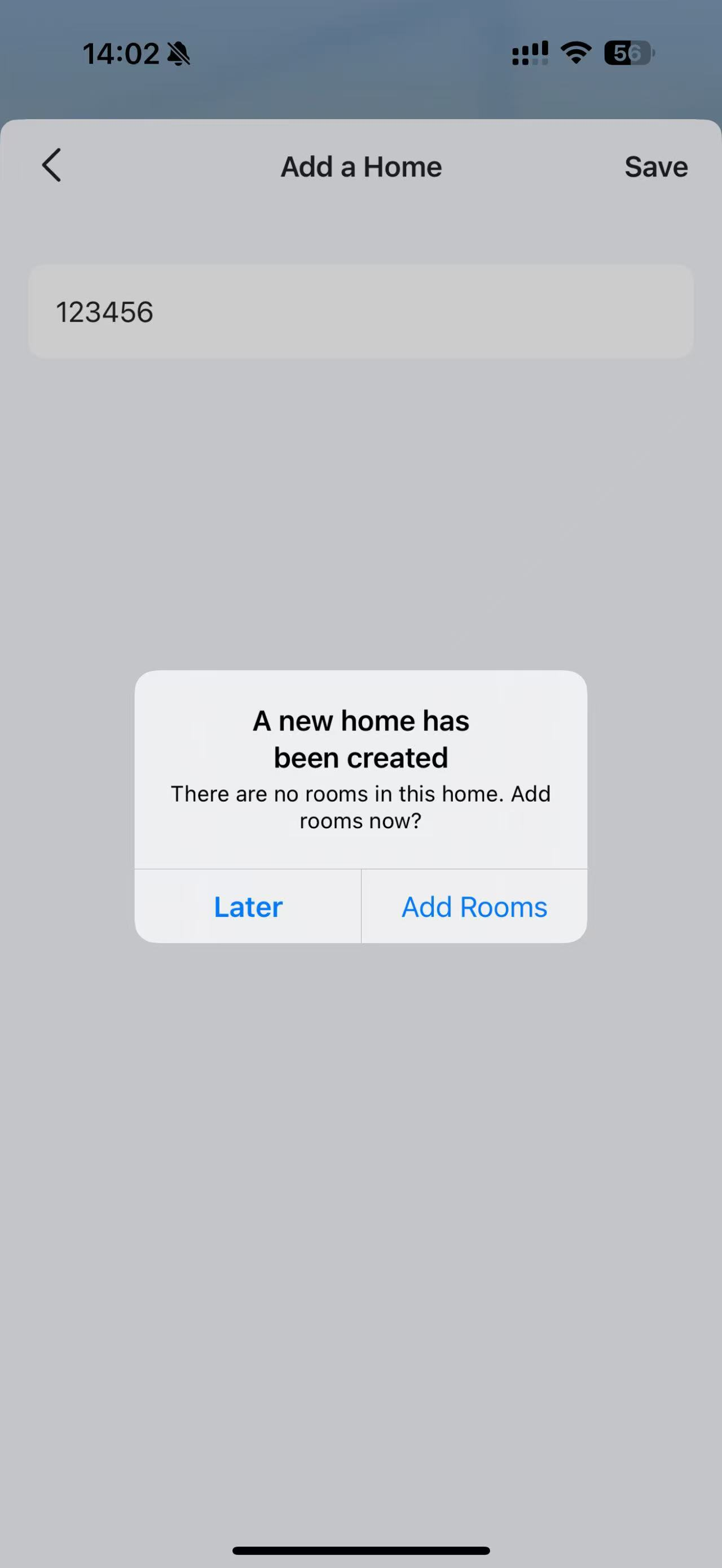
Step 4. Add rooms directly or add them later.
Scenario 2: How to create a Room

Step 1. Open the Tapo app and tap the “hamburger” icon. Select “Room Settings” from the menu.
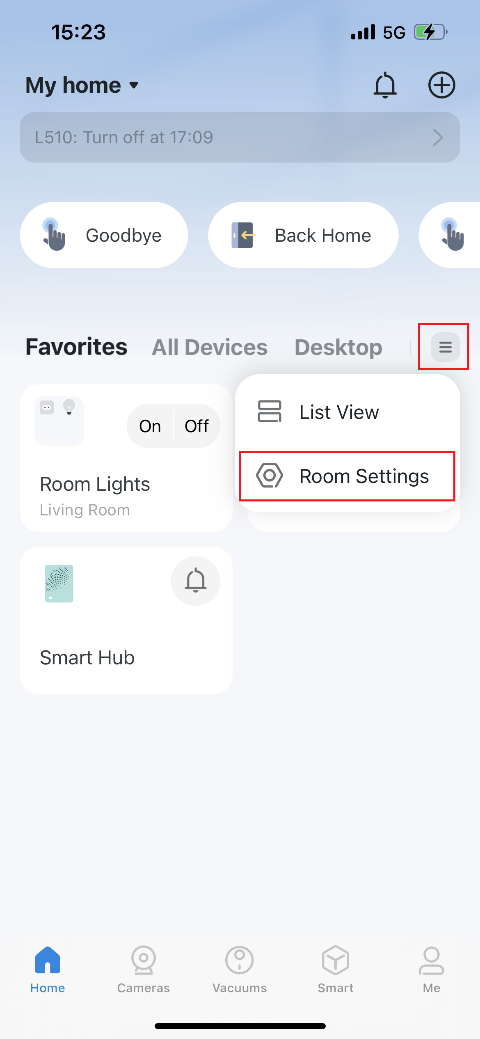
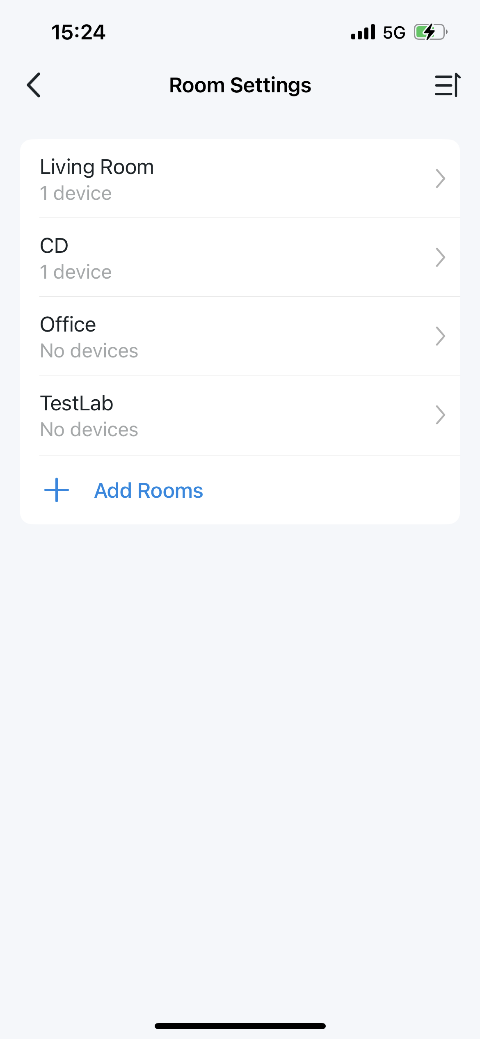
Step 2. Tap “Add Rooms” to create a new room for your devices.
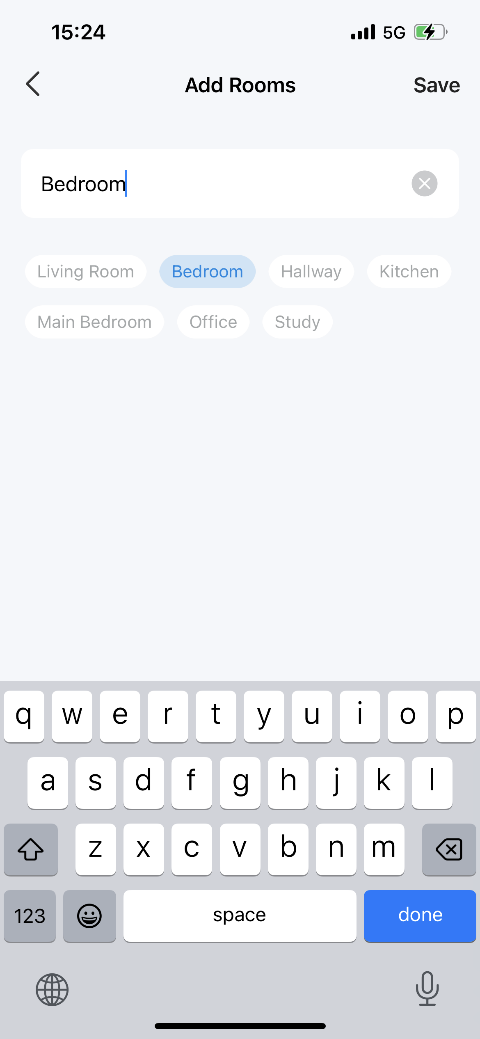
Step 3. Select or enter a name for the room and tap “Save”.
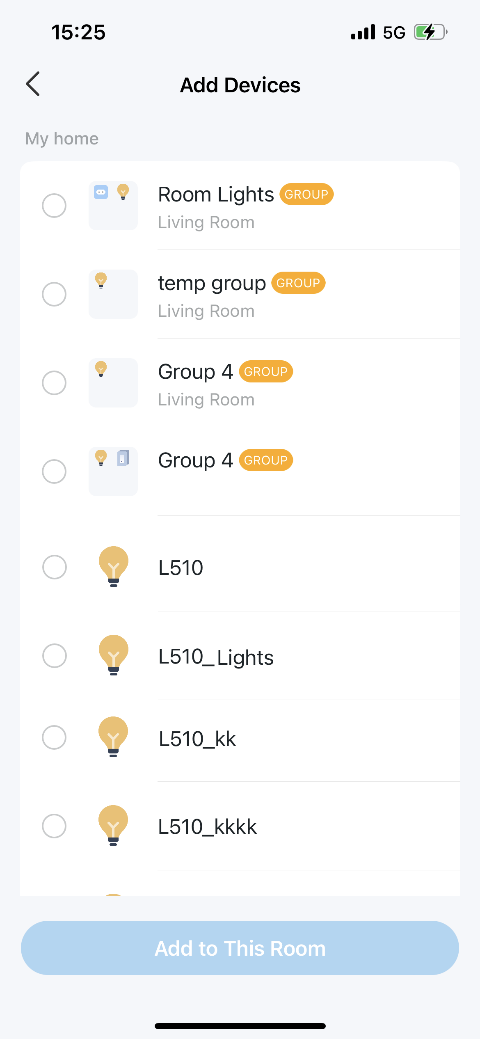
Step 4. Choose the devices you want to add to this room and tap “Add to This Room” to complete the process.
Step 5. Return to the home page, and you'll see the new room listed in the menu, along with your devices inside it.
QA
Q1: How many Homes can I create in the Tapo app?
A1: Up to 8.
Q2: How many Rooms can I created in one Home?
A2: Up to 32.
Is this faq useful?