What Should I Do if My VIGI Camera Image Appears Hazy in Night Vision Mode
Contents
Introduction
If your VIGI camera image appears hazy, foggy, washed out, or blurry in Night Vision mode, the issue is commonly related to lens contamination, infrared (IR) reflections, condensation, or installation issues. This article provides troubleshooting steps to help improve image quality.
Requirements
- VIGI Camera
- VIGI App or VIGI VMS
Troubleshooting
Follow the steps below if the camera image appears hazy or blurry in Night Vision mode.
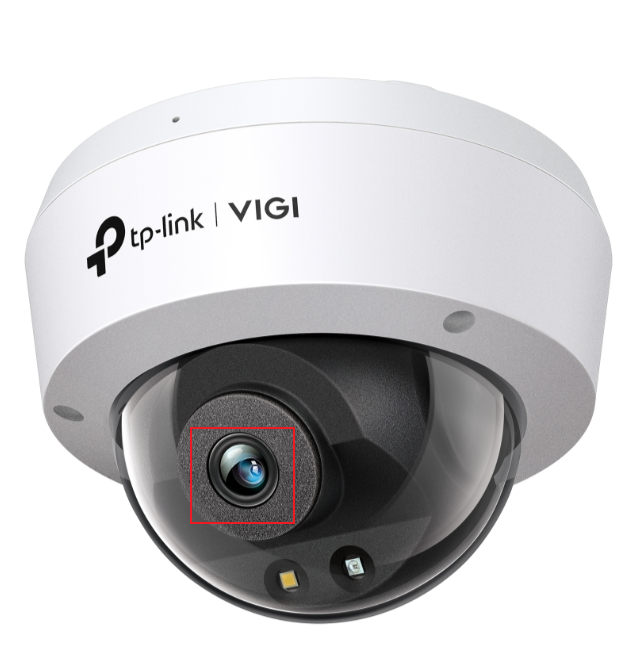
Step 1. Inspect the lens and dome cover
Fingerprints, dust, dirt, or water stains on the lens or dome cover may affect image quality, especially when Night Vision is enabled.
- Clean the lens using a soft, dry cloth.
- Clean both the inside and outside surfaces of the dome cover if applicable.
- Verify that no protective film remains on the lens or housing.
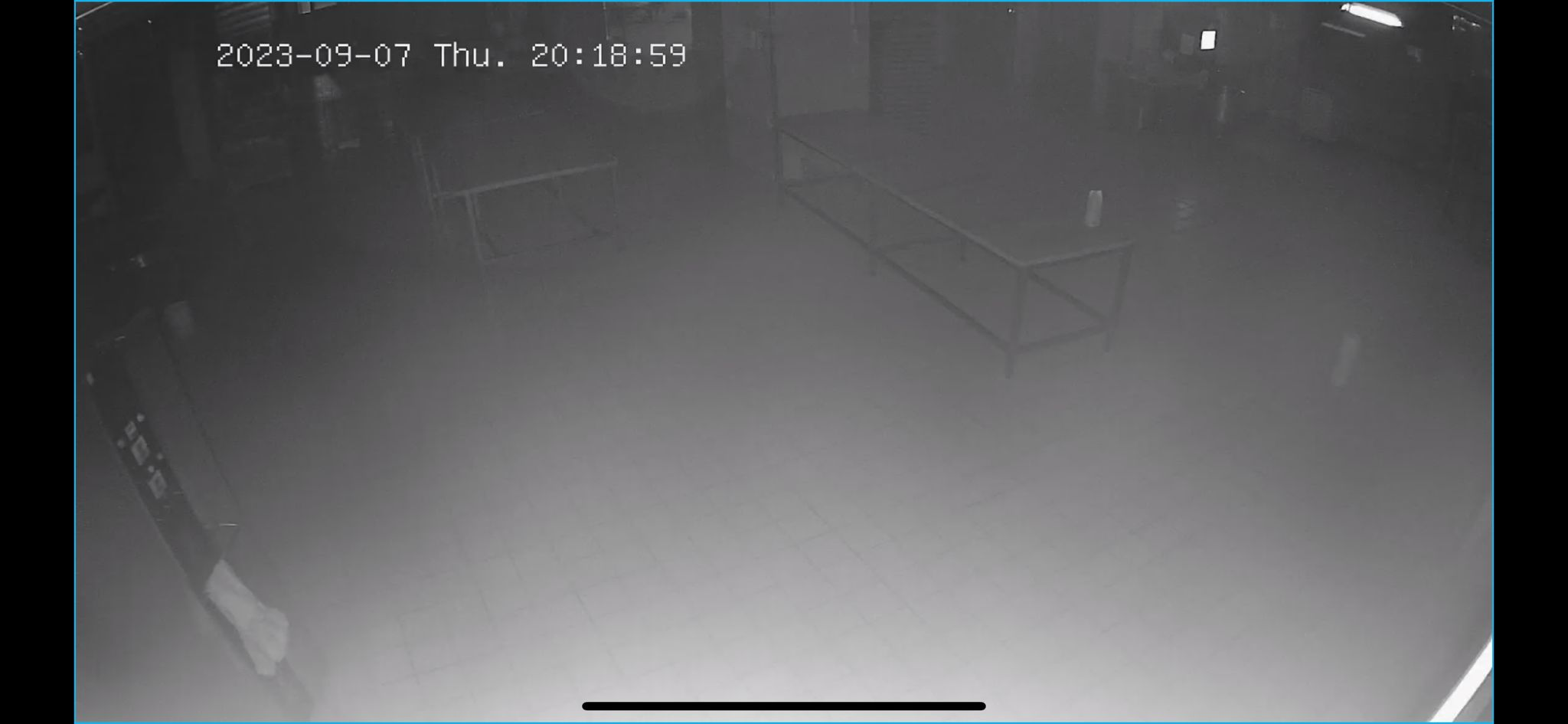
Step 2. Check for IR reflection
When IR LEDs are enabled, nearby objects may reflect infrared light back into the lens, resulting in a hazy image, glare, or bright white areas.
Common sources of IR reflection include:
- Walls close to the camera
- Camera housing components
- Metal railings
- Glass surfaces
- Nearby objects within the IR illumination range
To reduce reflections:
- Verify that the camera is installed according to the Quick Installation Guide (QIG).
- Adjust the installation angle to avoid direct reflections.
- Minimize reflective objects within the IR illumination range.
Step 3. Check for condensation
In environments with large temperature differences or high humidity, condensation may form near the lens and affect image clarity.
If condensation is present:
- Gently clean the lens and dome cover.
- Allow the camera to dry completely.
- Verify that all seals and covers are properly installed.
- If the desiccant is saturated or damaged, contact your local retailer, distributor, or VIGI Support for guidance and replacement options.
Note:
Self-replacement of the desiccant is not generally recommended. If replacement is necessary, use a desiccant with a weight of at least 7 g. Recommended desiccant types, in order of preference, are:
- Calcium oxide desiccant
- Silica gel desiccant
- Molecular sieve or bentonite desiccant
After replacing the desiccant, ensure that the camera housing is properly resealed to maintain the device's weatherproof performance.
Step 4. Verify the lens cushion condition
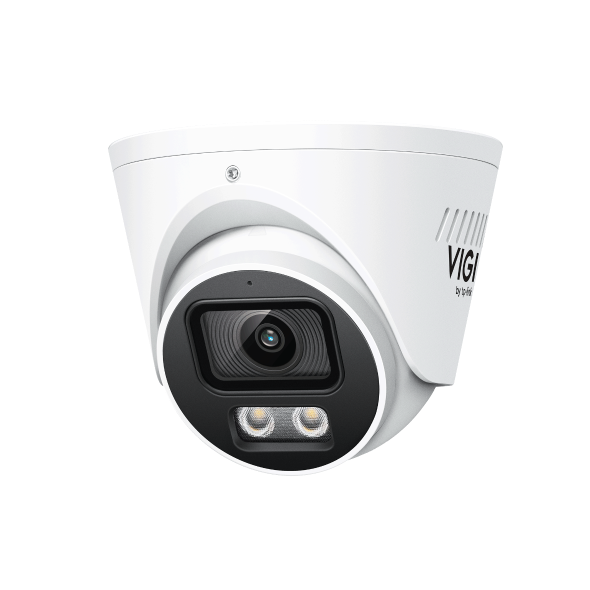
Some VIGI camera models include a lens cushion designed to prevent infrared light leakage and internal reflections.
If the lens cushion becomes damaged, displaced, or missing, image quality may be affected during Night Vision operation. If the lens cushion appears damaged or displaced, please contact VIGI Support for further assistance.
Step 5. Verify the installation environment
To maintain optimal Night Vision performance:
- Minimize reflective surfaces near the camera.
- Avoid direct exposure to moisture and condensation.
- Do not remove or insert the microSD card during rain or in high-humidity environments.
- If the components are damaged, please contact VIGI Support for further assistance.
Conclusion
You have now completed the recommended troubleshooting procedures for hazy or blurry images in Night Vision mode. By reducing IR reflections, preventing condensation, and ensuring that camera components are properly maintained, most Night Vision image quality issues can be identified and resolved.
To learn more about each function and configuration, please visit Support Home to download or check the manual for your product.
Więcej
Czy ten poradnik FAQ był pomocny?
Twoja opinia pozwoli nam udoskonalić tę stronę.


TP-Link Community
Still need help? Search for answers, ask questions, and get help from TP-Link experts and other users around the world.
z United States?
Uzyskaj produkty, wydarzenia i usługi przeznaczone dla Twojego regionu.