


Setting Up Small Office WiFi in Three Layers, Not One Router
Published: July 13, 2026 | Last Updated: July 13, 2026
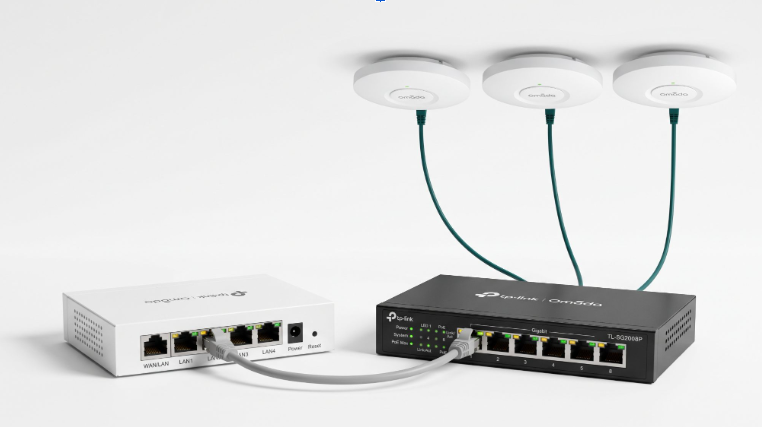
A reliable small office WiFi setup is built from three connected layers: access points, a PoE switch, and a gateway, working together under one controller, rather than a single router asked to do everything at once.
Quick Answer
-
Small office WiFi needs three layers working together: access points that broadcast a signal, a PoE switch that powers them over Ethernet, and a gateway that manages traffic and security.
-
Wired, business-grade access points outperform consumer mesh systems once an office adds a dozen laptops, VoIP calls, and a guest network, since mesh nodes lose signal strength with every hop.
-
Setup follows five steps: survey the space, choose and mount access points, wire everything to a PoE switch, configure the controller, and segment traffic with VLANs before opening the network to daily use.
Table of Contents
A Small Office WiFi Setup Needs Three Connected Layers
Should a Small Office Use Mesh WiFi or Business-Grade Access Points?
Centralized Cloud Management Puts Every Device Under One Dashboard
Most Small Offices Only Discover Their WiFi Problem Is a Design Problem After Buying a Third Router
VLANs Keep Guest WiFi, Staff Devices, and Cameras Isolated
How Do You Set Up a Small Office WiFi Network Step by Step?
How Many Access Points Does a Small Office Need?
This guide covers the hardware and setup steps behind a proper small office deployment. Learn why the Philippine market needs purpose-built business WiFi in this overview: Business WiFi Solutions Philippines.
A Small Office WiFi Setup Needs Three Connected Layers: Access Points, a Switch, and a Gateway
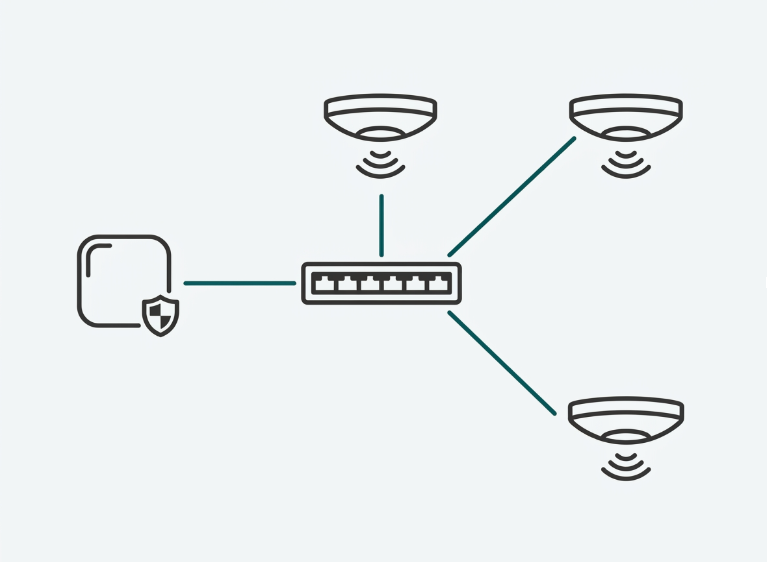
A reliable small office network is built from three pieces working together, not one router doing everything. Access points broadcast the wireless signal itself, a Power over Ethernet (PoE) switch delivers both data and electricity to those access points over a single cable, and a gateway manages the internet connection, firewall rules, and any VPN traffic entering or leaving the office.
Uptime Institute's Data Center Resiliency Survey (2024, n=397-418 respondents) found 31% of respondents cited networking and connectivity issues as the primary cause of their most recent IT service outage, the largest single category.
If an office's WiFi drops during every Monday morning all-hands call, the first place to look isn't the internet plan; it's whether the network is actually built from these three layers or is still one consumer router trying to cover every desk.
Wired access points form the backbone of most business deployments because they don't lose signal strength repeating a hop between units the way consumer mesh nodes do.
A PoE switch built to the IEEE 802.3bt Power over Ethernet standard removes the need for a separate power adapter at every access point, which matters once an office moves past two or three units. The gateway sits at the edge of this design, and it is the one component that a small office cannot substitute with a consumer router without losing the ability to segment traffic by VLAN, discussed further below.
Should a Small Office Use Mesh WiFi or Business-Grade Access Points?
Mesh WiFi extends the signal through consumer-grade nodes that repeat each other's traffic, while business-grade access points wire directly to a switch so every unit gets full bandwidth instead of a diminishing signal. Both fix dead zones. Only one holds up once an office adds a dozen laptops, a VoIP phone system, and a guest network on top of daily video calls.
|
Aspect |
Consumer Mesh WiFi |
Business-Grade Access Points |
What It Means for You |
|---|---|---|---|
|
Signal strength per unit |
Weakens with each hop between nodes |
Full strength at every unit, wired directly to the switch |
A meeting room on the far end of the office gets the same call quality as the desk next to the gateway |
|
Traffic separation |
Not designed to separate guests from staff traffic |
VLAN-assignable per SSID through the controller |
A visiting vendor's laptop can't accidentally browse the shared accounting drive |
|
Usage logs |
Minimal to none |
Centralized logs per device and SSID |
An office manager can actually see what happened on the network after a security incident, not guess |
|
Latency under load |
Increases with each additional hop |
Stays flat regardless of unit count |
A dozen concurrent video calls don't slow down just because there are more access points, not fewer |
Where Consumer Mesh Systems Fall Short
Mesh systems built for homes were not designed to separate guest traffic from staff devices, apply per-user bandwidth limits, or produce the kind of usage logs an office manager might need after a security incident.
Every additional mesh node also adds latency, since traffic often has to hop through two or three units before reaching the router, a problem that grows worse in a layout with several rooms competing for the same wireless spectrum.
What Business-Grade Access Points Add
Business-grade access points connect back to the switch over Ethernet, so each unit transmits at full strength regardless of how many others are installed. This wired backhaul is why an office with wired ceiling-mount units for twenty desks and a lobby feels no slower than an office with two units in a single room.
What It Means for You: A twenty-desk office with wired access points and a two-desk office with a single mesh node can end up with the same complaint, "the WiFi feels slow in the back," but the fix is different for each. The mesh setup needs a redesign; the wired setup usually just needs one more properly placed unit.
Centralized management, covered next, is what turns a set of individually wired access points into a network that administrators can actually control.
Centralized Cloud Management Puts Every Access Point, Switch, and Gateway Under One Dashboard
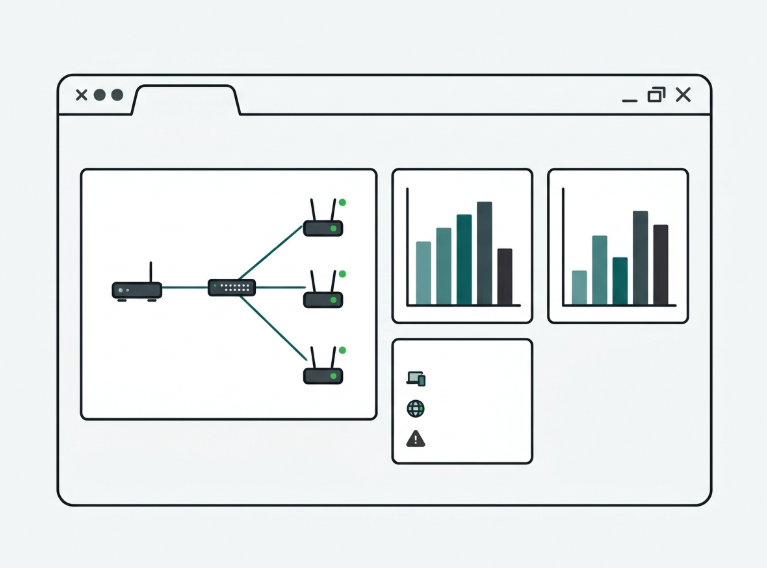
Software-Defined Networking (SDN) platforms let an office manager configure, monitor, and update every access point, switch, and gateway from a single interface instead of logging into each device separately. This single-pane view is what separates a business WiFi setup from a collection of consumer routers, since traffic rules, guest portals, and firmware updates can all be pushed out at once rather than device by device through Omada's controller options.
|
Controller Type |
Where It Runs |
Best Fit |
|---|---|---|
|
Software controller |
Installed on an existing PC or server |
Offices with an always-on machine and no budget for extra hardware |
|
Hardware controller |
A dedicated small appliance on the network |
Offices that want 24/7 management without leaving a PC running |
|
Cloud-based controller |
Hosted entirely off-site |
Offices managing multiple locations or with no on-site IT staff |
What It Means for You: A single-location office with an always-on server closet can save on hardware with a software controller. A small chain adding a second branch next quarter is usually better off starting with a cloud-based controller from day one so the second location doesn't require redesigning how the network is managed.
Most Small Offices Only Discover Their WiFi Problem Is a Network Design Problem After Buying a Third Router
A pattern shows up again and again in small office deployments: a business plugs in a router to patch one dead zone, then another, then a third mesh unit, and the signal still drops during the Monday morning call. The fix was never a stronger box. It was wiring access points to a switch from the start, so every unit broadcasts at full strength instead of relaying a weaker signal from the one before it.
What It Means for You: If an office has already bought two or three consumer routers trying to solve the same dead zone, that spend is effectively a sunk cost toward a proper wired deployment rather than money saved by avoiding one.
VLANs Keep Guest WiFi, Staff Devices, and Security Cameras on Separate, Isolated Network Segments
A Virtual Local Area Network (VLAN) splits one physical network into isolated segments, so a guest browsing on the lobby WiFi has no path to the file server staff are using down the hall. Each SSID an office broadcasts, whether for employees, guests, or a security camera system, can be assigned its own VLAN through the controller interface, which keeps a compromised guest device from becoming a way into payroll records or a point-of-sale system.
The National Institute of Standards and Technology recommends this kind of network segmentation as a baseline control in its guidelines for securing wireless local area networks, since isolating device types limits how far a single breach can spread.
Combining VLAN segmentation with WPA3 closes most of the common entry points attackers use against office WiFi. Offices that skip VLANs and run everything on one flat network usually don't notice the risk until a guest device or an infected IoT gadget gives an attacker a direct line to the same network that payroll and accounting run on.
|
Network Segment |
Typical Devices |
What Isolation Prevents |
|---|---|---|
|
Staff |
Employee laptops, desktops, and internal servers |
A compromised guest or IoT device reaching payroll, HR files, or internal drives |
|
Guest |
Visitor and vendor phones and laptops |
A visitor's infected device spreading to staff systems or file shares |
|
Security/IoT |
Cameras, smart locks, and other connected hardware |
A compromised camera becomes a stepping stone into the rest of the network |
What It Means for You: A small office that skips VLANs and puts everyone on one SSID is one infected laptop away from a much bigger problem than a slow WiFi complaint. Setting up separate segments at install time costs almost nothing extra; retrofitting it after an incident costs a lot more in both time and trust.
How Do You Set Up a Small Office WiFi Network Step by Step?
Setting up business WiFi for a small office follows five steps: survey the space, choose and mount the access points, wire everything to a PoE switch, configure the controller, and segment traffic with VLANs before staff and guests connect.
-
Survey the office layout to count rooms, estimate device density per room, and note any walls or equipment that could weaken a signal.
-
Select access points based on that survey, choosing ceiling-mount units for open work areas and wall-plate or outdoor models for corridors, meeting rooms, or exterior coverage.
-
Run Ethernet to a PoE switch so each access point receives power and data over a single cable instead of a separate adapter at every unit.
-
Set up the controller, whether software, hardware, or cloud-based, and adopt every access point, switch, and gateway into one managed network.
-
Create separate SSIDs and VLANs for staff, guests, and any security or IoT devices before opening the network to daily use.
Skipping the site survey is the most common shortcut that ends up costing more later; an office that guesses at access point placement instead of surveying usually ends up buying an extra unit or two to patch a dead zone that a five-minute walkthrough would have caught.
How Many WiFi Access Points Does a Small Office of 1,500 to 3,000 Square Feet Need?
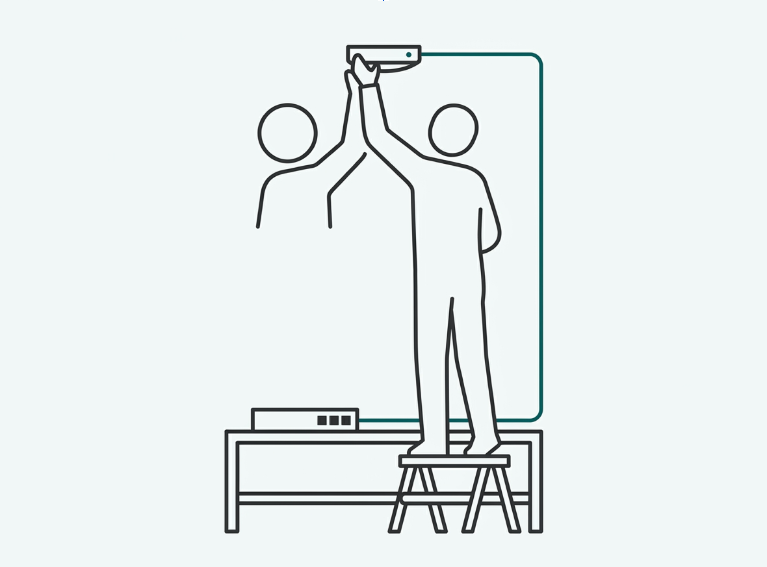
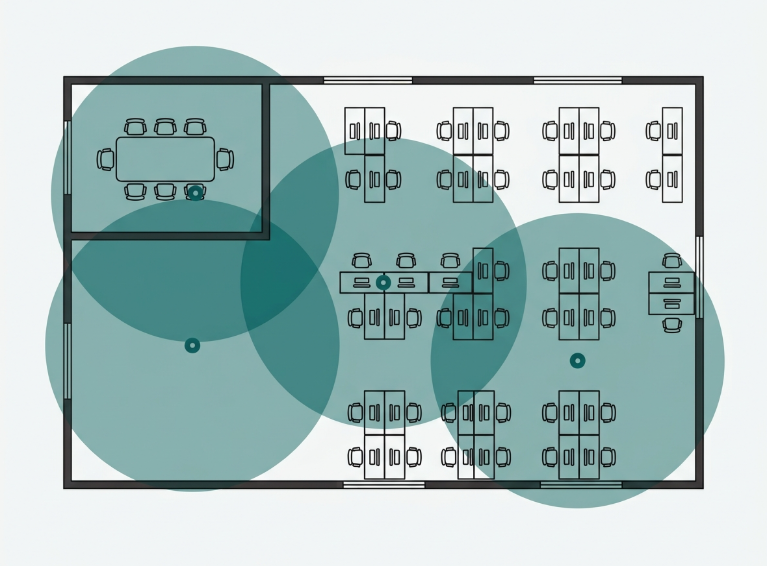
Most offices in the 1,500 to 3,000 square foot range need two to four ceiling-mount access points, assuming standard drywall construction and a mix of open desks and private rooms.
Dense layouts with concrete walls, a large conference room, or heavy VoIP and video call use typically push that number toward the higher end, while a single open floor with light usage can sometimes run on two units.
A pre-installation site survey remains the only reliable way to confirm the count for a specific floor plan, since building materials and furniture placement affect coverage more than square footage alone. The full step-by-step calculation, including adjustments for the reinforced concrete construction common in Philippine buildings, is covered in How Many Access Points Does Your Office Need?
Anyone scoping this out down to specific hardware can see the full range of business WiFi access points, switches, and gateways to match units to a floor plan.
Frequently Asked Questions
Do I need a dedicated controller to run business WiFi in a small office?
No, a dedicated controller isn't required. Cloud-based controllers run entirely off-site, so a small office can manage its network without any local hardware or a spare PC that stays powered on. A software controller only makes sense if an office already keeps a machine running around the clock.
What's the difference between a business router and a home WiFi router?
Business gateways support VLAN segmentation, multiple SSIDs, and centralized management across several access points at once, while home routers are built for a single household network. The gap matters most once an office adds guest WiFi, VoIP phones, or security cameras that need traffic kept separate from staff devices.
Is a proper small office WiFi setup expensive compared to consumer gear?
A typical small office deployment with a few ceiling-mount access points, a PoE switch, and a gateway costs more upfront than a consumer router but far less than enterprise systems built for large campuses. PoE and cloud management also cut installation labor, since there's no separate power wiring or on-site licensing server to maintain.
Can a guest network share the same equipment as staff devices safely?
Yes, as long as the guest network runs on a separate VLAN and SSID from staff devices. Without that separation, a compromised guest device sits on the same broadcast domain as computers holding business data, which is the exact risk network segmentation standards are designed to prevent.
Is WiFi 6 enough for a small office, or does it need WiFi 7?
WiFi 6 handles typical office environments well, including video calls and multiple concurrent devices per desk. WiFi 7 adds real value mainly in high-density venues or offices running heavy file transfers, so most small offices can deploy WiFi 6 access points now and upgrade later as device support grows. See WiFi 6 vs WiFi 7 for Business Networks for the full breakdown.
Can an office add more access points later without replacing the switch or controller?
Yes, as long as the switch has enough free PoE ports and power budget for the new units. Adding access points to an existing controller is usually a matter of plugging in the hardware and adopting it into the network, not redesigning the system from scratch.
What happens to the network if the gateway or controller loses internet access?
Locally configured settings, including VLANs and security policies already in place, keep working normally for devices already on the network. Only remote management and cloud dashboard visibility pause until connectivity returns, and access resumes automatically once it's back.
Final Thoughts
For small office WiFi setup, the trick is not to think of WiFi as one router trying to reach all desks but as a real network with its own access points connected to a PoE switch, with a gateway that ensures security, and with VLANs that separate employees from guests and surveillance cameras.
Centralized management is what makes all of it maintainable once the office adds a second location or a security camera system down the line. Anyone scoping out actual hardware for their floor plan can explore Omada's business WiFi lineup to match access points, switches, and a gateway to their space.
By Laviet Joaquin, Head of Marketing, TP-Link Philippines