What if I forget my TP-Link ID password for TP-Link Tapo/Kasa device
Introduction
This article provides step-by-step instructions for resetting your TP-Link ID password.
Troubleshooting
Method 1: Via Tapo/Kasa app
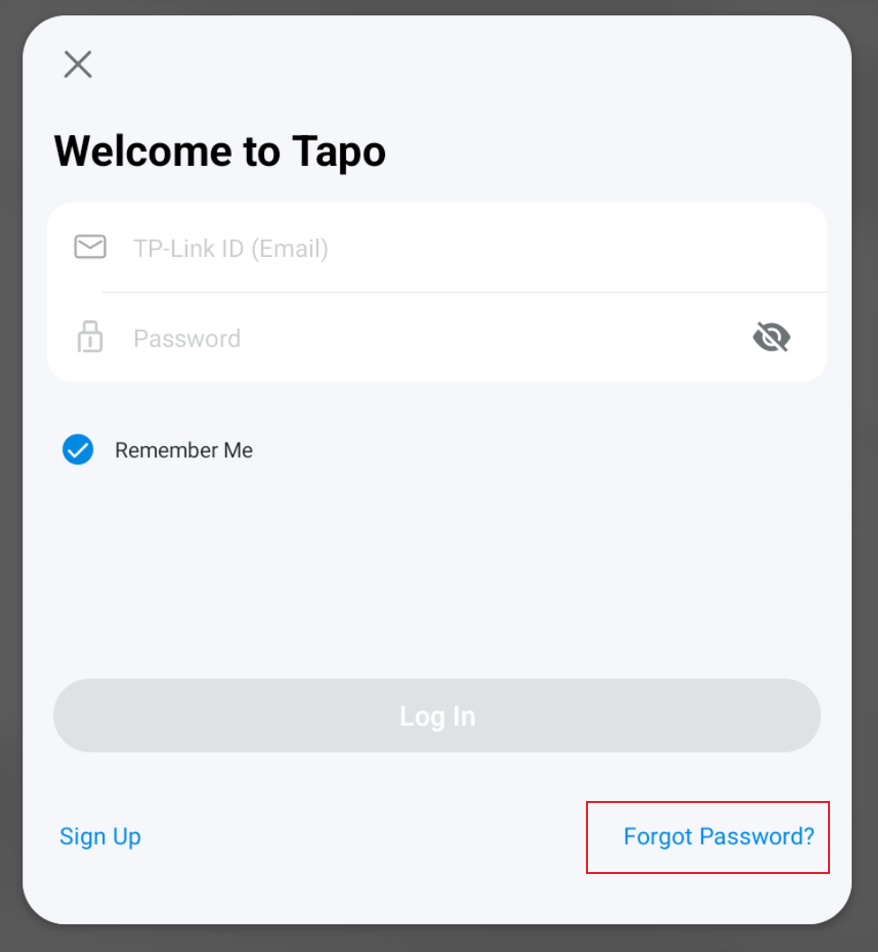
Step 1. On the Log In page of your Tapo/Kasa app, click on Forgot Password?.
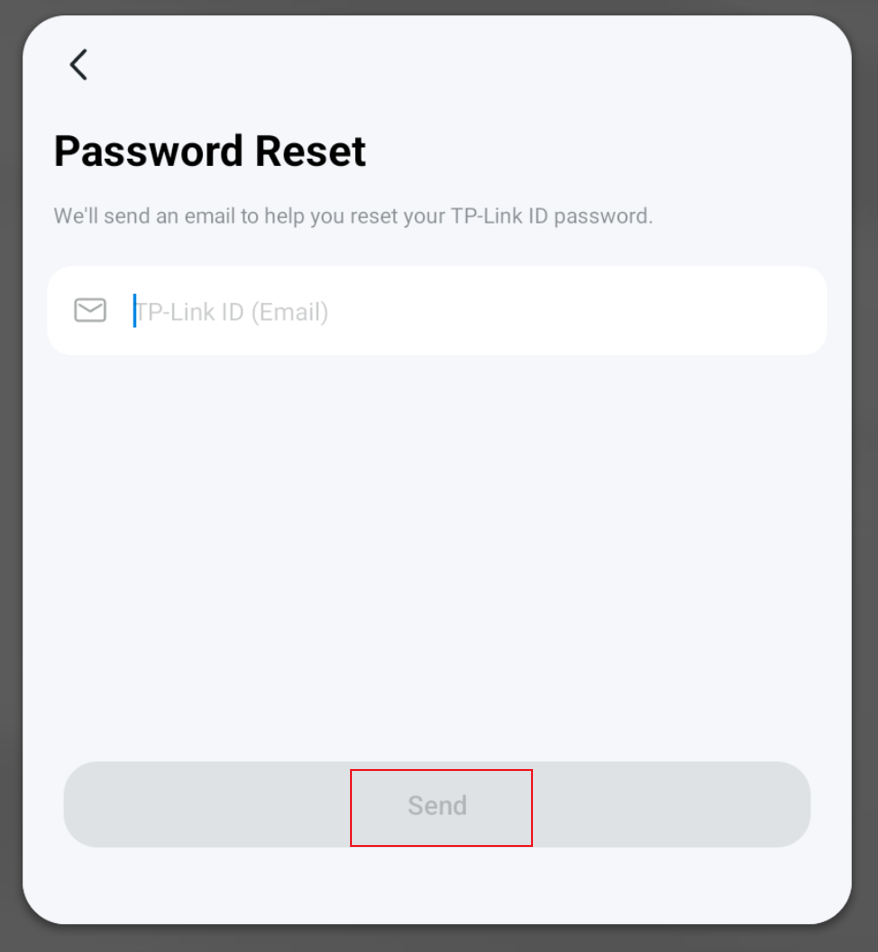
Step 2. Input your TP-Link ID (Email Account), then click on Send.
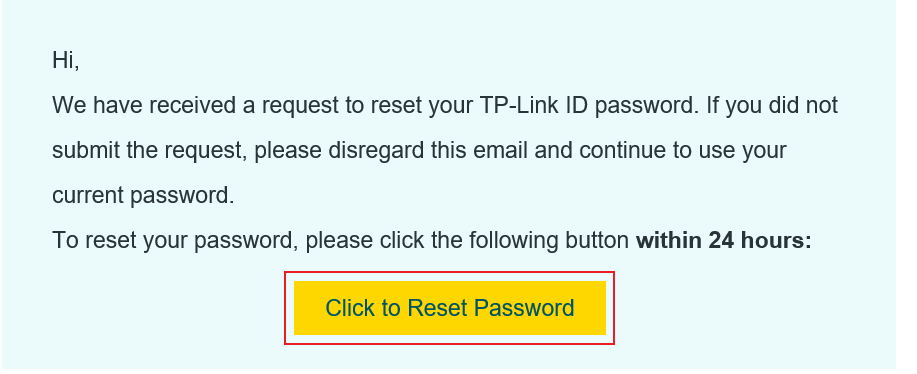
Step 3. Open the inbox of the email account associated with your TP-Link ID, find the email from TP-Link, and click on Click to Reset Password. This will take you to the password reset page on the TP-Link cloud website.
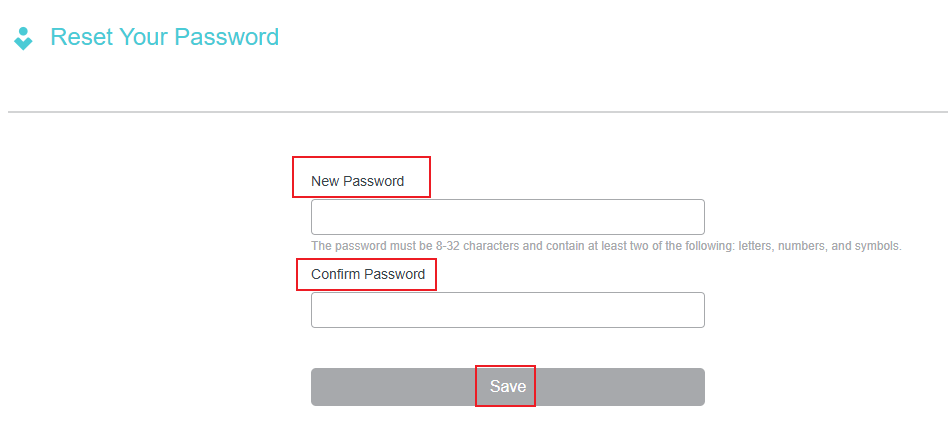
Step 4. Input the new password for your TP-Link ID and confirm the password, then click on Save.
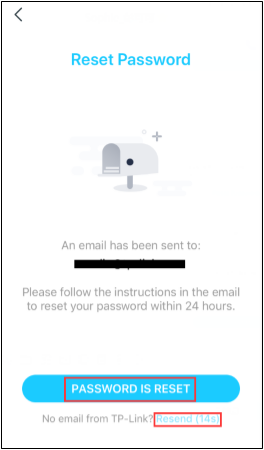
Step 5. You have now completed the password reset steps. Go back to the Tapo/Kasa app, click on PASSWORD IS RESET, then you can log in to your Tapo/Kasa app with the new password.
Note: If you don’t receive the reset email within 60 seconds, please click on “Resend” on the app, and ensure that you have entered the correct email address.
Method 2: Via TP-Link Cloud Website
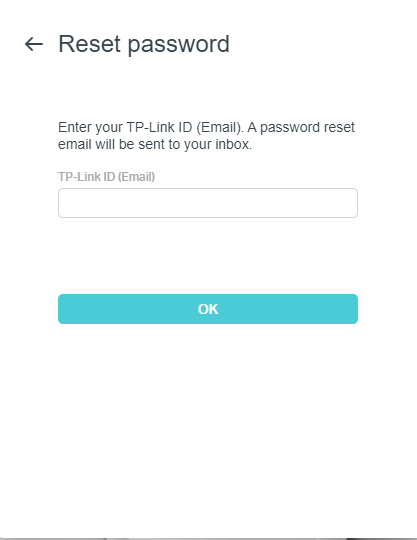
Step 1. Open a browser and log in TP-Link Cloud website. Enter your TP-Link ID email account, and a password reset email will be sent to your mailbox.
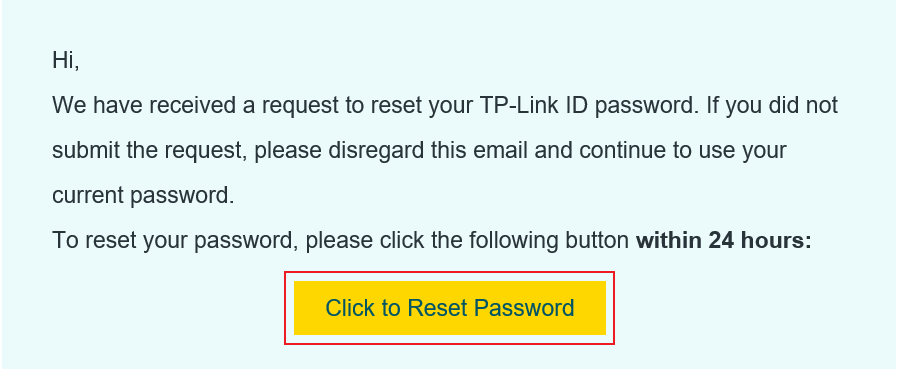
Step 2. Open the inbox of the email account associated with your TP-Link ID, find the email from TP-Link, and click on Click to Reset Password. This will take you to the password reset page on the TP-Link cloud website.
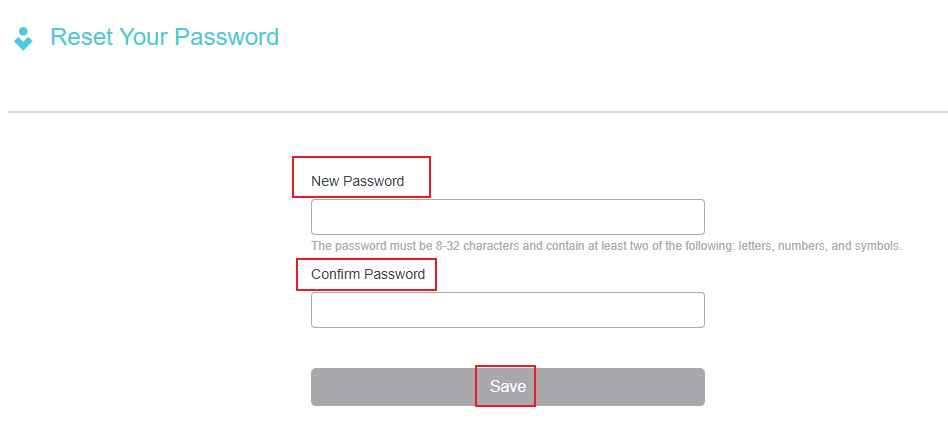
Step 3. Input the new password for your TP-Link ID and confirm the password, then click on Save.
QA
Q1: What should I do if I don’t receive the password reset email?
A1: You may refer to this FAQ for troubleshooting suggestions: https://www.tp-link.com/support/faq/1127/