How to Set Up TP-Link DDNS on Your Wireless Router
Most Internet service providers (ISPs) assign a dynamic IP address to your router. This address can change at any time, which makes remote access unreliable. Dynamic Domain Name Server (DDNS) solves this by binding a fixed domain name to your router's current public IP address automatically. TP-Link DDNS is a free DDNS service built into compatible TP-Link wireless routers, giving you a stable address like yourhostname.tplinkdns.com without needing to track changing IPs.
Key Takeaways
- TP-Link DDNS is a free Dynamic Domain Name Server (DDNS) service built into TP-Link wireless routers with cloud functions. It lets you access your home network remotely using a fixed domain name, such as yourhostname.tplinkdns.com.
- Setup takes two steps: first, bind a TP-Link ID to your router; then, register a hostname under Advanced > Network > Dynamic DNS.
- Your domain name is automatically tied to your network's external public IP address. If your ISP assigns a private WAN IP address (such as 192.168.1.x), the public IP is still used.
- If your chosen hostname is unavailable, another user has already registered it. Try a different hostname.
- To change your domain name, click Unbind to remove the current domain, then click Register to create a new one.
Before You Begin
Note:
- This guide applies to TP-Link wireless routers with cloud functions, such as the Archer C8 V3 and Archer C9 V3/V4.
- Most applicable models currently support only the online upgrade feature. Additional cloud functions are planned for future firmware updates.
- For the Archer C5400 V1, cloud services are available on the EU version only. Please check the hardware version on the label on the back of your router.
Step 1: Register and Bind Your TP-Link ID to the Router
Register and bind your TP-Link ID to your TP-Link wireless router before continuing. This step is required for TP-Link DDNS to work.
Step 2: Register Your TP-Link DDNS Hostname
- Connect your phone or computer to the router’s Wi-Fi or Ethernet port. Open a browser, enter https://tplinkwifi.net/ , and log in to access its web management page.
- Go to Advanced > Network > Dynamic DNS.
- Select TP-Link as the Dynamic Domain Name Server (DDNS) service provider.
- Click Register, then enter a hostname to create your domain name. For example: test.tplinkdns.com.
- Click Save. Your domain name will be bound to your router automatically.
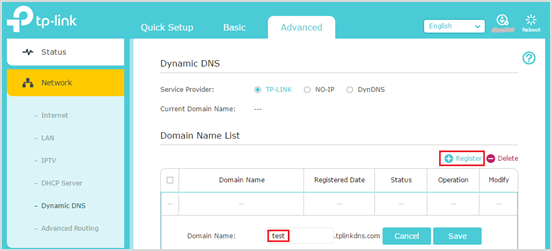

- Make sure you have an active Internet connection when registering a TP-Link domain name.
- If registration fails, the hostname you entered has already been registered by another user. Try a different hostname.
- Your domain name is bound to the external public IP address of your network. You do not need to worry if your ISP assigns a private WAN IP address (such as 192.168.1.x) to the router.
- To change your domain name: click Unbind and delete your current domain name, then click Register to bind a new one.
For more details on each function and configuration, visit the Download Center to download the manual for your product.