
How do I reduce the MTU size on my TP-Link Router?
 279605
This Article Applies to:
Step 1
Open the web browser and in the address bar type in: http://192.168.1.1 or http://192.168.0.1 or http://tplinklogin.net.Then press Enter.

Note:
The LAN IP changes by model. Please find it on the bottom label of the product.
Step 2
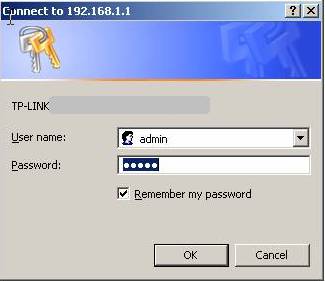
Type the username and password in the login page. They are both admin by default.
Step 3
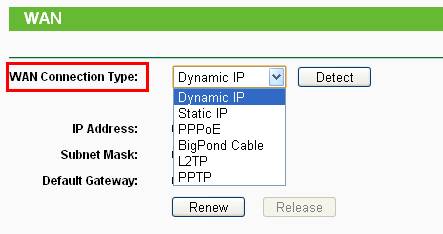
Click Network->WAN on the left side. Select the correct WAN Connection Type for your Internet connection.
Step 4
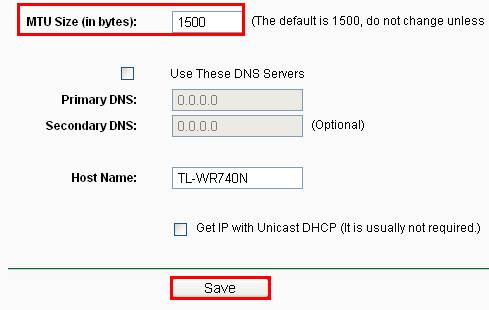
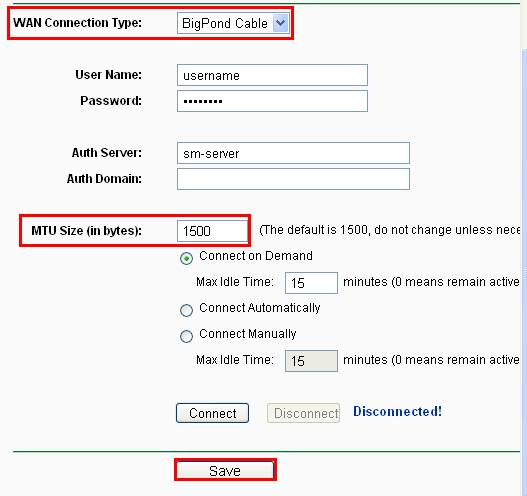
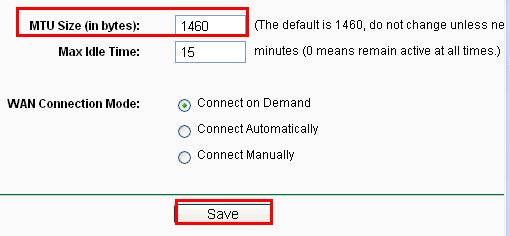
Change the MTU size if necessary.
For WAN Connection Type: Dynamic IP/Static IP
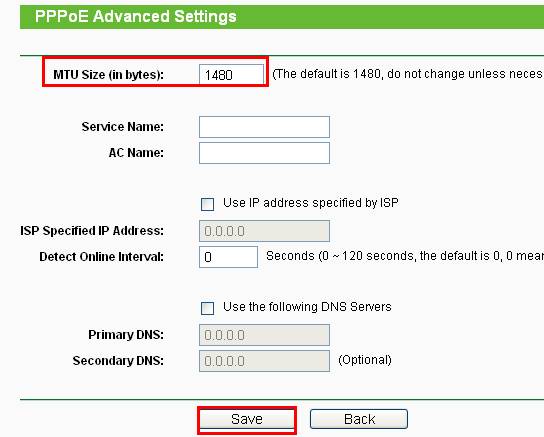
For WAN Connection Type: PPPoE
1. Click Advanced button to open PPPoE advanced settings page.
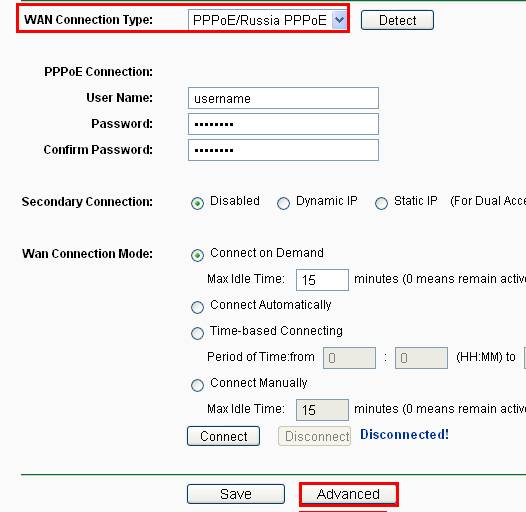
2. Change the MTU Size, and then click Save to save your settings.
For WAN Connection Type: BigPond Cable
For WAN Connection Type: L2TP/PPTP
Step 5
Click Save button to save the settings.
Note:
Please leave the MTU Size as default value unless you are requested to change it by the ISP or the router technician.
Get to know more details of each function and configuration please go to Download Center to download the manual of your product.
Is this faq useful?
Your feedback helps improve this site.