
Qu'est-ce qu'un DMZ et comment configurer un hôte DMZ?
Qu'est-ce qu'un DMZ?
Une zone démilitarisée (DMZ) sur un routeur domestique désigne un hôte DMZ. À proprement parler, ce n'est pas une vraie zone démilitarisée. Un hôte DMZ de routeur domestique est un hôte du réseau interne dans lequel tous les ports UDP et TCP sont ouverts et exposés, à l'exception des ports autrement transférés. Ils sont souvent utilisés comme méthode simple pour transférer tous les ports vers un autre périphérique pare-feu / NAT .
Comment configurer l'hôte DMZ
Étape 1: Connectez - vous à la page de gestion
Ouvrez le navigateur Web et tapez l' adresse IP du périphérique dans la barre d'adresse (192.168.1.1/192.168.0.1/192.168.0.254 est la valeur par défaut). Appuyez sur Entrée .
Le nom d'utilisateur et le mot de passe par défaut sont tous les deux admin . Cliquez sur OK pour vous connecter au périphérique.
Étape 2: Configurez la DMZ
Pour les routeurs sans fil et les routeurs 3G (interface graphique verte)
Cliquez sur: Transfert > DMZ > Activer / Désactiver . Entrez l'adresse IP du périphérique hôte (ici, prend 192.168.0.100 à titre d'exemple), puis cliquez sur Enregistrer .

Pour les routeurs sans fil et les routeurs 3G (interface graphique bleue)
Cliquez sur Avancé > Transfert > DMZ > Activer / Désactiver . Entrez l'adresse IP du périphérique hôte (prenez ici 192.168.0.100 à titre d'exemple) , puis cliquez surEnregistrer .

Étape 3: Redémarrez votre routeur pour que les modifications prennent effet.
Pour les routeurs ADSL
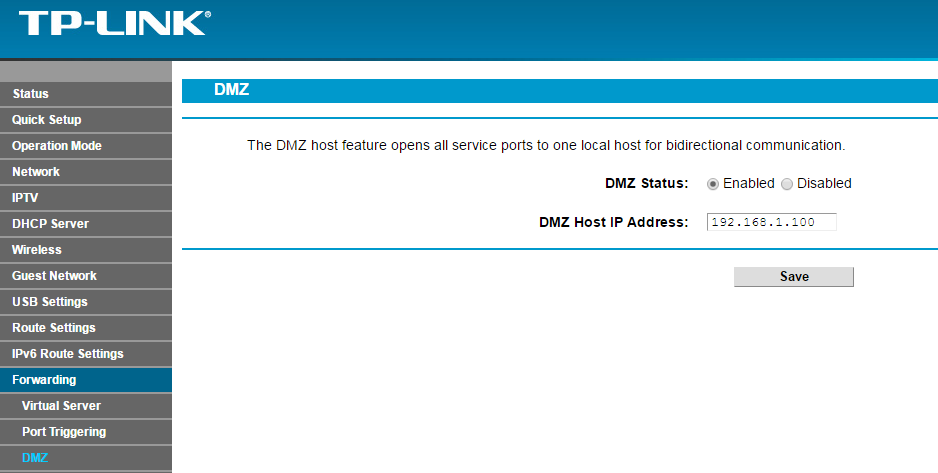
Interface graphique bleue
Cliquez sur: Transfert > DMZ > Activer / Désactiver . Entrez l'adresse IP du périphérique hôte (prenez ici l'exemple 192.168.1.100), puis cliquez sur Enregistrer .
Orange GUI
Cliquez sur Configuration avancée > NAT > DMZ > Activer / Désactiver . Entrez l'adresse IP du périphérique hôte (prenez ici l'exemple 192.168.1.100), puis cliquez sur Enregistrer .


Remarque: redémarrez / redémarrez votre routeur pour que vos paramètres prennent effet.
Looking For More
Est-ce que ce FAQ a été utile ?
Vos commentaires nous aideront à améliorer ce site.

TP-Link Community
Still need help? Search for answers, ask questions, and get help from TP-Link experts and other users around the world.