
Comment installer/mettre à jour manuellement le pilote de la carte réseau sous Windows XP
 229683
NOTE
- Cet article s'applique à la situation dans laquelle l'installation de l'adaptateur via le programme .EXE n'a pas réussi et où l'adaptateur dispose d'un fichier .inf à télécharger.
(Veuillez télécharger le dernier pilote depuis le site officiel de TP-Link et extraire le fichier zip pour voir si votre adaptateur possède un fichier .inf.)
- Des pilotes anciens ou inutiles peuvent affecter l'installation du nouveau pilote, il est recommandé de supprimer d'abord l'ancien pilote, veuillez vous référer à la FAQ 3769
- Avant l'installation, assurez-vous que l'adaptateur est connecté à l'ordinateur et qu'il est détecté par le système.
Comment installer/mettre à jour
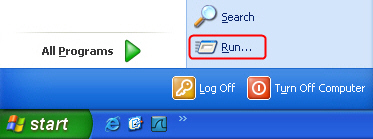
- Ouvrez le menu Démarrer et cliquez sur Exécuter…
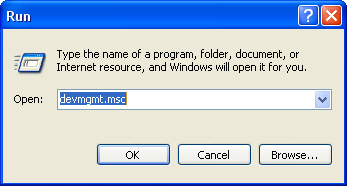
- Saisissez « devmgmt.msc » et cliquez sur OK.
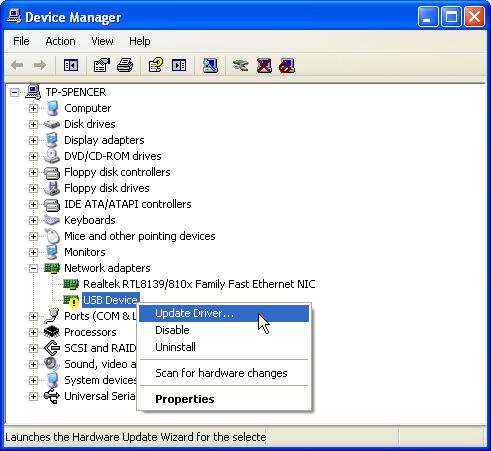
- Recherchez le nouveau matériel détecté, faites un clic droit dessus puis cliquez sur Mettre à jour le pilote…
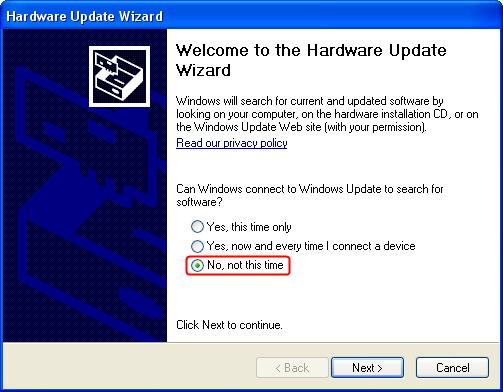
- Sélectionnez Non, pas cette fois.
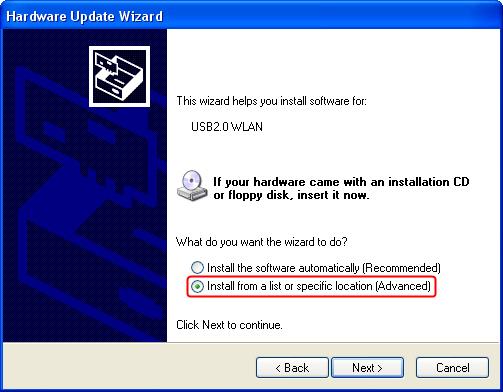
- Sélectionnez Installer à partir d’une liste ou d’un emplacement spécifique (Avancé).
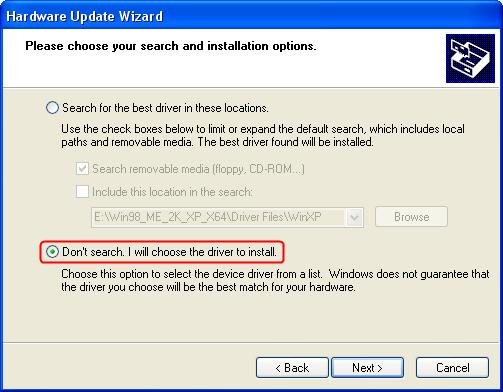
- Sélectionnez Ne pas rechercher. Je choisirai le pilote à installer.
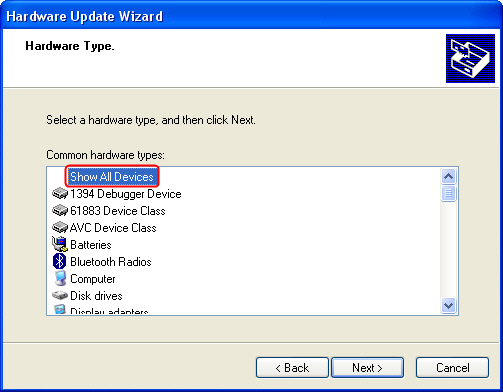
- Sélectionnez Afficher tous les appareils.
- Cliquez sur Disque fourni.
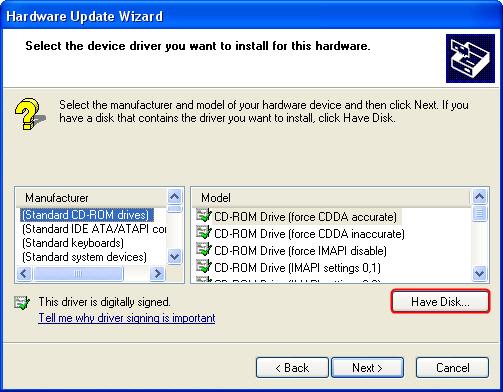
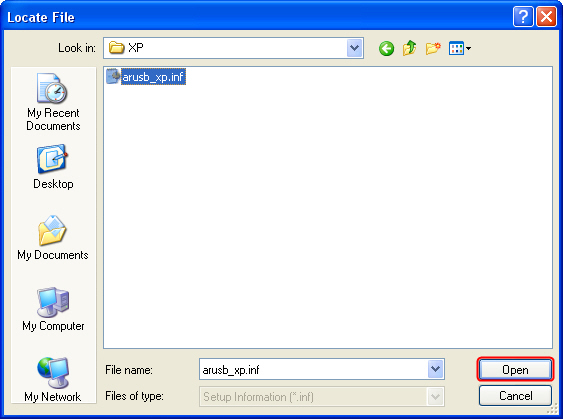
- Pointez sur le fichier inf dans le dossier du pilote, puis cliquez sur Ouvrir.
NOTE:
Si votre ordinateur exécute la version 32 bits ou 64 bits, cliquez sur Démarrer, cliquez avec le bouton droit sur Poste de travail, puis cliquez sur Propriétés.
Si « Édition x64 » est répertorié sous Système, vous exécutez la version 64 bits de Windows XP.
Si vous ne voyez pas « Édition x64 » répertorié sous Système, vous utilisez la version 32 bits de Windows XP.
L'édition de Windows XP que vous exécutez est affichée sous Système en haut de la fenêtre.
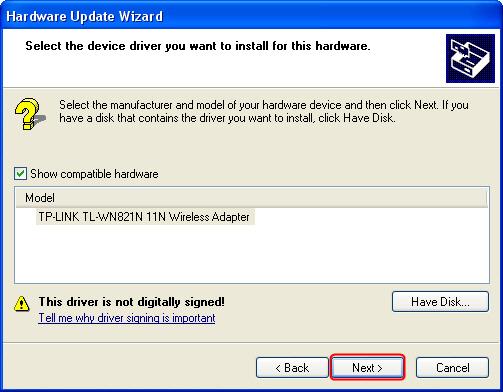
- Cliquez sur Suivant.
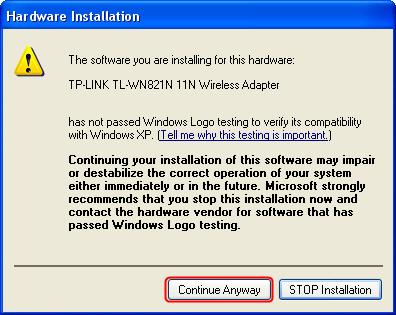
- Cliquez sur Continuer quand même.
- Cliquez sur Terminer.
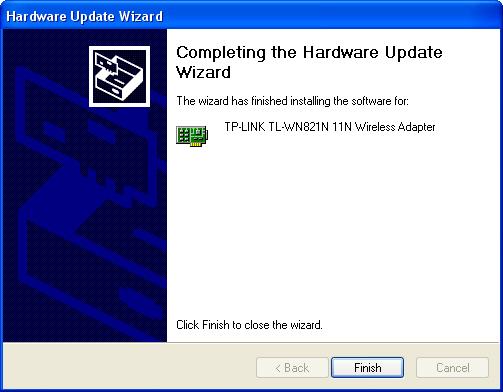
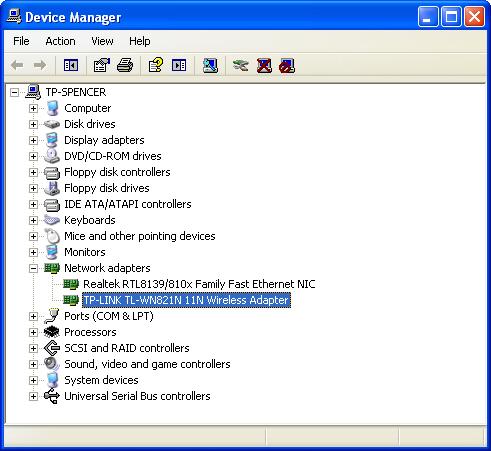
Pour l'instant, l'adaptateur a été installé avec succès. Vous pouvez accéder au Gestionnaire de périphériques et vérifier les adaptateurs réseau.
Si vous rencontrez d'autres problèmes, veuillez visiter notre page FAQ ou contacter l'assistance TP-Link .
Est-ce que ce FAQ a été utile ?
Vos commentaires nous aideront à améliorer ce site.